Windows 11 Performance Guide
How to speed up Windows 11. — 30 minutes of tuning. No format required.
Most "slow" Windows 11 PCs aren't slow — they're carrying twelve startup apps, a Balanced power plan and three years of Storage Sense never running. The fixes here take half an hour and recover 80% of clean-install responsiveness.
- to apply
- 30 min
- boot saved
- 30-60s
- cost in SA
- R0
Why your Windows 11 PC feels slow
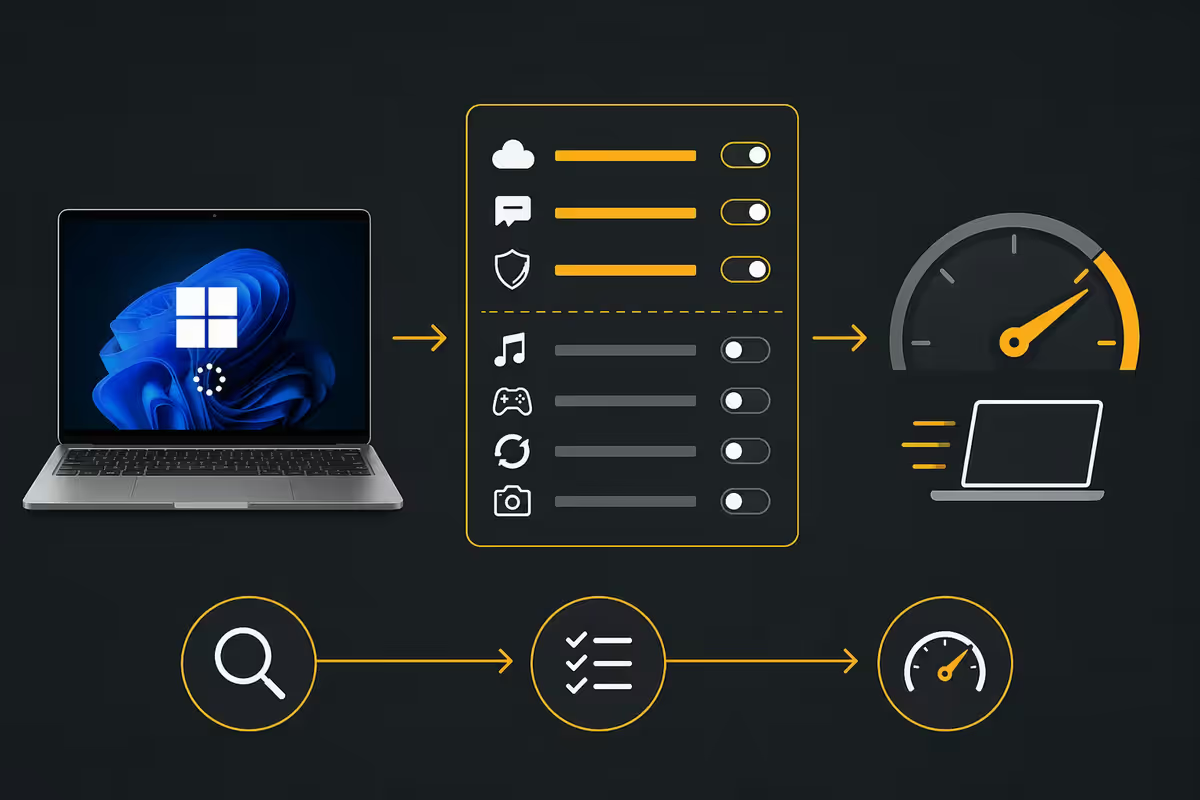
A three-year-old gaming PC with a Ryzen 5 5600 and a 1TB NVMe drive should not take 90 seconds to reach the desktop or stutter when you open File Explorer. Almost always the hardware is fine. The culprits are mundane — and fixable in an afternoon without paying anyone or formatting anything.
| Symptom | Usual cause | Fix tier |
|---|---|---|
| Slow boot (60s+) | Startup app bloat, OEM utilities | 5 minutes |
| Sluggish desktop / Explorer | Visual effects, indexed search, OneDrive sync | 10 minutes |
| Stutter in games | HAGS off, wrong power plan, background updates | 10 minutes |
| Random freezes | Storage drive 90%+ full, paging file on SATA SSD | 15 minutes |
| "Whole PC just feels old" | 23H2 or older build, never reset | 30-90 minutes |
The good news: the top three rows cover the bulk of the complaints we hear at the Evetech service desk. None of them require a hardware upgrade, an antivirus suite, or one of those YouTube "optimisation script" downloads that turn out to disable Windows Defender. Let's start with the biggest single win.
Settings deep-dive — Storage Sense, Startup, Visual Effects
These three Windows 11 settings ship disabled or tuned for laptops. Flipping them on a desktop or workstation is the highest-leverage 10 minutes you'll ever spend on Windows.
Storage Sense (auto-cleanup that actually works)
Settings > System > Storage > Storage Sense. Toggle on. Set the schedule to monthly, set "Delete files in my Recycle Bin" to 30 days and "Delete files in my Downloads folder" to Never (you don't want it eating an installer you forgot about). Storage Sense clears Windows Update leftovers, old restore points, temporary internet files and the WinSxS component cache — easily 5-30 GB on a neglected PC. It will not touch your Documents, Pictures or installed programmes.
Startup app audit (the single biggest boot win)
Open Task Manager > Startup apps tab. Sort by Status, then by Startup impact. Disable everything in the High or Medium impact rows that you don't need at login. The usual suspects:
- Spotify, Discord, Steam, Epic, EA App, Battle.net — none of these need to run before you ask for them.
- Adobe Updater, Acrobat Assistant, Creative Cloud — Adobe ships four background processes per install. Disable them all; Adobe still updates fine when you next open the app.
- OEM utilities — ASUS Armoury Crate, MSI Center, Gigabyte Control Center, Razer Synapse, Corsair iCUE. Keep one if you genuinely use it for RGB or fan control; disable the rest at startup.
- OneDrive — keep enabled if you actually use it. If your photos and Desktop are mirroring to OneDrive without you noticing, sign out — the constant sync is the second-biggest cause of "Explorer feels slow".
- Microsoft Teams (work or school) — only if you actually use it daily.
A typical 3-year-old laptop walks in with 14-22 startup entries. After a 5-minute audit it leaves with 3-6. Boot time drops 30-60 seconds on a SATA SSD, 10-20 seconds on NVMe.
Visual effects (the underrated speed-up)
Search the Start menu for "Adjust the appearance and performance of Windows". Pick Adjust for best performance. Then re-enable two boxes for sanity:
- "Smooth edges of screen fonts" (without this, text looks like Windows 98).
- "Show thumbnails instead of icons" (without this, File Explorer can't preview images or videos).
Window animations, fade effects, transparent menus and shadow rendering all switch off. The UI looks slightly more 1990s — but alt-tabbing, dragging windows and opening Start become noticeably snappier, especially on iGPU laptops or budget desktops without a dedicated graphics card.
The gaming stack — Game Mode, HAGS, Auto HDR
Windows 11's Settings > Gaming menu has three switches that materially affect frame rates and stutter. All three ship in inconsistent default states depending on your hardware and OEM image.
Game Mode (on). Suppresses Windows Update installs, defers driver updates and silences notifications while a foreground game has focus. Expect 2-5% better 1% lows on a busy desktop and a real difference if a Windows Update used to kick off mid-match.
Hardware-Accelerated GPU Scheduling — HAGS (on). Moves a chunk of GPU command scheduling from the CPU into the GPU itself. On 2020-era NVIDIA RTX 30-series and AMD RX 6000 cards HAGS was buggy at launch; in 2026 it is mature on both vendors and should be on. Requires a restart to take effect. Real gain: 3-10% in CPU-bound games, basically free on GPU-bound titles.
Auto HDR (on, if you have an HDR display). Re-tonemaps SDR games into HDR10 on the fly. No performance cost on modern hardware and it makes older DirectX 11 / DirectX 12 titles look dramatically better on a 1000-nit display. Leave off only if you're a competitive shooter player chasing the lowest possible input lag.
Two other knobs that matter for games but live elsewhere:
- VRR (Variable Refresh Rate) — Settings > Display > Graphics. On with a G-Sync or FreeSync monitor.
- Optimisations for windowed games — Settings > Display > Graphics. On. This lets borderless-windowed games use the DirectX 12 swap-chain path with the same latency as exclusive fullscreen. Massive win on Valorant, CS2, Apex.
Power plans — stop the CPU from coasting
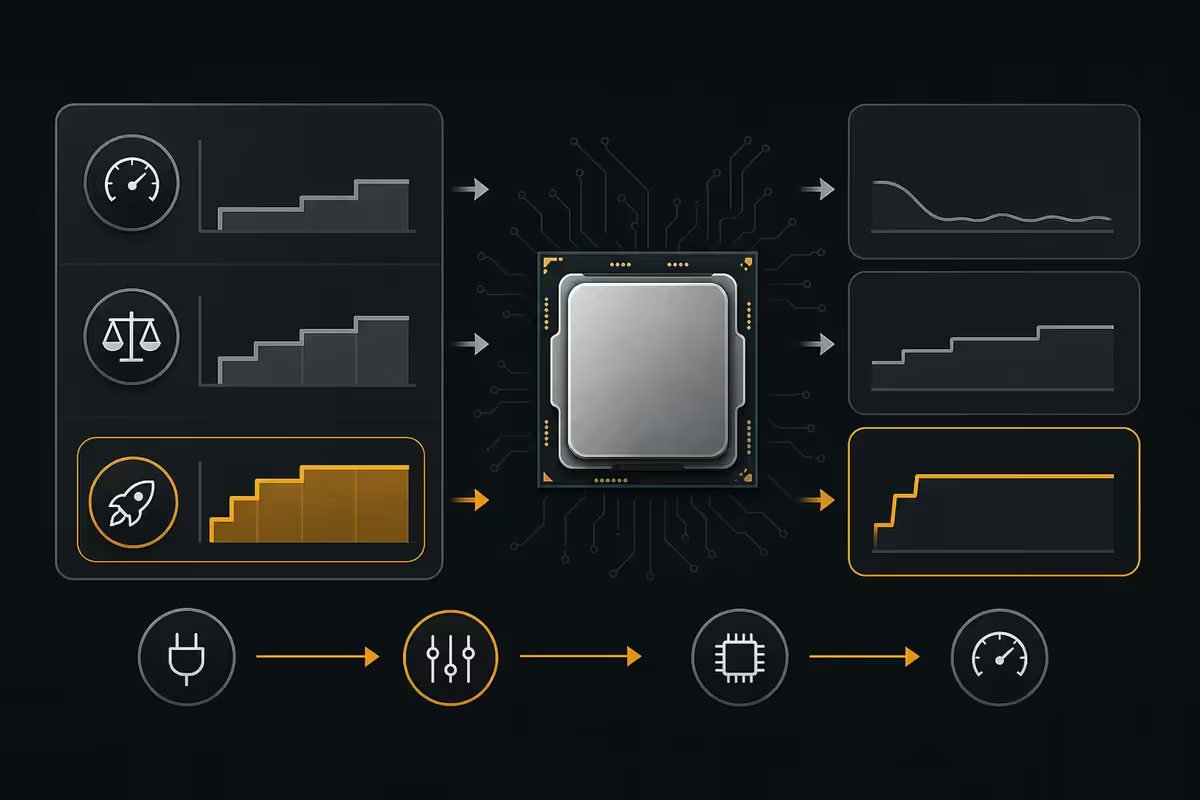
Windows 11's Balanced plan is genuinely fine for laptops on battery. On a desktop it is the wrong choice. Balanced aggressively drops the CPU to its base clock during short bursts of idle, then takes 30-150ms to wake back up — which translates into mouse stutter, audio crackles and frame-time spikes.
Switching to High Performance
Open Control Panel > Power Options (yes, still in Control Panel — Microsoft hasn't migrated this yet). Pick High Performance. If you don't see it, click "Show additional plans" and the option appears.
On a desktop you can also unlock Ultimate Performance — a hidden plan with even more aggressive responsiveness. Open PowerShell as administrator and run:
powercfg -duplicatescheme e9a42b02-d5df-448d-aa00-03f14749eb61
Refresh Power Options and Ultimate Performance appears in the list. On a Ryzen 7 / Core i7 desktop the difference between Balanced and Ultimate is roughly 3-6% better 1% lows in games and a noticeably smoother feel in heavy Excel / Photoshop sessions. The trade-off: idle power draw rises 5-15W, which is fine on mains but ugly on a laptop battery.
Advanced tuning — paging file, 24H2, telemetry truth
Now we're into smaller wins. None of these will transform an old PC, but together they smooth out the rough edges.
Virtual memory (paging file)
If your boot drive is NVMe and you have 16 GB or more of RAM, leave the paging file on automatic. Windows 11 sizes it correctly. The old "set it to 1.5x your RAM on a separate drive" wisdom predates fast SSDs.
The exception: if your C: drive is a SATA SSD or — worse — a mechanical disk, and you have a second NVMe in the system, move the paging file to the faster drive. System Properties > Advanced > Performance Settings > Advanced > Virtual memory > Change. Set C: to "No paging file", set the NVMe to "System managed", restart. Massive gain on the rare PC still mixing drive types.
Windows 11 24H2 — install it
If you're still on 22H2 or 23H2, update. Settings > Windows Update > Check for updates. 24H2 ships a rewritten scheduler that handles Intel hybrid (P-core / E-core) chips far better than 23H2, plus branch-predictor improvements that net 2-7% extra single-thread performance on Ryzen. ARM64 Snapdragon X laptops see the biggest jump. Of every tweak on this page, this is the easiest — Windows installs it for you, free.
The telemetry debate (be honest about gains)
Every "make Windows 11 faster" YouTube video tells you to nuke telemetry — disable Connected User Experiences and Telemetry service, run a third-party "debloat" script, edit the registry. The honest truth: the performance gain in real-world use is under 1% on average. The risk is real — broken Windows Update, Store apps that refuse to launch, OneDrive sign-in loops, broken Search.
The reasonable middle ground: Settings > Privacy & security > Diagnostics & feedback. Set Diagnostic data to Required only. Turn off "Improve inking and typing" and "Tailored experiences". Stop there. Privacy is a fine reason to do this. Performance is not.
Fresh install vs tune-up — when to bite the bullet
Reach for a clean install of Windows 11 24H2 when:
- You inherited the PC from someone else and have no idea what's installed.
- You've upgraded the boot drive (a fresh install lets you ditch the old drive entirely).
- Windows Update has been broken for 3+ months despite the usual fixes (DISM, SFC, Update Troubleshooter).
- You're seeing repeated BSODs that aren't tied to a specific app or driver.
- You've genuinely run through this guide and the PC still feels off.
A clean install plus drivers, apps and licence reactivation is a 4-6 hour project once you account for re-downloading Steam libraries. The tweaks in this guide are 30 minutes. Try the tweaks first.
Process Lasso — power-user CPU shaping
Process Lasso is a third-party CPU affinity and priority manager. Its killer feature is ProBalance — an algorithm that automatically lowers the priority of background processes when a foreground app starts demanding CPU. On Ryzen X3D chips (7800X3D, 9800X3D) it can lock games to the X3D CCD where the L3 cache lives, which is the single biggest gain available on those chips for poorly-optimised titles. Free for personal use; the paid Pro licence runs R350-R500.
Worth installing if: you stream and game on the same PC, you're on a Ryzen X3D, or your household shares the PC with someone who runs heavy background tasks. Skip if: you're on a typical single-user gaming or productivity build. Windows 11 24H2's scheduler is now good enough that Process Lasso's gains are marginal in that setup.
Recommended tools & SA pricing
| Use case | Pick | SA price |
|---|---|---|
| Built-in (free, do these first) | Storage Sense, Startup audit, HAGS, High Performance plan | R0 |
| CPU shaping (power user) | Process Lasso (Pro licence) | R350-R500 |
| SSD health check | CrystalDiskInfo (free) + drive vendor utility | R0 |
| NVMe upgrade (boot SSD) | WD Black SN770 1TB or Samsung 990 EVO 1TB | R1 599-R2 099 |
| RAM upgrade to 32GB DDR5 | Kingston Fury Beast 32GB (2x16GB) 6000 CL36 | R1 999-R2 599 |
| Clean install media | Microsoft Media Creation Tool (official, free) | R0 |
| Driver updater | Vendor sites only — never a "driver booster" app | R0 |
Common Windows 11 speed-up mistakes
Installing a "PC optimiser" suite. CCleaner, IObit Advanced SystemCare, Driver Booster, Avast Cleanup. These products do less than Storage Sense, occasionally damage the registry, and ship with bundled toolbars. The genuine optimisations are all built into Windows 11 for free.
Disabling Windows Defender. Defender is now competitive with paid antivirus suites and its background CPU cost is in the low single digits. Turning it off "for performance" exposes you to malware and gains roughly nothing. If you need a second-opinion scanner, Malwarebytes free is fine alongside Defender.
Running random debloat scripts from YouTube. Many of these disable Windows Update entirely, kill the Microsoft Store, or remove components Windows expects to exist. The "fix" is usually a clean install. Read the script before running it; if it touches Windows Update services, walk away.
Deleting the paging file completely. Despite forum wisdom, Windows 11 still uses the paging file even with 64 GB of RAM — for memory dumps, prefetch and certain DirectX features. Leave it on auto unless you have a specific reason to move it.
Manually setting a fixed CPU clock. Disabling SpeedStep / Cool'n'Quiet in BIOS to "lock" the CPU at boost was useful in 2008. On modern Intel and AMD chips it disables boost algorithms that are smarter than any fixed clock you'd pick — your peak performance drops, not rises.
Defragging an SSD. Windows already handles SSD maintenance (TRIM) automatically and correctly. Running a defrag tool on an SSD does nothing useful and slightly shortens drive life. The Optimize Drives utility correctly identifies SSDs and runs TRIM instead — leave it on auto-schedule.
Key takeaways
- Update to Windows 11 24H2 first — it's a free 2-7% single-thread boost and a better scheduler.
- Audit Task Manager > Startup apps. Killing high-impact entries shaves 30-60 seconds off boot.
- Turn on Storage Sense (monthly) and pick "Adjust for best performance" for visual effects.
- Settings > Gaming: enable Game Mode, HAGS and Auto HDR. Restart. Worth 3-10% in CPU-bound games.
- Switch desktops to High Performance (or unlock Ultimate Performance with the powercfg command).
- Skip the telemetry-disable rabbit hole and the "PC optimiser" suites — they're placebo at best, dangerous at worst.
Frequently asked questions
What is the single biggest thing I can do to speed up Windows 11?
Audit Task Manager > Startup apps. Disable Spotify, Discord, OEM utilities, Adobe updaters, Steam and Epic at boot. Shaves 30-60 seconds off startup and frees 1-3 GB of RAM on a typical 3-year-old PC.Should I turn off Windows 11 visual effects to make it faster?
Yes on SATA SSD or older systems. Pick "Adjust for best performance", then re-enable smooth fonts and thumbnails. The UI looks slightly dated but window switching becomes noticeably snappier.Does Game Mode actually help frame rates?
Modestly — 2-5% better 1% lows. The bigger wins in the same menu are HAGS (3-10% in CPU-bound games) and Auto HDR (free visual upgrade on HDR displays).What power plan should I use in Windows 11?
High Performance on desktops, Ultimate Performance if you unlock it with the powercfg duplicate-scheme command. Stay on Balanced for laptops on battery.Is disabling Windows 11 telemetry worth it for performance?
Not really. Real-world gain is under 1%. Set Diagnostic data to Required only and stop there. Privacy is a fine reason; performance is not.Clean install or tune-up?
Tune first. The 30-minute audit recovers 80% of clean-install responsiveness. Reach for a clean install only when you've inherited the PC, broken Windows Update or are swapping the boot drive.Does Windows 11 24H2 actually run faster?
Yes — 2-7% single-thread on Ryzen, better hybrid scheduling on Intel, biggest jump on Snapdragon X. Update before applying any other tweak.Is Process Lasso worth installing?
Only for power users — Ryzen X3D owners, streamers, shared family PCs. For typical builds the Windows 11 24H2 scheduler is now good enough. Free version covers most needs.
Get the Evetech app
Exclusive app-only prices, daily flash sales, and free delivery on orders over R4,000 — download the app and start saving.