Windows · Gaming Optimisation
Enable Game Mode in Windows 11. — One toggle. Honest verdict.
Game Mode isn't a magic FPS booster — but it does silently suppress Windows Update mid-match, mute notifications, and keep background services from competing with your game for CPU time. The right kind of boring.
- to enable
- 3 clicks
- low-end gain
- 3-8% FPS
- always-on
- 0 downside
What Game Mode actually does
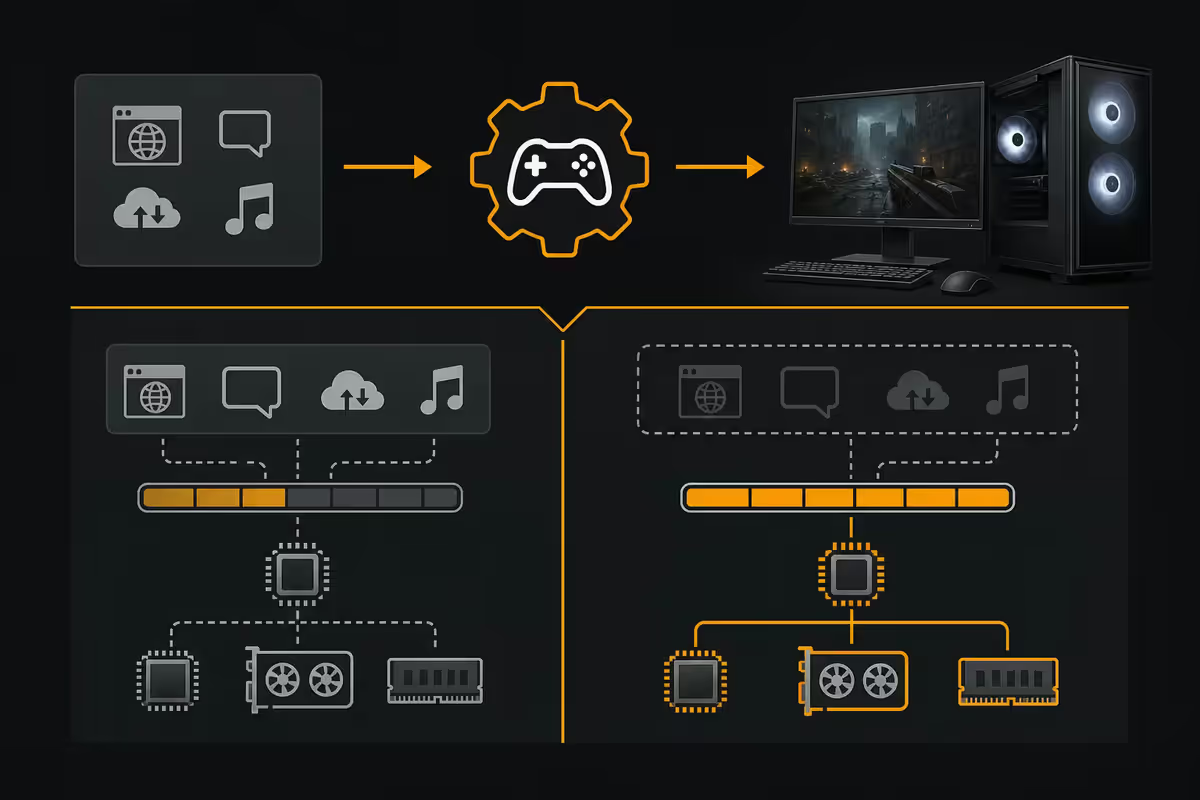
Microsoft's marketing for Game Mode has been wishy-washy for years. Here's what it actually does, under the hood:
- Suppresses Windows Update installations while a recognised game is running in the foreground. No surprise mandatory reboots mid-match.
- Deprioritises background services and apps competing for CPU and IO. Background indexing, Microsoft Defender scans and OneDrive sync are throttled.
- Suppresses notifications and most system pop-ups so the game stays in focus.
- Hints to the GPU scheduler to give the foreground game priority on graphics resources.
Things Game Mode does not do: overclock your CPU, allocate more RAM, change power plans, adjust fan curves, or magically boost frame rates by double-digit percentages.
How to enable Game Mode in Windows 11
Three clicks, no restart:
- Step 1. Press
Win + Ito open Settings (or right-click Start → Settings). - Step 2. Click Gaming in the left sidebar.
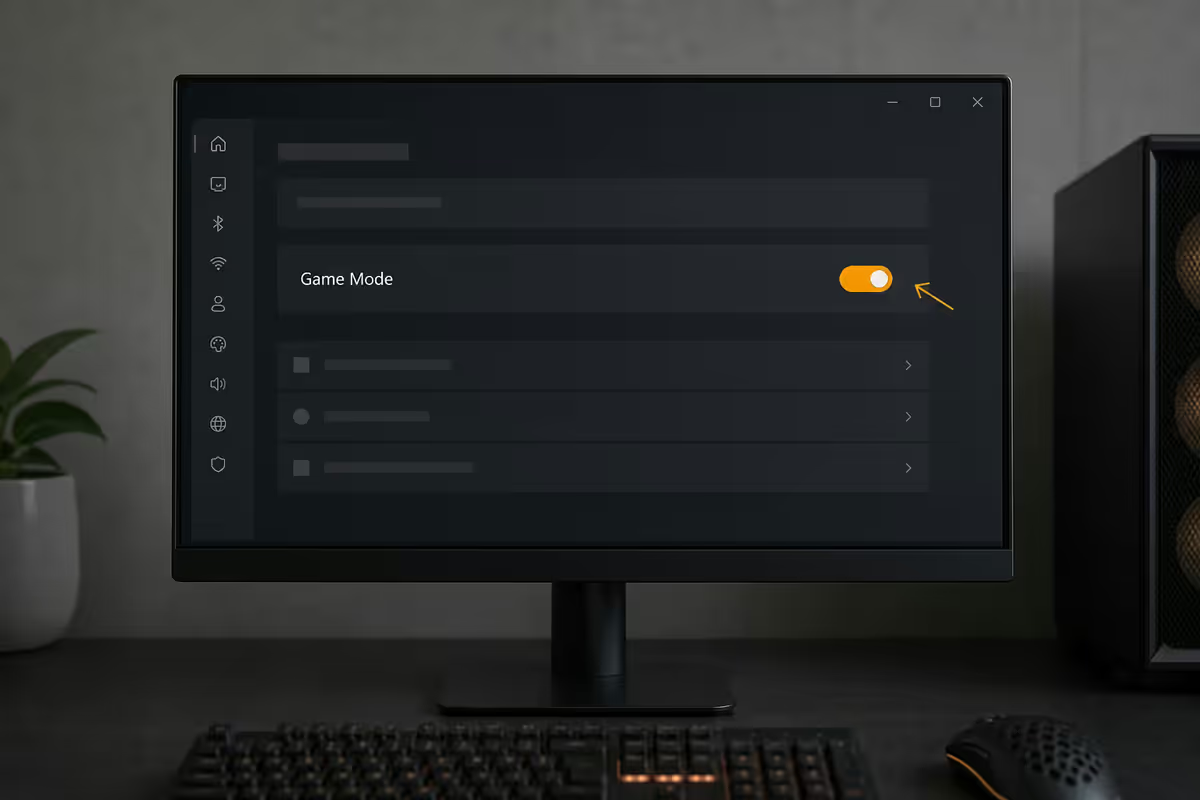
- Step 3. Click Game Mode, then toggle Game Mode On.
Done. The setting persists across reboots and applies to every game you launch from now on. You can verify it's active during gameplay by opening Game Bar (Win + G) — the Performance widget shows a green "Game Mode" status indicator.
If you don't see the Gaming section at all: you're probably on Windows 11 LTSC or a heavily debloated install where the Xbox Game Bar component was removed. Reinstall the Xbox Game Bar via Microsoft Store to restore the Gaming Settings page.
HAGS — pair it with Game Mode
Hardware-accelerated GPU Scheduling (HAGS) is a separate Windows 11 feature that pairs naturally with Game Mode. It moves the GPU command-queue scheduling work from the CPU to a dedicated scheduler on the GPU itself, reducing CPU load and lowering input-to-display latency.
Enable HAGS: Settings → System → Display → Graphics → Change default graphics settings → toggle Hardware-accelerated GPU scheduling On. Restart required for HAGS to take effect.
| GPU generation | HAGS support | Recommendation |
|---|---|---|
| NVIDIA RTX 30 / 40 / 50-series | Full support | Enable |
| NVIDIA GTX 16 / RTX 20-series | Supported on latest drivers | Enable, test |
| AMD RX 6000 / 7000 / 9000-series | Full support | Enable |
| AMD RX 5000-series and older | Partial / driver-dependent | Test individually |
| Intel Arc A / B-series | Full support | Enable |
| Integrated graphics (older iGPU) | Limited benefit | Leave default |
Auto HDR — the bonus feature most miss
Auto HDR is a separate feature that upscales the SDR output of older games to HDR on HDR-capable displays. It works independently of Game Mode but pairs naturally — older DX9/DX10/DX11 titles look noticeably better with Auto HDR on an HDR monitor or OLED TV.
Enable Auto HDR: Settings → System → Display → HDR → Use HDR On, then Auto HDR On. Only useful if your monitor is HDR-capable (HDR400 minimum, HDR600+ for real visible benefit).
Some older games look washed out or over-saturated with Auto HDR — Counter-Strike 2 and most modern AAA titles are designed with native HDR support and don't need it. Disable per-title via the same Graphics settings panel.
Game Bar vs Game Mode — what's the difference?
These two features get confused constantly. They're entirely separate:
- Game Mode runs silently in the background controlling what Windows does and doesn't do while you play. There's no UI during gameplay.
- Game Bar (Win + G) is the overlay you summon during a game — performance widget, audio mixer, screen capture, screenshot, achievements.
You can use one without the other. Most gamers leave Game Mode on permanently and toggle Game Bar based on whether they want the overlay for that session.
When Game Mode helps — and when it doesn't
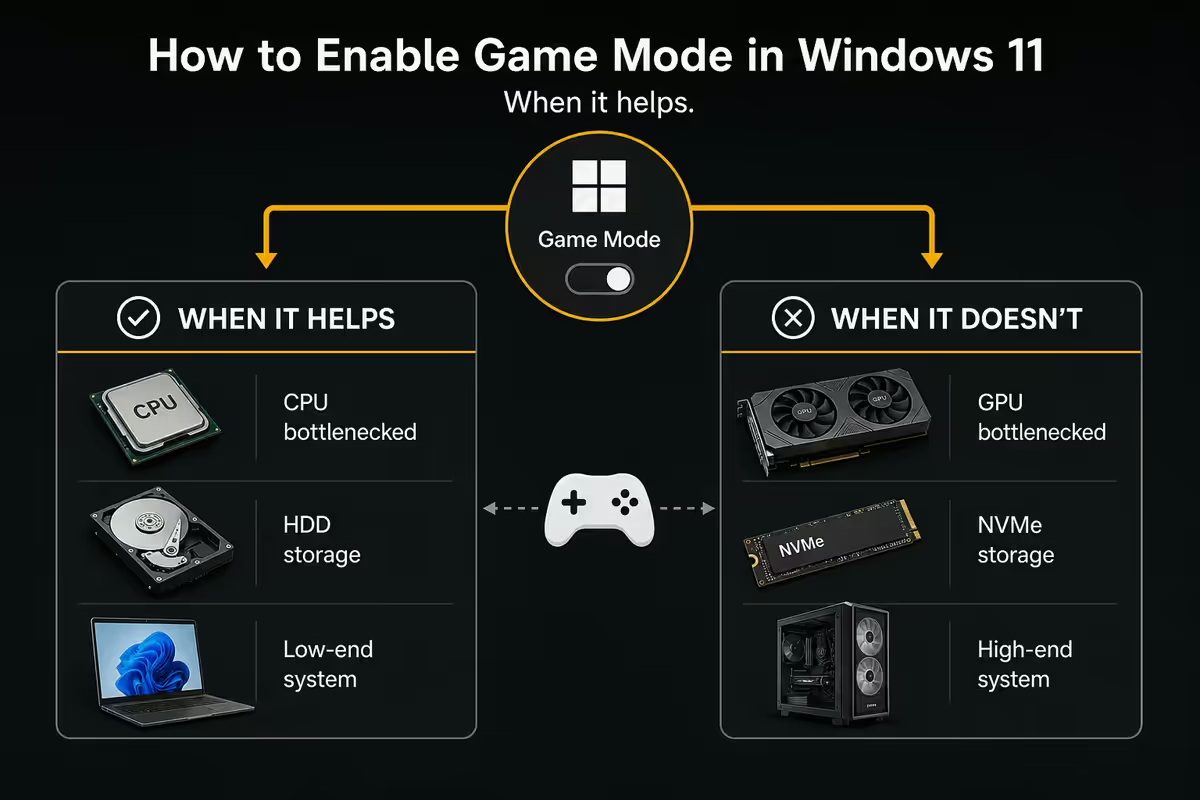
Where Game Mode delivers real gains:
- Low-end laptops and budget desktops — Ryzen 5 5500U, Core i3-1215U, anything with 4-6 cores. Background services eating CPU time materially impacts gameplay. Game Mode's deprioritisation produces 3-8% higher average FPS and noticeably better 1% lows.
- Mid-tier gaming systems with 6-8 cores. Smaller raw FPS gains (2-4%) but meaningfully steadier frame pacing.
- Any system — Windows Update suppression and notification silencing.
Where Game Mode is statistical noise:
- High-end Ryzen 7 9800X3D / Core Ultra 9 285K systems with 8+ performance cores. Background services don't compete with games for CPU; the FPS difference is within margin-of-error (0-2%).
- Older Source engine and certain DX9 titles have shown stutter regressions with Game Mode in the past — most resolved by 2024-25.
The honest verdict
Game Mode in 2026 is settled software. It's been refined for nine years, every major issue Microsoft introduced got fixed, and the cost of leaving it on is zero. The benefits are biggest on weaker systems but the suppression of Windows Update mid-game alone makes it worthwhile on every PC.
| System tier | Game Mode benefit | Verdict |
|---|---|---|
| Budget (4-6 cores) | 3-8% FPS, smoother frame pacing | Essential |
| Mid-tier (6-8 cores) | 2-4% FPS, fewer interruptions | Always on |
| High-end (8-16 cores) | 0-2% FPS, no Windows Update interruptions | Always on |
| Laptop on battery | Better thermal headroom for game | Always on |
| Stream / record while playing | Steadier CPU budget for OBS / encoder | Always on |
| Specific title with confirmed regression | Disable per-app via Graphics settings | Title-by-title |
Key takeaways
- Settings → Gaming → Game Mode → On. Three clicks, no restart, no downside.
- Game Mode suppresses Windows Update mid-game, deprioritises background services, mutes notifications.
- Pair with HAGS on modern GPUs (RTX 30+ / RX 6000+ / Arc) for reduced latency.
- Auto HDR upscales SDR games on HDR displays — toggle independently.
- Biggest FPS gains on low-end CPUs; on high-end systems the benefit is steadier frame pacing.
Frequently asked questions
What does Game Mode actually do in Windows 11?
Suppresses Windows Update installs, deprioritises background services, mutes notifications, and hints GPU scheduling priority to the foreground game. It does not overclock or magically boost FPS.How do I enable Game Mode in Windows 11?
Settings → Gaming → Game Mode → toggle On. No restart needed.Should I enable HAGS with Game Mode?
Yes on modern GPUs (RTX 30/40/50, RX 6000/7000/9000, Intel Arc B-series). Disable only if you see stuttering in specific titles.Does Game Mode actually boost FPS?
On low/mid systems, 3-8% average FPS and meaningful 1% low improvements. On high-end systems, 0-2% — within margin-of-error.Should I disable Game Mode for any games?
Only if you see confirmed stutter regressions in a specific title. Microsoft resolved most historical issues by 2025.What is Auto HDR and should I enable it with Game Mode?
Separate Windows 11 feature that upscales SDR games to HDR on HDR-capable monitors. Pairs naturally with Game Mode. Disable per-title if a game looks washed out.What's the difference between Game Mode and Game Bar?
Game Mode is silent background process control. Game Bar is the Win + G overlay UI — performance widget, capture, audio mixer. Separate features.Does Game Mode help on a high-end PC?
Marginally on FPS, but Windows Update suppression and notification silencing alone make it worth leaving on. No downside.