BIOS / UEFI Explainer
What is BIOS & UEFI?
— The firmware running before Windows wakes up. The first code your PC runs every boot. It checks the hardware, finds Windows and hands over. Most people will visit it twice in a build's life — and even that's optional if everything works first try.
- entry key at POST
- DEL / F2
- UEFI boot to Windows
- 3-5 sec
- update unless needed
- Don't
What firmware actually does
Press the power button. Long before Windows shows up, a tiny chip on your motherboard runs the firmware. It does four things in roughly half a second:
- POST (Power-On Self Test). Counts the RAM, identifies the CPU, checks that the GPU responds and the storage devices are present.
- Hardware initialisation. Trains the memory at the correct speed, configures PCIe lanes, sets fan curves and assigns IRQs.
- Loads the boot order. Looks at which drive is set as #1, finds the Windows Boot Manager (or Linux GRUB) and hands over.
- Exposes a settings menu. If you tap DEL or F2, it pauses and shows the BIOS interface instead of booting.
That's it. Once Windows takes over, the firmware steps back and does nothing — until next power-on.
BIOS vs UEFI — the modern distinction
Strictly speaking, BIOS is the legacy standard (16-bit, blue-text-on-grey, keyboard-only) from the 1980s. UEFI is the modern replacement that took over from roughly 2012 onward. Everything sold today is UEFI — people just still say "BIOS" out of habit.
| Feature | Legacy BIOS | UEFI (modern) |
|---|---|---|
| Architecture | 16-bit | 64-bit, modular |
| Drive size limit | 2.2 TB (MBR) | 9.4 ZB (GPT) |
| Boot speed | 15-30 sec POST | 2-5 sec POST |
| Interface | Text menu, keyboard only | Graphical, mouse + keyboard |
| Security | None built-in | Secure Boot, TPM integration |
| Network capable | No | Yes (PXE boot, BIOS download) |
| Windows 11 support | No | Required |
Modern UEFI implementations from ASUS, Gigabyte, MSI and ASRock all offer two modes: EZ Mode (the dashboard view, where almost every user will live — XMP toggle, boot order, fan curve, that's it) and Advanced Mode (the deep menu tree where overclockers spend their evenings).
How to enter the BIOS
Power on the PC. During the brief POST splash (motherboard logo or text), tap the entry key repeatedly — not once and hope, but every quarter-second until the BIOS appears.
- ASUS, Gigabyte, MSI, ASRock desktops: DEL is the universal entry key.
- Dell, HP, Lenovo laptops: F2 most common. F10 on some HP. F1 on older ThinkPads.
- Acer, Samsung, Razer: F2 mostly.
- One-time boot menu (without entering BIOS): F12 on most boards, F8 or F11 on others.
If Fast Boot is enabled in Windows and the POST splash is too brief to catch: go to Windows Settings → System → Recovery → Advanced startup → Restart now → Troubleshoot → Advanced options → UEFI Firmware Settings → Restart. The PC reboots directly into BIOS.
The settings that actually matter
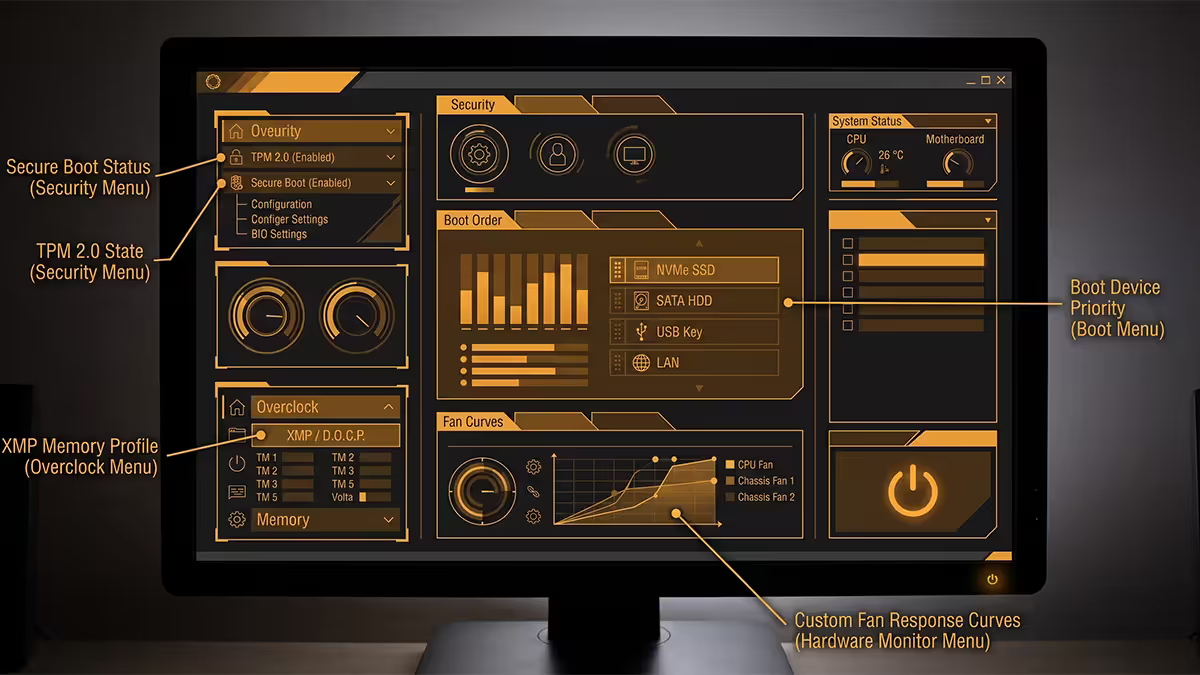
XMP / EXPO — unlock your RAM speed
By default, DDR5 boots at the conservative JEDEC base speed (typically 4800 MT/s) — regardless of whether you bought 6000, 6400 or 8000 MT/s rated memory. XMP (Intel) and EXPO (AMD) are pre-configured profiles stored on the RAM kit that unlock the speed printed on the box. Enable it; this isn't risky overclocking, it's getting what you paid for.
Secure Boot — leave it on
Secure Boot verifies the digital signature of the Windows Boot Manager before allowing it to run, blocking pre-OS malware. Required for Windows 11. Leave enabled unless you're installing certain Linux distros without signed bootloaders.
TPM 2.0 / fTPM / PTT — Windows 11 requirement
A security chip that stores BitLocker keys, Windows Hello credentials and platform attestation data in hardware. Required for Windows 11. On AMD it's called fTPM (firmware TPM) and lives in the CPU; on Intel it's PTT (Platform Trust Technology). Both just need to be enabled in BIOS — no physical chip required.
Boot order — which drive loads first
If you have multiple drives, set the one with Windows installed as boot priority #1. After a fresh Windows install, you may need to move Windows Boot Manager to the top of the list manually.
Fan curves — quiet build or thermal headroom
UEFI lets you set custom fan response per temperature point. The defaults are usually fine, but pulling CPU fan ramp-up from 50°C to 60°C dramatically reduces noise during idle and light workloads with no real thermal cost.
CSM — leave it off
CSM (Compatibility Support Module) emulates legacy BIOS for very old operating systems or MBR-formatted drives. Leave it disabled — Secure Boot and Windows 11 both require it off, and there's no modern reason to enable it.
Updating firmware — when and how
There are three legitimate reasons to update BIOS:
- New CPU support. A board that shipped in 2024 may need a BIOS update to recognise a CPU released in 2026 (e.g. AM5 boards needing newer AGESA for Ryzen 9000-series).
- Specific bug fix. The changelog mentions a bug that's actively affecting you — random reboots, USB instability, memory training failure.
- Security patch. Rare but occasional — Intel ME or AMD PSP vulnerabilities sometimes warrant a firmware update.
Otherwise, leave the firmware alone. Each manufacturer offers an in-BIOS update tool: EZ Flash (ASUS), Q-Flash (Gigabyte), M-Flash (MSI), Instant Flash (ASRock). Download the BIOS file from the manufacturer's site for your exact model, copy it to a FAT32-formatted USB stick, enter BIOS and run the flash utility.
Do not: update via Windows utilities (more failure-prone), update from an unstable Eskom cycle without a UPS, or "downgrade" to an older BIOS unless explicitly supported.
BIOS Flashback & Dual BIOS — the safety nets
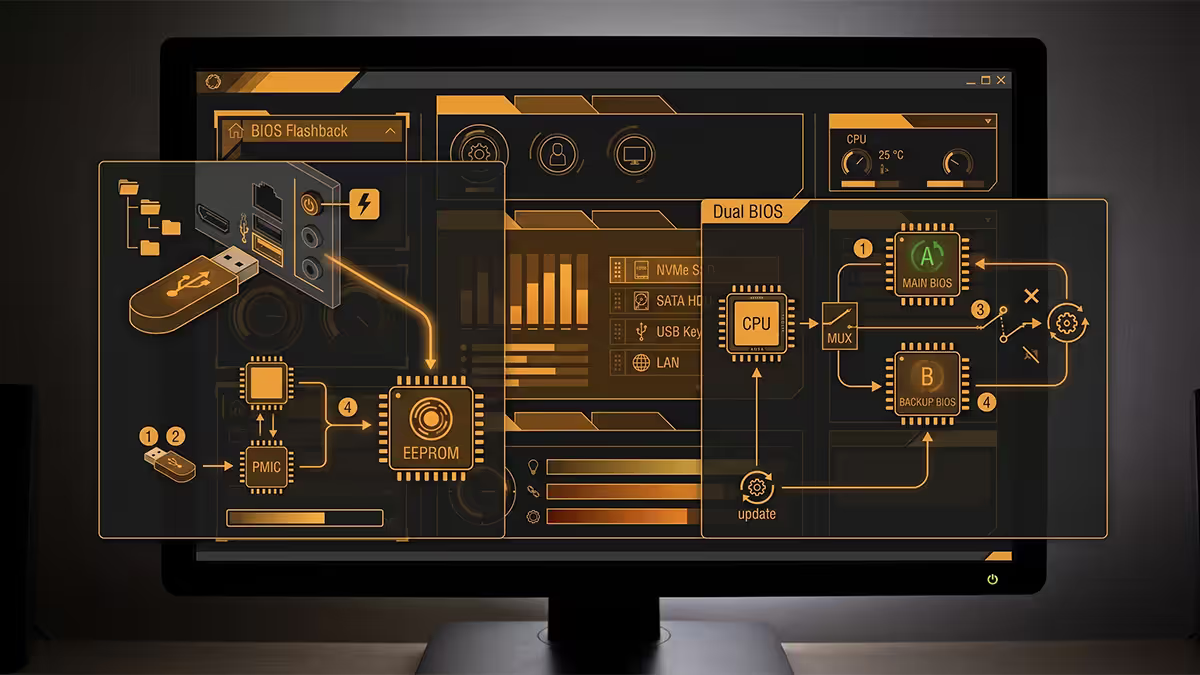
Two motherboard-level recovery features have made firmware updates dramatically less scary in the last five years:
BIOS Flashback / Q-Flash Plus / Flash BIOS Button
A dedicated button on the rear I/O panel (sometimes also requiring a specific USB port) that flashes a new BIOS file without any CPU, RAM or GPU installed. Plug a FAT32 USB stick with the BIOS file (renamed per the motherboard manual) into the labelled port, press the button, and the board flashes itself in 3-5 minutes.
Why it matters: if you bought an AM5 board in 2023 and want to fit a Ryzen 9 9950X3D, the board needs a 2024+ BIOS to recognise the chip — but you can't enter BIOS without a recognised CPU. Flashback solves the chicken-and-egg problem. Most ASUS ROG, Gigabyte Aorus, MSI MEG/MPG and ASRock Taichi boards have this.
Dual BIOS — the backup chip
Many higher-end Gigabyte and ASRock boards include two physical BIOS chips. If the primary BIOS gets corrupted during a failed flash, the board automatically rolls back to the backup chip. Gigabyte's "Dual BIOS" and ASRock's "Backup BIOS" are the most common implementations.
Common BIOS mistakes
Updating BIOS for no reason. The boards we see bricked are almost universally being updated chasing version numbers, not solving a real problem. Read the changelog. If nothing in it affects you, leave it.
Not enabling XMP/EXPO after a build. Buying 6000 MT/s DDR5 and running it at 4800 MT/s default. A single BIOS visit fixes it. We see this on roughly 1 in 3 self-built PCs brought in for "RAM seems slow".
Disabling Secure Boot or TPM to "fix something". Windows 11 will complain or refuse to install. Almost no real problem is solved by turning these off; many are caused by it.
Resetting BIOS to defaults during troubleshooting and forgetting to re-enable XMP. Memory drops back to 4800 MT/s; performance feels worse; user blames the troubleshooting step. Re-enable XMP/EXPO after any defaults reset.
Flashing the wrong BIOS file. ASUS ROG Strix B650-A and ASUS ROG Strix B650-A WIFI are different boards with different files. Verify the exact model — printed on the box and on the board near the chipset.
Key takeaways
- BIOS / UEFI is the firmware that runs before Windows — POST, hardware init, then hand-off to the OS.
- UEFI is the modern version (2015+). Faster, mouse-driven, supports drives over 2.2 TB. Most people still say "BIOS".
- Tap DEL or F2 at POST to enter. Tap repeatedly — Windows Fast Boot makes the window short.
- The settings that actually matter: XMP/EXPO, Secure Boot, TPM 2.0, boot order, fan curves. Five minutes total.
- Don't update firmware unless you have a specific reason. Failed flashes brick boards — UPS or Eskom-free window only.
Frequently asked questions
What is the difference between BIOS and UEFI?
BIOS is the legacy 16-bit firmware standard. UEFI is the modern 64-bit replacement — faster boot, supports drives over 2.2 TB, mouse-driven, has Secure Boot. Almost everything since 2015 is UEFI but people still call it BIOS.How do I enter the BIOS or UEFI on my PC?
Tap DEL during POST on most desktops (ASUS, Gigabyte, MSI, ASRock). F2 on most laptops. If Fast Boot is enabled, use Windows Settings → Recovery → Advanced startup → UEFI Firmware Settings.What is Secure Boot and should I leave it on?
Secure Boot verifies the bootloader's digital signature before running it, blocking pre-OS malware. Required for Windows 11. Leave it enabled.What is TPM 2.0 and why does Windows 11 require it?
TPM 2.0 is a security chip that stores BitLocker keys, Windows Hello credentials and platform attestation in hardware. AMD calls it fTPM, Intel calls it PTT. Just enable it in BIOS.Should I update my BIOS?
Only for a specific reason: new CPU support, fixing a bug affecting you, or a security patch. Don't update for the sake of it — failed flashes brick boards.What is XMP or EXPO and should I enable it?
XMP (Intel) and EXPO (AMD) unlock the rated speed printed on your RAM kit. Without it, DDR5 runs at 4800 MT/s default. Enable it — it's safe and manufacturer-validated.What is CSM (Compatibility Support Module)?
CSM emulates legacy BIOS for old operating systems or MBR-formatted drives. Leave it disabled — Secure Boot and Windows 11 both require it off.What is BIOS Flashback or Q-Flash Plus?
A rear-panel button that flashes BIOS without CPU, RAM or GPU installed. Essential for fitting newer CPUs to older boards. Found on ASUS ROG, Gigabyte Aorus, MSI MEG and ASRock Taichi.
Get the Evetech app
Exclusive app-only prices, daily flash sales, and free delivery on orders over R4,000 — download the app and start saving.