Hardware Explainer · VSync
What is VSync — and should you turn it on?
The toggle every PC game ships with, and almost nobody explains. VSync stops screen tearing — but costs you a full frame of input lag. Modern monitors changed the maths.
- VSync lag · 60 Hz
- 16.7 ms
- added latency
- 1 frame
- modern answer
- VRR
What VSync actually does
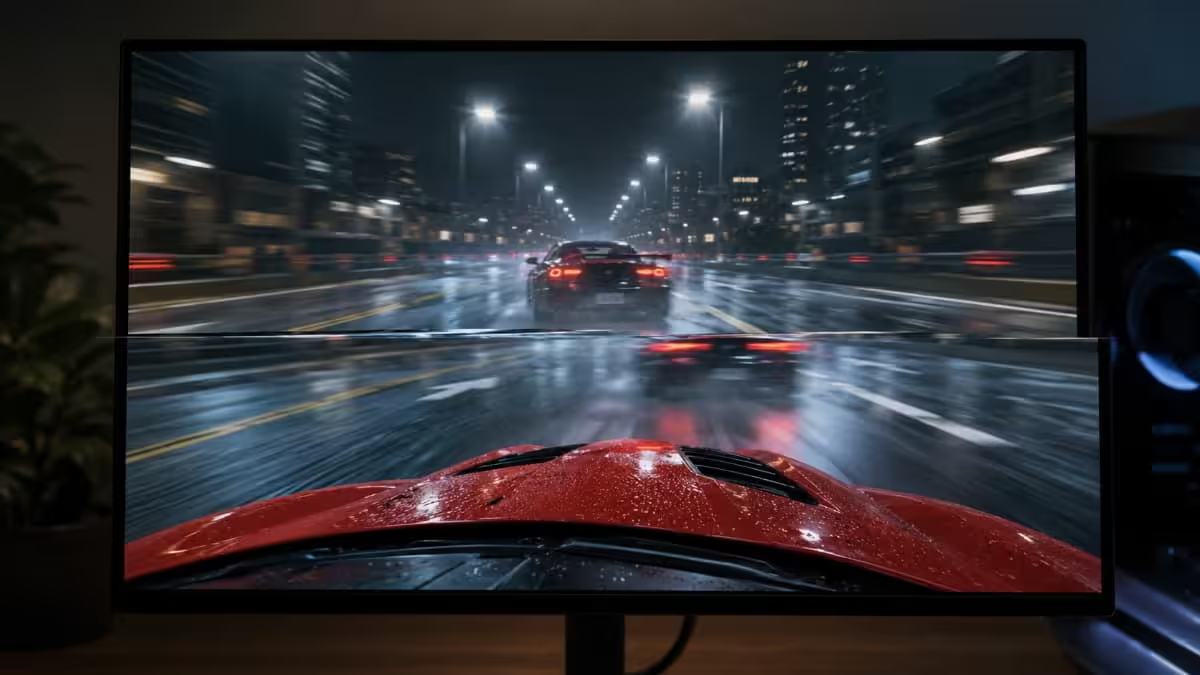
VSync — vertical synchronisation — is the original solution to a problem nobody told you about: your GPU and your monitor run on completely different clocks. The GPU produces frames whenever it finishes rendering them. The monitor draws lines top-to-bottom on a fixed schedule (60, 144, 240 times a second). When the GPU swaps in a new frame mid-draw, the top half of the screen shows the old frame and the bottom half shows the new one. That horizontal seam is screen tearing.
VSync tells the GPU: do not swap the front-buffer until the monitor has finished drawing the current frame. The GPU holds the new frame, the refresh cycle completes cleanly, then the swap happens at the vertical blanking interval. Result: every frame is whole, no seam, no tear.
That sounds entirely positive until you realise what "the GPU holds the new frame" means in practice. The frame the GPU just finished rendering — based on the mouse movement you made — is going to sit in a buffer for up to 16.7 milliseconds at 60 Hz before you see it. Multiply across multiple buffers and the lag compounds.
| Refresh rate | One frame interval | VSync latency added |
|---|---|---|
| 60 Hz | 16.7 ms | +16.7 ms (1 frame) |
| 120 Hz | 8.3 ms | +8.3 ms |
| 144 Hz | 6.9 ms | +6.9 ms |
| 240 Hz | 4.2 ms | +4.2 ms |
| 360 Hz | 2.8 ms | +2.8 ms |
The tearing problem — why VSync existed at all
Screen tearing happens because nothing forces the GPU and monitor to agree on timing. The monitor scans top-down at a fixed cadence; the GPU finishes rendering whenever the workload allows. Without sync, the GPU pushes whatever's freshest into the display buffer — even mid-scanout. The result: a horizontal line across the screen where the top half shows frame N and the bottom half shows frame N+1.
Tearing is most visible when there's fast horizontal camera motion — panning across a wide vista in a single-player game, or strafing across a target in a shooter. Vertical motion hides tears better. A still or slow-moving scene shows none.
How obnoxious it looks depends on a few things:
- Higher refresh rate hides it. A tear on a 240 Hz display occupies one-quarter the temporal slot of the same tear at 60 Hz — your eye barely catches it.
- The bigger the FPS-vs-refresh mismatch, the worse it looks. 300 FPS on a 60 Hz panel is the textbook nightmare scenario. Multiple tears per frame.
- VRR makes it vanish. When the monitor refreshes only when the GPU is ready, there's no mid-scan swap to tear in the first place.
The latency cost — one full frame, sometimes worse
The cleanest explanation of VSync latency is to follow a single mouse movement. You move the mouse at time zero. The CPU registers the input and updates the game state. The GPU renders a frame reflecting your new position. With VSync off, that frame is shown on screen as soon as the GPU has it. With VSync on, the GPU has to wait for the next vertical blank interval before swapping the frame in.
On a 60 Hz monitor, that wait averages 8.3 ms and worst-cases at 16.7 ms — a full frame. Standard double-buffer VSync also tends to drop output to a clean divisor when the GPU can't sustain refresh (so 60 FPS drops directly to 30 FPS, not 45), which makes brief GPU-bound moments feel like a stutter cliff.
Worst case: traditional triple-buffer DirectX VSync introduces an extra render-ahead frame. Total chain latency can climb to two or three frames of buffer on top of the engine pipeline. On 60 Hz that's 30–50 ms of pure display lag — easily noticeable in any reflex test, fatal in competitive play.
VRR · G-Sync and FreeSync changed the answer
For decades the tradeoff was simple: tear or lag. Variable Refresh Rate broke that tradeoff. With VRR enabled, the monitor refreshes when the GPU has a frame ready, not the other way around. The GPU finishes a frame, says "ready," the monitor draws it. No held buffer, no fixed cadence, no tearing.
There are two competing standards, both well-supported in 2026:
- NVIDIA G-Sync. Originally a dedicated FPGA module in the monitor; now mostly G-Sync Compatible certification on FreeSync panels. Works over DisplayPort and (on newer monitors) HDMI 2.1. Range typically 48–144 Hz, 48–240 Hz on high-refresh panels.
- AMD FreeSync. Free, open VESA Adaptive-Sync standard. Identical real-world result. Tiers: FreeSync, FreeSync Premium (48–120 Hz minimum + Low Framerate Compensation), FreeSync Premium Pro (HDR included).
Both work with GPUs from either vendor as long as the panel and GPU support the underlying VESA Adaptive-Sync over DisplayPort. NVIDIA cards can drive FreeSync monitors; AMD cards can drive G-Sync Compatible monitors. The branding war is over.
Fast Sync and Enhanced Sync — the middle ground
When your GPU consistently renders far above the monitor's refresh rate — think CS2 at 400 FPS on a 144 Hz panel — there's a third option that escaped notice for a while:
- NVIDIA Fast Sync. The GPU renders at full speed (no cap), into a back buffer. The most recently completed frame is the one sent to the monitor on each refresh tick. Tearing eliminated, latency stays low because the GPU never waits.
- AMD Enhanced Sync. Identical concept on Radeon drivers.
The catch: both require the GPU to be rendering well above refresh (NVIDIA recommends 2x). Drop below and it falls back to standard VSync behaviour with its full latency penalty. For competitive games on a high-refresh panel where you'd be running uncapped anyway, Fast Sync is a quiet win.
The modern recipe — what to actually toggle
For everything except esports played at the monitor's absolute ceiling, here is the setting combination that NVIDIA and the competitive community both converged on:
- 1
Enable VRR
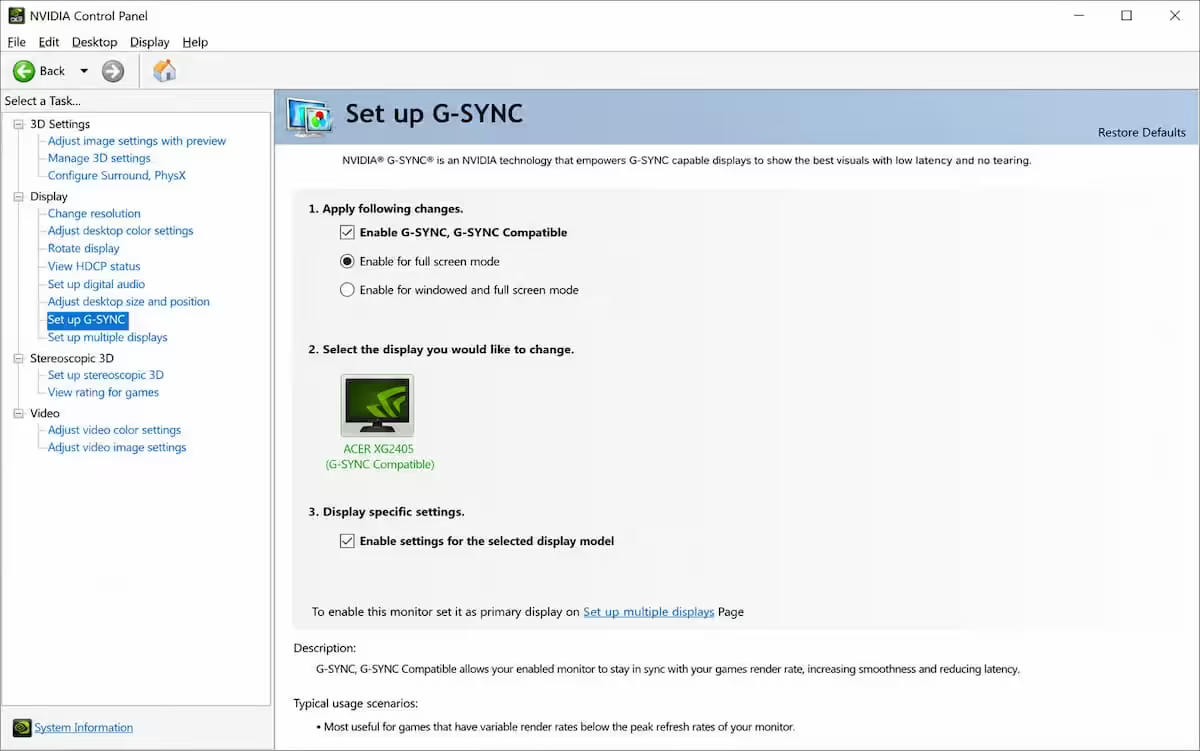
Turn on G-Sync or FreeSync in the driver (NVIDIA Control Panel → Set up G-Sync, or AMD Adrenalin → Display → AMD FreeSync ON). - 2
Driver VSync ON
Yes — in the driver, set VSync to ON globally. This catches the tiny edge case where FPS overshoots the VRR range. - 3
In-game VSync OFF
The driver setting will do the work. In-game VSync conflicts with it and adds engine-level frame buffering. - 4
Cap FPS three below refresh
141 on a 144 Hz panel, 237 on 240 Hz. RTSS, NVIDIA Reflex, AMD Chill, or in-game frame caps all work. - 5
Enable Reflex / Anti-Lag 2
NVIDIA Reflex (or AMD Anti-Lag 2 on RDNA 4) eliminates the render queue and synchronises CPU/GPU timing — typically saves another 10–30 ms on top.
This combination delivers tear-free output across the entire VRR window, sub-frame latency, and degrades gracefully when GPU performance dips. It is, simply, the answer in 2026 for any game that isn't strictly competitive at refresh-cap.
When VSync ON makes sense — and when OFF wins
Turn VSync ON when:
- You're playing a slow, story-driven single-player game and your monitor doesn't support VRR.
- Your GPU consistently renders above the monitor refresh and tearing during cinematic moments bothers you.
- You're on a 60 Hz fixed-refresh panel without G-Sync or FreeSync support.
- You want to cap power draw, fan noise and thermals in a game with no FPS limit option.
Turn VSync OFF when:
- You play competitive shooters and every ms of latency matters.
- Your GPU can't reliably sustain the monitor's refresh rate — VSync stutter cliffs are worse than tearing.
- You have a VRR-capable monitor and have configured G-Sync or FreeSync (use driver VSync only as a ceiling guard).
- You play above a 144 Hz monitor refresh and find tears imperceptible at high frame rates.
Key takeaways
- VSync stops tearing by holding GPU frames for the next monitor refresh — costing up to one full frame of input latency.
- VRR (G-Sync / FreeSync) solves the same problem without the latency penalty — the monitor refreshes when the GPU is ready.
- Modern recipe: VRR ON, driver VSync ON, in-game VSync OFF, cap FPS three below refresh, enable Reflex / Anti-Lag 2.
- OFF for competitive shooters. ON for single-player without VRR. VRR for everything else.
- Higher refresh-rate monitors make tearing harder to see — at 240+ Hz the question almost stops mattering.
Frequently asked questions
What does VSync actually do?
It locks GPU frame output to the monitor's fixed refresh interval, eliminating tearing at the cost of one full frame of input latency (16.7 ms at 60 Hz, 6.9 ms at 144 Hz).Should I turn VSync on or off for competitive games?
Off. Use VRR (G-Sync / FreeSync) plus an FPS cap three below refresh instead — same tearing-free result, no latency penalty.Does VSync cause input lag?
Yes — one frame minimum, two or three with traditional triple buffering. Worst case: 30–50 ms of pure display lag on 60 Hz.VSync vs G-Sync / FreeSync — what's the difference?
VSync makes the GPU wait for the monitor. G-Sync / FreeSync makes the monitor wait for the GPU. Both eliminate tearing; only VRR avoids the latency cost.Enable VSync in-game or in the driver?
In-game is usually best because it integrates with engine pacing. Pair driver VSync ON + G-Sync ON + in-game VSync OFF for the cleanest combo with VRR.What is triple buffering and does it help?
Three frame buffers instead of two. Helps in OpenGL / Vulkan; in DirectX it adds latency. Fast Sync replaced it as the low-latency option.Should I cap FPS with VSync on?
Yes — cap three FPS below refresh (141 on 144 Hz). Keeps you inside the VRR window and stops VSync engaging at the ceiling.Does VSync reduce GPU temperature?
Yes, indirectly — by capping render rate at refresh. A driver-level FPS cap delivers the same thermal benefit without the latency cost.
Get the Evetech app
Exclusive app-only prices, daily flash sales, and free delivery on orders over R4,000 — download the app and start saving.