Adaptive Sync Explained
G-Sync vs FreeSync. — Same fix. Different label. Wildly different price.
Tearing happens when your GPU finishes a frame mid-monitor-refresh. Variable Refresh Rate fixes it by making the monitor wait for the GPU instead of running on a fixed cadence. Both G-Sync and FreeSync do this — but only one of them does it cheaply enough to be in 90% of new monitors.
- typical VRR range
- 48-240 Hz
- LFC ratio needed
- 2.5×
- G-Sync Compat. SA
- R5k-R10k
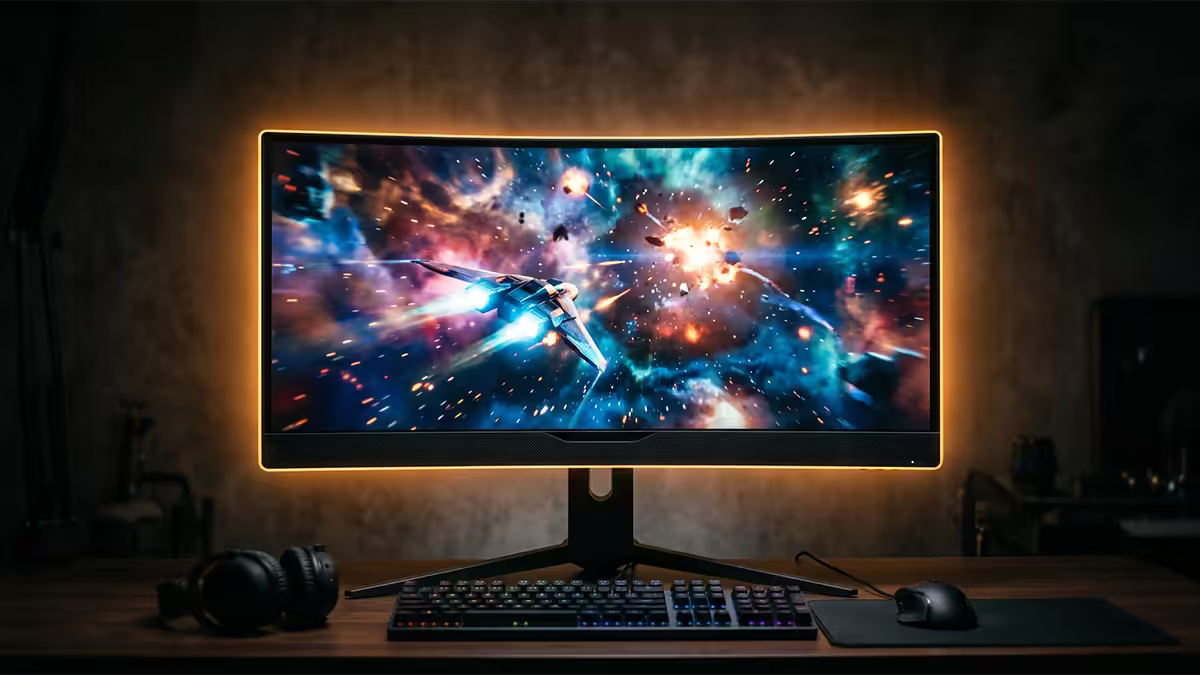
Why tearing and stutter happen in the first place
Your monitor refreshes its picture at a fixed cadence — 60 Hz, 144 Hz, 240 Hz — meaning it pulls a new frame from the GPU's framebuffer every 16.7 ms, 6.9 ms or 4.2 ms respectively. Your GPU, however, doesn't render frames on that fixed cadence. It renders as fast as it can, finishing one frame in 8 ms, the next in 12 ms, the next in 6 ms depending on what's on screen.
When those two clocks don't match — which they essentially never do — the monitor sometimes scans out the top half of an old frame and the bottom half of a new one. That horizontal seam is screen tearing. It's most visible in fast horizontal camera pans (looking left-right in Call of Duty, driving in racing games) and shows up as a torn line that moves up the screen.
The old fix was V-Sync — force the GPU to wait for the monitor refresh before delivering each frame. V-Sync eliminates tearing but introduces two new problems: input lag (the GPU has to hold each frame until the monitor is ready) and stutter (when the GPU misses the deadline, the monitor displays the previous frame again, doubling perceived frame time). For competitive gaming, V-Sync makes the cure worse than the disease.
Variable Refresh Rate — the actual fix
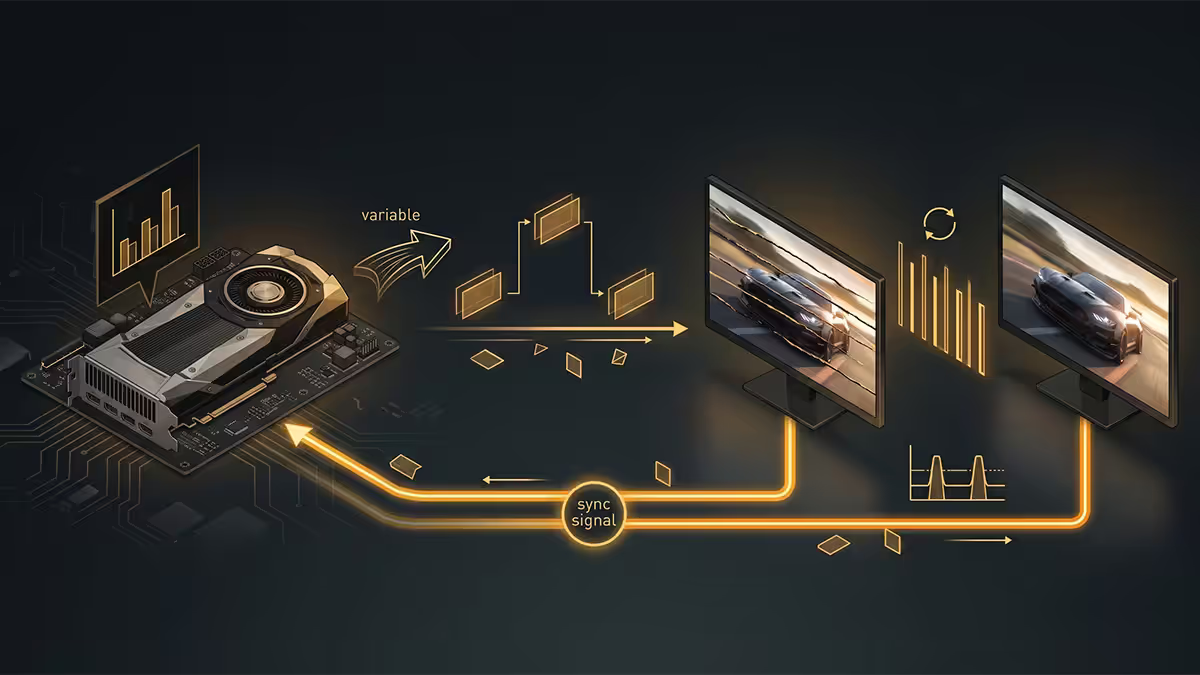
VRR (Variable Refresh Rate) flips the relationship around. Instead of the GPU waiting for the monitor, the monitor waits for the GPU. The display holds its current frame until the GPU signals "new frame ready" — then it refreshes immediately, no matter how irregularly the frames are coming. The result: no tearing, no V-Sync stutter, no added input lag. The monitor's refresh rate dynamically varies between its minimum and maximum VRR range, typically 48-144 Hz or 48-240 Hz.
This isn't magic — it's just a different signalling protocol over DisplayPort or HDMI. The DisplayPort spec added an "Adaptive-Sync" extension in 2014 (built on technology AMD pushed for); HDMI added "HDMI VRR" in the 2.1 spec in 2017. Every Adaptive-Sync-capable monitor on the market today is using the same underlying VESA standard.
The difference between G-Sync and FreeSync isn't the protocol — it's the certification, validation and (for native G-Sync) the hardware module that handles the timing.
G-Sync vs FreeSync — the actual difference
FreeSync is AMD's open implementation. Monitor manufacturers add VESA Adaptive-Sync support in firmware. There's no fee paid to AMD, no required hardware module. The result: FreeSync added almost zero cost to a monitor's bill of materials, which is why nearly every gaming monitor sold since 2018 supports it.
G-Sync (native, the original) requires Nvidia's hardware module to be installed in the monitor — a custom Altera FPGA board that replaces the standard scaler chip. The module handles the VRR signalling, variable overdrive (adjusting pixel response time per-frame to keep motion clarity across the full refresh range) and proper LFC even below 30 Hz. The module adds roughly $150-$300 to the monitor's BOM, and that cost passes straight through to retail price.
G-Sync Compatible is the middle ground introduced in 2019. The monitor uses standard FreeSync hardware, but Nvidia has tested it and certified that it works without flicker, blanking or artefacts on GeForce cards. There's no hardware module added — the certification is purely a validation badge. Functionally, on a GeForce card, a G-Sync Compatible monitor delivers the same gaming experience as a FreeSync Premium monitor on a Radeon card.
| Tier | How it works | Price impact |
|---|---|---|
| Native G-Sync | Nvidia hardware module + variable overdrive | +R3,500-R6,500 |
| G-Sync Ultimate | Native module + HDR-1000 + factory colour cal | +R5,000-R10,000 |
| G-Sync Compatible | FreeSync monitor certified by Nvidia | No premium |
| FreeSync Premium Pro | VRR + ≥120 Hz + HDR + low-lag certified | No premium |
| FreeSync Premium | VRR + ≥120 Hz + mandatory LFC | No premium |
| FreeSync (basic) | VRR only — may not include LFC | No premium |
The FreeSync certification tiers
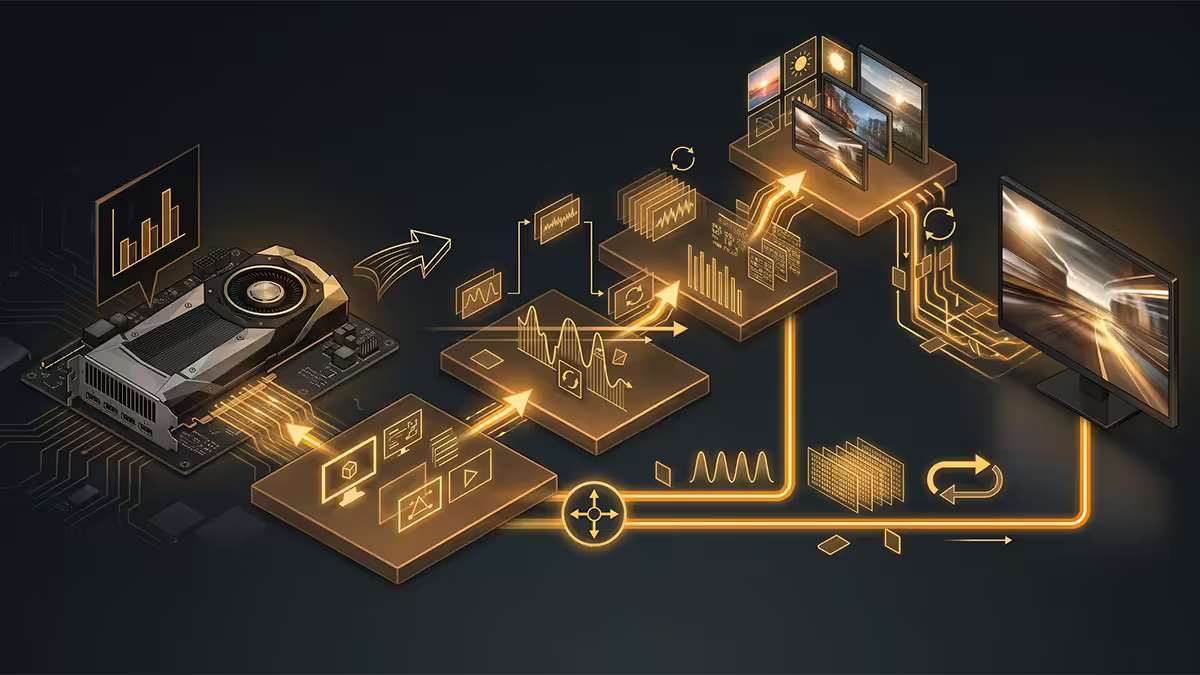
AMD split FreeSync into three tiers in 2020. The tier badge on the box tells you what you're getting:
FreeSync — basic VRR. No minimum refresh rate requirement, no LFC requirement, no input lag standard. Mostly seen on entry-level 60 Hz monitors. Functional but uninteresting.
FreeSync Premium — the practical sweet spot. Requires at least 120 Hz at 1080p, mandatory LFC, low input lag certification. Every gaming monitor at R4,000+ in SA should be at this tier or higher.
FreeSync Premium Pro — Premium spec plus HDR support and HDR-specific colour calibration. Important if you're also using the monitor for HDR film viewing; not critical for pure gaming use.
Nvidia's G-Sync naming is messier: G-Sync (native), G-Sync Ultimate (native + HDR-1000 + extreme contrast), and G-Sync Compatible (FreeSync monitor validated by Nvidia). The Compatible tier is the only one that doesn't add cost.
LFC — what happens when your frame rate drops
Every VRR monitor has a minimum refresh rate it can sync to — typically 48 Hz. If your frame rate drops below that floor, sync stops working and tearing returns. That's a problem in demanding games where frame rates can dip into the 30s during heavy scenes.
LFC (Low Framerate Compensation) solves this elegantly. When your frame rate drops below the VRR floor, the monitor automatically multiplies the refresh — showing the same frame at, say, 2× or 3× the rate to stay inside the sync range. A 35 fps frame becomes a 70 Hz refresh; a 20 fps frame becomes a 60 Hz refresh. The displayed image still updates at the same rate as the GPU output, but the underlying refresh stays within the VRR range, so sync keeps working.
The maths: LFC requires the monitor's maximum refresh rate to be at least 2.5× its minimum. A 48-120 Hz panel = 2.5× ratio = LFC works. A 48-144 Hz panel = 3× ratio = LFC works. A 30-60 Hz panel = 2× ratio = no LFC possible. This is why every modern 144 Hz+ gaming monitor automatically supports LFC, and why entry-level 60 Hz FreeSync monitors often don't.
HDMI 2.1 VRR and console gaming
PlayStation 5 and Xbox Series X|S both support VRR, but they deliver it over HDMI 2.1 specifically — not DisplayPort. This matters because a lot of older "FreeSync" monitors only support VRR over DisplayPort, not HDMI. If you're using your monitor for both PC and console, you need HDMI 2.1 VRR support explicitly listed in the spec sheet, not just "FreeSync" or "G-Sync Compatible" badges.
All FreeSync Premium and Premium Pro monitors from 2022 onward typically support HDMI 2.1 VRR. Most G-Sync Compatible monitors do too. But you'll find plenty of 2018-2020 FreeSync monitors that only sync over DisplayPort. Always check the connectivity section, not just the badges.
For TV use, the situation is simpler: every recent LG OLED (C-series and up), every recent Samsung QD-OLED (S95-series), and most Sony Bravia X-series TVs support HDMI 2.1 VRR. If you're plugging a PS5 into a TV bought in the last three years, VRR almost certainly works — just enable it in the console's video settings.
The recommended in-game setup
VRR works best when you configure your driver and game correctly. The setup that delivers lowest input lag with zero tearing:
- 1
Enable G-Sync / FreeSync in the driver
Nvidia Control Panel > Display > Set up G-SYNC > Enable for windowed and full-screen mode. AMD Radeon Software > Display > AMD FreeSync > Enable. - 2
Enable V-Sync in the driver, not in-game
Counter-intuitive but correct. V-Sync acts as a safety net for frames that exceed your monitor's max refresh rate — without it, those frames cause brief tearing. Set V-Sync to "On" in NVCP / Radeon Software, and disable V-Sync in every game. - 3
Cap your frame rate 3-5 fps below your max refresh rate
141 fps on a 144 Hz monitor, 237 fps on a 240 Hz monitor. This keeps you inside the VRR range at all times and prevents V-Sync from ever kicking in. Use Nvidia's in-driver frame limiter, AMD's "Frame Rate Target Control" or RivaTuner Statistics Server. - 4
Disable in-game V-Sync and any "Low Latency Mode" options
Some games have their own VRR-conflicting features. Turn those off and let the driver-level configuration handle everything.
Key takeaways
- VRR (G-Sync, FreeSync, HDMI 2.1 VRR) all do the same thing — make the monitor wait for the GPU instead of running on fixed refresh.
- G-Sync Compatible / FreeSync Premium is the right buy for 95%+ of gamers — identical gameplay experience to native G-Sync, R5,000+ cheaper.
- LFC requires max refresh ≥ 2.5× minimum. Every modern 144 Hz+ panel has it; check explicitly on 60 Hz panels.
- For PS5 / Xbox use, confirm "HDMI 2.1 VRR" in the spec sheet, not just "FreeSync" or DisplayPort-only VRR.
- Best setup: VRR on, V-Sync on in driver, V-Sync off in-game, frame cap 3-5 fps below max refresh.
Frequently asked questions
What is the difference between G-Sync and FreeSync?
Both are variable refresh rate (VRR) technologies that sync your monitor's refresh rate to your GPU's frame output to eliminate tearing and stutter. G-Sync was Nvidia's original proprietary tech requiring a hardware module in the monitor. FreeSync is AMD's open standard built on the VESA Adaptive-Sync specification — no module, just firmware support. They achieve the same end result, but FreeSync is far cheaper to implement so most monitors today are FreeSync-based.Is G-Sync Compatible the same as native G-Sync?
Not technically the same, but functionally close enough for almost everyone. G-Sync Compatible means the monitor uses FreeSync hardware but has been tested by Nvidia and certified to work cleanly with GeForce cards. Native G-Sync uses a dedicated Nvidia module ($150-$300 added to monitor BOM) and adds variable overdrive, lower input lag at low frame rates, and proper LFC across the full range. For almost every gamer, G-Sync Compatible is indistinguishable in actual play.Does FreeSync work on Nvidia GPUs?
Yes — since Nvidia driver release 417.71 in January 2019, all FreeSync monitors will work with GeForce GTX 10-series and newer GPUs. Some FreeSync monitors are certified by Nvidia as "G-Sync Compatible" (validated to work without flicker or artefacts) but even non-certified FreeSync displays usually work fine. Enable it in Nvidia Control Panel under Display > Set up G-SYNC.What is LFC (Low Framerate Compensation)?
LFC kicks in when your frame rate drops below the monitor's minimum VRR range (typically 48 Hz). Without LFC, going below the VRR floor reintroduces tearing or stutter. With LFC, the monitor multiplies the refresh rate (e.g. shows a 35 fps frame as 70 Hz refresh) to stay inside its sync range. LFC requires the monitor's max refresh rate to be at least 2.5× its minimum — most modern 144 Hz+ panels meet this easily.Do I need HDMI 2.1 for VRR on consoles?
For PlayStation 5 and Xbox Series X|S, yes — console VRR is delivered over HDMI 2.1 VRR specifically, not DisplayPort. Most modern OLED TVs (LG C-series, Samsung S95) and gaming monitors from 2022 onward support HDMI 2.1 VRR. If you're buying a monitor primarily for console use, check the spec sheet for "HDMI 2.1 VRR" or "console-compatible VRR" rather than just "FreeSync".What is FreeSync Premium Pro?
AMD's three-tier FreeSync certification: FreeSync (basic VRR), FreeSync Premium (≥120 Hz at 1080p, mandatory LFC, low input lag) and FreeSync Premium Pro (all of the above plus HDR support and HDR-specific colour calibration). For competitive gaming the FreeSync Premium tier is the sweet spot; FreeSync Premium Pro matters mostly if you're also buying for HDR content viewing.Should I buy a G-Sync monitor over a FreeSync one?
In 2026, almost never — unless you specifically want variable overdrive (better motion clarity across the full refresh range) or you're an enthusiast doing low-frame-rate competitive gaming where the native module's lower minimum range matters. For 95%+ of buyers, a G-Sync Compatible FreeSync monitor at R5,000-R10,000 delivers the same in-game experience as a R15,000-R25,000 native G-Sync display.Does V-Sync interact with G-Sync or FreeSync?
Yes — and the recommended setup is: enable G-Sync/FreeSync, enable V-Sync as a fallback (in Nvidia Control Panel or AMD Radeon Software, not in-game), then cap your frame rate at 3-5 fps below your monitor's maximum refresh rate (e.g. 141 fps on a 144 Hz monitor). This keeps you inside the VRR range and prevents V-Sync from kicking in at the top end. This setup gives the lowest input lag with zero tearing.
Get the Evetech app
Exclusive app-only prices, daily flash sales, and free delivery on orders over R4,000 — download the app and start saving.