Free Antivirus Buying Guide · 2026
The free antivirus that won't kill your framerate. — It's already on your PC.
Windows Defender beats most paid suites in 2026 testing and adds maybe 1-3% performance overhead. The "antivirus slows your games" mythology is mostly an artefact of Norton's worst years. Here's the honest 2026 picture.
- Defender overhead
- 1-3%
- monthly cost
- R0
- AV-TEST detection
- 99.9%
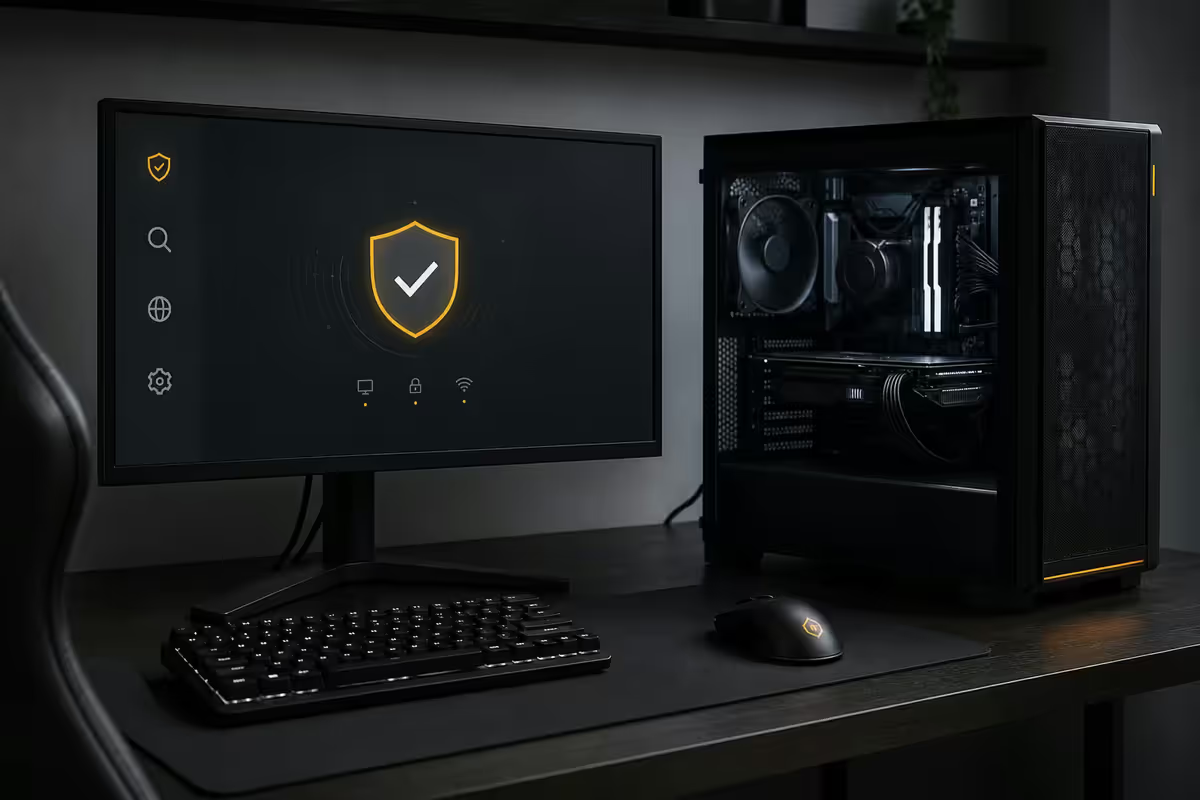
Windows Defender in 2026 — the honest assessment
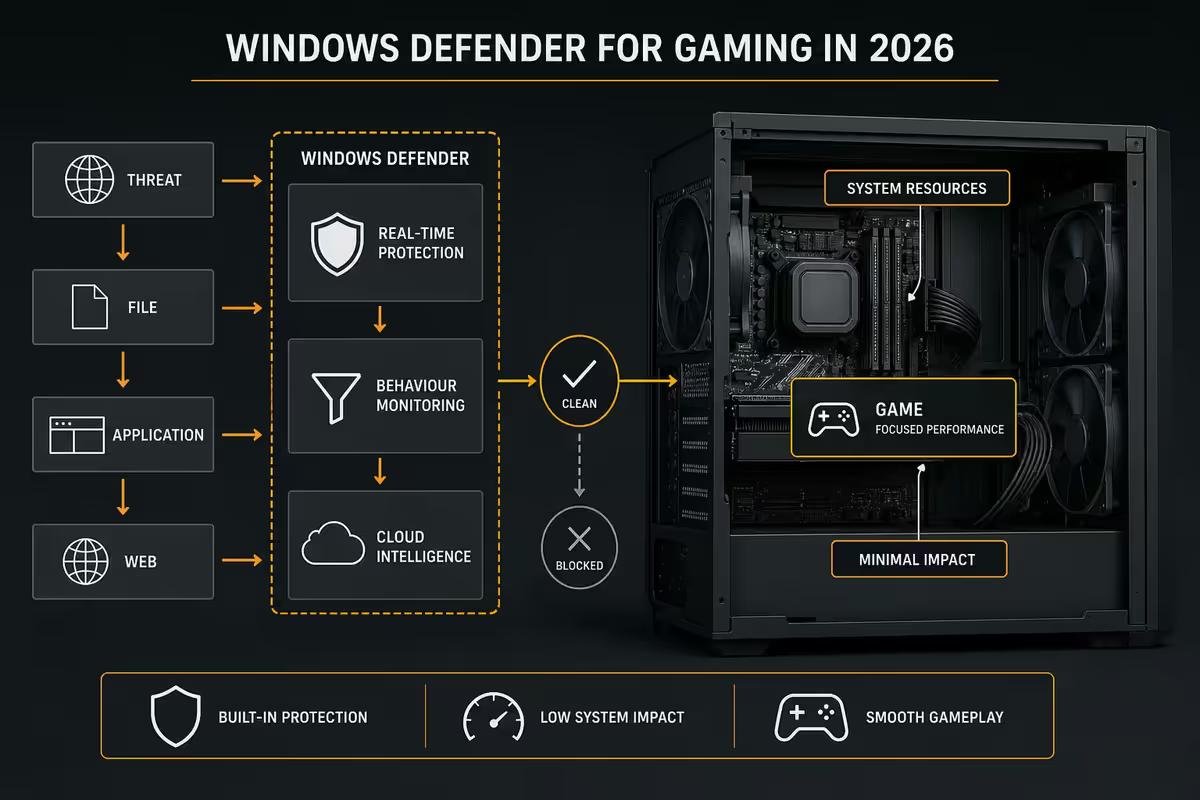
For roughly the last six years, Microsoft Defender (the rebranded Windows Defender, now part of Windows Security) has scored at or near the top of every major independent antivirus benchmark — AV-TEST, AV-Comparatives, SE Labs. In the May 2026 AV-TEST round, Defender scored 6.0/6.0 on protection and 6.0/6.0 on usability with detection rates above 99.9% on both zero-day and reference malware sets.
In other words: the free AV that's already on every Windows 11 install is, by any meaningful measure, one of the two or three best antivirus products available — paid or free. The era when "Windows Defender" was a polite name for "no antivirus at all" ended around 2018.
For the typical gaming PC, this means the most important AV decision you'll make in 2026 is don't install anything else. Defender protects against the threats actually targeting Windows 11 home users (browser drive-by downloads, malicious email attachments, fake software installers) at a performance cost that's effectively zero. The remaining 10% case — where third-party tools add value — is narrow and specific.
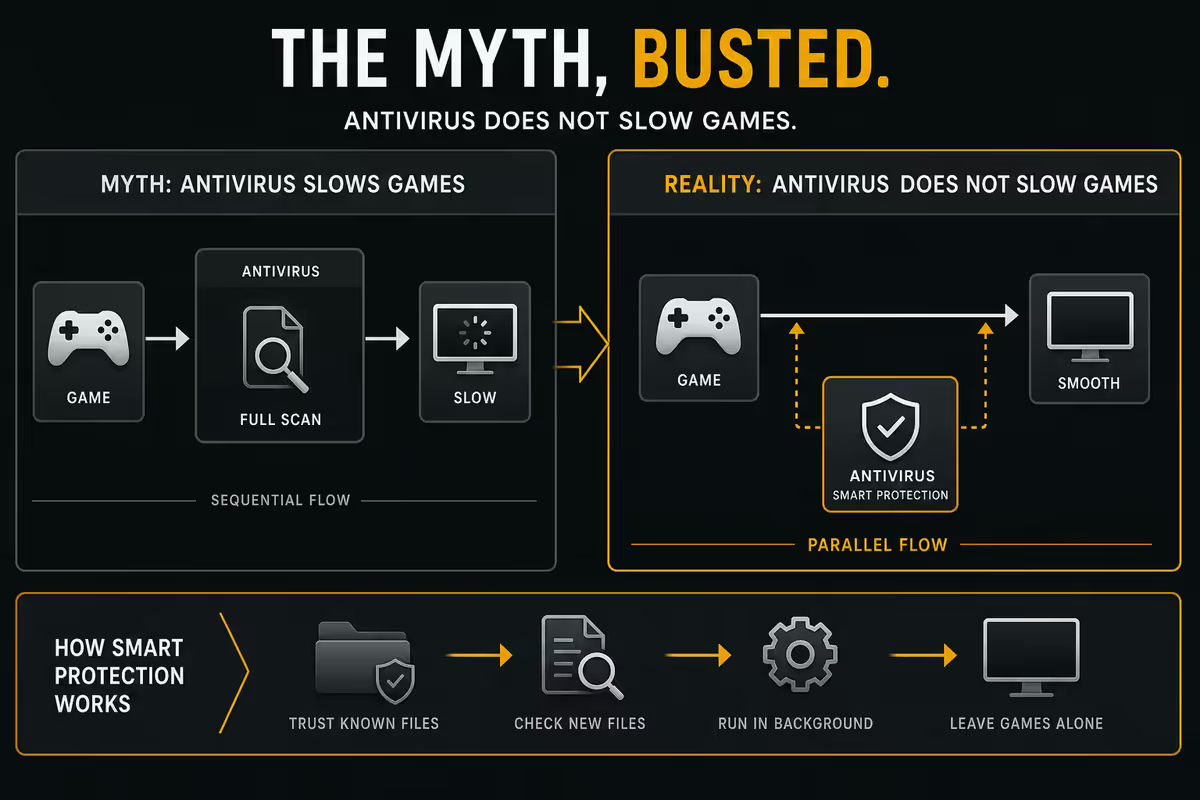
The "antivirus slows your games" myth
The reputation that antivirus software tanks gaming performance comes from a specific era — roughly 2008-2016 — when Norton 360 and McAfee Total Protection were both heavyweight subscription suites that did everything (firewall, VPN, password manager, identity monitoring, parental controls) and were notorious for background scanning during gaming sessions. The performance hit was real and measurable: 10-20% framerate loss in some titles.
Modern Microsoft Defender, by contrast, is a tightly integrated kernel-mode component of Windows 11 designed specifically to minimise impact. Benchmark testing (Tom's Hardware 2026, PC Gamer hardware lab) shows Defender adding 1-3% average framerate overhead across a 12-game test suite — within margin of error for most users.
Where Defender adds noticeable overhead is during the first shader cache compilation when you launch a new game. Defender scans every new file as it's written to disk, and shader cache files are written aggressively during a first launch. The fix isn't disabling Defender — it's adding your game install folders as scan exclusions, which we cover in detail later in this guide.
| AV product | Avg gaming overhead | Background bloat |
|---|---|---|
| Microsoft Defender | 1-3% | Minimal (kernel-integrated) |
| Malwarebytes Free | 0% (on-demand only) | None when idle |
| Bitdefender Free | 2-4% | Low |
| ESET NOD32 (paid) | 2-4% | Low |
| Norton 360 | 6-12% | High (VPN, password mgr, etc.) |
| McAfee Total Protection | 5-10% | High (multiple background services) |
When third-party adds genuine value
There are three narrow use cases where layering an additional tool on top of Defender meaningfully improves your security posture. None of them require an always-on second engine — which would actually conflict with Defender and cause stability issues.
1. Malwarebytes Free as an on-demand scanner
Malwarebytes Free (the un-paywalled scanner mode, not the Premium real-time edition) catches a category Defender historically misses: PUPs (potentially unwanted programs), browser-injected adware, and bundled installer payloads. If you download mod packs, game trainers or anything from less-reputable sources, run a manual Malwarebytes scan once a month — it takes 8 minutes and catches things Defender lets through.
2. Controlled Folder Access for ransomware
Built into Defender but disabled by default, Controlled Folder Access blocks unauthorised changes to your Documents, Pictures, Videos and Desktop folders. For freelancers or anyone with irreplaceable work files, enable it under Windows Security → Virus & threat protection → Ransomware protection. Add your game install folders (so games can update saves), and you have meaningful ransomware defence at zero performance cost.
3. Cloud backup as final insurance
Not strictly antivirus, but worth saying: OneDrive, Google Drive or pCloud backup of your important folders is better ransomware insurance than any AV product. If something does get through, you restore from yesterday's backup and lose a few hours instead of everything. The free tiers (5GB OneDrive, 15GB Drive) cover documents — paid tiers cover game saves and creative project files.
Free antivirus products to actively avoid
Several "free" antivirus options remain popular and shouldn't be in 2026. Each has specific reasons.
Avast Free and AVG Free — both owned by Gen Digital (the same parent as Norton). Detection rates remain decent but the 2019-2020 Jumpshot scandal (where browser history of Avast users was sold via a subsidiary) plus increasingly aggressive upsell prompts and bundled VPN/cleaner tools make them harder to recommend. There's nothing they do better than Defender, and the privacy track record is concerning.
Avira Free — also Gen Digital, also bundled with similar upsell behaviour. Same situation as Avast/AVG.
Norton 360 Standard / McAfee Total Protection trials — these often arrive pre-installed on a new Windows laptop. The free trial expires after 30 days then degrades into a constant subscription nag. Performance overhead is the highest of any AV in current testing. Uninstall before you finish setting up the laptop.
Anything you've never heard of — Kaspersky-clones, "antivirus pro 2026" downloads from search engine ads, browser extensions that claim to "scan and clean" your PC. These are at best useless and at worst the malware itself.
False positives on game trainers and cheats
If you've ever downloaded a single-player game trainer (the WeMod / FLiNG / MegaDev category) or a memory-editing tool like Cheat Engine, you've almost certainly seen Defender flag it as malware. It's not a mistake exactly — it's a structural detection.
Trainers work by injecting code into a running game's process and editing the game's memory. So does ransomware, so does information-stealing malware. From a signature-detection point of view, they look the same. Reputable trainer authors submit their tools to Microsoft for whitelisting but the whitelist takes weeks to update, so newly-released trainers always trigger flags for the first month or two.
Safe practice when you trust the source:
- Download trainers only from the original developer site (WeMod's own site, FLiNG's site, never a "trainer download" portal).
- Add the trainer's folder as a scan exclusion (not the file — the folder, so future updates also work).
- Never disable real-time protection system-wide — exclusions only.
- Never run trainers on a multiplayer-capable game install. Anti-cheat systems will permanently ban your account if they detect a trainer process in memory.
What to safely exclude from Defender scanning
Scan exclusions are the legitimate tuning move for a gaming PC. Telling Defender to skip folders that contain only trusted, write-heavy files (game installs, shader caches, recording buffers) reduces I/O overhead during gameplay without weakening overall protection.
Safe and useful exclusions:
C:\Program Files (x86)\Steam\steamapps— Steam game libraryC:\Program Files\Epic Games— Epic Games libraryC:\XboxGames— Xbox / Game Pass libraryC:\Users\[you]\AppData\Local\NVIDIA— DLSS / shader cacheC:\ProgramData\Battle.net— Battle.net games- Any folder where OBS, Shadowplay or your capture tool writes video
Don't exclude: Downloads, Desktop, Documents, browser cache folders, anywhere you receive files from the internet. These are exactly the folders Defender most needs to watch.
To add exclusions: Windows Security → Virus & threat protection → Manage settings → Add or remove exclusions → Add an exclusion → Folder. Pick the folder. Done. The performance benefit is largest for the shader cache folders and Steam library — typically 5-15% faster game load times after the first launch.
Scan schedule for gaming PCs
Defender's default scan schedule is "whenever the PC is idle". For a gaming PC, that translates to "whenever I'm at lunch", which is fine. If you want to be deliberate about it:
- Quick scan: daily, automatic. Takes 60-90 seconds. Defender does this on its own.
- Full scan: weekly, scheduled for 3 AM. Takes 30-60 minutes. Schedule via Task Scheduler if you want it on a specific day.
- Malwarebytes manual scan: monthly. 8-15 minutes. Catches PUPs that real-time Defender doesn't flag.
Don't run a full scan in the middle of a competitive multiplayer session — Defender's defer-during-gaming behaviour usually handles this automatically, but if you've manually triggered a scan, you'll feel the disk hit.
Key takeaways
- Windows Defender is the right answer for 90% of gaming PCs in 2026 — top AV-TEST scores, 1-3% overhead, zero subscription.
- Add Malwarebytes Free as an on-demand monthly scanner if you download mods or trainers.
- Skip Avast, AVG, Avira (Gen Digital data history) and pre-installed Norton/McAfee trials.
- Exclude Steam, Epic, Xbox and shader cache folders — that's the real gaming performance win.
- Never disable real-time protection. Folder exclusions handle trainer false positives safely.
Frequently asked questions
Is Windows Defender good enough for a gaming PC in 2026?
Yes. Microsoft Defender scores at the top of AV-TEST and AV-Comparatives in 2026, with very low performance overhead and zero subscription. The right answer for most gamers.Does antivirus slow down games?
Microsoft Defender adds 1-3% framerate overhead. Norton and McAfee suites can add 5-15%. The "AV slows games" reputation is about the heavy paid suites, not Defender.Should I use Malwarebytes alongside Windows Defender?
Malwarebytes Free as a monthly on-demand scanner pairs well with Defender. Don't run two real-time AV engines at once.Why does antivirus flag my game cheats or trainers?
Trainers inject code and edit memory — same techniques used by malware. If the source is trusted, add the trainer folder as an exclusion. Never disable AV system-wide for one trainer.Is Avast or AVG still safe to use in 2026?
Both are Gen Digital products with the 2019-2020 Jumpshot history and aggressive upsell behaviour. Detection is decent but there's nothing they do better than Defender. Skip.What is Defender's Gaming Mode and how does it work?
Windows 11 Game Mode (separate from Defender) suppresses background tasks during fullscreen games. Defender automatically defers scans during gaming sessions. Both work out of the box.Should I disable Defender for better gaming performance?
No. The gain is 1-3% at best and the risk is significant. Add folder exclusions for game installs instead — same performance benefit, full protection retained.Do I need extra ransomware protection?
Most home gamers don't. Enable Defender's Controlled Folder Access and use cloud backup (OneDrive, Drive) for important files. Better insurance than any extra AV.
Get the Evetech app
Exclusive app-only prices, daily flash sales, and free delivery on orders over R4,000 — download the app and start saving.