AirDrop Power Guide
Use AirDrop on Mac. — Any file. Any size. Two clicks.
Email-as-file-transfer is a 2008 habit nobody needs anymore. AirDrop moves multi-gigabyte files between Macs and iPhones at full WiFi speed — when it works. We'll cover when it doesn't, too.
- range (Bluetooth pair)
- ~9m
- file size limit
- No cap
- to send
- 2 clicks
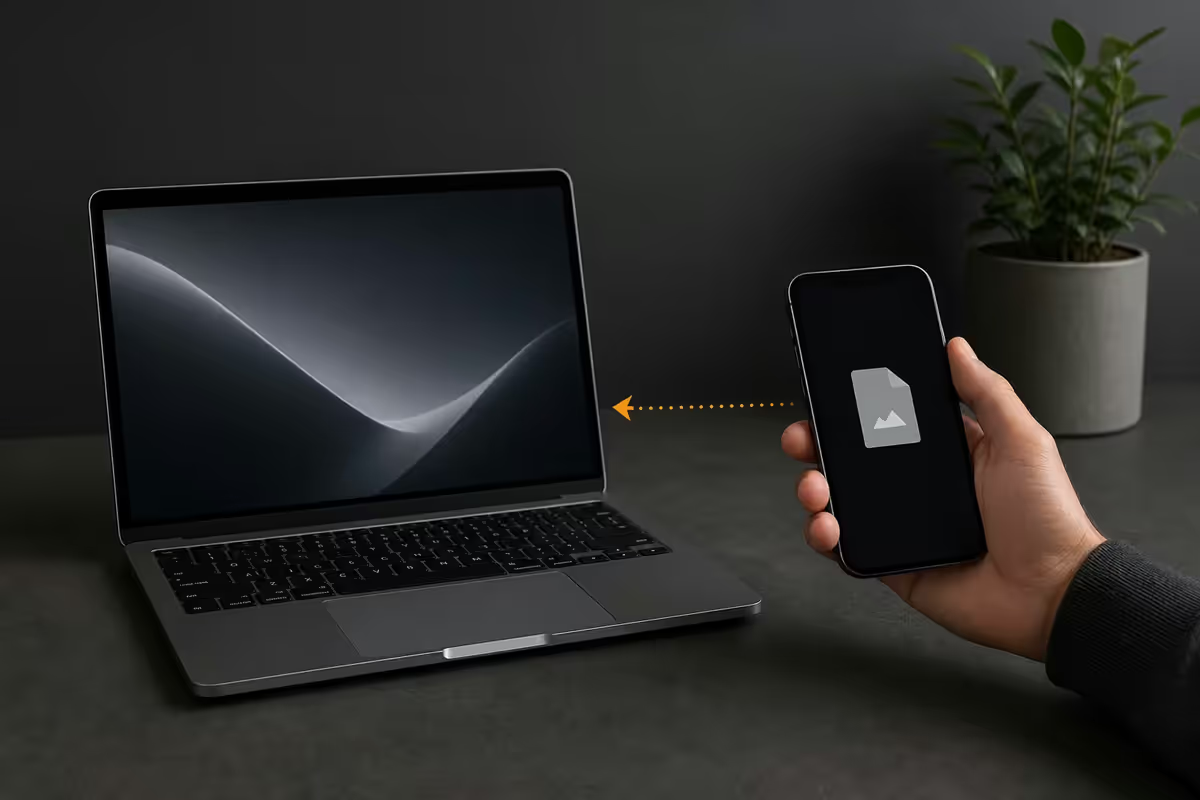
Sending a file via AirDrop
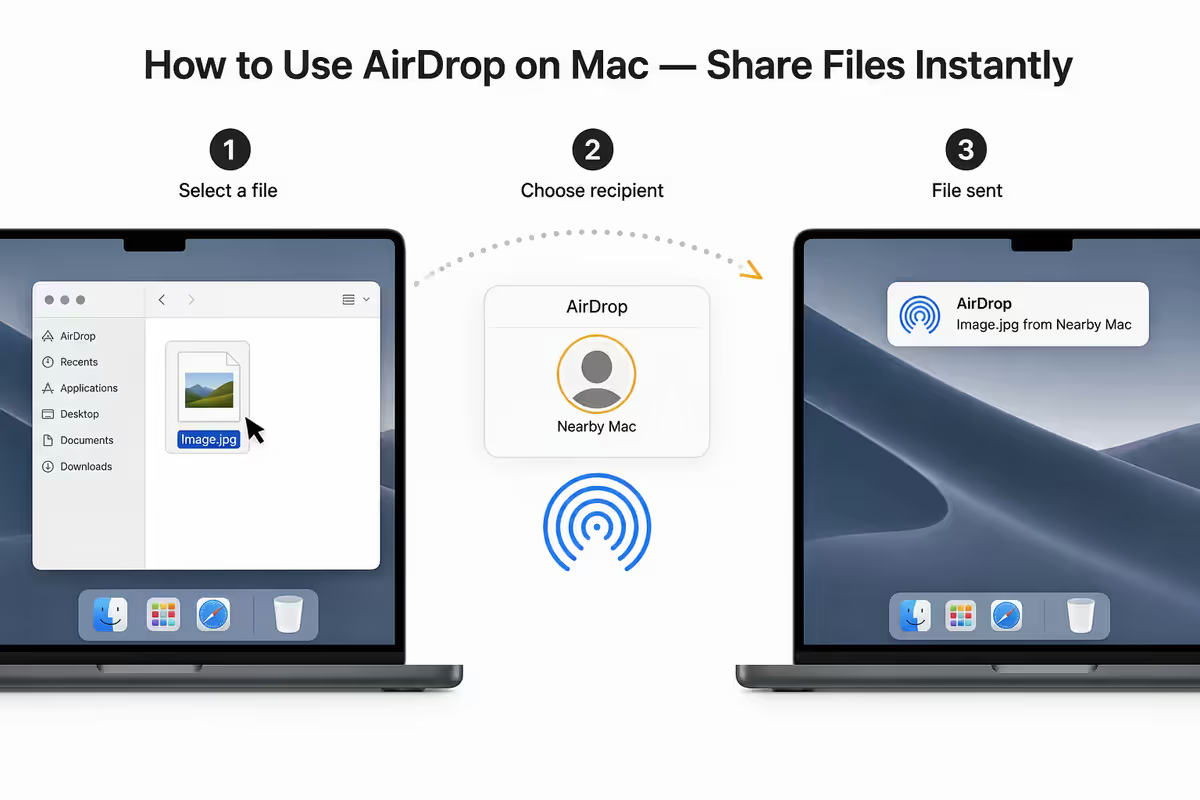
AirDrop is accessible from anywhere in macOS that supports the Share menu — which is essentially everywhere a file can be selected.
The three quickest ways to send:
- Right-click in Finder. Select the file, right-click, choose Share → AirDrop. A panel opens showing nearby AirDrop devices. Click the recipient.
- Share button in any app. Open the file (Preview, Pages, Photos, etc.), click the Share icon (square with up arrow), pick AirDrop. Same panel appears.
- Drag onto a recipient in Finder's AirDrop sidebar. Open a Finder window, click AirDrop in the sidebar. Drag any file from another window onto a recipient's icon. Sends immediately.
You can AirDrop multiple files at once — select them all in Finder before right-clicking. They send as a batch, the recipient receives them together, and they unpack into the destination folder.
For folders: AirDrop automatically zips the folder before sending, so the recipient gets a ZIP archive. Useful but worth knowing — they'll need to unzip on receive.
Receiving a file
When someone sends you a file, a notification appears in the top-right of your screen with the sender's name, the filename, and Accept / Decline buttons.
Click Accept — the file downloads in seconds and saves to your Downloads folder (or Photos folder if it's a JPEG/HEIC image). The relevant app opens automatically if it matches the file type.
Click Decline — the transfer cancels and the sender sees a "declined" notification on their device. Useful when you accidentally AirDrop yourself a file or someone in a coffee shop is being weird.
What if you missed the notification? Check Notification Centre (click date in menu bar) — recently received AirDrop notifications appear there for a while. Or check the Downloads folder directly — accepted files arrive even if you dismiss the notification.
Everyone vs Contacts Only — pick your mode
AirDrop has three receive modes. Choose well — this affects who can see you and bombard you with files.
| Mode | Who can send to you | Best for |
|---|---|---|
| Receiving Off | Nobody | When you want zero AirDrop traffic |
| Contacts Only | People in your Contacts signed into iCloud | Daily default — recommended |
| Everyone for 10 Minutes | Any nearby Apple device | Brief sharing with someone new |
Why Contacts Only is the right default: in busy public spaces (airports, shopping centres, malls), Everyone mode opens you up to random AirDrop spam — historically a big issue in metropolitan SA areas. Anyone with an Apple device nearby can send you image attachments, often unwanted.
Setting AirDrop mode on Mac: Open Finder → AirDrop in sidebar → at the bottom there's a dropdown labelled "Allow me to be discovered by". Set to Contacts Only. Done.
Setting AirDrop mode on iPhone: Settings → General → AirDrop. Pick from Off, Contacts Only, or Everyone for 10 Minutes.
Why AirDrop needs both Bluetooth and WiFi
AirDrop is a clever two-radio dance. Bluetooth and WiFi do different jobs in the same transaction.
- Bluetooth handles discovery. It's low-power and great at "is there an Apple device near me?" — finds the other device, establishes identity, exchanges encryption keys.
- WiFi handles transfer. The two devices spin up a temporary direct peer-to-peer WiFi connection (no router involved). The actual file transfers at WiFi 5 or 6 speeds — much faster than Bluetooth's ~3 Mbps.
You don't need to be connected to a WiFi network — the WiFi radio just needs to be turned on. The peer-to-peer link is created on the fly. This means AirDrop works on a plane, in a remote location, anywhere two devices are within Bluetooth range.
Practical range: about 9 metres for reliable discovery (Bluetooth-limited). The WiFi transfer can work at longer range once paired, but if Bluetooth can't see the other device, AirDrop won't initiate.
Between Mac and iPhone (and iPad)
AirDrop is platform-agnostic across Apple devices. Mac-to-iPhone, iPhone-to-Mac, iPad anywhere — all work identically.
From Mac to iPhone: Share menu → AirDrop → pick the iPhone. The iPhone shows the receive notification on its Lock Screen or in Notification Centre.
From iPhone to Mac: in Photos, Files, Safari, or any app, tap Share → AirDrop → pick the Mac. The Mac shows the notification top-right.
Where files land on each platform:
- Mac receiving any file type. Downloads folder, with the relevant app launched if applicable.
- iPhone receiving photos/videos. Photos app camera roll.
- iPhone receiving documents. Files app, in the AirDrop receive location.
- iPhone receiving contacts/URLs. Opens directly in Contacts / Safari.
File size limits and transfer speed
There is no hard file size limit on AirDrop. People regularly transfer 10GB+ video projects, multi-gigabyte ProRes raw files, Final Cut libraries, and developer build archives without issue.
Real-world transfer speeds:
- WiFi 6 to WiFi 6 devices (M3+ MacBook to iPhone 15+). 800–1200 Mbps — a 1GB file in 8–12 seconds.
- WiFi 5 to WiFi 5 (older Macs). 250–450 Mbps — a 1GB file in 20–30 seconds.
- Mixed-generation (one device older). Falls back to the slower device's standard.
The transfer progress bar shown on both devices is accurate — if it stalls or doesn't move, the connection has likely dropped. Cancel and retry rather than wait.
When AirDrop won't work — troubleshooting
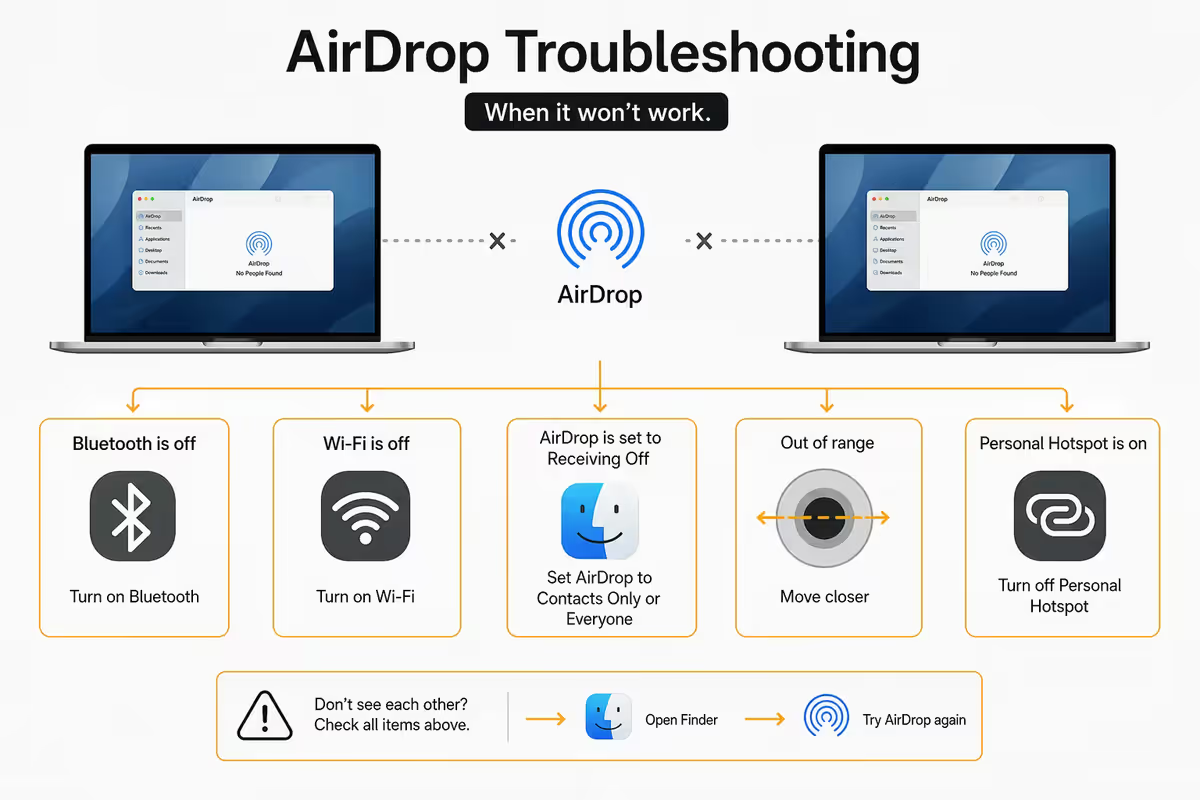
The classic moment: two Macs sitting next to each other, AirDrop refusing to show one device to the other. Here's the fix order, ranked by what actually works most often.
- 1
Toggle Bluetooth off and on, on both devices.
Fixes most cases. Click the Bluetooth icon in the Control Centre, toggle off, wait 5 seconds, toggle on. - 2
Set AirDrop to "Everyone for 10 Minutes" temporarily.
If both devices are set to Contacts Only and one isn't in the other's contacts (or the iCloud sign-in is mismatched), they won't see each other. Everyone mode bypasses that. - 3
Check WiFi is on (any network or none).
If you turned off WiFi to use ethernet only, AirDrop won't work — turn WiFi back on, no network required. - 4
Disable Personal Hotspot.
On iPhone, if Personal Hotspot is enabled, AirDrop is disabled. Turn off hotspot to use AirDrop. - 5
Check Firewall on Mac.
System Settings → Network → Firewall. If "Block all incoming connections" is on, AirDrop is blocked. Disable that block or add exception. - 6
Reboot the receiving device.
Last resort. Bluetooth and AirDrop coordinator services occasionally hang on macOS and only a reboot fully resets them.
After thousands of MacBook setups for SA agencies and studios from our Centurion warehouse, AirDrop is the single most under-trained feature on new Macs. We've seen senior video editors email 8GB ProRes files to themselves via WeTransfer to move them between a MacBook and iMac sitting 30cm apart. <strong>15 minutes spent learning AirDrop saves hours per week</strong> for anyone moving files between devices. Our suggestion to every Mac-onboarded team: 15-minute group demo on day one, AirDrop becomes muscle memory by week's end.
Behind the Build — Evetech Mac Team
Key takeaways
- Right-click → Share → AirDrop. Recipient accepts. File lands in Downloads. Done.
- Both devices need Bluetooth and WiFi on (no network required) — BT for discovery, WiFi for speed.
- Default to Contacts Only — Everyone mode exposes you to AirDrop spam in public.
- Same iCloud account = silent auto-accept between your own devices.
- "AirDrop isn't working" — toggle Bluetooth, switch to Everyone briefly, check Firewall, in that order.
Frequently asked questions
How do I send a file via AirDrop on Mac?
Right-click the file → Share → AirDrop → pick the recipient. Works from any Mac app's Share menu identically.What's the difference between AirDrop Everyone and Contacts Only?
Contacts Only restricts visibility to iCloud-matched contacts. Everyone (10 mins) makes you visible to all nearby Apple devices. Default to Contacts Only in public.Why does AirDrop need both WiFi and Bluetooth on?
Bluetooth handles discovery and pairing. WiFi handles the actual peer-to-peer file transfer at full speed. No router needed — just the radios active.Is there a file size limit for AirDrop?
No real limit. Used routinely for multi-gigabyte video files and Final Cut libraries. The practical limit is patience — a 10GB file takes 3–5 minutes.Why won't AirDrop work between my two Macs in the same room?
Usually Bluetooth off, AirDrop set to Contacts Only without iCloud match, Firewall blocking, or Personal Hotspot active. Toggle Bluetooth, switch to Everyone briefly.Can I AirDrop from Mac to iPhone and vice versa?
Yes — Mac, iPhone, iPad all interoperate identically. Files land in Downloads on Mac; Photos or Files on iPhone depending on type.How do I see who's nearby on AirDrop?
Open Finder → AirDrop sidebar. Nearby devices appear as icons. Or use any Share menu — same nearby list.How do I receive AirDrop files on my Mac?
Top-right notification appears with Accept/Decline. Accept lands the file in Downloads folder. Trusted same-iCloud devices auto-accept silently.
Get the Evetech app
Exclusive app-only prices, daily flash sales, and free delivery on orders over R4,000 — download the app and start saving.