iPhone Mirroring Guide
Run your iPhone on your Mac. — Same iCloud. Same WiFi. Full control.
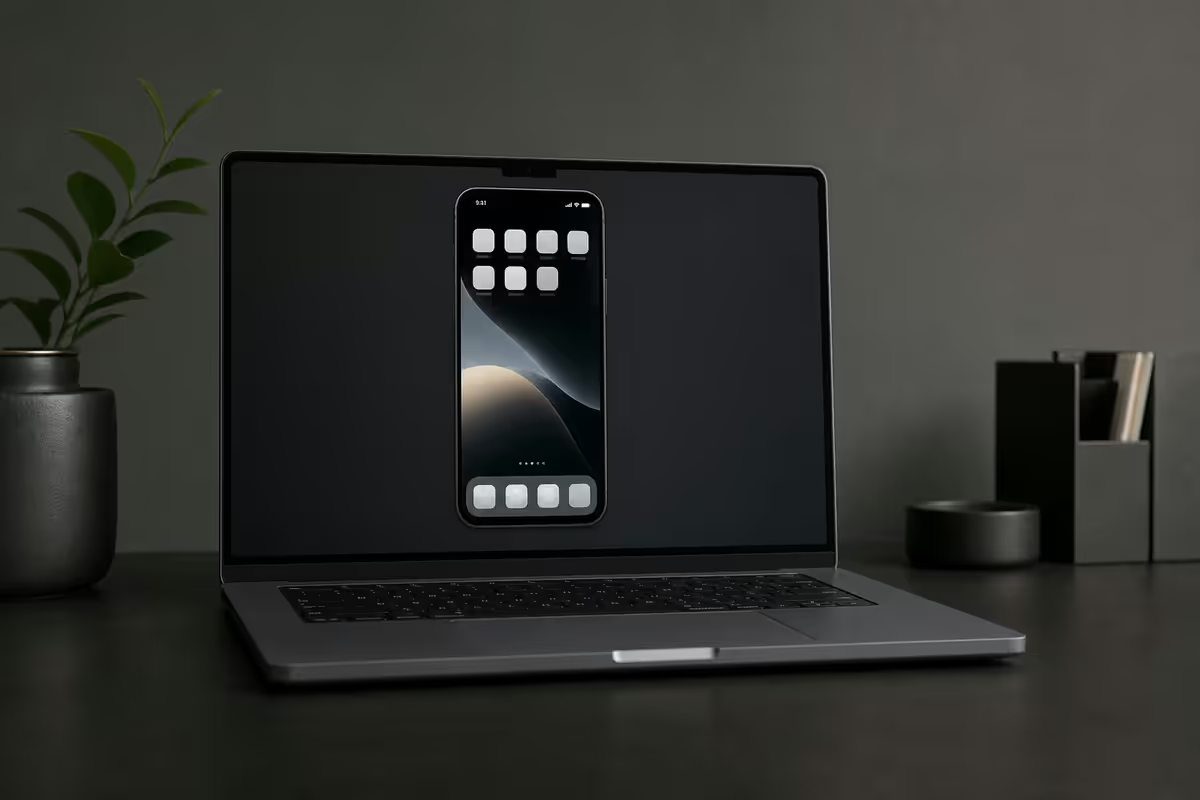
The phone-on-the-desk-next-to-the-Mac problem ends here. iPhone Mirroring puts your phone inside a Mac window, keyboard and trackpad included. Pick up notifications, drag files across, run iOS-only apps without breaking flow.
- on iPhone 15+
- iOS 18+
- macOS minimum
- Sequoia 15+
- M1 or newer Mac
- Apple Silicon
Requirements — what you need to use iPhone Mirroring
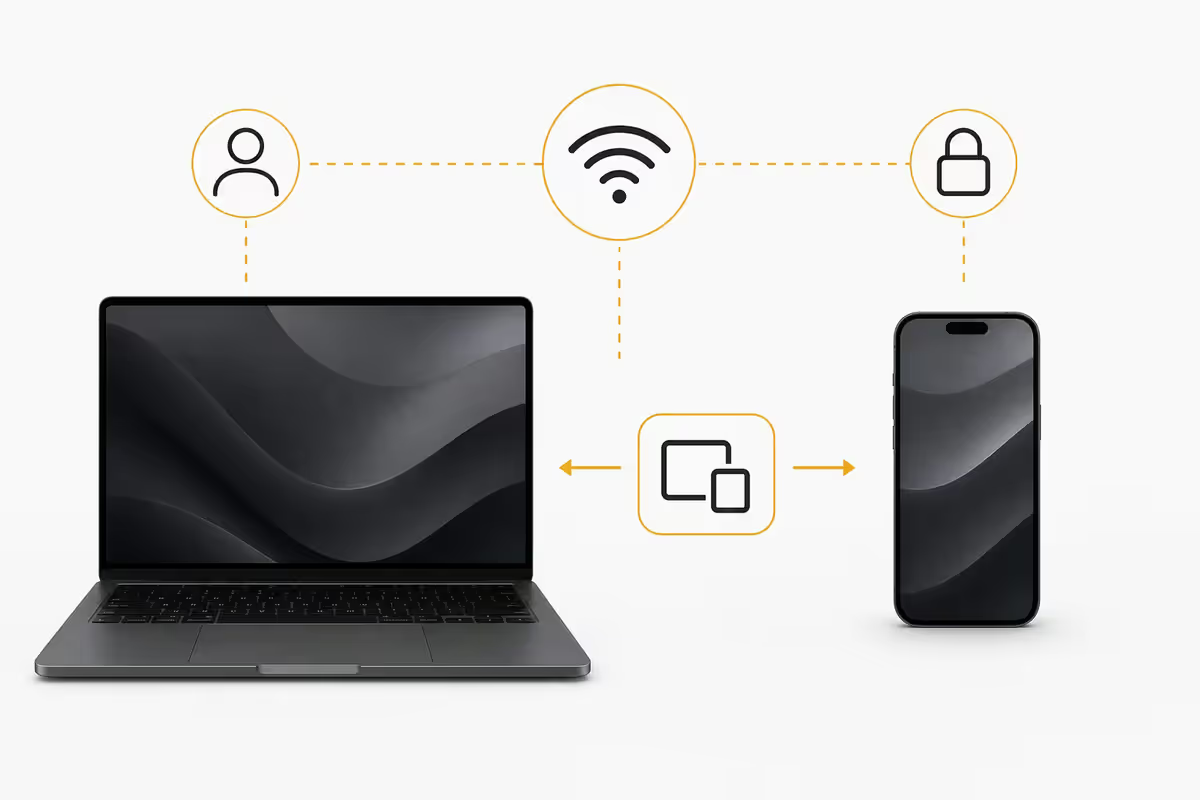
iPhone Mirroring has strict requirements. If you're missing any one of them, the feature won't appear or will refuse to pair. Check this list before troubleshooting.
| Requirement | Minimum | Recommended |
|---|---|---|
| iPhone model | iPhone 15 / 15 Pro | iPhone 16 series or newer |
| iOS version | iOS 18.0 | iOS 18.1 or newer (drag-drop) |
| Mac processor | Apple Silicon (M1+) | M2 or newer |
| macOS version | Sequoia 15.0 | 15.1 or newer |
| iCloud account | Same on both | Two-factor authentication on |
| Network | Same Wi-Fi network | Bluetooth also enabled |
Intel Macs (pre-2020) are not supported. Apple Silicon is a hard requirement — the Mac needs the Neural Engine and unified memory architecture for the bridge to work efficiently. If you have an Intel MacBook Pro, you'll need to upgrade hardware to use iPhone Mirroring.
iPhone 14 and older not supported. Even on iOS 18, only iPhone 15 and later have the required hardware secure enclave and connectivity stack for iPhone Mirroring. There's no software workaround for older iPhones.
First-time setup and launching
Once requirements are met, the first launch is a one-time pairing. After that, opening iPhone Mirroring is instant.
The three ways to launch iPhone Mirroring:
- Dock. macOS Sequoia adds iPhone Mirroring as a default Dock icon — single click.
- Spotlight. Press Cmd-Space, type "iPhone Mirroring", Return.
- Applications folder. Finder → Applications → iPhone Mirroring.
First-launch flow:
- Click Continue on the welcome panel.
- Unlock your iPhone (don't put it down — keep it nearby).
- An approval prompt appears on the iPhone. Tap Allow.
- Authenticate on the Mac with Touch ID or password.
- Choose whether to require auth every time, or remember on this Mac. (Pick "Authenticate Automatically" for personal Macs; require auth on shared machines.)
- The mirror window opens showing your iPhone's home screen.
Total first-time setup: under 60 seconds. Subsequent launches show the mirror window instantly.
Keyboard, mouse and trackpad control
Once the mirror window is open, your Mac inputs translate to iPhone gestures automatically.
- Click. A click in the mirror window equals a tap on the iPhone.
- Click-drag. Equals a touch-and-drag swipe (perfect for reordering home screen apps, swiping notifications).
- Two-finger trackpad scroll. Equals iPhone scrolling — works in any iOS app's scrollable view.
- Keyboard typing. Cursor in an iPhone text field = type from Mac keyboard. Works in iMessage, Mail, WhatsApp (via mirror), notes.
- Cmd+C / Cmd+V. Universal Clipboard works through the bridge — copy on Mac, paste in iPhone app (or vice versa).
Special keyboard shortcuts within the mirror window:
- Cmd+1 / Cmd+2 / Cmd+3 — go to iPhone home screen, app switcher, or search.
- Cmd+H — go to home screen (equivalent of pressing the home gesture).
- Cmd+Q — quit iPhone Mirroring app (the phone stays unaffected).
Drag-and-drop files between iPhone and Mac
Available from macOS Sequoia 15.1 onwards, drag-drop is the killer feature that converts iPhone Mirroring from "neat trick" to "daily driver."
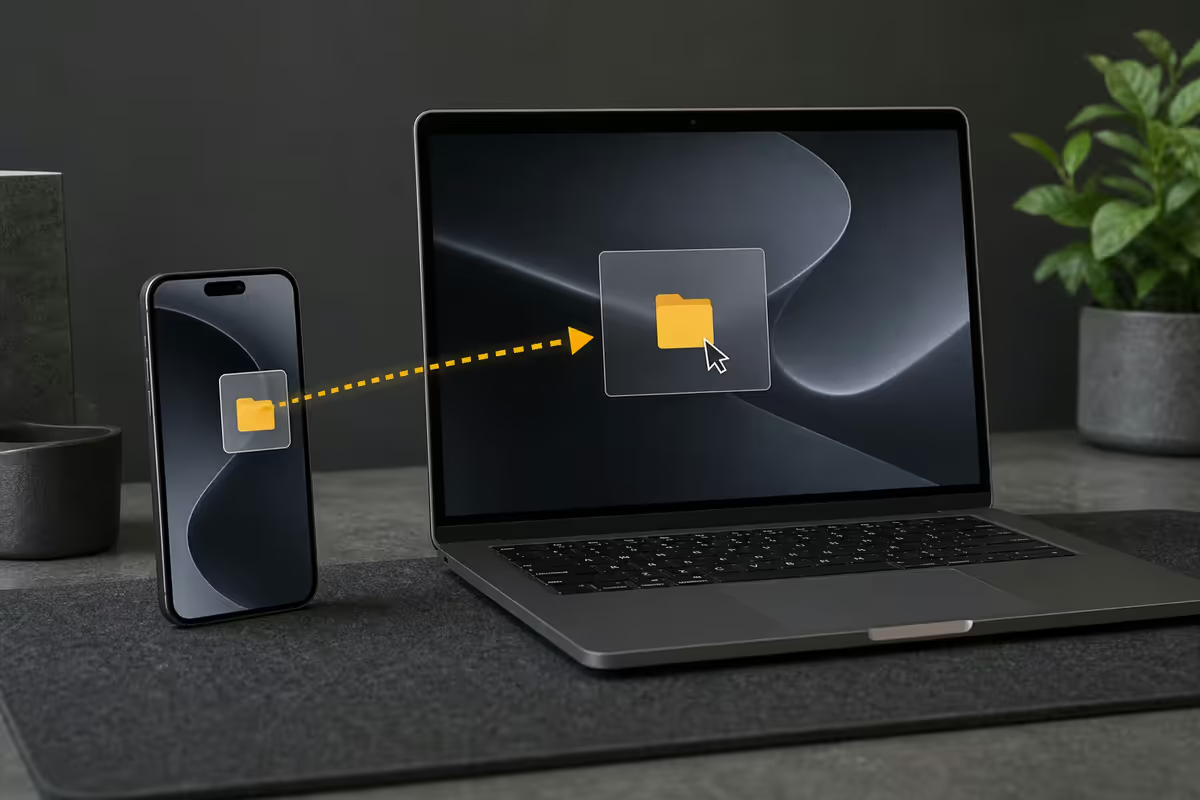
From iPhone to Mac. Long-press a photo in Photos, a document in Files, or a file in any compatible app inside the mirror window. Drag it out of the mirror window onto your Mac desktop or into a Finder window. The file copies across, full quality preserved.
From Mac to iPhone. Drag any file from a Finder window or desktop onto the iPhone Mirroring window. The mirror highlights to show the target. Release. The file lands in the Files app on the iPhone (under "On My iPhone → Downloads" by default).
This replaces a lot of AirDrop and email-yourself-files workflows. For SA users handling screenshots, banking PDFs, or content from iOS-only apps to put into a Mac document, this is far smoother than AirDropping.
Notifications and iCloud Keychain integration
iPhone Mirroring brings iOS notifications and saved credentials onto the Mac in ways that genuinely change how you work.
iPhone notifications on Mac. Any iOS-only app (WhatsApp, Instagram, banking apps, Discord, SA mobile apps) pushes notifications to your Mac's Notification Centre even when iPhone Mirroring isn't open. Click the notification and the mirror opens straight to the app. This is the underrated feature SA users care about most — many banking and lifestyle apps locally are still iOS-only.
iCloud Keychain auto-fill from phone. When you're on a website or app on the iPhone (inside the mirror) and a login form appears, your Mac's Keychain credentials are offered. Same passwords, same auto-fill, same fingerprint or Face ID approval flow — but the iPhone gets the password.
Microphone and camera access. iPhone Mirroring does not bridge the iPhone's camera or microphone to Mac apps. If you want your iPhone as a webcam, use Continuity Camera (a separate feature). iPhone Mirroring is screen + control only.
Screen recording reality
You can screenshot the iPhone Mirroring window with the usual Cmd+Shift+4 region select. Useful for documenting an iPhone-only flow you want to show a colleague.
You can also screen-record the iPhone Mirroring window using QuickTime Screen Recording or the built-in Mac screen recording (Cmd+Shift+5). Both capture the window's contents at the native frame rate.
The DRM catch: any DRM-protected content playing inside the iPhone (Netflix, Disney+, Apple TV+, Showmax DRM content) appears as a black rectangle in screen recordings. This is enforced at the macOS framework level — same behaviour as recording any DRM-protected stream on any Mac. No third-party tool circumvents this legally.
What does work for legitimate recording: documentation flows, tutorials, social-media content creation in non-DRM apps, demos of your own software. Pretty much anything outside Netflix/Disney+ records cleanly.
After rolling out hundreds of macOS Sequoia upgrades for SA design and finance teams from our Centurion warehouse, iPhone Mirroring has emerged as the most game-changing Continuity feature in years. The most common reaction from finance and accounts teams: “I can finally use FNB Banking App without picking up my phone”. For our design and dev teams, dragging Figma exports from a Mac into the iPhone for client-on-the-go review is 10x faster than email. The tipping point for a new MacBook upgrade for many SA pros has become “I want iPhone Mirroring.”
Evetech Mac Team — Behind the Build
The Universal Control / Stage Manager / iPhone Mirroring overlap
Apple's three multi-device features sound similar but solve different problems. Here's the clean comparison.
| Feature | What it does | When to use |
|---|---|---|
| iPhone Mirroring | Shows iPhone in a Mac window with full control | Running iOS-only apps, iPhone notifications on Mac |
| Universal Control | Move cursor between Mac & iPad as one screen | Using iPad as second display + input device |
| Stage Manager | Organise Mac windows into focus groups | Multi-task Mac windows on a busy desktop |
| AirDrop | Send files between Apple devices | One-off file transfers |
| Continuity Camera | Use iPhone as Mac webcam | Better webcam quality on calls |
| Sidecar | Use iPad as second Mac display | Extra screen real estate, Apple Pencil drawing |
The shorthand: iPhone Mirroring is the iPhone-specific solution. Universal Control is for iPads as input devices. Stage Manager is Mac window management only. They don't conflict — many users have iPhone Mirroring, Universal Control with an iPad, and Sidecar all running together.
Key takeaways
- Requires iPhone 15+ on iOS 18+, Apple Silicon Mac on macOS Sequoia 15+, same iCloud account.
- Launch from Dock, Spotlight or Applications — pair once, instant after that.
- Mac keyboard, mouse, trackpad all map to iPhone gestures naturally.
- Drag-drop files in both directions from Sequoia 15.1 onwards — game-changing.
- iPhone-only app notifications on Mac — perfect for SA's iOS-only banking and lifestyle apps.
Frequently asked questions
What do I need to use iPhone Mirroring on Mac?
Three requirements: an iPhone 15 or newer running iOS 18 or later, a Mac with Apple Silicon (M1 or newer) running macOS Sequoia 15 or later, and both devices signed into the same iCloud account with two-factor authentication enabled. The two devices also need to be on the same Wi-Fi network and close enough for Bluetooth pair-up (around 10 metres). Intel Macs are not supported.How do I launch iPhone Mirroring on Mac?
Three ways: open the iPhone Mirroring app from the Dock (it's added by default in Sequoia), launch it from Spotlight by typing 'iPhone Mirroring', or open it from the Applications folder. The first launch walks through a one-time pairing — unlock your iPhone, approve the prompt on it, and the mirror window appears showing your iPhone's lock screen. After first setup, launches are instant.Can I drag files between my iPhone and Mac via iPhone Mirroring?
Yes. In macOS Sequoia 15.1 and later, drag-and-drop works in both directions — drag a photo, document, or other file from the iPhone Mirroring window to your Mac desktop, or drag a file from your Mac into the iPhone Mirroring window to send it to the iPhone. This replaces a lot of AirDrop workflows for users who keep iPhone Mirroring open during the day.What's the difference between iPhone Mirroring, Universal Control and Stage Manager?
iPhone Mirroring shows your iPhone screen inside a Mac window with full control. Universal Control lets you move your mouse cursor between Mac and iPad screens as if they were one continuous display (iPad only, not iPhone). Stage Manager is a window management style that groups apps into 'stages' — it's about Mac window organisation, not multi-device control. iPhone Mirroring is the iPhone-specific solution; Universal Control is iPad-specific; Stage Manager is for organising your Mac itself.Do I get iPhone notifications on my Mac?
Yes — iPhone Mirroring brings iPhone-only app notifications onto your Mac. Apps that don't have a Mac version (WhatsApp, Instagram, banking apps, SA mobile-only apps) push notifications to the Mac's Notification Centre. Click the notification and the iPhone Mirroring window opens to that app. This is one of the standout features for SA users where many banking and lifestyle apps are iOS-only.Can I use my Mac keyboard and mouse in iPhone Mirroring?
Yes. Full keyboard typing works in any text field on the iPhone. Mouse clicks behave as taps. Scrolling with trackpad or scroll wheel scrolls inside iPhone apps. iCloud Keychain auto-fill works across the bridge — your saved passwords pop up in iPhone apps. Cmd+C and Cmd+V (Universal Clipboard) work between the Mac and the mirrored iPhone naturally.Can I screen-record or screenshot the iPhone Mirroring window?
Screenshots of the iPhone Mirroring window work (Cmd+Shift+4, region select). Screen recording the iPhone Mirroring window via QuickTime or built-in Mac screen recording captures the window correctly. However, content protected by DRM (Netflix, Disney+, Apple TV+) appears as a black rectangle in screen recordings. This is enforced at the Mac OS level for content protection — same behaviour as recording any DRM-protected stream.Does iPhone Mirroring work over cellular if Wi-Fi isn't available?
No — iPhone Mirroring strictly requires both devices on the same Wi-Fi network or for them to be in close range using peer-to-peer Apple continuity. It does not work over cellular alone. If you're on a fibre-down day in SA and using your iPhone hotspot to give the Mac internet, iPhone Mirroring still works because the Mac is connected to the iPhone's Wi-Fi hotspot. But two separate connections (Mac on home Wi-Fi, iPhone on cellular far away) will not pair.
Get the Evetech app
Exclusive app-only prices, daily flash sales, and free delivery on orders over R4,000 — download the app and start saving.