Portable SSD Guide
Best external SSD for MacBook. — Speed where you need it. Portability everywhere.
A 256GB MacBook fills up fast. External SSDs solve it — but the gap between marketing claims and real-world speed is enormous. The wrong cable alone can throttle a R6,000 drive to USB stick speed.
- USB 3.2 Gen 2
- 1,050 MB/s
- Thunderbolt 4
- 2,800 MB/s
- Per drive
- R1,200-R12k
USB 3.2 vs Thunderbolt vs USB4 — the real speed
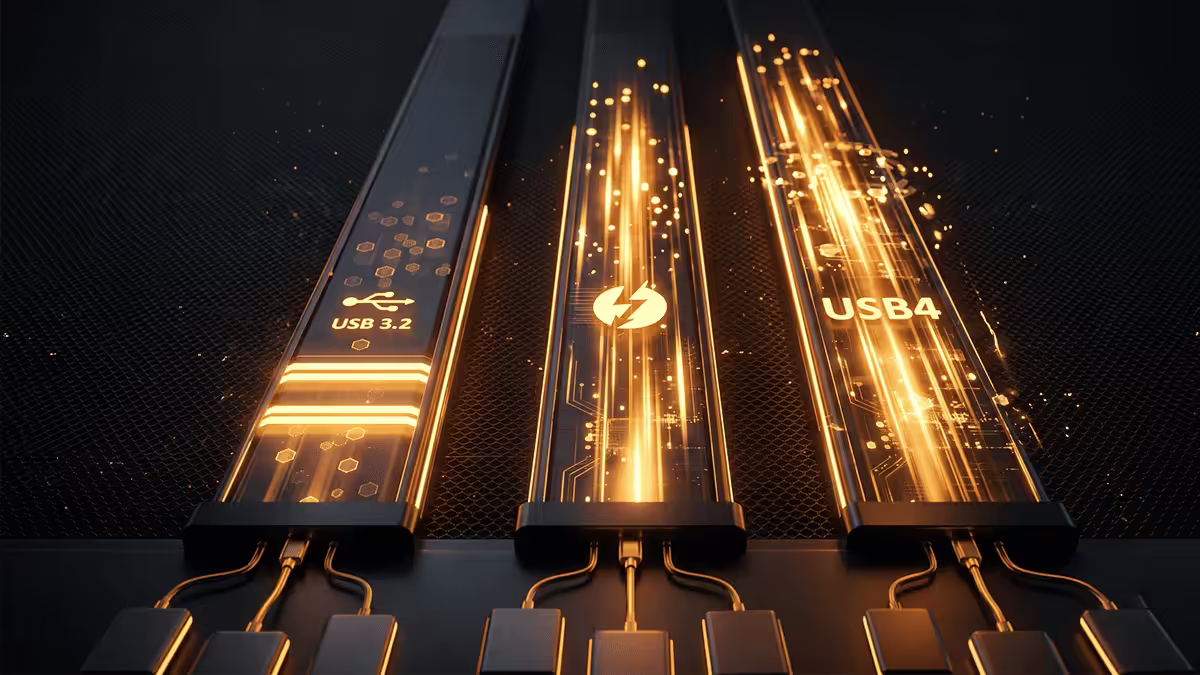
Spec sheets quote "up to" numbers that almost no real-world workload hits. Here's what the same NVMe SSD actually delivers across the interfaces you'll see on portable drives in 2026.
| Interface | Theoretical | Real-world read |
|---|---|---|
| USB 3.2 Gen 1 (5 Gbps) | 625 MB/s | ~440 MB/s |
| USB 3.2 Gen 2 (10 Gbps) | 1,250 MB/s | ~1,050 MB/s |
| USB 3.2 Gen 2x2 (20 Gbps) | 2,500 MB/s | ~2,000 MB/s |
| Thunderbolt 3 / USB4 (40 Gbps) | 5,000 MB/s | ~2,500-2,800 MB/s |
| Thunderbolt 4 (40 Gbps, certified) | 5,000 MB/s | ~2,800-3,200 MB/s |
The honest take for most MacBook users: USB 3.2 Gen 2 at 1,050 MB/s is plenty. That's 3x faster than the fastest SATA SSD and easily handles editing 4K video, transferring 50GB photo shoots, and running apps off the external drive without lag.
When Thunderbolt actually matters:
- Working with 8K video editing directly off external storage.
- Large RAW photo libraries (Lightroom, Capture One) over 500GB where catalog browsing benefits from sub-millisecond access.
- Fast scratch disk for Premiere Pro, After Effects, DaVinci Resolve.
- Running OS or VMs from external storage with minimal slowdown.
When Thunderbolt is overkill: file backups, document storage, Time Machine, photo storage for Instagram and web use, 1080p and 4K consumer video editing. Spending R6,000-R12,000 on Thunderbolt when USB 3.2 Gen 2 would do is throwing money at a transfer time that's already fast enough.
The drives that actually matter
| Drive | Best for | Interface |
|---|---|---|
| Samsung T7 (1TB/2TB) | Best value, everyday use | USB 3.2 Gen 2 (1,050 MB/s) |
| Samsung T7 Shield | T7 in rugged IP65 jacket | USB 3.2 Gen 2 |
| Samsung T7 Touch | Fingerprint security on-device | USB 3.2 Gen 2 |
| Samsung T9 | Faster than T7 with USB 3.2 2x2 | USB 3.2 Gen 2x2 (2,000 MB/s) |
| SanDisk Extreme V2 | Rugged IP55, drop tested | USB 3.2 Gen 2 |
| SanDisk Extreme Pro V2 | 2x2 speed in SanDisk's lineup | USB 3.2 Gen 2x2 (2,000 MB/s) |
| LaCie Rugged SSD Pro | Site work, IP67 + drop-proof | Thunderbolt 3 (2,800 MB/s) |
| OWC Envoy Pro FX | Video editing, Mac-tuned | Thunderbolt 3 (2,800 MB/s) |
| OWC Envoy Pro SX | Top-tier Thunderbolt portable | Thunderbolt 4 (3,200 MB/s) |
The honest recommendation: Samsung T7 covers most MacBook external storage needs. The rest — pro video editors, photographers shooting on location, anyone running OS off external — is where Thunderbolt drives earn their price.
Samsung T7 — the default answer
Compact aluminium body, credit-card footprint, USB 3.2 Gen 2. Read and write both around 1,000 MB/s sustained. Available in 500GB, 1TB, 2TB and 4TB. Samsung's firmware is among the most reliable in portable storage. The 1TB at R1,800 in SA is the unbeatable sweet spot.
Samsung T9 — the speed step-up
USB 3.2 Gen 2x2 at 2,000 MB/s. Bigger and slightly more expensive than T7. Works at full speed on M2/M3/M4 MacBook Pros and falls back to ~1,050 MB/s on older MacBook Air USB-C. Worth the upgrade if you regularly transfer 100GB+ files.
OWC Envoy Pro FX — the video editor's pick
Thunderbolt 3 with bus-powered operation, IP67 rating, and the lowest sustained-write fall-off in its class. Designed specifically for Mac use. R6,000-R9,000 for 1TB-2TB. Editor-tested for ProRes 4K and 8K workflows.
NVMe enclosure DIY route
Buying a Thunderbolt enclosure plus your own NVMe SSD can deliver Thunderbolt-speed portable storage at 30-40% lower cost than a finished portable Thunderbolt drive. The catch is size, setup time, and missing software features.
What you need:
- Thunderbolt 4 or USB4 enclosure — Acasis TB4 (~R3,200), ORICO TBU401 (~R2,800), OWC Express 1M2 (~R4,500). Watch for "USB-C" enclosures that are only USB 3.2 — those won't deliver Thunderbolt speeds.
- NVMe SSD — Samsung 990 Pro 1TB (~R2,200), WD SN850X 2TB (~R3,800), Crucial T700 1TB (~R3,000). The SSD's controller and DRAM cache matter more than the raw TLC vs MLC argument.
- Quality USB4 cable — Apple Thunderbolt 4 Pro Cable, Anker 765, CalDigit TBT4-C-50. The bundled enclosure cable is sometimes underspecced.
Trade-offs vs buying a finished drive:
- Bigger physical size — Acasis enclosure is 100mm x 50mm vs Samsung T7's 85mm x 57mm.
- No fingerprint security, no IP rating — most DIY enclosures are plastic and basic.
- Manual setup — format, partition, enable Time Machine yourself.
- Better future-proofing — upgrade the NVMe in two years; reuse the enclosure.
- Best-in-class raw performance for the price tier.
USB-C cable quality — the silent throttle
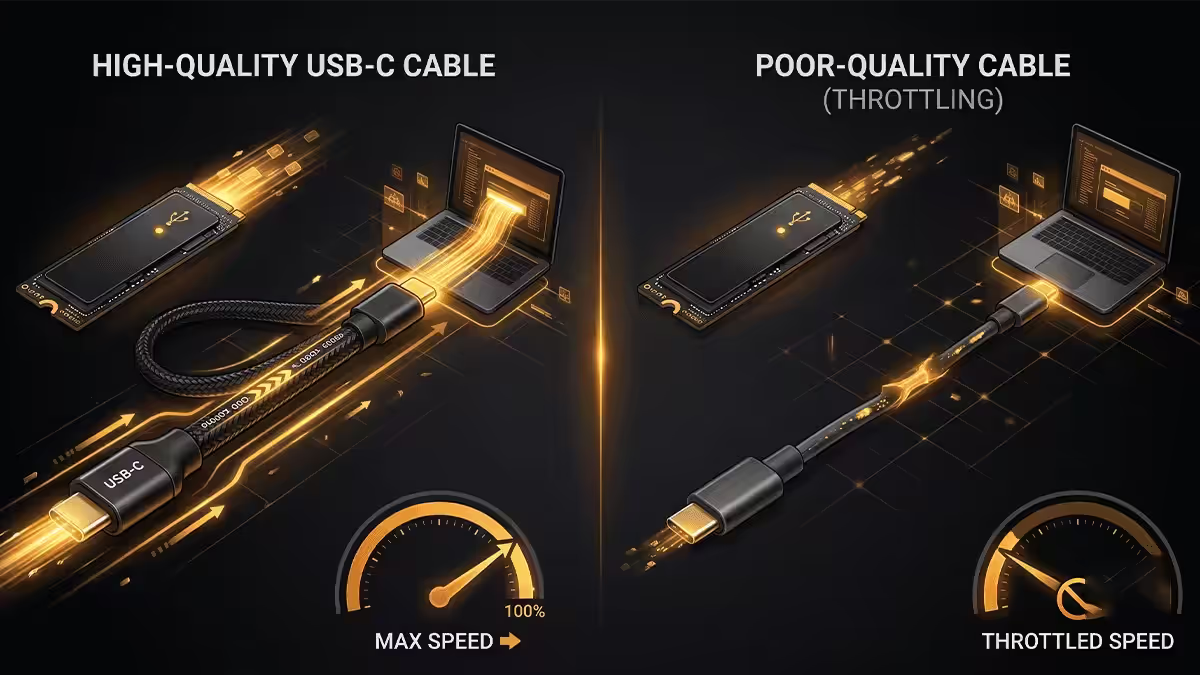
The dirty secret of external SSDs: a R50 USB-C cable can turn a R6,000 Thunderbolt drive into a USB stick. USB-C is a connector shape, not a speed rating. Cables come in five speed tiers with the same physical plug.
Cable speeds you'll encounter:
- USB 2.0 (480 Mbps) — charges phones, transfers at ~60 MB/s. Charging cables that come in phone boxes are usually this.
- USB 3.0 / 3.1 Gen 1 (5 Gbps) — up to 440 MB/s. Older USB-C cables.
- USB 3.2 Gen 2 (10 Gbps) — up to 1,050 MB/s. The minimum for any portable SSD.
- USB 3.2 Gen 2x2 (20 Gbps) — up to 2,000 MB/s. Required for Samsung T9 and SanDisk Extreme Pro V2 at full speed.
- Thunderbolt 3 / Thunderbolt 4 / USB4 (40 Gbps) — required for Thunderbolt drive speeds. Look for the Thunderbolt lightning logo on the cable.
Use the bundled cable first. Reputable manufacturers (Samsung, SanDisk, OWC, LaCie) ship cables that match the drive's interface. Problems start when the bundled cable goes missing and gets replaced with a random USB-C cable from a drawer.
Time Machine on external SSD
External SSDs transform Time Machine from a once-a-week chore into background magic. Initial backups complete in 20-40 minutes (vs hours on traditional HDD). Hourly snapshots become invisible.
Setup walkthrough:
- Plug in the SSD. Open Disk Utility, select the drive, click Erase.
- Choose format APFS (or APFS Case-sensitive if you do dev work). Optional but recommended: enable encryption with a strong password.
- Name the volume (e.g. "Time Machine"). Click Erase to format.
- Open System Settings → General → Time Machine. Click Add Backup Disk. Select the SSD. Choose backup options.
- Initial backup runs. After completion, Time Machine snapshots every hour and consolidates older ones automatically.
Size guideline: reserve at least 2x your MacBook's storage capacity for Time Machine. A 1TB MacBook should use a 2TB SSD for backups — this gives you 3-6 months of meaningful version history. Smaller SSDs work but Time Machine will discard older snapshots faster.
Fingerprint security and IP rating
Hardware fingerprint (Samsung T7 Touch)
Adds a fingerprint sensor to the T7 chassis. Up to four enrolled fingerprints unlock the drive on connect. Without a verified print, the drive presents as an empty volume requiring password unlock through Samsung's software. ~R500 premium over standard T7.
Best for: portable storage of client work, financial documents, personal media. The on-device unlock is faster and friendlier than software-only encryption.
IP ratings explained
- IP55 (SanDisk Extreme V2): dust-protected, low-pressure water jets. Survives spilled coffee and dusty environments.
- IP65 (Samsung T7 Shield): dust-tight, low-pressure water jets. Stricter than IP55 on dust ingress.
- IP67 (LaCie Rugged SSD Pro, OWC Envoy Pro FX): dust-tight, brief submersion to 1m. Survives accidental dunking.
- No IP rating (Samsung T7 standard): survives normal bag use but not water exposure.
Honest take: if your SSD lives on a desk or in a padded laptop bag, no IP rating needed. Photographers shooting outdoors, videographers on location shoots, and field-engineering audiences are the IP rating audience.
ZAR pricing per TB
| Drive | 1TB price | Per-GB cost |
|---|---|---|
| Samsung T7 | ~R1,800 | R1.76 / GB |
| Samsung T7 Shield | ~R2,100 | R2.05 / GB |
| Samsung T7 Touch | ~R2,300 | R2.25 / GB |
| Samsung T9 | ~R3,500 | R3.42 / GB |
| SanDisk Extreme V2 | ~R2,000 | R1.95 / GB |
| SanDisk Extreme Pro V2 | ~R3,200 | R3.12 / GB |
| OWC Envoy Pro FX | ~R6,800 | R6.64 / GB |
| LaCie Rugged SSD Pro | ~R7,500 | R7.32 / GB |
| DIY (Acasis + 990 Pro) | ~R5,400 | R5.27 / GB |
Key takeaways
- Samsung T7 1TB at R1,800 is the value sweet spot — covers most MacBook external storage needs.
- Thunderbolt only matters for 8K video, large RAW libraries and external-OS workflows. Otherwise overkill.
- Cable quality determines real speed — a USB 2.0 cable throttles a Thunderbolt SSD to 60 MB/s.
- NVMe enclosure DIY saves 30-40% vs finished Thunderbolt drives but adds size and setup time.
- Time Machine on external SSD is 10x faster than HDD. Size 2x your MacBook capacity.
Frequently asked questions
USB 3.2 Gen 2 vs Thunderbolt vs USB4 — what's the real speed difference?
USB 3.2 Gen 2 (10 Gbps) caps at ~1,050 MB/s. USB 3.2 Gen 2x2 (20 Gbps) reaches ~2,000 MB/s. Thunderbolt 3/4 and USB4 (40 Gbps) push 2,500-3,200 MB/s on fast NVMe enclosures. For most MacBook users — editing photos, transferring video files, running apps — USB 3.2 Gen 2 is plenty. Only 8K video editing, large RAW photo libraries (>500GB), or fast scratch-disk use cases justify Thunderbolt's price premium.What's the best value external SSD for MacBook in 2026?
Samsung T7 (1TB ~R1,800, 2TB ~R3,200) remains the value sweet spot — USB 3.2 Gen 2 at 1,050 MB/s read/write, compact aluminium body, reliable Samsung firmware. SanDisk Extreme Portable V2 is the rugged alternative at similar pricing. Step up to Samsung T9 (2,000 MB/s) for ~R3,500 (1TB) if you need faster transfers. OWC Envoy Pro FX is the Thunderbolt option for video editors at R6,000-R12,000.Does Thunderbolt charge my MacBook through the SSD cable?
No, external SSDs don't deliver power to charge MacBooks. The Thunderbolt cable between MacBook and SSD only carries data. Some Thunderbolt docks include both SSDs and Power Delivery, but standalone external SSDs (Samsung, SanDisk, OWC, LaCie) are data-only. Use your MagSafe or USB-C charger separately.Can I run Time Machine to an external SSD?
Yes — and it's a far better experience than HDD-based Time Machine. Initial backup of a 1TB MacBook takes 20-40 minutes vs 4-8 hours on traditional HDD. Format the SSD as APFS (case-sensitive optional, encrypted recommended), then enable in System Settings → Time Machine. Reserve at least 2x your MacBook's storage capacity for Time Machine to keep meaningful version history.What about NVMe enclosure DIY route?
A USB4 or Thunderbolt 4 enclosure (Acasis TB4, ORICO TBU401, OWC Express 1M2) at R2,500-R4,500 plus a 1TB or 2TB NVMe SSD (Samsung 990 Pro, WD SN850X, Crucial T700) at R1,800-R4,500 gives you Thunderbolt-speed external storage cheaper than buying a finished portable SSD. Trade-off: bigger physical size, more setup required, no fingerprint security or IP rating. Best for desk-bound use rather than carrying in a backpack.Does USB-C cable quality affect SSD speed?
Massively. A USB-C cable rated USB 2.0 (480 Mbps) connecting a Thunderbolt SSD to your MacBook limits the SSD to 60 MB/s — slower than a hard drive. Always use the cable that ships with the SSD or buy a USB-C cable explicitly rated for the speed you need (USB 3.2 Gen 2, USB 3.2 Gen 2x2, Thunderbolt 4, USB4). Apple's Thunderbolt 4 Pro Cable is reliable but expensive. CalDigit, Cable Matters and Anker make good third-party options.Fingerprint security on Samsung T7 Touch — worth it?
Yes for portable storage of sensitive data. Adds ~R500 vs the standard T7 and gates access without needing software unlock on every connect. Useful for travel, client work, or media containing personal info. Software-based encryption (FileVault container, VeraCrypt) achieves the same security without hardware fingerprint, but adds a manual unlock step every time you plug in. T7 Touch handles this on the device itself.Do I need an IP-rated portable SSD?
Only if you actually carry it outdoors, on shoots, or in rough conditions. SanDisk Extreme V2 (IP65 — dust and splash resistant) and LaCie Rugged SSD Pro (IP67 — dust-tight, brief submersion) cost ~R600-R1,200 more than non-rugged equivalents. For desk-to-bag-to-desk use, the standard Samsung T7 or T9 in a sleeve is fine. Photographers and videographers shooting on location are the main IP-rating audience.
Get the Evetech app
Exclusive app-only prices, daily flash sales, and free delivery on orders over R4,000 — download the app and start saving.