Connection Guide
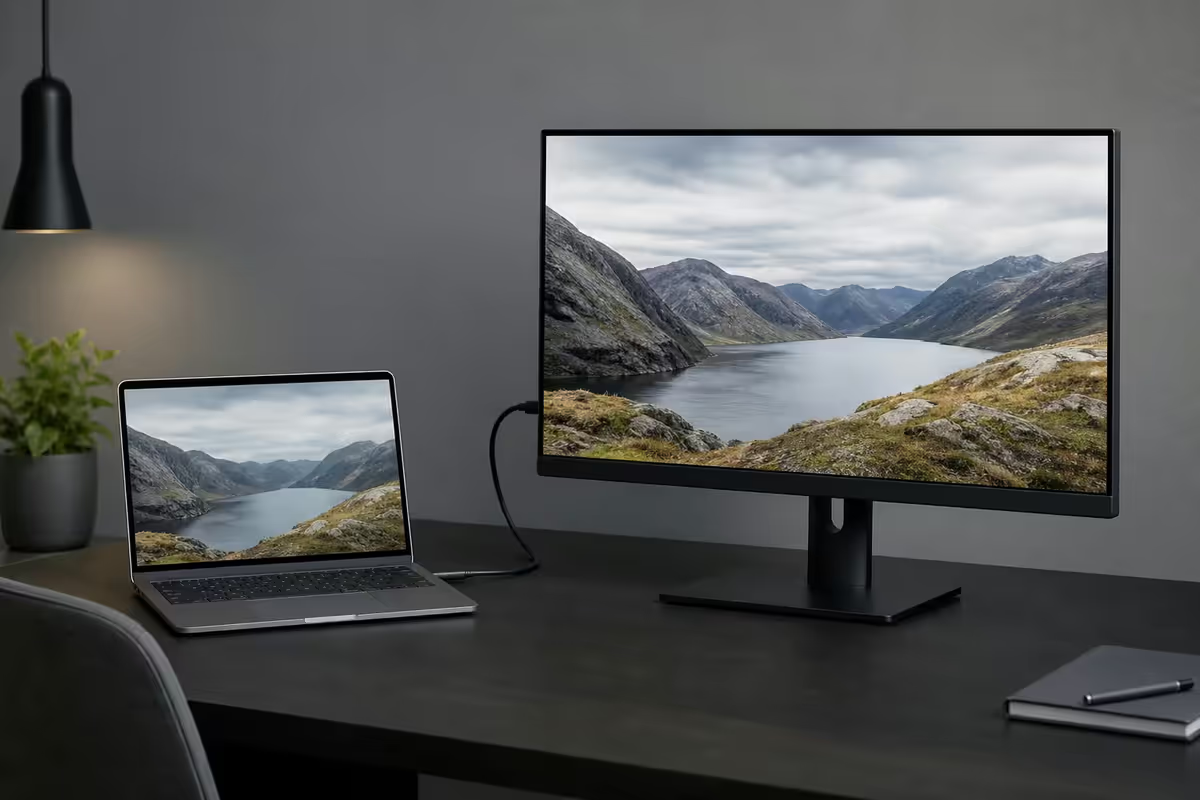
Connect your MacBook to an external monitor. — One cable. Two screens. Less neck strain.
Single USB-C in, a whole desktop's worth of pixels out. The cable choice, scaling and clamshell decision matters more than most people realise — get them right once and your home desk transforms.
- on MacBook Air
- 1 ext.
- on MacBook Pro
- 2-4 ext.
- cable to dock
- R150-R8,500
Pick the right cable for your monitor
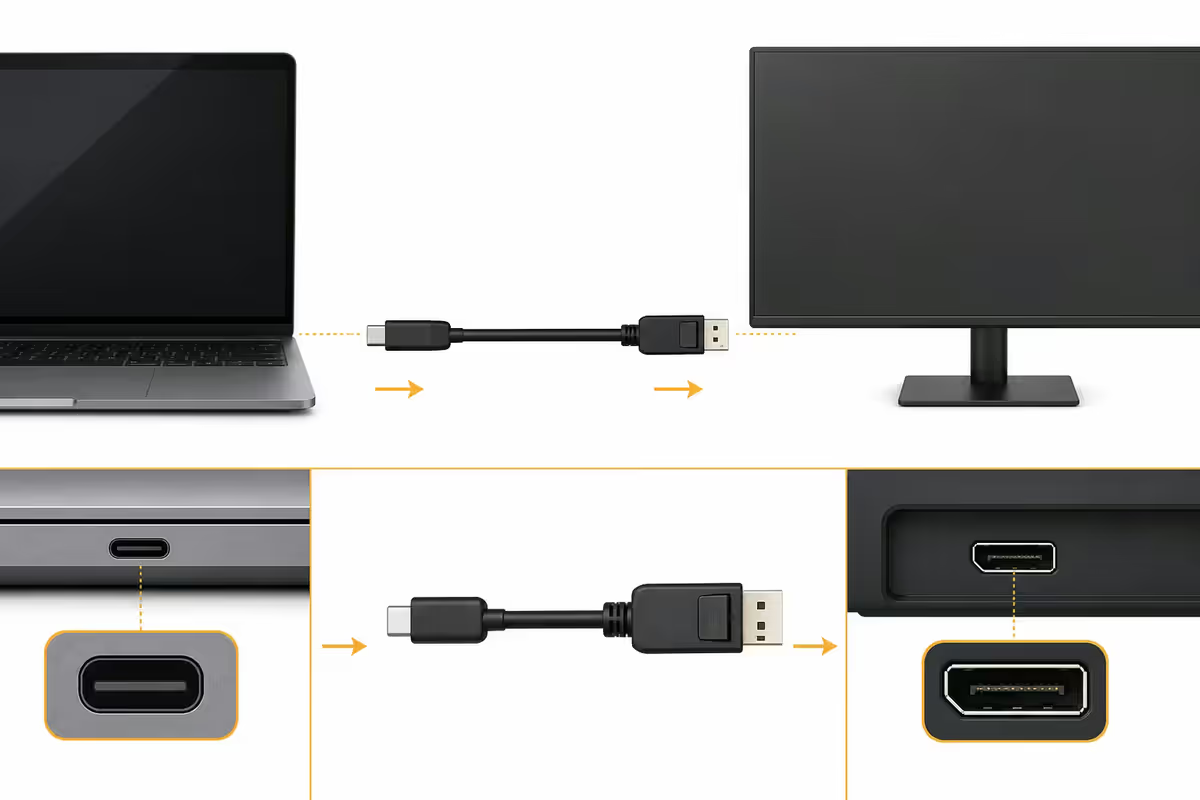
Cable choice depends entirely on what input your monitor has. Modern MacBooks (M1 onward) all support USB-C / Thunderbolt video out on every USB-C port. MacBook Pro 14/16-inch (M2 onward) also adds a dedicated HDMI port.
| Monitor input | Cable / adapter needed | Best for |
|---|---|---|
| USB-C / Thunderbolt | USB-C to USB-C cable | Single-cable desktop, power passthrough |
| HDMI 2.0 / 2.1 | USB-C to HDMI adapter or HDMI cable (MBP Pro) | Most monitors, TVs, projectors |
| DisplayPort 1.4 | USB-C to DisplayPort cable | High refresh rate, multi-stream |
| VGA / DVI (old) | USB-C to VGA adapter (avoid) | Legacy projectors only |
| Mixed / many | Thunderbolt 4 dock | Multi-monitor desks, frequent dock/undock |
One-cable USB-C is the gold standard. If your monitor has a USB-C input, you get video + USB hub + 90W power delivery to your MacBook over a single cable. LG UltraFine, Dell U-series and Samsung Smart Monitor models all do this. No dock required.
MacBook Air vs Pro — external monitor limits
Apple Silicon MacBooks have specific external display limits baked in at the silicon level. Knowing your model's limit prevents disappointment.
| MacBook model | Native external displays | Max resolution |
|---|---|---|
| MacBook Air M1 / M2 / M3 / M4 | 1 external (lid open) | 6K @ 60Hz |
| MacBook Air M3 / M4 (firmware update) | 2 externals (lid closed only) | 5K @ 60Hz each |
| MacBook Pro M4 (base) | 2 externals | 6K @ 60Hz |
| MacBook Pro M4 Pro | 2 externals + built-in | 6K @ 60Hz |
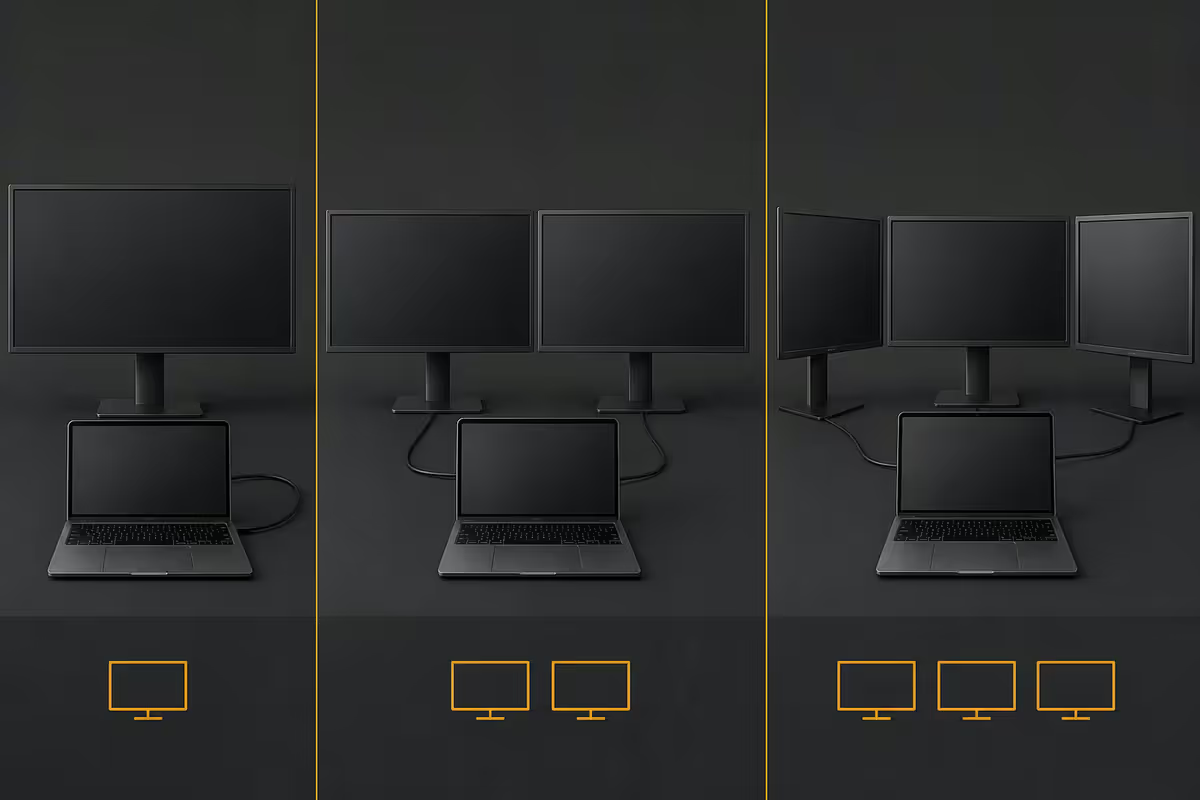
| MacBook Pro M4 Max | 4 externals + built-in | 6K @ 60Hz each |
The Air limit catches people out. If you buy a MacBook Air planning to run two externals like your Windows colleague, you'll be disappointed by macOS native — you need DisplayLink (next section) to get there.
DisplayLink — the MacBook Air dual-monitor workaround
DisplayLink is a software-driven display protocol that bypasses macOS's native display engine. With a DisplayLink-equipped USB-C dock or dongle, you can run 2-3 externals on a MacBook Air with the lid open.
Trade-offs vs native USB-C/Thunderbolt:
- Higher CPU usage — the M-series CPU does light decoding work for each DisplayLink stream. Real-world: ~5-10% CPU on a M3 Air running two 1440p externals.
- Slight latency — fine for productivity, slightly less ideal for gaming.
- Driver install required — DisplayLink Manager (free from displaylink.com) must be running.
- No HDR support — DisplayLink outputs are SDR only.
Best DisplayLink picks (SA stock): Plugable UD-3900PDZ (~R3,800), Targus DOCK430 (~R3,200), j5create JCD555 (~R2,500). All work with MacBook Air to unlock the second external.
Scaling and refresh rate — get text crisp
Scaling sweet spots by monitor size
macOS renders text differently from Windows — it relies on HiDPI scaling rather than sub-pixel antialiasing. That means resolution and scaling matter more on Mac than they do on Windows.
| Monitor | Best resolution | macOS scaling |
|---|---|---|
| 24-inch | 1440p (2560x1440) | Native (no scaling) |
| 27-inch | 4K (3840x2160) | "Looks like 2560x1440" |
| 27-inch (budget) | 1440p (2560x1440) | Native |
| 32-inch | 4K (3840x2160) | "Looks like 3008x1692" |
| 32-inch (premium) | 5K (5120x2880) | "Looks like 2560x1440" |
| 34-inch ultrawide | 3440x1440 | Native |
1080p on anything over 24-inch is a regret. macOS doesn't render sub-pixel text on 1080p well — text looks soft compared to the same monitor on Windows. If you have a 27-inch 1080p, BetterDisplay (free) can force HiDPI rendering to help; the proper fix is to upgrade to 1440p or 4K.
Refresh rate matching
All Apple Silicon MacBooks support high refresh rates over USB-C / Thunderbolt and the built-in HDMI port. Common pairings: 1440p at 144Hz, 1440p at 165Hz, 4K at 60-120Hz, 4K at 144Hz (needs HDMI 2.1 or DP 1.4 + DSC).
For productivity, 120Hz feels noticeably smoother than 60Hz for scrolling and window dragging. For gaming, macOS doesn't have full VRR (variable refresh rate) support for most games — so 144Hz is a smoothness bump, not a competitive-gaming advantage.
HDR, colour and the toggles to know
macOS supports HDR output to HDR-capable externals automatically when the connection is HDMI 2.1 or DisplayPort 1.4+. The toggle lives in System Settings → Displays → (your external) → "Use as HDR display".
For colour-critical work: Studio Display, ASUS ProArt, BenQ SW-series and LG UltraFine 27UN850-W are factory-calibrated to Display P3. Calibrate your specific unit with a Calibrite ColorChecker (R3,500) for serious colour work. Display profiles live in System Settings → Displays → Colour Profile.
Night Shift and True Tone work on external monitors that report colour temperature data. Most won't — the Studio Display and a handful of premium models do.
Clamshell mode — laptop closed, monitor only
Clamshell mode is the cleanest desktop-style setup: MacBook closed under a stand, single external monitor doing everything, external keyboard + mouse / trackpad. macOS handles the transition automatically when it detects power + display + external input.
Requirements:
- MacBook plugged into power (clamshell won't engage on battery only).
- External display connected.
- External keyboard / mouse / trackpad connected (USB, Bluetooth or via dock).
- Lid closed.
Trade-offs:
- Slightly worse thermal dissipation — lid closed means less surface area to vent heat. For most productivity tasks this is fine, but Pro users running sustained compiles or 4K editing should keep the lid open.
- Internal Apple speakers don't work in clamshell — use the monitor's speakers or external audio.
- FaceTime / Touch ID don't work — internal camera and Touch ID are inaccessible.
The vertical laptop stand (Twelve South BookArc, R900-R1,400) keeps the MacBook upright and saves desk space. Or lid open / aside-the-monitor as a second display works just as well thermally.
SA pricing — what to pay for what
| Item | What to look for | SA price |
|---|---|---|
| USB-C to USB-C 1m cable | 100W PD + USB 3.2 Gen 2 + DP Alt | R250-R500 |
| USB-C to HDMI 2.1 adapter | 4K@120Hz support, HDCP 2.3 | R350-R700 |
| USB-C to DisplayPort 1.4 cable | 8K-ready, DSC support | R300-R600 |
| Thunderbolt 4 cable 1m | 100W PD, 40Gbps, 8K display | R700-R1,400 |
| Single-cable USB-C dock (no DisplayLink) | HDMI + USB + SD + GbE + PD | R1,200-R2,500 |
| DisplayLink dock (Air dual-monitor) | Plugable, Targus, j5create | R2,500-R3,800 |
| Thunderbolt 4 dock (premium) | CalDigit TS4, OWC TB4, Plugable UDX1 | R4,800-R8,500 |
| Vertical MacBook stand | Twelve South BookArc, Rain Design | R900-R1,400 |
Key takeaways
- Single USB-C cable to a USB-C monitor is the cleanest setup — video + USB hub + 90W power.
- MacBook Air natively supports 1 external (lid open). MacBook Pro supports 2-4.
- DisplayLink dock unlocks dual monitor on the Air — R2,500-R3,800, slight CPU overhead.
- 27-inch 4K at "Looks like 2560x1440" scaling is the text-clarity sweet spot.
- Don't buy R150 dongles. R350-R500 from Anker / Belkin / Cable Matters / Apple, every time.
Frequently asked questions
What cable do I need to connect a MacBook to an external monitor?
Depends on monitor input. USB-C monitor: single USB-C cable. HDMI: USB-C to HDMI adapter or HDMI cable (MBP 14/16). DisplayPort: USB-C to DP cable. MacBook Pro 14/16 has built-in HDMI 2.1.How many external monitors can a MacBook support?
Air M1-M4: 1 external (lid open). Pro M4: 2 externals. Pro M4 Pro/Max: 2-4 externals. DisplayLink dongles unlock more for the Air.Can I close my MacBook and just use the external monitor?
Yes — Clamshell mode. Needs power, external display, and external keyboard / mouse connected. Trade: slightly worse thermal, no internal speakers, no Touch ID.What's the best monitor resolution for a MacBook?
27" 4K at "Looks like 2560x1440" scaling is the sweet spot. 1440p native on 24"/27" budget. Avoid 1080p over 24" — macOS renders it soft.Does my MacBook support 144Hz / 120Hz external monitors?
Yes, all Apple Silicon MacBooks. 144Hz at 1440p over USB-C is easy. 4K 120Hz needs HDMI 2.1 or DP 1.4. macOS lacks VRR for most games.What's a USB-C dock and do I need one?
Turns one USB-C port into multi-monitor + USB + Ethernet + SD + PD. Worth it if you dock/undock daily. CalDigit TS4, OWC TB4, Plugable UDX1 are the SA top picks.How do I fix blurry text on my external monitor?
Settings → Displays → Show all resolutions → pick a HiDPI scaled option. BetterDisplay (free) forces HiDPI rendering. Best fix: 1440p or 4K monitor instead of 1080p.Do USB-C to HDMI adapters affect picture quality?
Cheap adapters can cap at 30Hz. Quality units (Apple, Anker, Belkin, Cable Matters) handle 4K 60Hz. 4K 120Hz or 1440p 144Hz needs HDMI 2.1 or DP 1.4 — verify spec before buying.
Get the Evetech app
Exclusive app-only prices, daily flash sales, and free delivery on orders over R4,000 — download the app and start saving.