MacBook Battery Guide
How to extend your MacBook battery. — 18 hours is the goal. Brightness gets you there.
M-series MacBooks were built for all-day battery — yet half of owners still see 6 hours drop to 3 by lunchtime. The cause is rarely the battery itself. It's how the machine is set up and what's running in the background.
- battery target
- 18+ hrs
- display brightness
- #1 drain
- background apps
- Silent
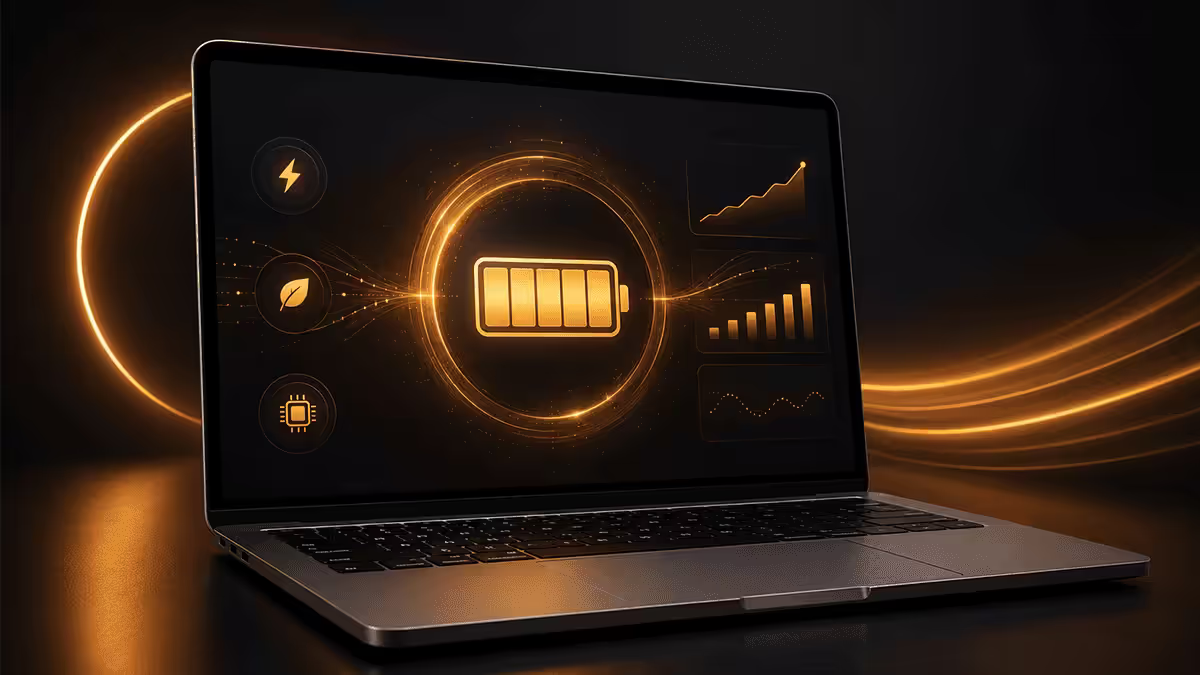
Display brightness — the #1 drain
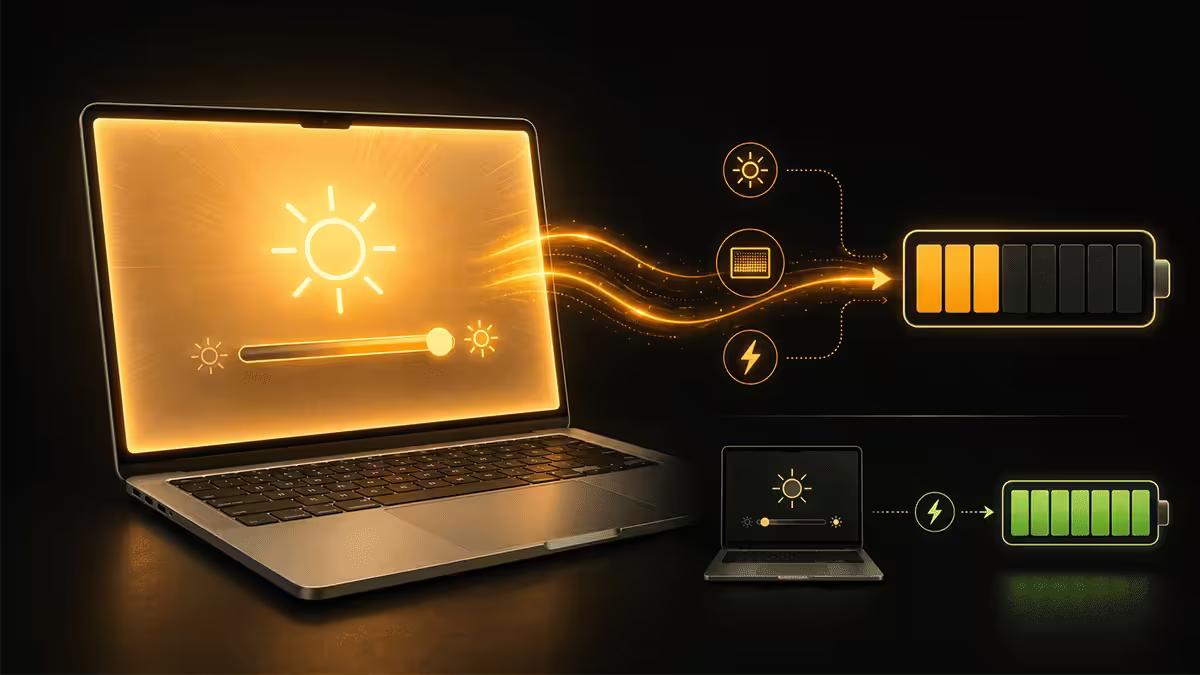
If you change one thing about your MacBook today, change the brightness. The display is by a wide margin the largest single power consumer on every Mac laptop ever made. Going from full brightness to roughly 50% can add 3-5 hours of runtime on an M-series MacBook, with no perceived loss of usability in normal indoor lighting.
Two settings under System Settings → Displays do the heavy lifting:
- Automatically adjust brightness — macOS uses the ambient light sensor to set the panel where it needs to be for your environment. Outdoors it ramps up, indoors it backs off. Switch this on.
- True Tone — colour-temperature adaptation that makes the panel feel right in warmer lighting. It's a small power saving but a meaningful comfort gain.
The keyboard backlight is the second-biggest panel drain. Turn it off in bright rooms (F5 to lower, or set it to fade out after inactivity in System Settings → Keyboard). Most people leave it on all day for no reason.
ProMotion refresh rate
MacBook Pro 14" and 16" models use Apple's ProMotion display, which can run anywhere from 24Hz up to 120Hz. The high refresh rate makes scrolling and animations feel silky, but it also doubles the rate the GPU draws frames, with a corresponding power cost.
On battery, dropping the maximum refresh rate to 60Hz can return 30-90 minutes of runtime depending on how often the screen is changing. For writing, browsing, video calls and most office work, 60Hz looks completely fine.
Find it under System Settings → Displays → Advanced → Limit Refresh Rate. Set it to 60Hz when battery matters and reset to ProMotion when you're back on power.
Background processes — the silent killer
An M-series MacBook idling with a clean app stack will sip 2-4W. Open Slack, Microsoft Teams and Discord at the same time and that idle figure climbs to 8-12W. Now drop Chrome with 30 tabs into the mix and you're at 18-25W idle — and the battery that should last 18 hours suddenly lasts 5.
The repeat offenders we see most often:
- Slack and Microsoft Teams — both run continuous WebSocket connections and sync attachments, files and presence. Quit them when you're heads-down.
- Discord — voice/video pipeline stays active even when no call is happening. Quit completely if you're not in a server you're listening to.
- Zoom and Google Meet — meeting apps are the most CPU-intensive video calls. End calls cleanly, then quit the host app.
- Spotify — fine when playing, but the background sync and local indexing can drain when paused for long periods.
- Dropbox / OneDrive / Google Drive — large initial syncs are heavy. Pause sync during travel days.
Open Activity Monitor, click the Energy tab, sort by "Energy Impact" descending. Anything in the high double digits is a candidate to quit.
Low Power Mode
Apple's Low Power Mode is one of the most underused features on modern MacBooks. It lives under System Settings → Battery and you can configure it to engage automatically when running on battery.
What it actually does:
- Reduces CPU and GPU clock speeds modestly (you keep all cores, they just run cooler).
- Caps ProMotion refresh rate at 60Hz.
- Dims the display by a small amount automatically.
- Defers low-priority background tasks — Spotlight reindexing, Photo cloud uploads, Time Machine snapshots.
- Reduces fan noise to nearly silent.
In mixed real-world work, Low Power Mode adds 20-30% to battery runtime. There's a small performance cost during sustained compute (Xcode builds, video exports) — but for writing, browsing, video playback and meetings, you won't feel it. The "only on battery" setting is the sweet spot for most users.
Optimised Battery Charging — leave it on
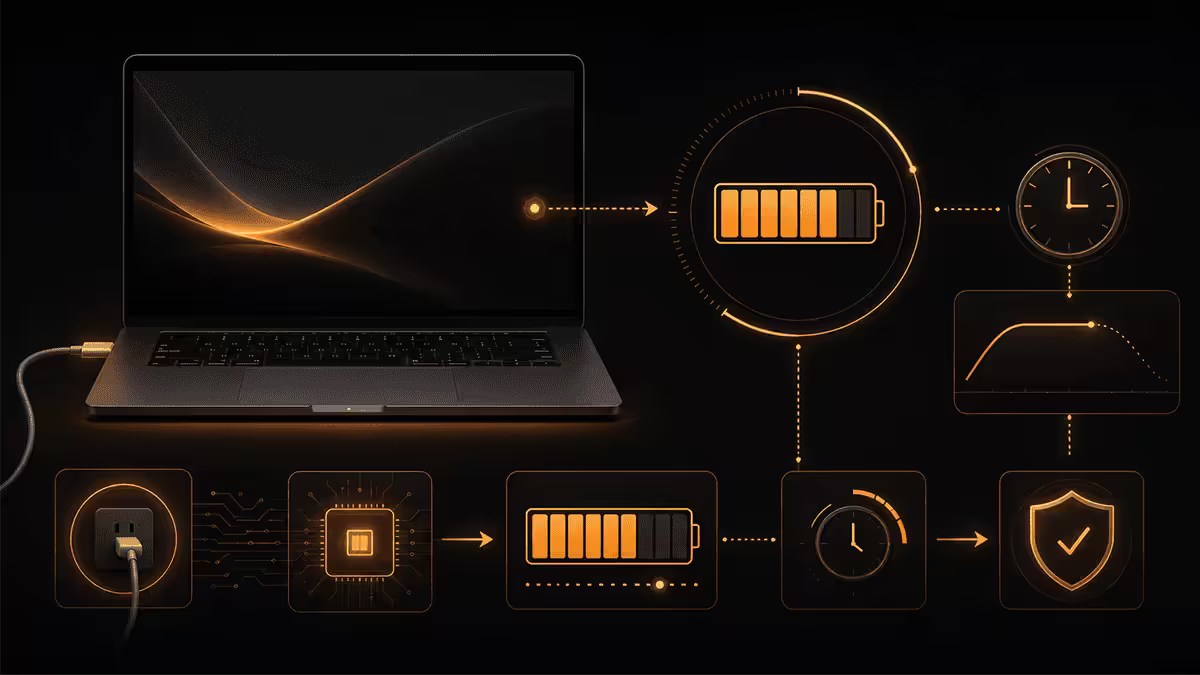
Apple's Optimised Battery Charging is on by default and should stay on. The feature learns your charging pattern (when you plug in, when you unplug) and holds the battery at roughly 80% until shortly before you typically unplug, only then topping up to 100%.
Why this matters: lithium-ion batteries hate sitting at full charge in heat. Charging to 100% the moment you plug in, then sitting plugged in for 8 hours, ages the battery faster than any other normal-use behaviour. Optimised Charging avoids exactly this scenario.
Verify it's enabled under System Settings → Battery → Battery Health → Optimised Battery Charging. If you've recently restored your Mac from a backup, double-check it didn't switch off.
For users on irregular schedules or who travel often, macOS Sequoia and later added a manual "80% charge limit" toggle. If you live on AC power most days, set this and you'll extend battery health by 15-25% over the laptop's lifetime.
Browser tab discipline
Each open tab in Chrome, Safari or Firefox holds RAM and consumes CPU — particularly tabs with auto-playing video, animated ads, real-time dashboards or anything using WebSockets. Going from 30 tabs to 5 tabs can add 1-2 hours of runtime in a typical work session.
Safari is meaningfully more efficient than Chrome on macOS. Apple's tight integration with the silicon shows here — same workload, Safari typically pulls 30-50% less power. If battery life matters and you're not committed to a Chrome workflow, the switch is one of the highest-ROI changes you can make.
Tabs are not bookmarks. Use the bookmark bar, a read-later tool (Reader, Pocket, Raindrop), or the simple practice of sending links to yourself. Keeping a tab open as "I'll come back to that" wastes hours of runtime across a week.
| Browser scenario | Typical drain | Battery impact |
|---|---|---|
| Safari, 5 tabs, mostly text | 3-5W | Baseline (16-18 hrs) |
| Safari, 30 tabs mixed | 7-10W | 10-12 hrs |
| Chrome, 30 tabs mixed | 10-14W | 7-9 hrs |
| Chrome + YouTube + Slack + Teams | 18-25W | 4-6 hrs |
| Zoom call + screen share + browser | 22-30W | 3-5 hrs |
Peripherals and heat
Connecting a USB-C hub, external SSD, ethernet adapter or external monitor draws additional power from the MacBook battery whenever you're not on AC. A 4K display can pull 10-15W through Thunderbolt — enough to cut runtime in half.
Practical habits:
- If you're working off-power, disconnect the external monitor and work on the internal display.
- Unplug external SSDs and hubs when not actively using them.
- Bluetooth headphones are very efficient; wired audio over USB-C is also fine. Wireless earbuds with their own battery are best for runtime.
- Backlit mechanical keyboards over USB can pull 1-3W — turn off the backlight if you're on battery.
Heat ages batteries. The faster a battery cycles between hot and cold, the more its long-term capacity drops. Charging in a hot car, leaving the MacBook on a duvet that blocks the bottom vents, or running sustained CPU loads in a hot room all degrade the cells. Keep the workspace cool when possible and let the laptop breathe.
Load shedding considerations
South African MacBook owners have an advantage Europeans and Americans don't: load shedding is a regular discipline check on battery management. An M-series MacBook in good condition will sail through a typical 2-2.5 hour Stage 2 outage with no charge intervention at all.
A few SA-specific habits:
- Top up before scheduled stages. Check EskomSePush at the start of the day. If a stage starts at 14:00, you want the battery above 80% by 13:45.
- Don't run to 0%. Deep discharges are the single biggest battery-health killer. End your session at 10-15% and shut down rather than letting it cut out at zero.
- Have a USB-C PD power bank. A 20,000mAh PD bank (R1,500-R2,500) gives you 1-2 full MacBook recharges and runs the laptop comfortably through longer Stage 4-6 sessions.
- Wi-Fi over hotspot. When the router goes down, your iPhone's Personal Hotspot keeps the MacBook online. Wi-Fi 6E is more efficient than older 5GHz on battery.
Common mistakes
Running at max brightness indoors. The single biggest waste. You don't need 500 nits to read a Notion document. Drop to 40-60% and your battery lasts hours longer.
Leaving Slack, Teams and Discord all running. They each maintain background connections, sync attachments and update presence. Quit anything you're not actively using right now.
Treating browser tabs as bookmarks. 30 forgotten tabs is 30 background processes. Use bookmarks, Reader mode or a read-later app — keep your active tab count under 8.
Disabling Optimised Battery Charging. Some users switch it off because they want to "see 100%". This actively damages battery health. Leave it on.
Running to 0% during load shedding. Deep discharges accelerate cell wear. Shut down at 10-15% rather than letting the battery cut out.
Charging in a hot environment. Hot car, sunny windowsill, on a duvet that blocks the bottom vent — all of these dramatically accelerate battery ageing. Charge in a cool room when you can.
Driving a 4K external monitor on battery. A single 4K panel can halve your runtime. If battery matters, use the internal display only.
Key takeaways
- Display brightness is the single biggest drain — 50% vs max = 3-5 extra hours. Enable Auto Brightness and True Tone.
- Quit Slack, Teams, Discord and Zoom when not in active use. Each one alone can halve idle runtime.
- Set Low Power Mode to "Only on Battery" — adds 20-30% runtime with imperceptible performance cost.
- Drop ProMotion to 60Hz on battery; close tabs aggressively; Safari is meaningfully more efficient than Chrome.
- For SA load shedding — top up before stages, never run to 0%, and add a R1,200 Mecer Mini-UPS for the router.
Frequently asked questions
What is the biggest drain on MacBook battery?
Display brightness, by a wide margin. Running at max brightness vs 50% costs 3-5 hours on a single charge. Enable Auto Brightness and True Tone to let macOS adapt.How long should a MacBook battery last on a charge?
M-series MacBooks (M3, M4 and newer): 14-18 hours light use, 8-12 hours mixed work, 6-9 hours heavy multitasking. Intel-era (2020 and older): 4-7 hours regardless.Does Low Power Mode actually help?
Yes — typically 20-30% added runtime in mixed work. Reduces CPU clock, caps ProMotion at 60Hz, defers background tasks. Performance cost is small for everyday use.Should I let my MacBook battery drain to 0% before charging?
No. Lithium-ion batteries prefer 20-80%. Deep discharges to 0% and prolonged 100% both accelerate wear. Leave Optimised Battery Charging on — it handles this automatically.Which apps drain MacBook battery the most?
Video calls (Zoom, Teams, Meet), Slack and Discord (always-on sync), Chrome with many tabs, Electron apps generally. Check Activity Monitor → Energy tab.Does closing browser tabs really save battery?
Yes — significantly. 30 tabs to 5 tabs can add 1-2 hours. Safari is meaningfully more efficient than Chrome on macOS. Use bookmarks or read-later tools.How does load shedding affect MacBook battery health?
Load shedding itself is fine. The risk is repeated deep discharges to 0%. Top up before stages, end sessions at 10-15%, and use a USB-C PD power bank for long stages.Do external monitors drain MacBook battery faster?
Yes — significantly. A 4K display can pull 10-15W through Thunderbolt and cut runtime by 30-50%. Work on internal display when battery matters.
Get the Evetech app
Exclusive app-only prices, daily flash sales, and free delivery on orders over R4,000 — download the app and start saving.