New Mac Setup
New MacBook? Flip these first. — 20 toggles in 20 minutes. Then it's yours.
Apple ships every MacBook with sensible defaults — for the average user from 2014. The 20 settings below are what we change on every Mac that leaves our workshop, before we even hand it over.
- total setup
- 20 mins
- essentials
- 20 toggles
- all built-in
- Free
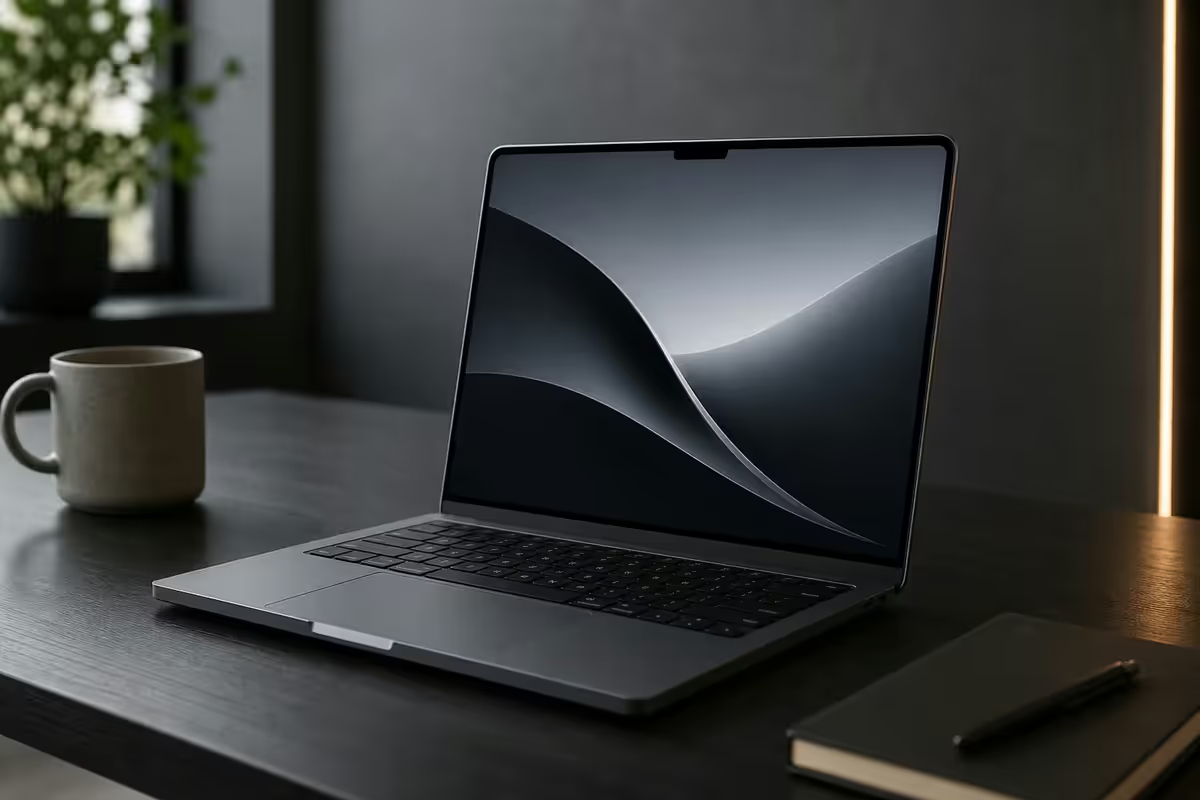
Trackpad — the first feel-of-the-Mac upgrade
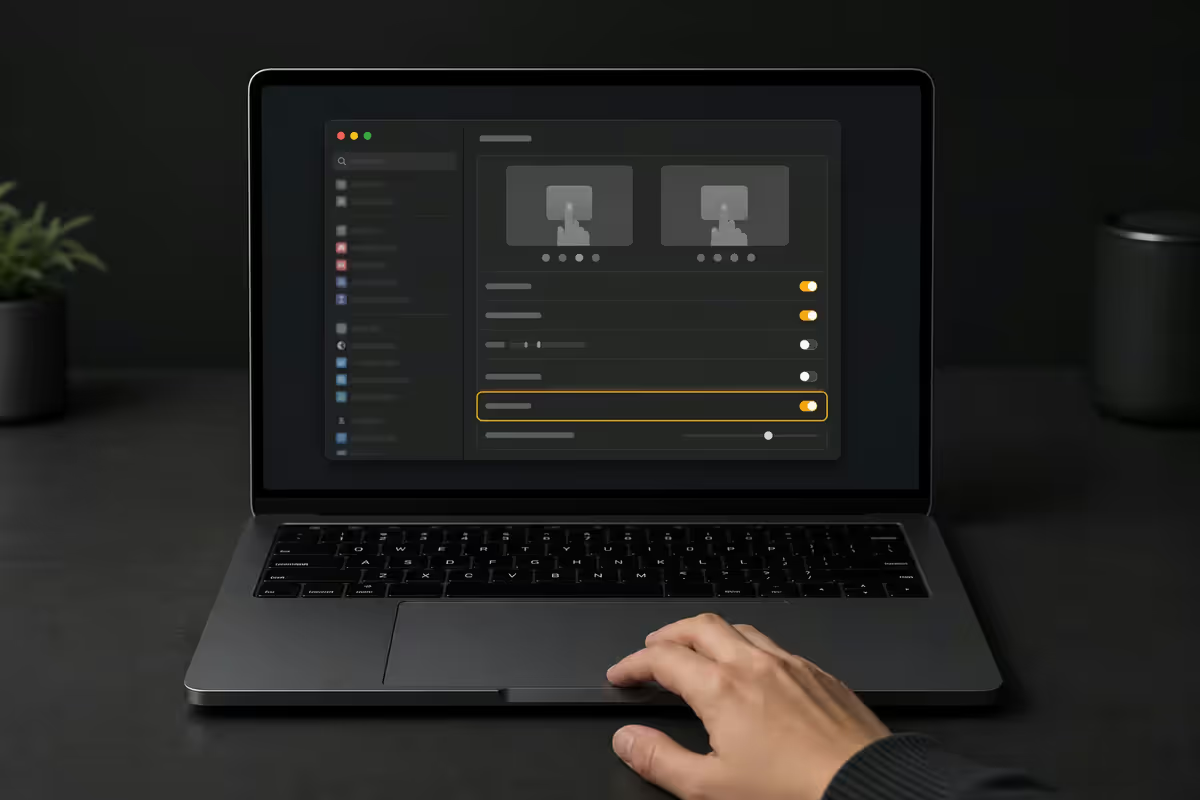
Apple's defaults require you to physically press the trackpad to register a click. In 2026 that's a habit nobody outside Apple's QA team enjoys. Five trackpad changes transform the feel:
- Tap to click ON. System Settings → Trackpad → Point & Click → Tap to click.
- Three-finger drag ON. Hidden under System Settings → Accessibility → Pointer Control → Trackpad Options → Use trackpad for dragging → Three-finger drag. The single best Mac trackpad feature most users never discover.
- Tracking speed up two notches. System Settings → Trackpad → Point & Click → Tracking speed. Default is too slow on 14" and 16" MacBook Pro screens.
- Tap to click force OFF. Trackpad → Point & Click → Click pressure → Light. Reduces finger fatigue over a workday.
- Mission Control swipe with four fingers. System Settings → Trackpad → More Gestures → Mission Control → Swipe up with four fingers. Switching virtual desktops becomes muscle memory in a day.
Dock & Mission Control
The Dock at default settings dominates the screen. Three changes get it out of your way:
- Dock auto-hide ON. System Settings → Desktop & Dock → Automatically hide and show the Dock.
- Magnification ON. Same panel. With auto-hide on, you'll cursor down to summon the Dock — magnification makes target icons easier to hit.
- Position: Left or Right on a 13" or 14" MacBook (vertical space is at a premium). Bottom is fine on 16" Pro and external displays.
- Show recent applications in Dock OFF. Same panel. The recent apps area clutters the Dock with stuff you closed an hour ago.
- Mission Control → Group windows by application ON. Otherwise Mission Control becomes a chaotic mosaic of identical Safari thumbnails.
Finder — show me what's actually there
Apple hides important information in Finder for cleanliness. The five toggles to flip:
- Show all filename extensions ON. Finder menu → Settings → Advanced. Basic safety. A real .pdf vs report.pdf.app needs to be visible.
- Show warning before changing an extension ON. Same panel. Catches accidental renames.
- Show Path Bar. Finder window → View menu → Show Path Bar. Bottom of every Finder window now shows full file path. Click any folder in the path to jump there.
- Show Status Bar. View menu → Show Status Bar. Total file count + drive free space at bottom of every window.
- Default search scope: "Search This Folder". Finder Settings → Advanced → When performing a search → Search the Current Folder. Stops Finder from searching your entire Mac every time.
Bonus: Sidebar → Customise (Finder menu → Settings → Sidebar). Add your home folder, AirDrop, and the disk root. Remove anything you never click.
Hot Corners — the underrated power feature
Move the cursor into a corner, trigger an action. Most Mac users don't know Hot Corners exist. Once set, they become reflex within a week.
Setup: System Settings → Desktop & Dock → scroll to bottom → Hot Corners.
The sane defaults:
- Bottom-right: Quick Note. Cursor flick to bottom-right opens a sticky note in the corner. Jot anything; Apple Notes saves it automatically. This single Hot Corner saves more time than the other three combined.
- Bottom-left: Mission Control. Full overview of every open window. Faster than the four-finger swipe when you're already cursor-active.
- Top-right: Empty (or "Disable Screen Saver"). Easy to trigger accidentally when you reach for the close button.
- Top-left: Empty for the same reason. Some users set it to Lock Screen if they walk away from the Mac often.
FileVault & Privacy — non-negotiable
FileVault encrypts your entire startup disk so that someone stealing the MacBook gets nothing usable from it. On Apple silicon it's free with zero performance cost (the Secure Enclave handles it). Without it, anyone with physical access can pull data off your drive.
How to enable: System Settings → Privacy & Security → FileVault → Turn On. Choose "Allow my iCloud account to unlock my disk" (simplest) or "Create a recovery key" (most secure, save it to your password manager).
Privacy & Security review:
- Location Services → review which apps have access. Most don't need it. Weather and Maps yes; Calculator no.
- Microphone & Camera → only the apps you actively video-call with.
- Full Disk Access → review carefully. Only grant to apps you trust (Backblaze, Time Machine helpers, dev tools).
- Analytics & Improvements → off unless you actively want to share anonymised data with Apple.
- Find My Mac ON. System Settings → Apple ID → iCloud → Find My Mac. The single setting that helps you recover a stolen MacBook.
Time Machine — local backup is the only backup that matters
iCloud Drive sync is not a backup. If a file is deleted on the Mac, iCloud syncs the deletion. If ransomware encrypts your files, iCloud syncs the encrypted versions. Local Time Machine is the only thing that gets you data back from disasters.
What to buy:
- External SSD: 1 TB minimum, 2 TB recommended. Samsung T7 Shield or Crucial X9 Pro — both ~R1,800-R2,800 for 2 TB in SA.
- External HDD: cheaper but slower. WD My Passport 4 TB ~R1,500. Fine if you only back up overnight.
- Synology DS224+ NAS: future-proof Time Machine for households (R6,500 + drives). Backs up multiple Macs over Wi-Fi.
How to set up: Plug in the drive. macOS will prompt "Use this drive as a Time Machine backup". Accept. Enable Encrypt Backups. Done. Hourly backups run automatically while the drive is connected.
Battery & Notifications
Battery → Low Power Mode → Only on Battery (or Always when below 20%). Mode reduces CPU peak frequency and limits background tasks. On Apple silicon you'd never notice the throttle in normal use, but battery extends 15-25% when active. Particularly useful during load-shedding.
Battery → Options:
- Optimised Battery Charging ON — holds at 80% until you usually unplug, then tops up. Extends battery lifespan by 1-2 years over the Mac's lifetime.
- Wake for network access OFF if you don't need wake-on-LAN. Saves battery in sleep.
Notifications → Do Not Disturb schedule. Set work hours, after-hours and sleep schedules so notifications don't ambush you at 22:00. Calendar events and calls still come through if you allow them as exceptions.
Login Items — the boot-speed setting nobody checks
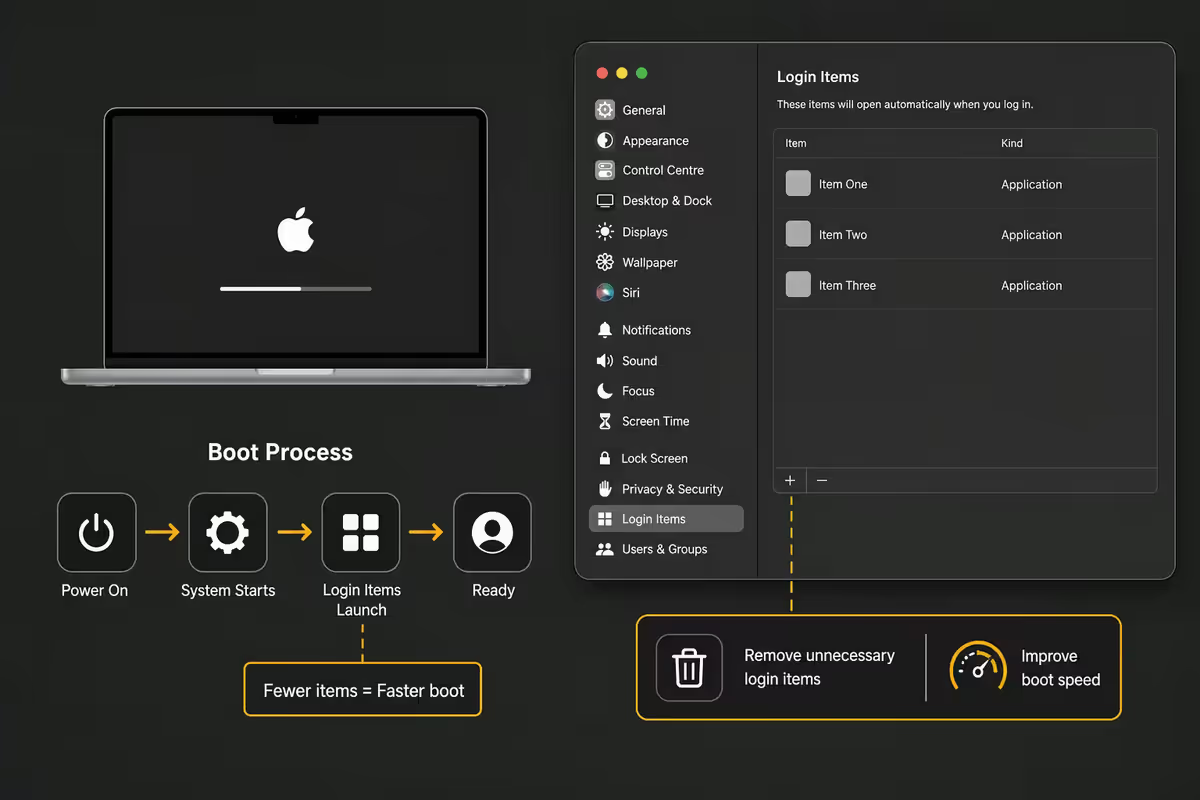
Login Items are apps that auto-start when you log in. Over a Mac's life they accumulate — Dropbox helper, Adobe updater, Microsoft AutoUpdate, OneDrive, Zoom helper, the lot. A new MacBook can boot quickly. A 2-year-old one often takes 90+ seconds because the Login Items queue gets longer every install.
System Settings → General → Login Items & Extensions. Review the "Open at Login" list. Anything you don't actively need on every login, remove. Adobe updater, helper apps, anything starting with "Microsoft" you don't use daily — out.
Allow in Background section (lower half of the same panel) is where third-party background services live. Cull aggressively. If you don't recognise the app, search before disabling — but most can go.
The full 20 — checklist
| Setting | Why | Where |
|---|---|---|
| Tap to click ON | Modern trackpad feel | Trackpad |
| Three-finger drag ON | Best Mac feature | Accessibility |
| Tracking speed +2 | Default too slow | Trackpad |
| Dock auto-hide ON | Screen real-estate | Desktop & Dock |
| Dock magnification ON | Easier target hit | Desktop & Dock |
| Hot Corner: Bottom-right Quick Note | Underrated time-saver | Desktop & Dock |
| Hot Corner: Bottom-left Mission Control | Faster window switching | Desktop & Dock |
| Finder: show extensions | Basic safety | Finder Settings |
| Finder: show path bar & status bar | Always know where you are | Finder View menu |
| Finder: search current folder default | Stop searching whole Mac | Finder Settings |
| FileVault ON | Non-negotiable encryption | Privacy & Security |
| Find My Mac ON | Theft recovery | Apple ID → iCloud |
| Privacy & Security audit | Trim app permissions | Privacy & Security |
| Time Machine + 2 TB drive | Only real backup | General |
| Low Power Mode: Only on Battery | 15-25% battery gain | Battery |
| Optimised Battery Charging ON | +1-2 years lifespan | Battery → Options |
| Notifications Do Not Disturb schedule | Reclaim evenings | Notifications |
| Login Items pruned | Faster boot | General → Login Items |
| Default browser set | Honest day-one decision | Desktop & Dock |
| Bluetooth + AirDrop default | iPhone/iPad handoff | Bluetooth + General |
Key takeaways
- Tap to click + Three-finger drag transform the Mac trackpad into the best pointing device on any laptop.
- FileVault is non-negotiable — free, zero performance cost, encrypts your entire disk. Save the recovery key.
- Time Machine on a 2 TB external SSD is the only backup that survives ransomware. iCloud sync is not a backup.
- Hot Corners (Quick Note bottom-right, Mission Control bottom-left) become reflex within a week.
- Prune Login Items — cold boot drops from 90 seconds back to 15 on Apple silicon.
Frequently asked questions
How long does it take to set up a new MacBook properly?
20-30 minutes after the initial Setup Assistant. Trackpad, Finder, Dock, Hot Corners, Time Machine, FileVault and Login Items — the whole 20-toggle pass takes half an hour and saves countless friction over the Mac's life.Should I turn on Tap to click on a Mac trackpad?
Yes. Trackpad → Point & Click → Tap to click ON. Combined with Three-finger drag (Accessibility → Pointer Control), the trackpad becomes the best laptop pointing device available.Is FileVault really necessary?
Yes. Free, zero performance cost on Apple silicon, encrypts your whole disk. Without it, anyone with physical access can pull data off your drive. Privacy & Security → FileVault → Turn On. Save the recovery key in your password manager.Should I show all file extensions in Finder?
Yes. Finder Settings → Advanced → Show all filename extensions ON. Basic safety; removes the attack vector of disguised executables with fake .pdf extensions.What are Hot Corners and which should I set?
Cursor-to-corner shortcuts. Bottom-right Quick Note, bottom-left Mission Control. Top corners empty (easy to trigger by accident). System Settings → Desktop & Dock → Hot Corners (scroll to bottom).How do I set up Time Machine?
Plug in a 2 TB external SSD (Samsung T7 Shield or Crucial X9 Pro, R1,800-R2,800 in SA). System Settings → General → Time Machine → Add Backup Disk. Enable Encrypt Backups. Hourly backups run automatically.Should I use Low Power Mode on a MacBook?
Set it to Only on Battery (Battery → Low Power Mode). Battery extends 15-25%. On Apple silicon you wouldn't notice the CPU throttle in normal use. Particularly useful during load-shedding.Which iCloud features should I review?
Apple ID → iCloud → Show All. Audit per-app sync. Enable iCloud Private Relay (free Safari IP masking) and Hide My Email (for sign-ups). Find My Mac ON for theft recovery.
Get the Evetech app
Exclusive app-only prices, daily flash sales, and free delivery on orders over R4,000 — download the app and start saving.