Final Cut Pro Starter Guide
Final Cut Pro on Mac.
M-series optimised. R7,000 one-time. The fastest NLE on Apple Silicon.
- optimised
- M-series
- one-time
- R7,000
- of pros use it
- ~60%
Why Final Cut Pro vs Premiere or DaVinci Resolve
Three NLEs dominate Mac editing in 2026: Final Cut Pro, DaVinci Resolve and Adobe Premiere. Each makes sense for different work.
| Aspect | Final Cut Pro | DaVinci Resolve | Premiere Pro |
|---|---|---|---|
| Pricing | R7,000 one-time | Free / R7,500 Studio | ~R450/month sub |
| Apple Silicon speed | Fastest by 3-5× | Fast (M-series GPU strong) | Slowest of the three |
| Cross-platform | Mac only | Mac + Windows + Linux | Mac + Windows |
| Colour grading depth | Strong basics | Industry-leading (Resolve) | Lumetri (good) |
| Learning curve | Easiest of the three | Steep (4-month curve) | Mid (Adobe familiar) |
| Magnetic timeline | Native, signature feature | Track-based | Track-based |
| Render speed on M-Max | Real-time + 4K HDR | Fast with GPU | Slowest, needs proxies |
| Plug-in ecosystem | Good (Motion, mO2, FxFactory) | Smaller (Fusion built-in) | Largest (Adobe ecosystem) |
| Best for | Mac-only solo editors | Colour pros, cross-platform teams | Mixed Mac+PC teams |
Pick FCP if: You're Mac-only, value pay-once pricing, want the fastest renders on M-series and prefer a less cluttered interface. The 90-day free trial lets you commit before paying.
Pick DaVinci Resolve if: You collaborate with Windows or Linux editors, focus heavily on colour grading, are budget-constrained (free tier is genuinely full-featured), or work with RAW formats heavily.
Pick Premiere if: You're already in the Adobe Creative Cloud ecosystem, collaborate with mixed Mac+PC teams using shared Premiere projects, or rely heavily on After Effects Dynamic Link.
System requirements — the M-series advantage
Final Cut Pro was rewritten for Apple Silicon and is specifically optimised for the unified memory architecture and dedicated media engines on M-series chips.
| Workload | Minimum chip | RAM | Storage |
|---|---|---|---|
| 1080p editing | Any M1 (Air, base Pro) | 16 GB | 512 GB internal |
| 4K H.264/H.265 | M3 Pro / M4 base | 24 GB | 1 TB internal + ext SSD |
| 4K ProRes / multicam | M3/M4 Pro | 32 GB | 2 TB + Thunderbolt SSD |
| 4K HDR colour-heavy | M-Max | 48-64 GB | 2 TB+ NVMe RAID |
| 6K-8K RAW workflows | M-Ultra / Mac Studio Max | 64-128 GB | 4 TB+ NVMe RAID |
The unified memory factor matters more than CPU on M-series Macs. Because GPU and CPU share the same memory pool, 16GB on an M3 can struggle with 4K timelines where 32GB on a slower M2 handles it fine. Prioritise RAM over chip-tier when budget allows.
Pricing model — pay-once vs subscription
Final Cut Pro is the rare creative-pro app still sold as a one-time purchase. As of May 2026, R6,999 buys it forever from the Mac App Store. Every major version (and most minor) ships free.
Comparison over 3 years:
| Software | Year 1 | 3-year total |
|---|---|---|
| Final Cut Pro | R6,999 one-time | R6,999 |
| FCP + Motion + Compressor | R8,997 one-time | R8,997 |
| Premiere Pro single-app | R5,400 | R16,200 |
| Adobe Creative Cloud All Apps | R13,800 | R41,400 |
| DaVinci Resolve free | R0 | R0 |
| DaVinci Resolve Studio | R7,499 one-time | R7,499 |
The free 90-day trial is available directly from Apple's Final Cut Pro page (not the Mac App Store). It's the full app, unrestricted, for 90 days — long enough to finish a real client project before deciding to buy.
Workspace basics — library, event, project
FCP's organisation hierarchy differs from other NLEs. Understanding it on day one prevents file-management chaos in month three.
- Library (.fcpbundle) — the top-level container. Think "database" or "client folder". Every event and project lives inside a library.
- Event — groups related media. Common patterns: one event per shoot day, one event per scene, one event per asset type.
- Project — an individual timeline / edit. A library can contain many projects.
Recommended structure for a typical commercial job: one library per client, one event per shoot date or asset bucket, one project per deliverable (master cut, 60-second social, 30-second TV, etc.).
Where to store libraries: Internal SSD or a Thunderbolt 3/4 NVMe SSD (Samsung T7 Shield, OWC Envoy Pro FX, SanDisk Extreme Pro). Never on a USB hard drive, never on network-attached storage for active editing. Slow storage shows up as choppy playback, even on M-Max hardware.
Import workflow — getting footage into FCP
FCP imports through File > Import > Media (Cmd+I). The import panel exposes settings that matter enormously for performance.
Key import decisions:
- Leave files in place vs copy to library. For client work, always copy to library — keeps the project self-contained. For long-term archived footage on a NAS, leave in place to save space.
- Create optimised media. Transcodes to ProRes 422 — best for editing performance on older chips. Doubles storage usage but smooths everything.
- Create proxy media. Generates 1/4-resolution ProRes Proxy edit-copies. Toggle proxies on/off in the viewer to edit smooth then output full-quality.
- Analyze for balance colour, audio loudness, find people. Mostly turn these off — they slow import dramatically and you'll do colour and audio manually anyway.
- Keywording. Optional but worth setting up — FCP's search is excellent if you tag clips on import.
Basic editing — magnetic timeline workflow
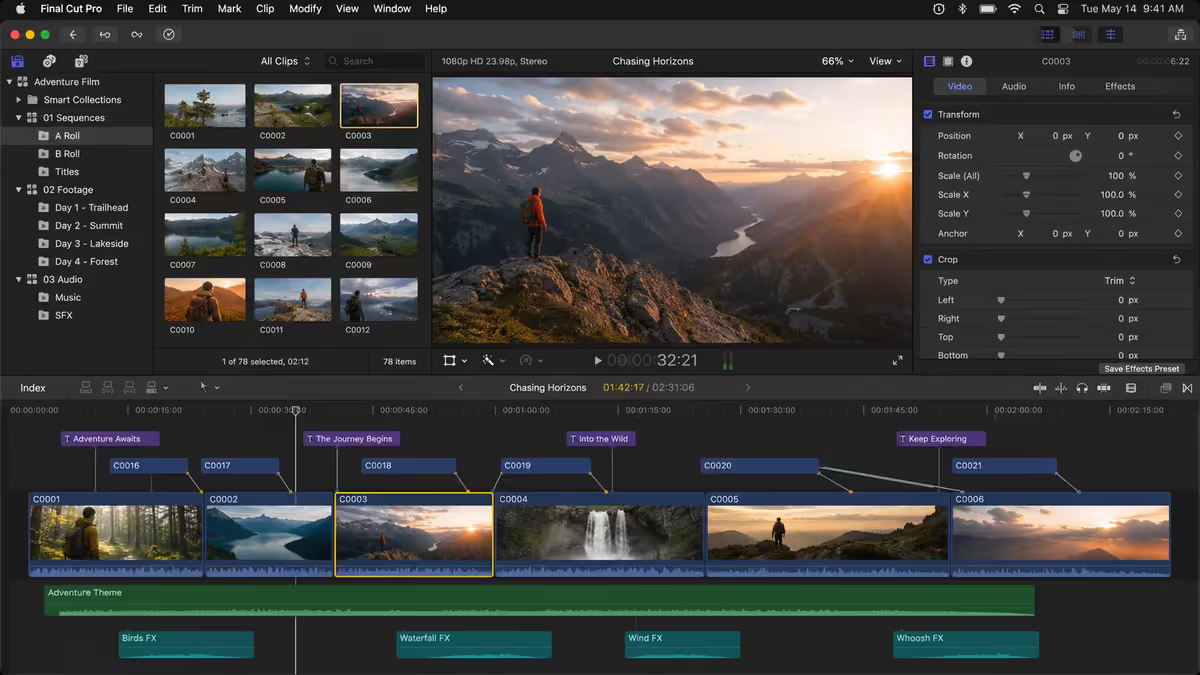
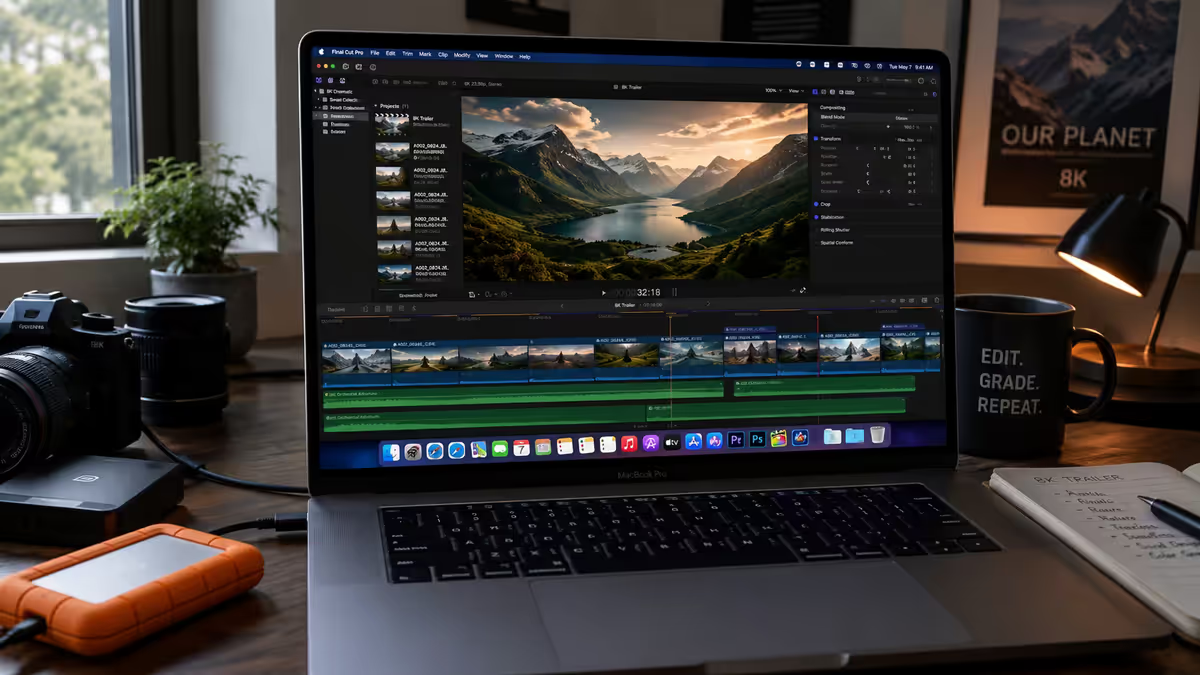
The single most important concept in FCP: the primary storyline is magnetic. Clips snap together, fill gaps automatically, and connected clips (above or below) move with whatever they're attached to.
Core tools (each has a keyboard shortcut):
- Selection tool (
A) — the default arrow. Click clips to select, drag to move. - Blade (
B) — split a clip at the playhead position with one click. - Trim tool (
T) — adjust edit points by hovering over a clip edge. - Position tool (
P) — overrides magnetism, places clips at exact positions, leaves gaps. Use sparingly. - Range selection (
R) — select a portion of a clip rather than the whole clip.
The four key edit operations:
- Append (
E) — adds clip to the end of the primary storyline. - Insert (
W) — inserts clip at playhead, pushing later clips right. - Overwrite (
D) — replaces existing footage at playhead with new clip. - Connect (
Q) — attaches clip above or below the primary storyline (B-roll, titles, sound effects).
Titles and transitions
FCP ships with extensive built-in titles and transitions accessible from the Titles browser (Cmd+Shift+1 for video, Titles tab).
Built-in title categories: Lower thirds, bumper/opener, build in/out, credit rolls, social-specific (vertical), bug-corners. Most are professionally designed and editable — change font, colour, size, animation timing directly in the inspector.
Custom titles via Motion. Apple's Motion app (R999 separate) is FCP's companion motion graphics tool. Templates built in Motion appear automatically inside FCP. For custom branded lower-thirds and animated logos, Motion is mandatory.
Transitions caveat: Use sparingly. Every wedding-video transition rip-cut and burn-in screams amateur. Cuts and 6-frame dissolves cover 95% of professional editing.
Colour correction essentials
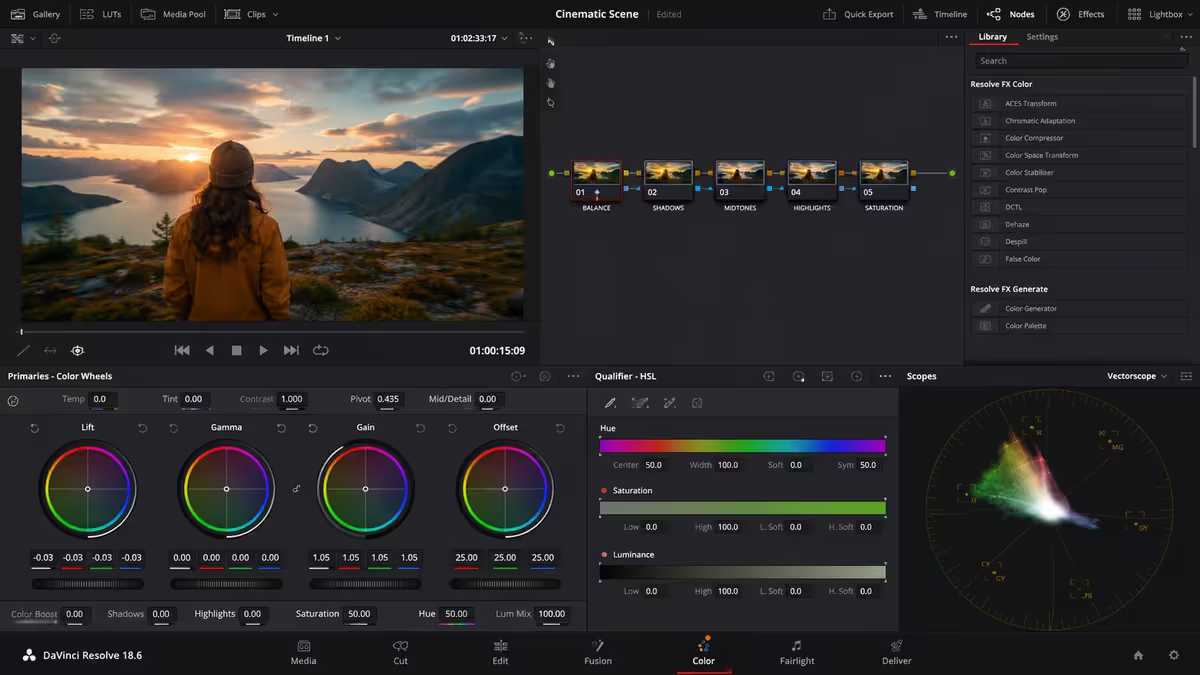
FCP's built-in colour tools cover everything most YouTube and corporate work needs. For broadcast-grade colour grading or HDR finishing, the answer is usually Round-Trip to DaVinci Resolve — but for 90% of work, FCP's native tools are sufficient.
Core colour tools (each in the Effects browser or Inspector):
- Colour Wheels — primary correction. Shadows/Midtones/Highlights with hue ring + saturation slider per wheel. The most-used FCP colour tool.
- Colour Curves — RGB and individual channel curves. Best for precise contrast and colour shifts.
- Hue/Saturation Curves — adjust saturation, brightness or hue based on existing hue (e.g. boost only red skin tones).
- Colour Board — legacy three-pane control. Still useful for quick adjustments.
- Built-in LUTs — Camera LUTs for Sony S-Log, Canon C-Log, ARRI Log-C, etc. Apply on the source clip via the Info inspector.
Scopes for serious work. Open the video scopes (Cmd+7) and use the Vectorscope (for hue/saturation) and Waveform (for luminance). Eyes lie under coloured display lighting; scopes don't.
Audio essentials in FCP
FCP's audio capabilities are stronger than most editors realise — eight-channel surround, role-based audio mixing, and as of 2026, Voice Isolation built-in.
- Roles — tag every clip's audio as Dialogue, Music, Effects, or custom. Then bulk-adjust by role (lower all music -6dB with one slider).
- Voice Isolation (2026) — Apple's built-in AI-driven background-noise removal. One-click for podcast-quality dialogue.
- Loudness Meter — built-in LUFS metering for broadcast and streaming compliance (YouTube targets -14 LUFS; broadcast targets -23 LUFS).
- Auto-leveling — equalises clip levels across a timeline. Good first pass; not a substitute for manual mixing on serious projects.
- Audio effects — EQ, compression, de-esser, hum remover, reverb. Built-in is fine for most work. For surgical clean-up use iZotope RX (separate ~R3,500).
Export options — Share menu and Compressor
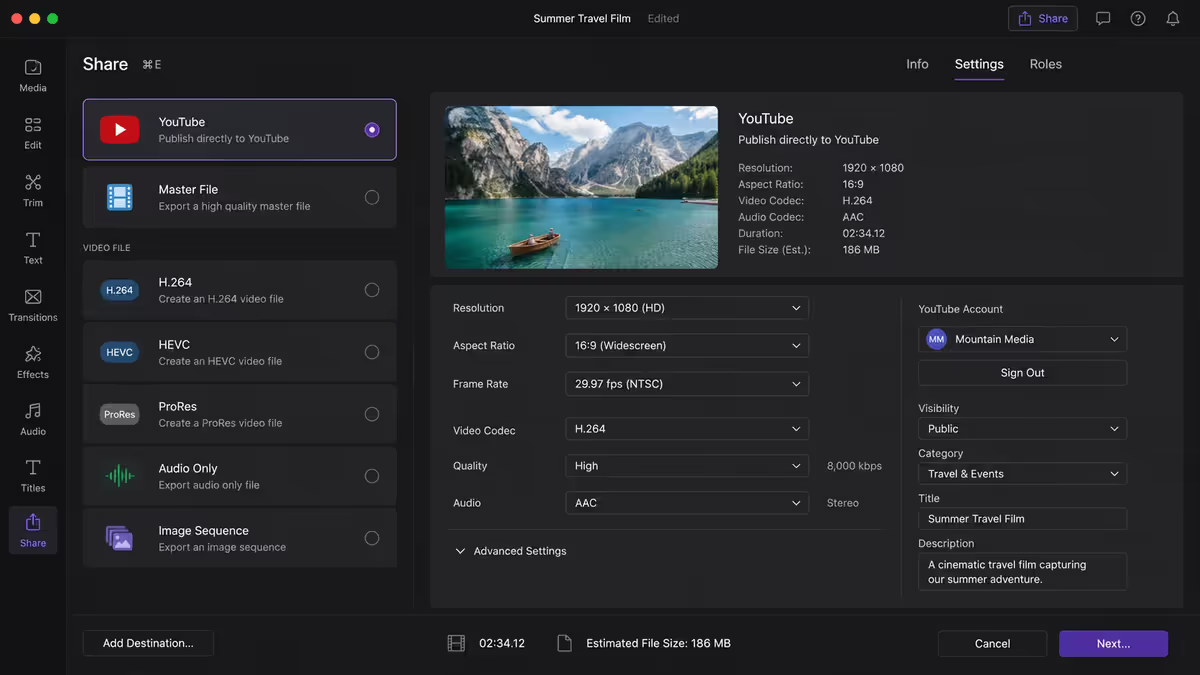
Final Cut Pro exports through File > Share (also Cmd+E). The Share menu includes presets for YouTube, Vimeo, Frame.io, Apple devices, ProRes master files, H.264 web, and HEVC.
Common export destinations:
- Master File (ProRes 422) — for archival masters and onward distribution. Largest file size, highest quality.
- H.264 (Computer) — for web upload, social, general distribution. Tweak the bitrate for quality vs file-size balance.
- HEVC / H.265 — half the file size of H.264 at equivalent quality. Wider compatibility issues but increasingly safe.
- YouTube preset — auto-uploads after authentication. Defaults to 1080p H.264 or 4K HEVC.
- Send to Compressor — Apple's R999 batch encoder. Distributed encoding across multiple Macs, finer codec control, custom presets.
Essential keyboard shortcuts
FCP rewards keyboard shortcuts more than any other NLE — the magnetic timeline and edit tools are designed around them.
| Action | Shortcut |
|---|---|
| Play / pause | Space |
| JKL playback (rev / pause / fwd) | J / K / L |
| Mark In / Out | I / O |
| Append edit | E |
| Insert edit | W |
| Overwrite edit | D |
| Connect edit (above primary) | Q |
| Blade at playhead | Cmd+B |
| Selection / Blade / Trim tools | A / B / T |
| Position tool (override magnetic) | P |
| Range selection | R |
| Add transition (cross-dissolve) | Cmd+T |
| Toggle proxies vs full quality | Cmd+Option+Q |
| Toggle audio waveforms | Ctrl+Option+W |
| Open inspector | Cmd+4 |
| Share / export | Cmd+E |
SA context — FCP vs DaVinci in the SA creator scene
South African video editors split unevenly across the three major NLEs. The trend over the past 24 months has favoured DaVinci Resolve as it's matured, but FCP remains the dominant choice for Mac-centric solo creators.
Local training resources: Apple's own FCP tutorials on the Apple Education Hub (free, Apple-quality), Ripple Training and Larry Jordan's courses (USD, paywalled but excellent), MasterClass's Ron Howard FCP unit, and YouTube creators like Jonny Elwyn, Casey Faris and CHRIS WEDGE for free in-depth FCP content.
Common Final Cut Pro mistakes
Storing libraries on external HDDs. Slow storage causes timeline lag, dropped frames and corruption. Always edit from internal SSD or Thunderbolt NVMe.
Fighting the magnetic timeline. Trying to leave precise gaps using the selection tool is frustrating. Switch to the Position tool (P) when you need exact-position placement, then back to Selection.
Editing 4K H.265 source directly on a base M3. Generates dropped frames and slow scrubbing. Toggle proxies on import — edit smooth, output sharp.
One mega-library for everything. Libraries get large fast; opening times suffer and the corruption blast-radius is huge. One library per project or client.
Skipping the Roles feature for audio. Manually selecting every music clip to lower its volume by 3dB is slow. Tag once with Roles and mix the whole role with one slider.
Not enabling autosave-vault behaviour. FCP saves continuously by default but the Vault (Library > Library Properties > Backups) needs to be on. Set it to back up every 15 minutes to an external SSD.
Exporting H.264 when ProRes was needed. If the video is going to YouTube, H.264 is correct. If it's going to a broadcaster or further VFX work, deliver ProRes 422. H.264 is lossy and can't be re-edited cleanly.
Key takeaways
- FCP is R7,000 one-time, free updates forever — pays back vs Premiere subscription inside 18 months.
- On Apple Silicon, FCP is 3-5× faster than Premiere on 4K H.265 timelines — the M-series media engines do real work.
- Magnetic timeline + primary storyline + connected clips = faster than track-based editing once internalised (~1 week curve).
- Pick DaVinci Resolve over FCP if cross-platform, colour-grade-heavy, or budget-constrained — Resolve is also a fantastic tool.
- Store libraries on internal SSD or Thunderbolt NVMe; use proxy media on base-tier Macs; tag audio with Roles from day one.
Frequently asked questions
Is Final Cut Pro worth it in 2026?
For Mac users editing on M-series hardware, yes — R7,000 one-time vs Adobe Premiere's ~R450/month subscription pays back inside 18 months. FCP is the fastest editor on Apple Silicon and includes pro colour, audio and effects without add-ons.How much does Final Cut Pro cost in South Africa?
R6,999 one-time on the Mac App Store as of May 2026. No subscription, no upgrade fee. Compressor is an additional R999, Motion R999. A 90-day free trial is available from Apple's site.What MacBook do I need to run Final Cut Pro?
Any M1+ MacBook handles 1080p editing. For 4K H.264/H.265, M-Pro or M-Max with 16-32GB unified memory. For 4K HDR or multicam, M-Max with 64GB is the sweet spot.What is magnetic timeline in Final Cut Pro?
FCP's signature workflow — clips automatically snap together and avoid collisions when you move, trim or insert. Faster than track-based editing once learned but requires unlearning Premiere habits.Final Cut Pro vs DaVinci Resolve — which is better?
FCP wins on Apple Silicon speed and learning curve. DaVinci wins on price (free), colour grading depth and cross-platform availability. For Mac-only solo editors, FCP. For colour-heavy or cross-platform work, DaVinci.Can Final Cut Pro export to YouTube directly?
Yes — File > Share > YouTube uploads directly. Also presets for Vimeo, Frame.io, Apple devices, ProRes masters and custom H.264/H.265 encodes.Does FCP work with Sony or Canon camera footage?
Yes — natively handles XAVC-S, Canon C-LOG (CR3/MXF), Panasonic AVCHD, Blackmagic RAW, RED RAW, DJI, GoPro and iPhone ProRes/HEVC. Apple Silicon accelerates H.264, H.265 and ProRes natively.How do I organise projects in Final Cut Pro?
Library-event-project hierarchy. One library per client. Events group related footage (shoot day or topic). Projects are individual timelines. Store libraries on fast SSD never slow HDD.
Get the Evetech app
Exclusive app-only prices, daily flash sales, and free delivery on orders over R4,000 — download the app and start saving.