Mac Battery · Definitive Answer
MacBook plugged in 24/7? Totally fine. — It's literally designed for it.
Modern MacBooks ship with lithium battery management that stops charging at 100% and runs directly off wall power. Optimised Charging keeps the battery at 80% most of the time. Apple says it's fine. Heat — not the cable — is what kills batteries.
The short answer — yes, leave it plugged in
The myth that leaving a MacBook plugged in damages the battery is a holdover from the era of nickel-cadmium batteries (think old camcorders, 1990s drills). Those did develop "memory effect" and benefited from full discharge cycles. Lithium-ion batteries — what every MacBook since 2006 has used — behave completely differently.
Apple's own support documentation states the position plainly: it's safe to leave your MacBook plugged in indefinitely. The charge controller stops accepting current the instant the battery hits its target voltage, and the system runs directly off wall power until you unplug. The battery simply sits there, doing nothing.
If anything, leaving plugged in is healthier for the battery than discharging-and-recharging it constantly. Every full cycle (0% → 100%) consumes a small slice of the battery's finite cycle count budget. Sitting at 80% on Optimised Charging consumes essentially none.
How lithium battery management actually works
Inside every MacBook is a small dedicated chip — the battery management controller — that sits between the wall power and the battery cells. Its job is to protect the battery from anything that would degrade it. It does five things:
- Voltage cutoff at 100%. When the battery reaches full charge voltage (~4.2V per cell), the controller refuses to push more current in. Charging stops.
- Voltage cutoff at low (around 5-10% on the user-facing percentage). Below that the controller forces a shutdown before the cells go into deep-discharge damage territory.
- Temperature monitoring. If cells exceed safe temperature, charging slows or stops. This is why hot environments are bad — the controller has to work around them.
- Trickle top-up. Once at 100%, the battery slowly self-discharges. The controller adds tiny top-ups every few minutes to maintain the level. Not damaging — these top-ups are minuscule.
- Cycle accounting. Every cumulative 100% worth of discharge counts as one "cycle." Apple's batteries are designed for 1000 cycles before significant capacity loss.
In other words — the MacBook battery does not "overcharge" in any meaningful sense. The hardware physically prevents it.
Optimised Battery Charging — how it actively extends battery life
Optimised Battery Charging is a macOS feature enabled by default since macOS Catalina (2019). It's the single biggest reason "leaving plugged in" doesn't matter in 2026.
Here's what happens, simplified:
- macOS watches your daily plug-in / unplug pattern over a few weeks.
- It learns "Kamran usually unplugs around 8:30am every weekday."
- When you plug in overnight, macOS charges to 80% and stops.
- Around 7:45am, macOS tops up the final 20% so you hit 100% just before you need it.
- If your routine changes (weekend, holiday), macOS adapts.
This dramatically reduces calendar ageing — the natural degradation that happens just from time passing while a battery sits at high charge. A battery held at 100% for 12 hours per night ages noticeably faster than one held at 80% for 11 of those 12 hours and only topped up briefly.
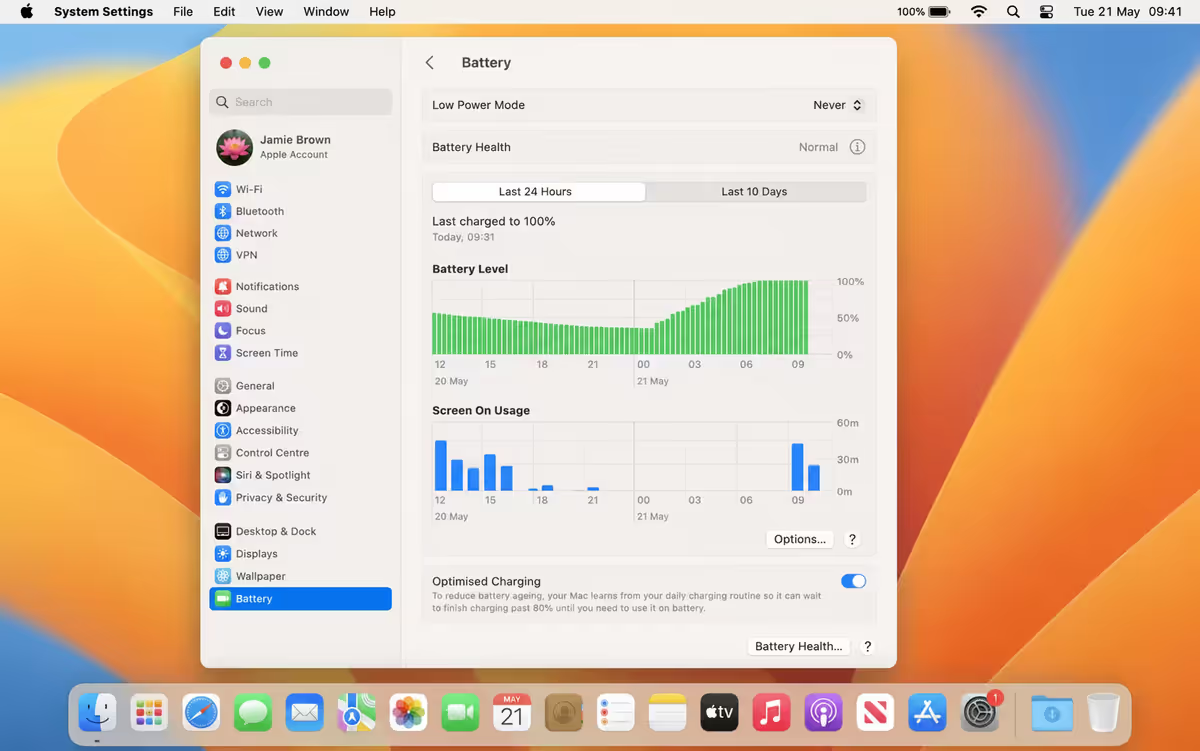
You can verify Optimised Charging is on: System Settings → Battery → Battery Health → "Optimised Battery Charging" toggle. Default position is on. Leave it on.
What actually damages MacBook batteries
This is the part of the conversation people miss. The cable is not the enemy — these things are:
1. Heat (the #1 enemy by a huge margin)
Lithium batteries hate heat. Every 10°C above 30°C roughly doubles the rate of permanent capacity loss. Specific MacBook scenarios that cook the battery:
- Using on a bed or couch with vents blocked. The MacBook can't dump heat through the bottom; battery gets hot.
- Leaving in a hot car (a SA summer concern — interior temps hit 50-70°C). Even an unplugged MacBook in a hot car is being damaged.
- Running heavy workloads (4K video render, big builds) for hours without good ventilation.
- Charging inside a thick laptop sleeve that traps heat.
2. Repeated deep discharges
Running the battery flat to 0% then charging from empty puts more chemical stress on the cells than topping up little and often. Modern macOS forces a shutdown before "true zero" to protect against this — but the closer you get to 0% the more strain you're putting on the battery. Try not to make a habit of running below 20%.
3. Very high cycle counts
Apple's MacBook batteries are designed to retain 80%+ capacity for 1000 full equivalent cycles. Partial charges aggregate — going from 60% to 80% is 20% of a cycle, not a whole one. Most users hit 1000 cycles around year 4-5 of regular use.
4. Physical damage and swelling
Drops, punctures, exposure to liquid, or environmental factors that cause the battery to swell. A swollen battery is an immediate safety issue — get it serviced same week. Do not continue using a MacBook with a visibly swollen battery or trackpad lifted from below.
5. Calendar ageing
Lithium batteries simply degrade over time, regardless of usage. Even a brand-new sealed MacBook on a shelf will have a ~3-5% weaker battery after a year. Nothing you can do about this — it's chemistry.
| Behaviour | Impact on battery | Verdict |
|---|---|---|
| Leaving plugged in 24/7 | Minimal — controller prevents overcharging | Fine |
| Optimised Charging enabled | Reduces calendar ageing | Keep on |
| Using on bed/couch frequently | Significant — heat damage compounds | Avoid |
| Running below 20% repeatedly | Moderate — stress on cells | Top up sooner |
| Hot car / direct sun exposure | Severe — accelerates degradation | Never |
| Charging inside thick sleeve | Moderate — heat trap | Avoid |
| Letting battery hit 0% | Moderate — close to deep-discharge zone | Avoid as habit |
Apple's official guidance
Apple's support page on Mac batteries (support.apple.com) is unambiguous. The relevant quote in 2026 reads, in essence:
You don't need to drain your MacBook's battery before recharging it. You can keep your MacBook plugged in without harming the battery. Apple notebooks use intelligent battery management and Optimised Battery Charging to maximise battery lifespan.
Apple also makes this clear in their official Battery Service guidance — they don't downgrade your battery warranty for keeping plugged in. They explicitly recommend it as an acceptable use pattern.
If you've seen contradictory advice from "tech bloggers" or forum posts from 2015 saying "always cycle your battery once a week" — that advice was already outdated then. It was correct for the very early lithium-ion era (early 2000s) when controllers weren't as sophisticated. It hasn't applied for over 15 years.
How to monitor your MacBook battery health
macOS has built-in battery health reporting. You don't need third-party apps for this.
Check Maximum Capacity
System Settings (Apple menu) → Battery → click the small Battery Health link on the right. You'll see two pieces of info:
- Maximum Capacity — a percentage relative to a brand-new battery's capacity. 100% = like new. Drops over time.
- Condition — either "Normal" or "Service Recommended." Apple flips this when capacity drops noticeably below baseline (typically below 80%, but algorithm-driven).
Check Cycle Count
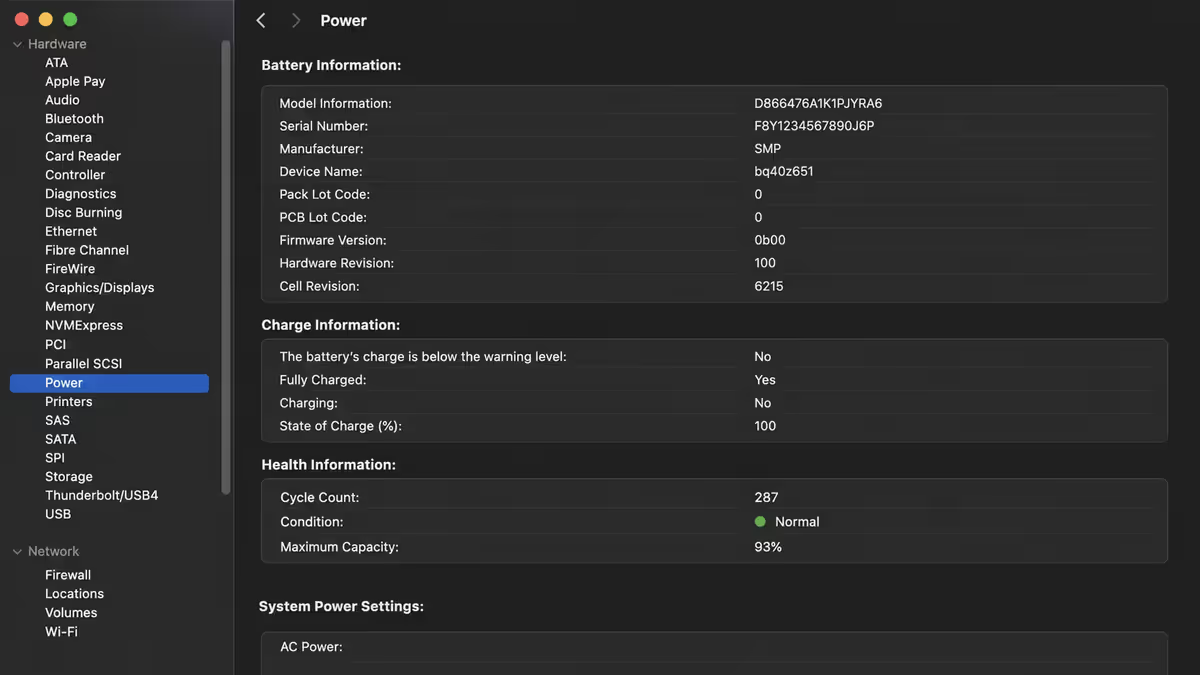
Hold Option key and click the Apple menu → System Information → in the sidebar select Power → look for "Cycle Count" under Battery Information. This is the cumulative count of full charge cycles your battery has completed.
What the numbers mean
| Maximum Capacity | Condition | What to do |
|---|---|---|
| 95-100% | Like new | Nothing — battery is healthy. |
| 85-94% | Normal wear | Nothing — expected for 1-3 year old MacBook. |
| 80-84% | Edge of wear | Monitor. Service if dropping fast. |
| Below 80% | Service Recommended | Battery service worth it if MacBook is < 5 years old. |
| Below 70% | Significant degradation | Service or upgrade decision time. |
The 80% Charge Limit setting — when to use it
macOS Sonoma (2023) added a more aggressive option: a hard 80% Limit that caps charging at 80% indefinitely, regardless of your usage pattern. This sits in System Settings → Battery → Battery Health.
When to enable 80% Limit:
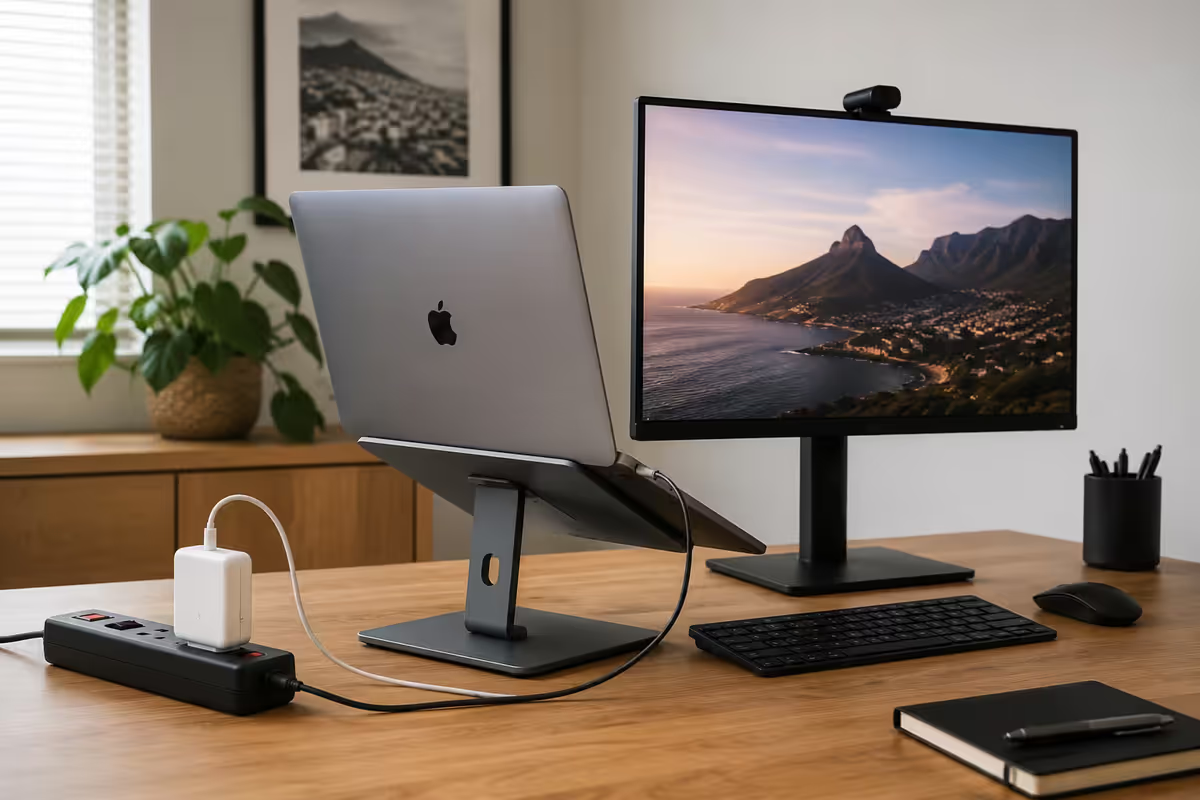
- Your MacBook lives docked on a desk with external monitor 95%+ of the time — essentially a desktop.
- You rarely take the MacBook out and don't need 8-12 hours of battery away from a plug.
- You want absolute maximum long-term battery life (the goal is to still have 90%+ Max Capacity at 5 years).
When NOT to enable 80% Limit:
- You frequently leave the house with the MacBook — you'll wish you had the extra 20% on the road.
- You travel for work and rely on full charge for flights or long meetings.
- Your daily routine is irregular — Optimised Charging handles this better than a hard limit.
For most users, leaving Optimised Charging on (default) and skipping the 80% Limit is the right balance. The Limit is overkill for laptops that travel.
Intel-era vs M-series — does the answer change?
There's a kernel of truth in older "cycle your battery" advice from the late-2010s Intel MacBook era. Those machines had:
- Slightly less sophisticated battery management controllers.
- Higher heat output under load (Intel chips ran hot — affected battery indirectly).
- Less aggressive Optimised Charging logic (introduced halfway through their lifecycle).
Even on those, "permanent docking" wasn't outright damaging — but the combination of less smart firmware + hotter chips meant battery longevity was slightly worse than on M-series. Some Intel MacBook 2017-2019 owners benefited from occasional discharge cycles to recalibrate the controller's percentage readout.
For M-series (M1, M2, M3, M-Pro, M-Max, M-Ultra and successors): the answer is unambiguous — leave plugged in indefinitely, Optimised Charging on, you're doing the optimal thing.
Realistic MacBook battery longevity
With normal use and macOS defaults (Optimised Charging on, no 80% Limit), here's what we typically see:
- Year 1: Maximum Capacity drops to 95-98%. Imperceptible.
- Year 2-3: Drops to 88-93%. Battery life still feels great.
- Year 4-5: 80-88%. Some users start noticing slightly shorter unplugged time. Cycle count typically 700-900.
- Year 6-7: 70-82%. Battery Service starts to feel worth it. Apple's "Service Recommended" flag often appears in this window.
- Year 8+: Below 75%. Battery is showing its age. Either service or replace MacBook.
Heavy users (always running CPU-intensive workloads) shift this timeline left by 1-2 years. Light users (web browsing, document editing) shift it right. Heat-exposure incidents shift it left dramatically.
SA-specific concerns — load shedding and summer heat
Two SA-specific factors deserve attention:
Load shedding and return surges
Power going off during load shedding doesn't damage your MacBook battery — the battery silently takes over and you barely notice. The real risk is what happens when power comes back. Return surges can briefly spike voltage well above 230V, and have been known to fry chargers and (rarely) damage MacBook charge controllers.
Protection options for SA users:
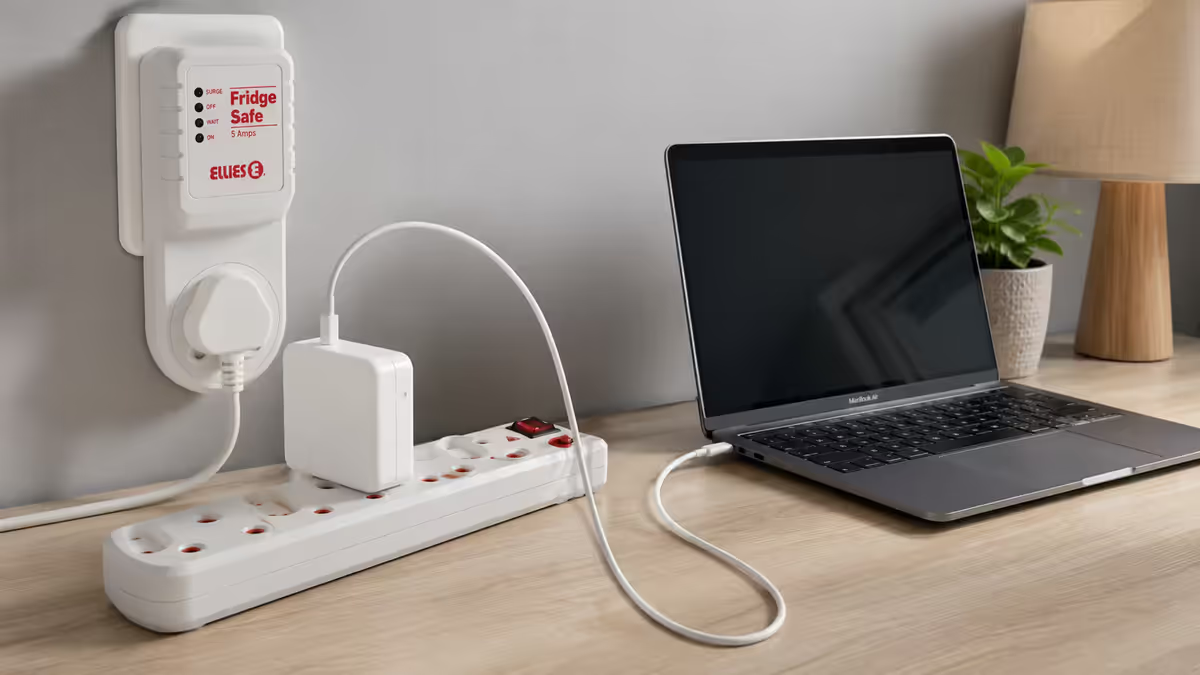
- Quality surge protector (R600-R1,500 — Ellies, Mecer, APC). Plug the MacBook charger into the surge-protected outlet, not the wall directly.
- Small UPS (R2,500+ — Mecer 850VA, APC Back-UPS) for desktop-docked MacBooks. Provides clean power and a few minutes of buffer.
- Whole-house surge protector at your DB board (R3,500-R6,000 plus electrician) if you're on a heavy load-shedding schedule.
Summer heat in SA homes and offices
Many SA homes and small offices don't have air conditioning. Indoor temperatures in summer can sit at 28-34°C for hours. This is on the edge of where lithium batteries start to noticeably accelerate ageing.
Practical mitigations:
- Use the MacBook on a hard, vented surface (desk) — never bed or couch — during summer heatwaves.
- Consider an aluminium cooling stand (R200-R600) — passive heat sink improves bottom-case dissipation.
- Avoid charging inside an enclosed laptop sleeve.
- Keep the MacBook out of direct sunlight, even when closed.
Common mistakes around MacBook battery care
"I unplug overnight to let the battery rest." Counter-productive. If you unplug then plug in at random intervals, you waste charge cycles. Leave plugged in — let Optimised Charging do its job.
"I do a full discharge once a month to recalibrate." Outdated advice for M-series. The battery doesn't need recalibration — the controller tracks state-of-charge accurately. You're just spending cycle count for no benefit.
"I disable Optimised Charging so it charges fast." Optimised Charging doesn't slow your charge — it just chooses when to charge the final 20%. The first 80% still charges at full speed. Leave it on.
"I leave the MacBook on a duvet to watch Netflix in bed for hours." The worst battery-care behaviour by a wide margin. Vents are blocked, heat builds up, battery cooks. Use a lap desk or hard tray.
"I bought a cheap third-party USB-C charger." Apple's chargers negotiate USB-C PD correctly with the charge controller. Cheap unbranded chargers may deliver wrong voltage profiles. Stick to Apple official or reputable brands (Anker, Belkin, Mophie, UGREEN).
Key takeaways
- Yes — leaving MacBook plugged in 24/7 is completely safe. Modern lithium battery management prevents overcharging at the hardware level.
- Optimised Battery Charging (on by default) holds the battery at 80% most of the time — actively reduces calendar ageing.
- The real battery killers are heat, repeated deep discharges, and physical damage — not the cable.
- If your MacBook is essentially desktop-docked, enable the 80% Limit setting for maximum long-term battery health.
- SA load-shedding return surges can damage chargers — use a R600-R1,500 surge protector. The battery itself survives outages fine.
Frequently asked questions
Is it OK to leave my MacBook plugged in all the time?
Yes. Modern MacBooks are designed for permanent docking. The charge controller stops at 100% and runs the system off wall power. Apple's official documentation says it's fine.Does leaving MacBook plugged in damage the battery?
No — being plugged in itself doesn't damage the battery. What damages batteries: heat (#1), deep discharges below 20% repeatedly, very high cycle counts, and calendar ageing.What is Optimised Battery Charging on macOS?
A default-on macOS feature that learns your daily usage and holds the battery at 80% until just before you typically unplug, then tops up to 100%. Reduces calendar ageing significantly.Should I use the 80% charge limit on my MacBook?
Yes if your MacBook is essentially always docked (used as desktop). No if you travel with it — you'll wish you had the extra 20% on the road.How do I check my MacBook battery health?
System Settings → Battery → Battery Health link. Shows Maximum Capacity % and Condition. Cycle count via System Information → Power.What actually damages MacBook batteries?
In order: heat (bed use, hot cars), repeated deep discharges, high cycle counts, physical damage and swelling, calendar ageing. Being plugged in barely registers.Will load shedding damage my MacBook battery if it's plugged in?
The outage itself doesn't damage the battery. Return surges can damage the charger or charge controller. Use a R600-R1,500 surge protector or small UPS.How long should a MacBook battery last before replacement?
Designed for 1000 cycles before significant degradation — typically 4-6 years of regular use. Most users replace the MacBook before needing battery service.
Get the Evetech app
Exclusive app-only prices, daily flash sales, and free delivery on orders over R4,000 — download the app and start saving.