WFH / Typing Comfort Guide
Best keyboard for typing all day. — Tactile bump. Float, don't hammer.
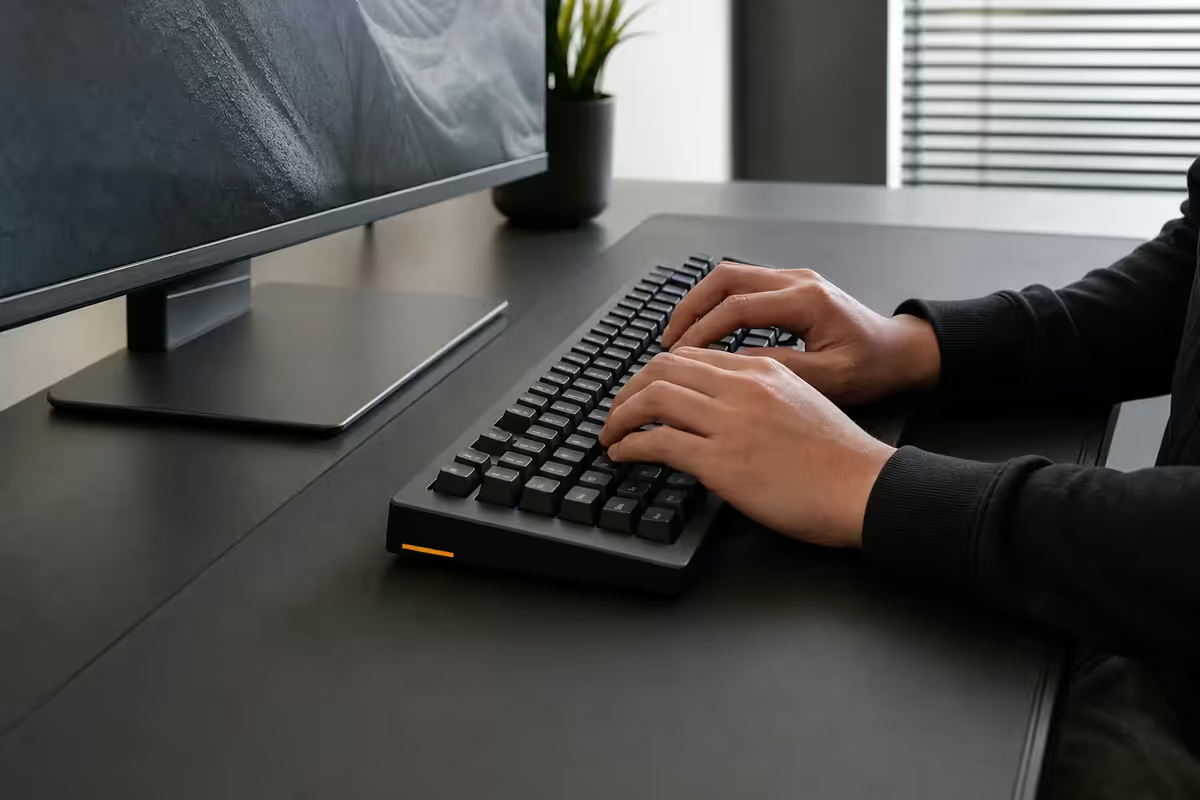
Your fingers hit a keyboard 30,000-60,000 times a day. The right switches, layout and technique decide whether that's effortless background activity or the start of a wrist injury. Here's what actually matters after the hype.
Tactile vs linear vs clicky switches
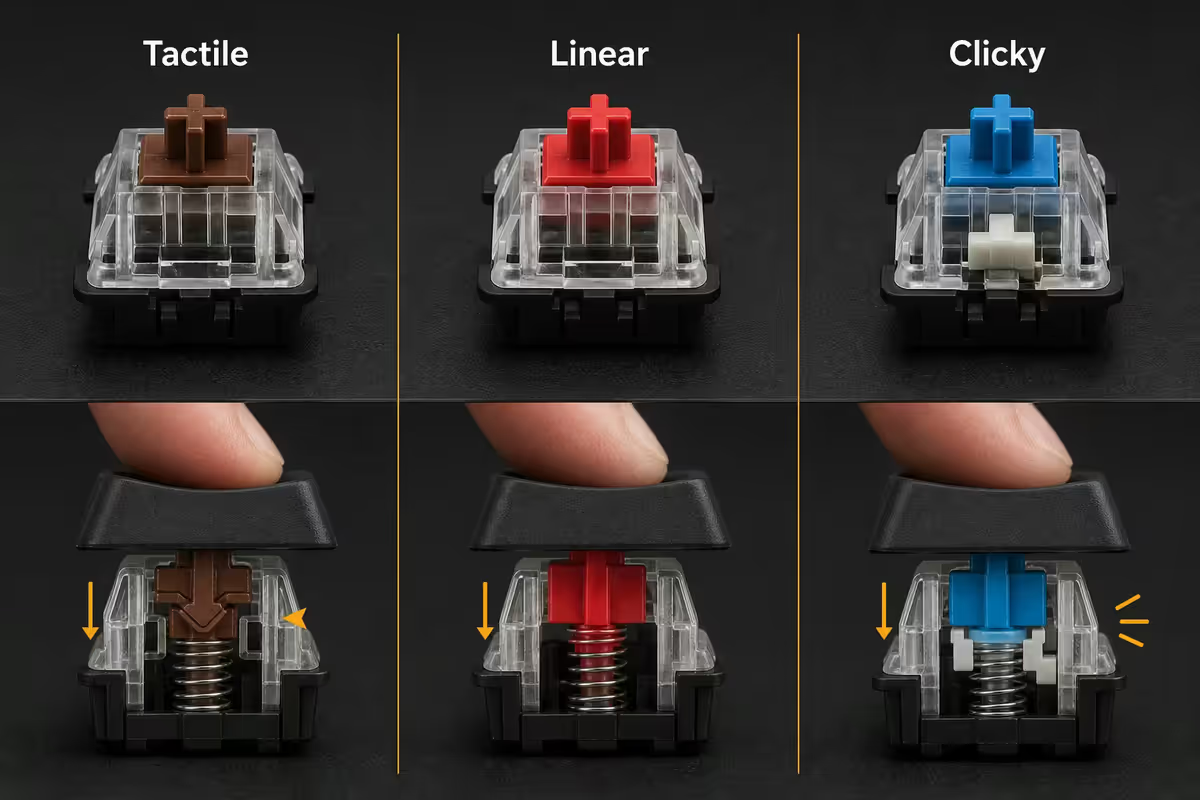
Switch choice is the single biggest decision in mechanical keyboard buying — and the most over-debated topic in the hobby. For sustained typing the answer is clearer than for gaming:
| Switch type | Examples | Best for |
|---|---|---|
| Tactile | Cherry MX Brown, Gateron Brown, Akko Lavender Purple, Boba U4T | All-day typing, productivity |
| Linear | Cherry MX Red, Gateron Yellow, MX Speed Silver | Gaming, fast key sequences |
| Clicky | Cherry MX Blue, Kailh Box Jade | Solo desk, satisfying feel |
| Silent tactile | Cherry MX Silent Brown, Boba U4 silent | Office, shared spaces, video calls |
Tactile is the right default for productivity. The bump in the middle of the key press tells your finger the keypress has registered, signalling you to release. Linear switches feel smooth but lack this signal, encouraging heavier presses (and thus more bottom-out fatigue). Clicky switches are tactile-plus-noise — satisfying solo, annoying for everyone within 3m and unusable on video calls.
Silent tactile (Cherry MX Silent Brown, Boba U4 silent) is the WFH meeting-day specialty: tactile feedback but with dampening to mute the clack. Slightly less crisp feel, much better office citizenship.
Low-profile vs full-height
Low-profile keyboards (Logitech MX Keys, Keychron K Pro Low Profile, Nuphy Air series) keep keys close to the desk surface — 8-12mm typical key height. The travel distance per keypress is short (1.5-3mm) and the wrist angle stays neutral. For anyone transitioning from a laptop, low-profile is the natural fit.
Full-height mechanical keyboards (Keychron Q1, Keychron V1, GMMK Pro) have taller keycaps and 4mm travel. The longer travel allows distinct tactile feedback and a more substantial typing feel. Once adapted, they're more comfortable for many users — but the higher wrist angle without a palm rest is real.
| Aspect | Low-profile | Full-height |
|---|---|---|
| Key travel | 1.5-3mm | 4mm |
| Wrist angle | More neutral | Needs palm rest |
| Typing feel | Quick, light | Deeper, more feedback |
| Transition from laptop | Easy | 1-2 week adjustment |
| Switch options | Fewer choices | Hundreds available |
| RSI history users | Generally kinder | Use palm rest correctly |
Use a palm rest — but use it right
A palm rest is one of the most misused ergonomic accessories. Used correctly it relieves wrist tension during pauses. Used wrong it actively causes RSI.
Right way: palms hover above (or lightly contact) the rest during pauses. While actively typing, wrists are slightly elevated, with fingers reaching keys via the larger arm and shoulder muscles — not by bending up from a pinned wrist.
Wrong way (RSI guarantee): wrists pinned to the palm rest, hands bending upward to reach keys. The carpal tunnel passes over the wrist crease at a sharp angle, compressing the median nerve. Months of this is how you wake up with numb fingers.
Quality palm rests: Glorious Padded Wrist Rest, Keychron Palm Rest (matches their keyboards), Razer Ergonomic Wrist Rest. Avoid hard plastic; foam or memory-foam is the standard. R300-R600 in SA.
Split keyboards — the transformative option
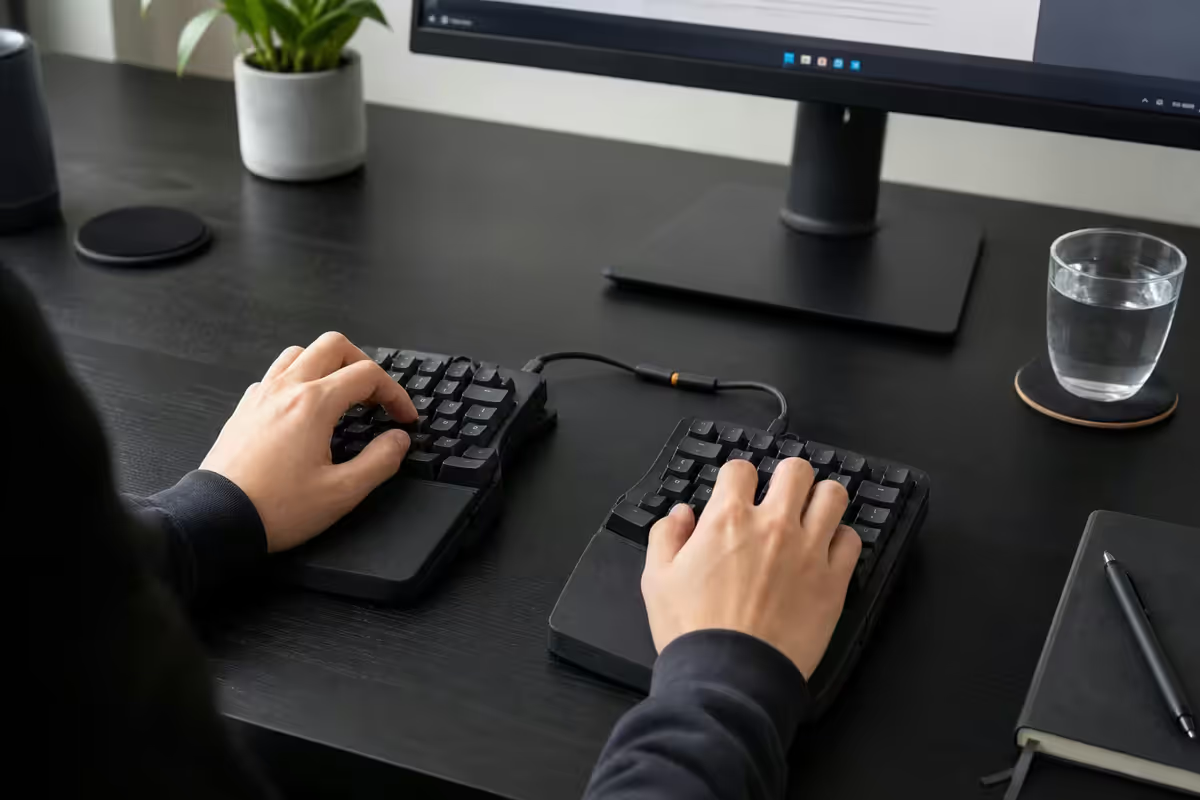
A split keyboard is physically divided into two halves you can position independently. Each half sits in front of its shoulder, aligned so wrists stay straight rather than bending outward (ulnar deviation). For anyone with wrist pain or RSI history, split keyboards aren't a luxury — they're often the fix.
| Split keyboard | Why people love it | SA price |
|---|---|---|
| Microsoft Sculpt Ergonomic | Fixed-split, low entry point, instantly familiar layout | R1,800-R2,300 |
| ZSA Voyager | Two halves, low-profile, hot-swap, programmable | R6,500-R7,500 (import) |
| Kinesis Advantage360 | Concave key wells, ortho layout, full ergonomic | R8,500-R10,500 (import) |
| ErgoDox EZ | Open-source ortholinear, infinitely programmable | R6,000-R8,000 (import) |
| Glorious GMMK Splitfox | More accessible split keyboard, hot-swap | R3,500-R4,500 |
The learning curve: 1-3 weeks of reduced typing speed while your fingers learn the new geometry — particularly the thumb cluster keys on ZSA and Kinesis. After that period most users report typing as fast or faster than before, with materially less wrist fatigue.
Top SA picks by tier
Under R1,500 — budget mechanical
Keychron K2 Pro (R1,200-R1,500). 75% layout, hot-swap, wireless Bluetooth + USB-C wired, RGB optional, Gateron Brown stock. The best entry mechanical for a SA WFH desk. Available across SA online channels and well-stocked.
Logitech MX Keys S Mini (R1,800). Not mechanical but premium low-profile — concave keycaps, white backlight, USB-C charging, Logitech Flow support for cross-device typing. Best non-mechanical alternative.
R1,500-R4,000 — premium typing
Logitech MX Keys / MX Keys S (R2,200-R2,800). The gold-standard low-profile productivity keyboard. Used in countless professional offices. If you don't want mechanical at all, this is the answer.
Keychron V3 Max / V5 Max (R2,500-R3,200). Full mechanical, hot-swap, gasket-mounted, knob control. Excellent typing feel at sub-R3,500.
Keychron Q3 (R3,500-R4,500). Aluminium chassis, premium build, gasket mount, hot-swap, knob, customisable. The premium mechanical keyboard that doesn't require importing.
R6,000+ — split / ergonomic
ZSA Voyager (R6,500-R7,500 imported). Two halves, low-profile mechanical, hot-swap Choc switches, programmable per-key. The smallest, lightest serious ergonomic split.
Kinesis Advantage360 (R8,500-R10,500 imported). Concave key wells, full ortho layout, premium ergonomic design. The endgame for serious RSI sufferers.
Hot-swap — try every switch without buying every keyboard
Hot-swap sockets let you change keyboard switches without soldering. Pull a switch out with a pin-tool, push a new switch in, done in 30 seconds per key. Why this matters for typing-all-day:
- Try multiple tactiles on the same chassis to find your favourite — Cherry Brown is different from Gateron Brown is different from Boba U4T.
- Adapt the keyboard to mood or use case — silent tactile for video calls, normal tactile for solo focus work.
- Replace failed switches instead of replacing the keyboard. Rare event, but easy when it happens.
- Future-proof against future switch innovations. New tactile designs ship every quarter from boutique makers.
Every Keychron Q-Pro, V-series, K-Pro, GMMK Pro, Glorious GMMK 2 and most enthusiast keyboards now ship hot-swap. Avoid soldered-only keyboards for any premium purchase.
The "stop bottoming out" technique
This single behaviour change saves more typing fatigue than any keyboard upgrade. Bottoming out means slamming the key all the way to the bottom of its travel — the cause of most typing fatigue and switch wear.
What to do instead: tactile switches give you a tactile bump at roughly half the travel. The keypress registers at or just past the bump. You don't need to push further — the work is done. Train your fingers to release after the bump rather than continuing the press to the bottom.
The mental shift: from "type like the keys are buttons to push" to "type like the keys are surfaces to brush." Imagine your fingertips just barely touching each key — float, not hammer. Takes 1-2 weeks of deliberate attention to convert.
The signs you've succeeded: typing feels quieter (less impact noise), fingers stop aching at 3pm, your typing speed actually increases because you're not wasting time fully committing each press. Once internalised, the technique transfers to every keyboard you ever use.
Key takeaways
- Tactile switches (Cherry MX Brown, Gateron Brown, Akko Lavender Purple) are the right default for typing all day.
- Low-profile is the easy transition from laptop; full-height mechanical is the long-term endgame for many.
- Palm rests are for pauses, not typing. Wrong use is an RSI guarantee.
- Split keyboards eliminate ulnar deviation. 14-21 day learning curve, transformative for RSI sufferers.
- The "float, don't hammer" technique reduces typing fatigue more than any keyboard upgrade.
Frequently asked questions
What's the best switch type for typing all day?
Tactile switches (Cherry MX Brown, Gateron Brown, Akko Lavender Purple). The tactile bump signals key registration, reducing the need to bottom out. Silent tactile for office use, normal tactile for solo work.Should I get a low-profile or full-height keyboard?
Low-profile if transitioning from a laptop or with RSI history. Full-height mechanical once adapted, for more typing feel and a wider switch ecosystem.Do I really need a wrist rest?
Yes, used correctly — for resting between bursts of typing. Don't pin your wrists to it while typing; that's the classic RSI mistake.What is a split keyboard?
A keyboard physically divided into two halves you position independently — each at shoulder width to keep wrists straight. Examples: Microsoft Sculpt, ZSA Voyager, Kinesis Advantage360.Is the Logitech MX Keys really worth it?
For low-profile productivity typing, yes — it's the gold-standard. Not mechanical though, so for mechanical feel look at Keychron K-series instead.What is hot-swap and why does it matter?
Hot-swap sockets let you change switches without soldering. Try different switches on the same chassis, replace failed switches easily, future-proof against new switch designs.How do I stop bottoming out when typing?
Train your fingers to release after the tactile bump rather than continuing to press. "Float, don't hammer." Takes 1-2 weeks of deliberate practice. Reduces fatigue dramatically.What are the best keyboard picks for SA at each price tier?
Under R1.5k: Keychron K2 Pro or Logitech MX Keys S Mini. R3-4k: Keychron Q3 (mechanical) or Logitech MX Keys (low-profile). R6k+: ZSA Voyager or Kinesis Advantage360 split.
Get the Evetech app
Exclusive app-only prices, daily flash sales, and free delivery on orders over R4,000 — download the app and start saving.