PC Glossary · Plain English
What are driver updates, and why they matter.
The thing every "fix your PC" video says to do, but almost nobody explains. Drivers are how Windows talks to your hardware — and the difference between updating them right and ignoring them is real.
- GPU update cycle
- 1-3 mo
- chipset perf cost
- 5-15%
- game-ready vs studio
- 2 types

What a driver actually is
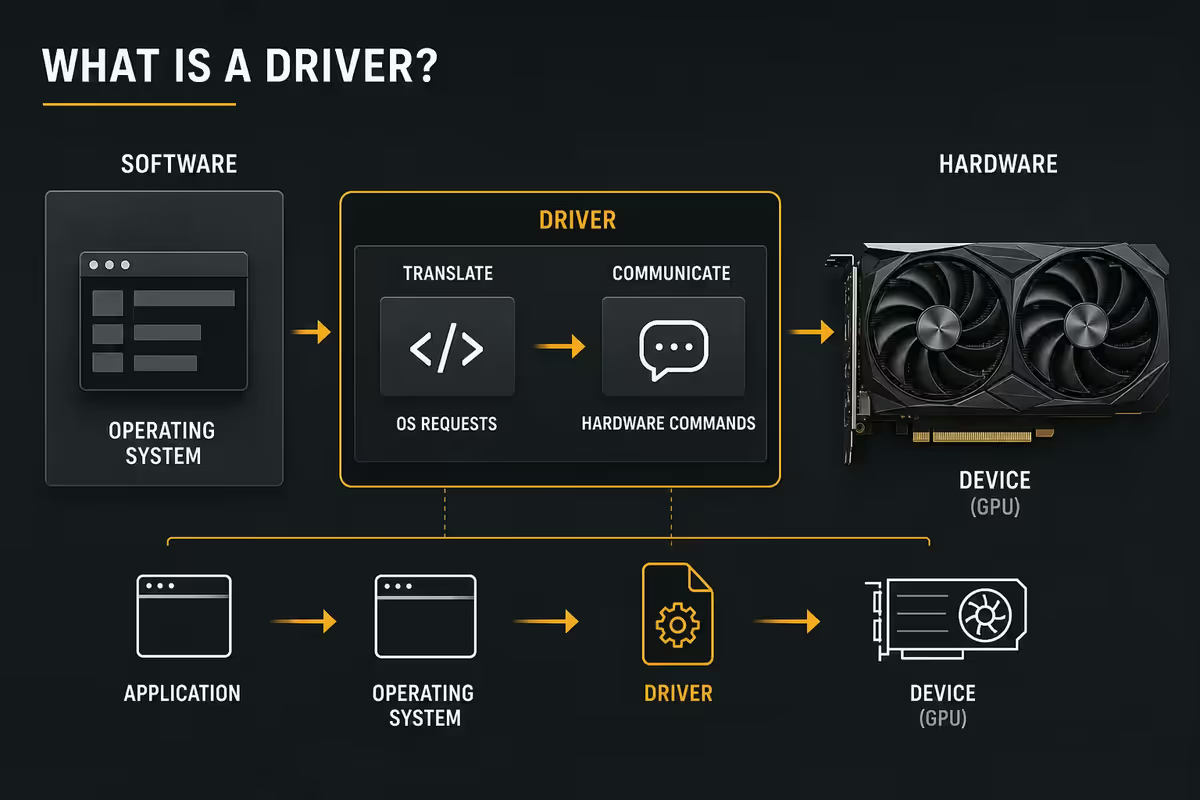
In plain English, a driver is a small piece of software that tells Windows how to talk to a piece of hardware. Your GPU, your mouse, your network adapter, your sound chip, your printer — none of them speak Windows natively. The driver translates between Windows' generic commands ("show this image on the screen", "play this audio", "send this data over the network") and the specific instructions each piece of silicon needs.
Without the right driver, Windows might recognise that a device exists but not know how to use it properly. You'll see basic functionality (a 1024×768 desktop instead of 4K, audio with no surround sound, network at 10Mbps instead of 1Gbps), but advanced features stay locked.
Drivers live in a layer called the kernel — deeper inside Windows than your apps. When a driver crashes, it can take down the whole operating system (the classic "blue screen of death" with a STOP error). This is why driver quality matters: a buggy driver causes Windows-wide problems, not just app problems.
GPU drivers — game-ready vs studio
GPU drivers are the most performance-sensitive category. A driver update for your graphics card can deliver 5-20% more FPS in a new game, fix crashes in a specific title, or introduce a new feature like DLSS frame generation. Conversely, a bad driver can break games that worked yesterday.
NVIDIA ships two parallel driver branches:
- Game Ready Driver (GRD) — released alongside major game launches. Day-one optimisations for new titles, focus on FPS improvements and game-specific fixes. Updates every 1-3 weeks during busy launch periods.
- Studio Driver (SD) — released less frequently (every 1-2 months). Prioritises stability for creative applications: Adobe Premiere/Photoshop/Lightroom, DaVinci Resolve, Blender, ZBrush, Maya, Substance. More extensive testing before release.
The underlying driver is the same — what changes is the optimisation profile and release cadence. If you primarily game, use Game Ready. If your PC is for creative work and stability matters more than the latest game launch, use Studio. Don't mix them; pick one branch and stay on it.
AMD has a similar split:
- Adrenalin Optional — frequent driver releases with new game support and feature additions.
- Adrenalin Recommended (WHQL) — Microsoft-certified driver after extensive testing, slower release cadence, more stable.
- Adrenalin Pro — for Radeon Pro workstation cards, equivalent to NVIDIA's Studio driver.
Intel Arc GPUs have a single driver branch that updates frequently as Intel matures the platform — typically every 2-4 weeks. The release notes are particularly important to read on Arc because of the rapid iteration.
Chipset drivers — the silent performance killer
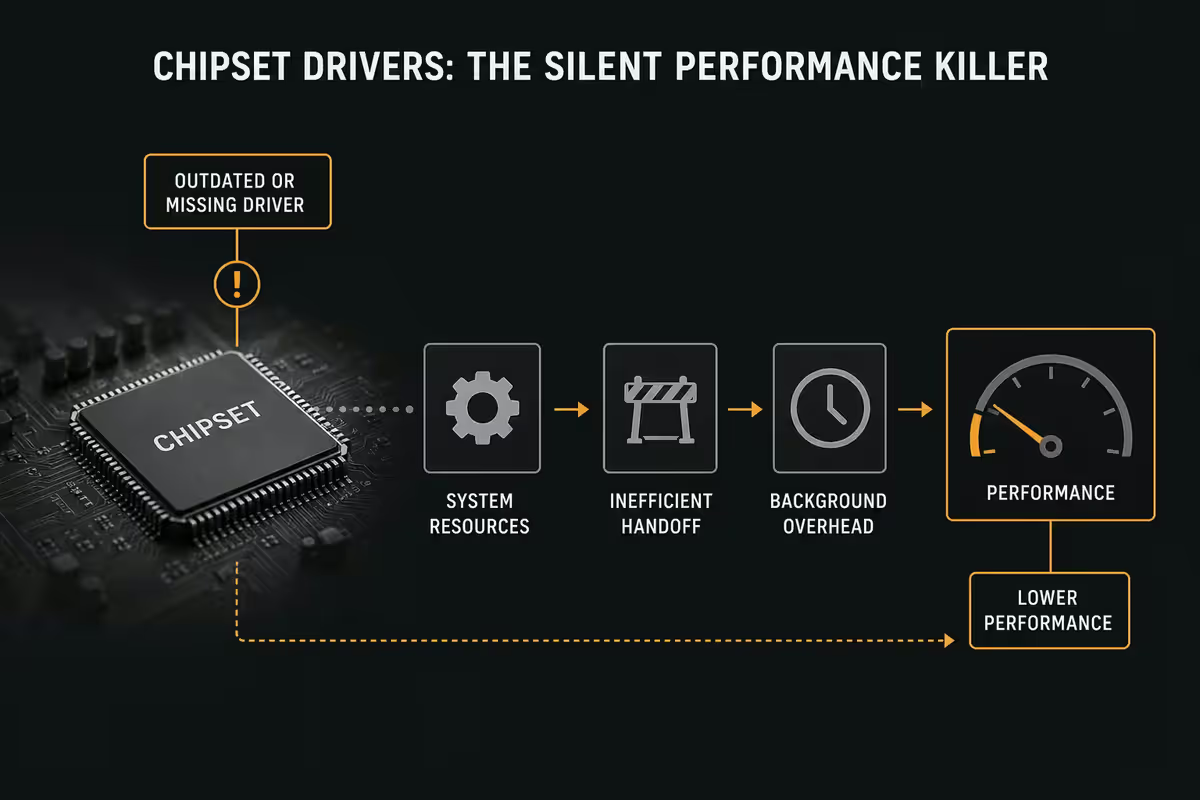
If there's one driver category most home users ignore, it's chipset drivers. Asking ten gamers what their last chipset driver update was will typically get nine blank stares. Yet on modern AMD systems especially, chipset drivers are responsible for some of the most important performance behaviour:
- CPPC (Collaborative Power Performance Control) — tells Windows which CPU cores are the "fastest" so single-threaded workloads (most games) get scheduled onto them. Without current chipset drivers, Windows schedules randomly, costing performance.
- PPM (Processor Power Management) profiles — AMD ships specific power plans tuned to each CPU generation. Missing these means the CPU sits in lower-power states more often, hurting performance.
- USB controller behaviour — chipset USB drivers fix peripheral disconnection issues, especially with audio interfaces and high-bandwidth devices.
- PCIe lane allocation — chipset drivers handle how PCIe lanes are distributed between GPU, NVMe SSDs and other devices.
- NVMe storage performance — newer chipset drivers include updated NVMe drivers that can improve sequential read/write speeds by 10-20% on Gen5 SSDs.
The cost of skipping chipset drivers on a Ryzen system is typically 5-15% in gaming, with the worst cases (older chipset driver on a brand-new chip) costing 20%+. Update chipset drivers when you build the PC, after major BIOS updates, and every 6-12 months thereafter.
Download the latest chipset driver directly from your motherboard manufacturer (ASUS, MSI, Gigabyte, ASRock) or AMD/Intel's official site — not from a generic driver-update utility.
Audio drivers — fix Discord crackle and game audio dropouts
Audio drivers control how Windows talks to your sound chip, USB headset, audio interface or DAC. Realtek HD Audio drivers (or Realtek Audio Console on newer chips) come bundled with your motherboard. ASUS, MSI, Gigabyte and ASRock all customise the Realtek driver with their own EQ presets and surround sound features.
When audio drivers matter:
- Crackling, popping or stuttering audio in Discord or in-game.
- USB headset disconnections.
- Bluetooth audio quality issues with newer codecs (LC3, aptX Adaptive).
- Audio loopback for streaming (OBS recording game and mic separately).
Always get audio drivers from your motherboard manufacturer's support page rather than Windows Update — manufacturer drivers include the OEM customisations needed for full functionality.
Windows Update vs manufacturer site — when to use which
Windows Update has improved dramatically over the years and now ships reasonable drivers for many devices. But it's never the best source for performance-critical hardware.
| Driver category | Best source |
|---|---|
| GPU (graphics card) | NVIDIA App / AMD Software / Intel Arc Control |
| Chipset (CPU-to-motherboard) | Motherboard manufacturer support page |
| Audio (Realtek, USB DAC) | Motherboard manufacturer support page |
| Wi-Fi / Bluetooth | Motherboard manufacturer (Intel Wi-Fi driver direct) |
| Wired LAN (Realtek/Intel) | Motherboard manufacturer support page |
| Mice, keyboards, generic USB | Windows Update (or peripheral maker's software) |
| Printers, scanners | Manufacturer (HP, Canon, Brother, Epson) |
| Webcams | Windows Update or maker's software |
| Storage controllers (NVMe, SATA) | Chipset driver package (covers it) |
NVIDIA App, AMD Software and Intel DSA
Each major hardware manufacturer ships a desktop application that handles driver updates, settings, and feature toggling.
NVIDIA App (the successor to GeForce Experience) auto-detects your GPU, downloads game-ready or studio drivers as you prefer, applies per-game settings optimisation, and handles screen recording (ShadowPlay). No login required — a major improvement over GeForce Experience's mandatory account.
AMD Software: Adrenalin Edition serves the same role for Radeon GPUs. Downloads drivers, configures FSR per game, exposes Radeon Anti-Lag and Radeon Boost, and provides comprehensive performance monitoring overlay. No account required.
Intel Driver & Support Assistant handles Intel chipset drivers, integrated graphics drivers, Wi-Fi/Bluetooth firmware, and Thunderbolt. Particularly important on Intel laptops where multiple components share the Intel platform.
For motherboard-specific drivers (chipset, audio, LAN), download directly from your board's support page. ASUS Armoury Crate, MSI Center and Gigabyte Control Center bundle driver utilities but also include marketing bloat — many enthusiasts uninstall them and use the manufacturer driver downloads directly.
DDU — when to clean install drivers
Display Driver Uninstaller (DDU), by Wagnardsoft, is a free utility that completely removes GPU drivers including registry entries, INF files, and leftover service entries that a normal Windows uninstall leaves behind.
Use DDU when:
- Switching GPU brands — moving from NVIDIA to AMD or vice versa. DDU removes the old vendor's driver cleanly so the new card installs without conflicts.
- Persistent driver-related crashes — TDR errors, sudden black screens, repeated DXGI failures that don't respond to a normal driver reinstall.
- Major driver-branch changes — moving from Studio to Game Ready or between major version families.
- Before installing a brand-new GPU class (e.g. RTX 4080 to RTX 5090) — though usually not necessary if updating within the same generation.
Don't use DDU routinely. Every driver release doesn't need a clean install. Modern driver installers handle in-place upgrades cleanly. DDU is a troubleshooting tool, not a maintenance ritual.
The correct DDU procedure: download the new driver first (so you can install offline), reboot into Safe Mode, run DDU, choose "Clean and shutdown", physically remove the old GPU if swapping, boot up and install the new driver.
BIOS isn't a driver — and why it matters
People sometimes conflate "updating drivers" with "updating BIOS". They're different categories of update with different stakes.
A driver runs inside Windows. It tells Windows how to talk to hardware. If a driver fails, Windows can usually recover (or you reboot and reinstall).
BIOS (or modern UEFI firmware) runs on the motherboard itself, before Windows even loads. It initialises hardware, applies CPU microcode (which changes how the CPU schedules workloads and handles security), decides what device to boot from, and controls memory training and overclocking. A failed BIOS update can brick the motherboard — you'll need a replacement BIOS chip or an RMA.
| Aspect | Driver | BIOS / UEFI |
|---|---|---|
| Where it lives | Inside Windows | On motherboard chip |
| When it runs | After Windows loads | Before Windows loads |
| What it controls | How Windows uses hardware | How hardware initialises |
| Failure consequence | Crash or reinstall | Potentially bricked motherboard |
| Update frequency | Often (monthly) | Rarely (1-3x per year) |
| When to update | For features or fixes | For CPU support, security, memory issues |
When to update BIOS: when you add a CPU that needs new microcode support, when a critical security patch is published, when memory compatibility issues affect your specific RAM kit, or when the manufacturer ships a major fix. Don't update BIOS for fun — only when you have a specific reason.
What changes between driver versions
Reading driver release notes is the difference between informed updating and blind updating. Both NVIDIA and AMD publish full release notes for every driver, and the categories are consistent:
- New game support — day-one drivers for upcoming launches, optimisation for specific titles.
- Bug fixes — game-specific crashes resolved, multi-monitor issues fixed, HDR colour bugs addressed.
- Performance improvements — typically targeted at specific GPU generations or specific games.
- Feature additions — new DLSS revisions, FSR upgrades, codec support (AV1 decode/encode), new ray tracing capabilities.
- Security patches — vulnerability fixes that can apply to drivers running with kernel privileges.
- Architectural improvements — better memory management, scheduling improvements, power efficiency.
How to read release notes practically: if a driver lists support for games you play, performance improvements for your GPU, or security fixes, install it. If the changes are entirely for games you don't own and GPU families you don't have, skip the release until the next one bundles something relevant.
When to roll back a driver
Sometimes a new driver breaks something that previously worked. Symptoms include: crashes that started after the update, lower FPS than the previous version, broken HDR, monitor refresh-rate issues, or specific applications failing to launch.
How to roll back:
- Easy method — Device Manager → right-click the device → Properties → Driver tab → "Roll Back Driver". Works for the previously installed driver only.
- Manual method — uninstall the current driver, download the previous version from NVIDIA/AMD/Intel's driver archive, install it. The vendor archives keep 1-2 years of older drivers available.
- Clean roll-back — use DDU to remove the current driver fully, then install the older version on a clean state. The most reliable approach when the broken driver caused persistent issues.
After rolling back, pause that driver's automatic updates for 2-4 weeks. The vendor will typically ship a hotfix within that window addressing whatever the previous release broke.
Key takeaways
- A driver is software that lets Windows talk to hardware — wrong or old drivers cost performance, cause crashes, hide features.
- GPU drivers: every 1-3 months from NVIDIA App / AMD Software. Game Ready for gamers, Studio for creators.
- Chipset drivers are the silent performance killer — neglected ones cost 5-15% on Ryzen. Update from motherboard maker.
- BIOS isn't a driver — runs before Windows, higher stakes, only update for specific reasons.
- DDU is for troubleshooting and brand switches, not routine maintenance. Don't use auto-driver-updater utilities.
Frequently asked questions
What is a driver, in plain English?
A driver is a small piece of software that tells Windows how to talk to a piece of hardware — your GPU, sound card, mouse, network adapter. Without the right driver, Windows knows the device exists but doesn't know how to use it properly. Drivers translate generic Windows commands into specific instructions the hardware understands. They sit between the operating system and the silicon.What is the difference between game-ready and studio drivers?
NVIDIA ships two parallel driver branches: Game Ready Driver (GRD) and Studio Driver (SD). Game Ready focuses on day-one game support, new launches, performance optimisations for new releases. Studio Driver prioritises stability for creative applications (Premiere, Resolve, Blender, Adobe suite, ZBrush), gets less frequent updates, and is more thoroughly tested. Use Game Ready if you primarily game; use Studio if your machine is for creative work. AMD's equivalent is the Adrenalin Pro driver branch.Why does my chipset driver matter? I never hear anyone mention it.
Chipset drivers control how the CPU talks to the rest of the motherboard — PCIe lanes, USB controllers, SATA, memory subsystem, power management. On AMD systems especially, the chipset driver is responsible for the AMD CPPC (preferred-core scheduling) and PPM (power plan) profiles that determine which cores get used for gaming workloads. Skipping chipset drivers can cost 5-15% gaming performance on Ryzen and is a common silent issue. Update chipset drivers when you build the PC, after major BIOS updates, and every 6-12 months.Should I let Windows Update handle drivers or download from the manufacturer?
Windows Update ships generic, broadly-compatible drivers — they work but are often older versions with reduced features. Manufacturer drivers (NVIDIA, AMD, Intel, ASUS, Realtek) are newer, more feature-complete, and tuned for that specific hardware. Best practice: let Windows Update handle peripheral drivers (mice, keyboards, basic devices) and use manufacturer drivers for GPU, chipset, audio and network adapter. For GPUs specifically, never rely on Windows Update — always use NVIDIA App or AMD Software.What is DDU and when should I use it?
Display Driver Uninstaller (DDU) is a free utility that fully removes GPU drivers from Windows, including registry entries and leftover files that a normal uninstall leaves behind. Use it when switching GPU brands (NVIDIA to AMD or vice versa), when an existing driver is causing crashes or instability, or before a major driver branch change. Boot to Safe Mode, run DDU, choose 'Clean and shutdown', then install the new driver fresh on next boot. Don't use DDU routinely — it's a troubleshooting tool, not a maintenance step.What is the difference between a driver update and a BIOS update?
A driver runs inside Windows and tells Windows how to talk to hardware. A BIOS (or UEFI firmware) runs on the motherboard itself, before Windows loads — it initialises hardware, applies CPU microcode, and decides what boots. BIOS updates change low-level behaviour: memory compatibility, CPU support, security patches, power management. Driver updates change how Windows uses the hardware. BIOS updates carry more risk (a failed flash can brick the motherboard) and should be done deliberately, not casually.How often should I update my drivers?
GPU drivers: every 1-3 months for active gamers (or specifically when a new title launches with a Game Ready Driver). Chipset drivers: every 6-12 months or after major BIOS updates. Audio, network and chipset peripherals: only when troubleshooting a specific issue. Updating drivers more often than this generally doesn't help and occasionally introduces regressions. The 'always be updating everything' approach is a myth from the early 2000s.What changes between driver versions?
Each driver release ships release notes detailing what changed — new game optimisations, bug fixes for specific titles, security patches, new feature support (DLSS revisions, FSR updates, ray tracing improvements), and sometimes architectural improvements like better memory management. Read the release notes (NVIDIA and AMD publish them publicly) before updating to know whether the update is relevant. If the only changes are for games you don't play, you can safely skip that release.