Mac Security · Find My Mac
Find My Mac, when it matters most. — Set it up BEFORE you need it. Always.
The single highest-impact MacBook security setting in SA, and the one most people don't have on. Five clicks. Free. Makes stolen MacBooks worthless to thieves and gives you a fighting chance at recovery.
- before you need it
- Set up FIRST
- Find My network
- Works offline
- anti-resale
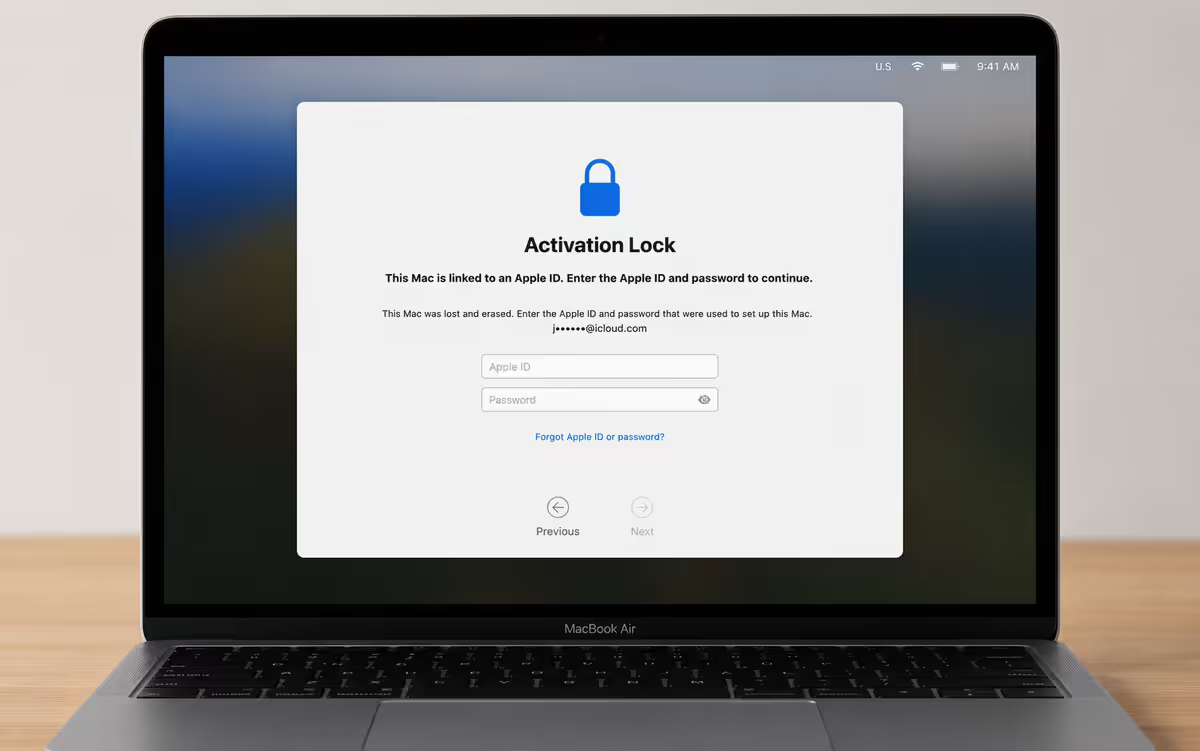
- Activation Lock
What Find My Mac actually does
Find My Mac is Apple's free anti-theft and lost-device tracking service. It lets you locate, lock, message and remotely erase any of your Apple devices from any other Apple device or from icloud.com. For MacBook specifically, it does four critical things:
- Continuous location tracking — last known location plus live updates when the MacBook is online or within Bluetooth range of any Apple device.
- Remote actions — Play Sound, Mark As Lost, Erase This Mac.
- Activation Lock — automatic firmware-level binding of the MacBook to your Apple ID. Even a wiped MacBook is unusable to a thief.
- Required for AppleCare Theft & Loss claims — without Find My active, the insurance won't pay out.
It is free with any Apple ID, uses negligible battery (~1% per day on modern Macs), and is the single most important MacBook security setting in SA. Yet roughly a third of MacBook owners have it disabled — usually because some out-of-date guide told them it drains battery.
Pre-setup — do this NOW
Find My Mac cannot be enabled remotely after the MacBook is lost. The single requirement is that Find My was already on at the moment of loss. Set it up today on every Apple device you own.
Step-by-step enable Find My Mac
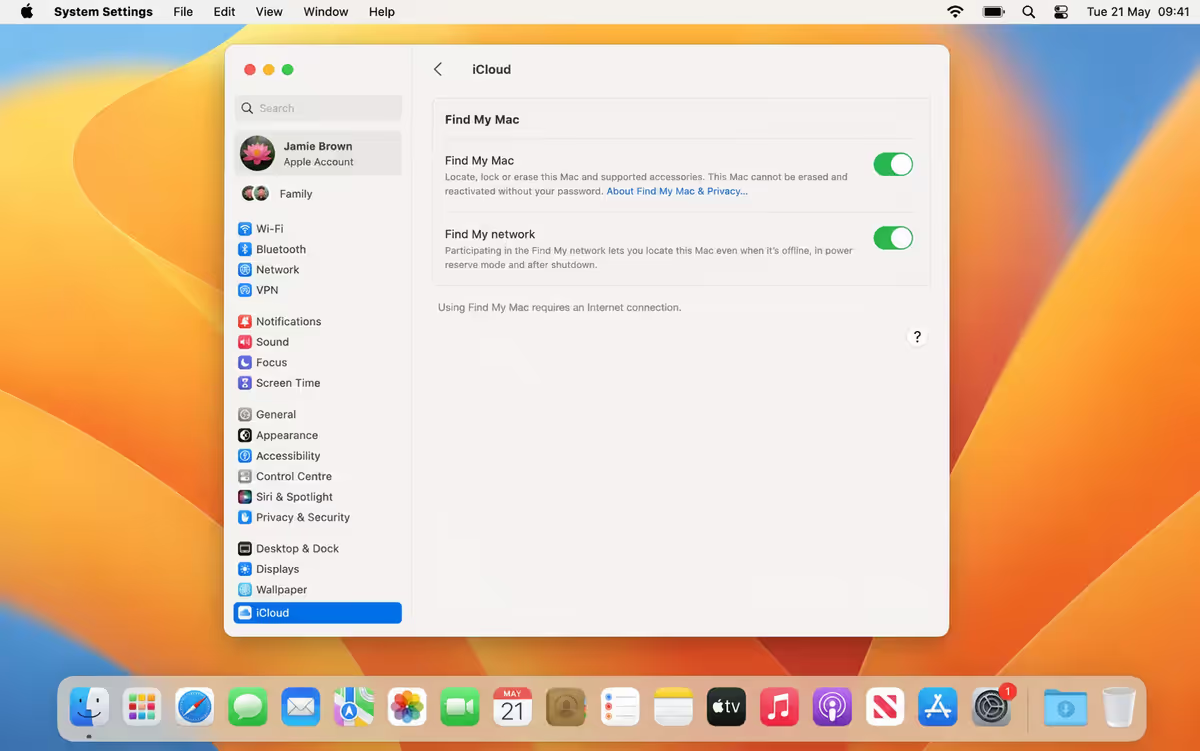
- Open System Settings (Apple menu top-left).
- Click your name at the top of the sidebar (Apple ID profile).
- Click iCloud.
- Scroll to Find My Mac → click → toggle on.
- Also toggle on Find My network below the main toggle. This is the offline-tracking layer most people miss.
- You may be prompted to allow Location Services for Find My — say yes.
- System Settings → Privacy & Security → Location Services → ensure Location Services is on globally, and Find My has permission.
Verify everything is configured correctly
Sign in to icloud.com in any browser (Safari, Chrome, Firefox) → Find My → you should see your MacBook listed with a green dot (online) or grey dot (offline) and a location. If your MacBook doesn't show up, Find My isn't enabled correctly.
How Find My locates devices — three layers
Find My doesn't just use one location method. It stacks three layers, each more aggressive than the last:
Layer 1 — direct location while online
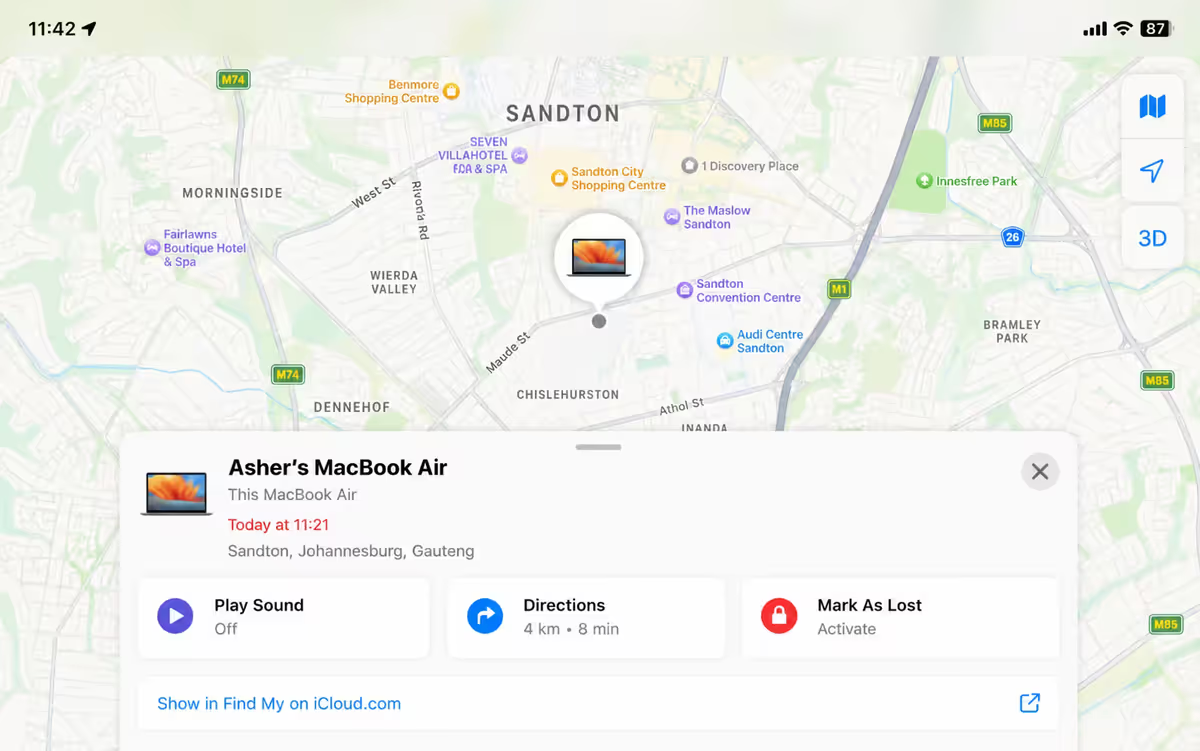
If the MacBook is awake and on the internet (Wi-Fi or hotspot), it sends precise GPS/Wi-Fi-triangulation coordinates to Apple every few minutes. You see this in Find My as a live updating pin with sub-50-metre accuracy in urban areas.
Layer 2 — last reported location while offline
When the MacBook goes offline (powered off, no internet, lid closed for extended period), Find My shows the last known online location. This persists even after months. Useful starting point even if you find it weeks later.
Layer 3 — Find My network (offline tracking)
This is the magic layer. Even when offline, your MacBook broadcasts an encrypted Bluetooth signal every few minutes. Any passing Apple device — anyone's iPhone, iPad, Mac — receives that signal, attaches a location, and relays the encrypted location to Apple. You see updated location pings even though your MacBook is off the internet.
Find My network — how the global mesh works
The Find My network is a global mesh of over a billion active Apple devices, all silently looking for any lost Apple device they pass within Bluetooth range. The protocol is end-to-end encrypted in a clever way:
- Your MacBook broadcasts a rotating cryptographic identifier (changes every few minutes — can't be tracked by third parties).
- A passing iPhone notes the identifier and attaches its own location, then uploads the encrypted pair to Apple.
- The passing iPhone learns nothing about your MacBook — Bluetooth ID is meaningless without your Apple ID's key.
- Apple cannot decrypt the locations either — it just stores them.
- Only you, when you sign in to Find My with your Apple ID, can decrypt the location reports for your devices.
In practice in SA: even a stolen MacBook with the lid closed in a thief's car will be detected by any iPhone or iPad nearby on the road. Centurion, Sandton and Cape Town CBD have such high Apple device density that a stolen MacBook will get a location update within minutes — sometimes within seconds.
Play Sound — for misplaced (not stolen) MacBooks
Play Sound is the right action for the most common Find My use case: "I know I had it five minutes ago." The MacBook chimes loudly through speakers until you find it.
When Play Sound is useful
- Misplaced in your house — under a couch cushion, in a different room.
- Misplaced at the office.
- Confirming a MacBook in a bag is actually the right bag.
When NOT to use Play Sound
- You suspect the MacBook is stolen. Playing sound alerts the thief that the device is being tracked — they'll power it off or remove the battery. Use Mark As Lost instead.
- You don't know where it is. Locate it first, then decide.
Mark As Lost — for stolen or actually lost MacBooks
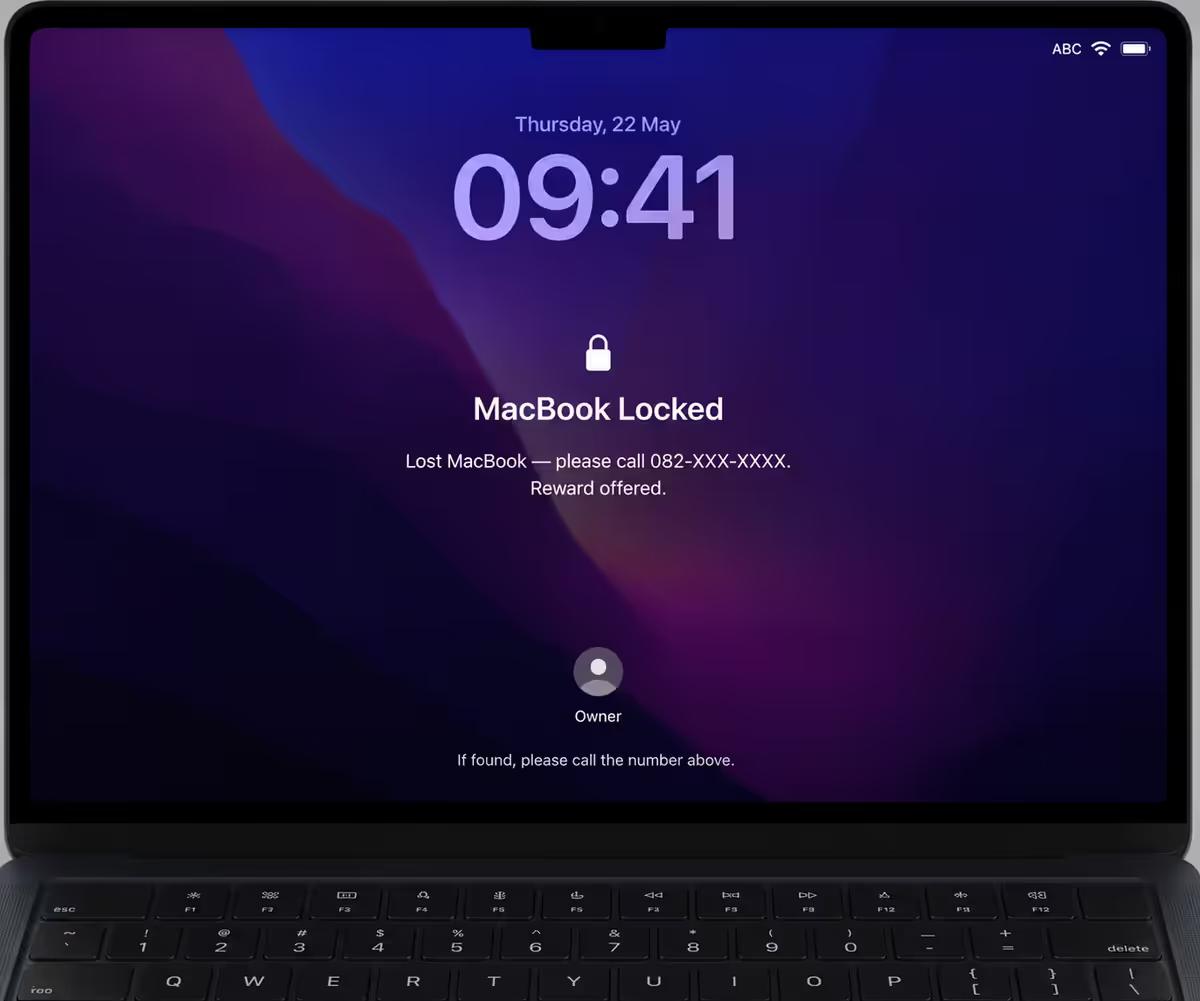
Mark As Lost is the right first action if you suspect theft or genuinely don't know where the device is. It does five things simultaneously:
- Remotely locks the MacBook — even if it was unlocked at theft, it locks immediately upon next internet connection.
- Disables Apple Pay — any tokenised cards on the device are suspended.
- Displays a custom message on the lock screen — "Lost MacBook — please call Kamran on 082-XXX-XXXX." This is for honest finders, not thieves.
- Activates continuous location tracking — Find My pings location more aggressively than normal.
- Triggers location-changed notifications — you'll receive an alert if the device moves significantly.
How to Mark As Lost
- Open Find My app on iPhone/iPad/Mac, or sign in to icloud.com/find.
- Select your MacBook from the Devices list.
- Tap/click Mark As Lost → tap Activate.
- Enter a phone number (your alternate number, a family member's) — this appears on the lock screen.
- Enter a custom message — keep it short. "Lost MacBook. Please call [number]. Reward offered."
Do not deactivate Mark As Lost until you've physically recovered the device or written it off. Deactivating it loses continuous tracking.
Erase This Mac — the last resort
Erase This Mac wipes all data on the MacBook remotely. It's irreversible. Use only when:
- You're certain you won't physically recover the device.
- The data on it (client work, financial records, personal photos) is sensitive enough that the risk of compromise outweighs the slim recovery chance.
- Time has passed (typically 1-2+ weeks) without recovery progress.
Critical point: Erase This Mac removes data but does NOT remove Activation Lock. The device remains tied to your Apple ID at firmware level. A thief who wipes the device still can't use it.
However, once you Erase This Mac, you lose your ability to track it further — Find My can no longer locate a wiped device. Trade-off: data protection now, tracking gone. If you have AppleCare Theft & Loss, file the insurance claim before Erase if possible (the claim may require active Find My on the device).
Activation Lock — the anti-resale weapon
Activation Lock is the under-appreciated genius of Find My Mac. Once Find My is on, your Apple ID is cryptographically bound to your MacBook at firmware level (T2 chip on Intel, Secure Enclave on Apple Silicon). The binding survives:
- Erase This Mac (remote wipe).
- Full disk reformat by thief.
- Reinstall macOS from scratch.
- Removing and reinstalling the SSD.
After any of these, the MacBook boots, hits Setup Assistant, and demands the original Apple ID password before proceeding. Without it, the device is essentially a brick. A R45,000 MacBook Pro that's worth maybe R3,000 in parts.
This means: your stolen MacBook is worthless to thieves who know what they're doing. Sophisticated criminals know to check Activation Lock status before buying. Honest buyers will demand a chance to set up the Mac before paying. Either way, your MacBook is hard to monetise.
If your MacBook is stolen in South Africa — the action plan
Take a breath. The first 24 hours matter most. In strict order:
- Open Find My immediately. Another Apple device or icloud.com/find. Note the current location and last seen timestamp.
- Mark As Lost. Lock the device, set a recovery message, enable continuous tracking. Don't Play Sound — alerts the thief.
- Take screenshots of the Find My location and timestamp. These are evidence for SAPS and insurance.
- File a SAPS case at the nearest police station. Bring photo ID and your MacBook's serial number (find it on the original box or in System Settings → General → About). You need the case number for any insurance claim. Try to file within 24 hours.
- Change critical passwords. Apple ID first (so the thief can't disable Find My or remove Activation Lock). Then banking app passwords, email, work systems. Use another device (your phone or another computer).
- Notify your bank. Any cards stored on the MacBook are now at risk — request fresh card numbers if you used the MacBook for online purchases.
- File the insurance claim. AppleCare Theft & Loss within 72 hours where possible. Household insurance claims have different windows — read your policy. Provide: police case number, Find My screenshots, MacBook serial, proof of purchase.
- Do NOT confront thieves yourself. SA crime levels make personal recovery dangerous. Give SAPS the location data and let them handle physical recovery.
- Wait. Recovery, when it happens, takes days to weeks. Mark As Lost keeps tracking running. Sometimes thieves dump devices when they realise the Activation Lock makes them unsellable — you may get a location update from a flea market or parking area weeks later.
- If recovery looks hopeless, Erase This Mac after the insurance claim is finalised. Protects your data.
SA theft context — where Macs get stolen
Patterns we hear from SA customers around MacBook theft locations:
- Coffee shops + restaurants — Sandton, Rosebank, Centurion, Hyde Park, Stellenbosch, Sea Point. Looked away for 10 seconds, MacBook gone with a partner-distraction or grab-and-walk pattern.
- Gym lockers — Virgin Active, Planet Fitness branches. Lockers being broken into during sessions; high-value laptops in unattended bags.
- Airports + lounges — OR Tambo, Cape Town International, King Shaka. Opportunistic grabs from charging stations or unattended bags during boarding announcements.
- Car break-ins — visible MacBook on car seat or in obvious laptop bag. Stop streets, traffic-light grabs, parking-lot smash-and-grabs.
- House burglary — daytime break-ins (Wednesdays/Thursdays peak in some areas) specifically targeting electronics.
- Office building stairwells / lobbies — unattended laptop bags during walking-and-talking moments.
Insurance + AppleCare Theft & Loss in SA
Two routes for getting a stolen MacBook replaced financially:
AppleCare+ with Theft & Loss
- SA pricing (2026): ~R5,200/year for MacBook Air, ~R6,800/year for MacBook Pro. Three-year plans available at slight per-year discount.
- Deductible ~R3,500-R5,500 per theft claim depending on model.
- Requires Find My Mac active at time of loss. Apple verifies this on the claim.
- Replacement is same-model new device from Apple — usually same-day or next-day at iStore.
- SAPS case number required. File the SAPS case before filing the AppleCare claim.
- Two claims per 12-month period max.
Household / All Risks insurance
- SA pricing (2026): typically R30-R80/month for a R30,000-R60,000 MacBook as an All Risks / Portable Possessions item.
- Excess typically R1,500-R5,000.
- Claim history on household insurance affects your future premiums; AppleCare Theft & Loss is a separate product so doesn't pollute household claims.
- Replacement often paid as cash equivalent — you buy the new MacBook yourself.
- SAPS case still required.
Which to choose? AppleCare Theft & Loss tends to be cleaner: same-model replacement, same-day Apple delivery, no household premium impact. Household insurance is cheaper per month but slower claims process. Many SA customers run both for high-end MacBook Pros.
Common Find My Mac mistakes
Setting up Find My after something happens. Impossible — Find My must be on at time of loss. Set it up today.
Forgetting to enable Find My network. The big-impact toggle. Without it, an offline MacBook is invisible.
Disabling Find My to save battery. Saves maybe 1% per day. Costs everything if stolen.
Using Play Sound on a suspected stolen device. Alerts the thief that it's being tracked. They'll power it off. Use Mark As Lost instead.
Confronting thieves yourself based on Find My location data. Don't. SA crime context makes this genuinely dangerous. Give the data to SAPS and let police handle it.
Erasing too quickly. Once you Erase This Mac, you lose all tracking. Wait until insurance claim is filed and recovery looks unlikely.
Not signing out before selling. If you sell a MacBook without signing out of iCloud / disabling Find My, Activation Lock will brick it for the buyer.
Key takeaways
- Enable Find My Mac AND Find My network now — both toggles in System Settings → iCloud → Find My Mac. You cannot enable Find My after loss.
- Find My network uses any nearby Apple device to relay your MacBook's encrypted location — works even when MacBook is offline.
- If stolen: Mark As Lost immediately. File SAPS case. Take screenshots of location. Don't confront thieves yourself.
- Activation Lock (automatic with Find My) makes stolen MacBooks unsellable — thieves can't wipe-and-resell to anyone with tech knowledge.
- AppleCare Theft & Loss (~R6,800/yr for Pro) requires Find My active at time of theft. Same-day same-model replacement at iStore.
Frequently asked questions
How do I enable Find My Mac?
System Settings → click your name → iCloud → Find My Mac → toggle on. Also enable Find My network for offline tracking. Ensure Location Services is on in Privacy & Security.Does Find My Mac work when the MacBook is offline?
Yes if Find My network is on. Any nearby Apple device passively relays your MacBook's encrypted Bluetooth location to Apple. End-to-end encrypted — passing devices learn nothing.What can I do remotely if my MacBook is stolen?
Play Sound (misplaced cases), Mark As Lost (locks device + custom message + continuous tracking), Erase This Mac (wipe data — last resort, but Activation Lock remains).What is Activation Lock on Mac?
Firmware-level binding of MacBook to your Apple ID via Find My Mac. Survives erase, reformat and reinstall. Demands original Apple ID before any setup. Makes stolen MacBooks worthless.My MacBook was stolen in South Africa — what do I do?
Mark As Lost immediately. Screenshot location. File SAPS case. Change Apple ID + banking passwords. File insurance claim (AppleCare or household). Don't confront thieves yourself.Can I find my MacBook with Apple's help if Find My was off?
No. Apple cannot retroactively enable Find My on a device they don't have access to. The MacBook is effectively untraceable. Single biggest regret SA customers tell us about.What does Find My network mean and is it safe?
Global mesh of Apple devices passively relaying encrypted location pings. End-to-end encrypted — passing devices and Apple itself can't see your locations. Only you with your Apple ID can decrypt your reports.Can I track my MacBook to recover it from a thief?
Find My shows location, but never go retrieve it yourself in SA — too dangerous. Give SAPS the location data and screenshots, let police handle physical recovery. Activation Lock and insurance are the real value of Find My.
Get the Evetech app
Exclusive app-only prices, daily flash sales, and free delivery on orders over R4,000 — download the app and start saving.