USB-C Hub Buying Guide
How to choose a USB-C hub.
Quality builds. Pass-through power. Right tier.
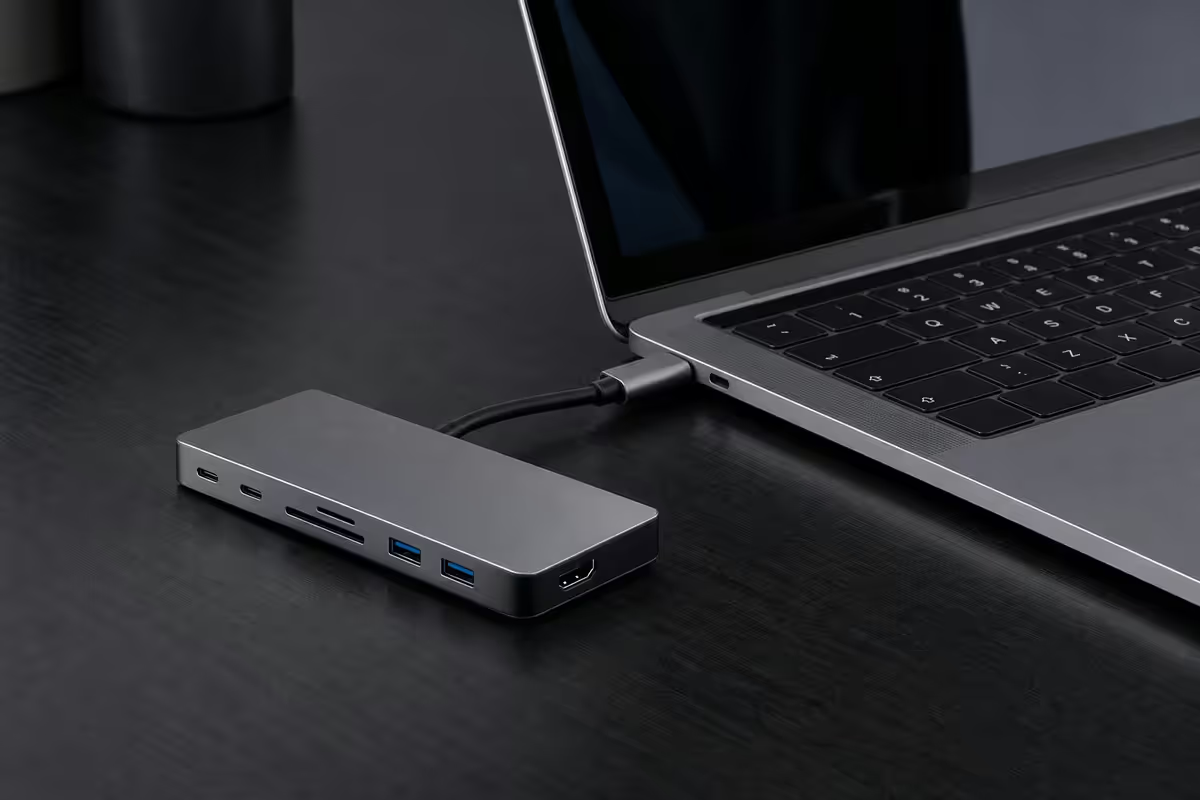
Thunderbolt 4 vs USB-C 3.2 — the tier decision
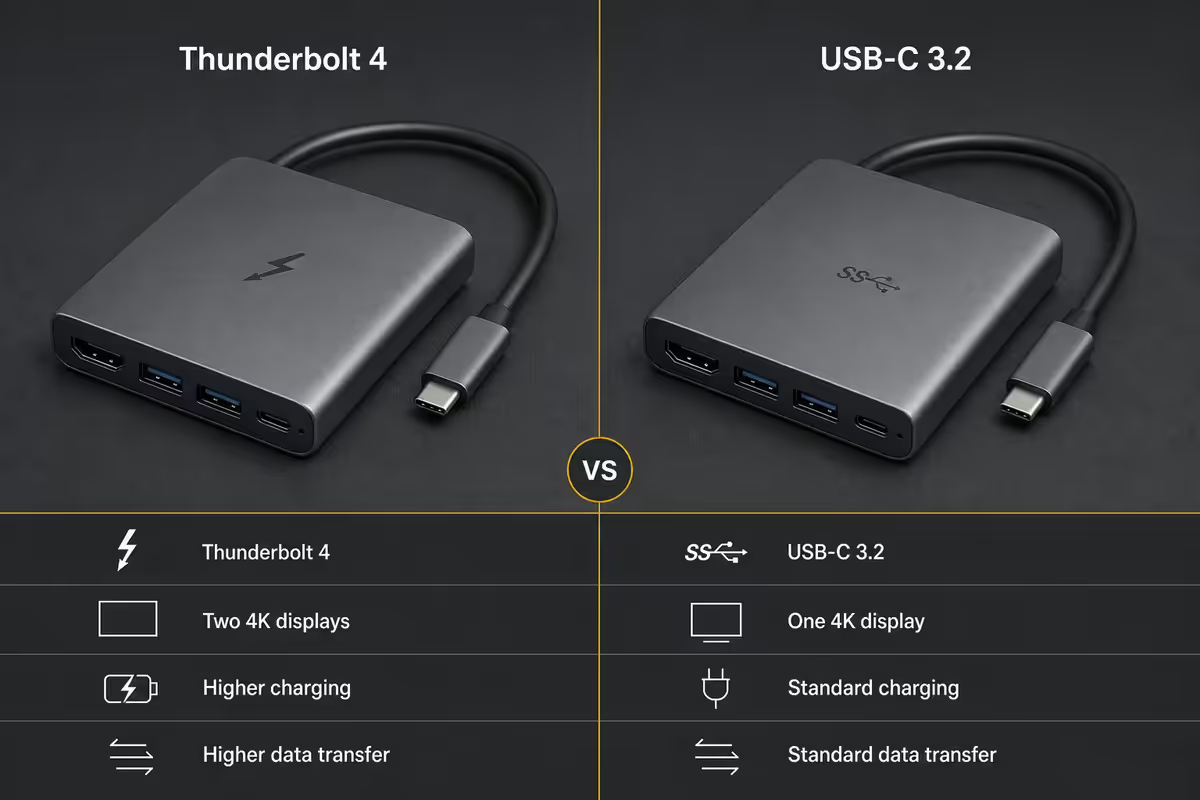
Every USB-C hub is one of two tiers. The right choice depends on your MacBook model and what you actually plug in.
| Feature | USB-C 3.2 hub | Thunderbolt 4 hub |
|---|---|---|
| Max bandwidth | 10-20 Gbps | 40 Gbps |
| Max display support | 1× 4K@60Hz (DP Alt Mode) | 2× 4K@60Hz or 1× 8K@60Hz |
| SSD enclosure speed | ~1,000 MB/s real | ~3,000 MB/s real |
| Daisy-chain devices | No | Yes (up to 6 devices) |
| Backwards compatibility | USB-C only | Works with TB3 and USB-C |
| SA price range | R600-R2,500 | R3,500-R6,000 |
| Best for | MacBook Air, single display setups | MacBook Pro, dual display, pro workflows |
The MacBook Air limitation matters. Base-tier Apple silicon (M2/M3/M4 in MacBook Air) only supports one external display regardless of hub price or tier. Spending R6,000 on a Thunderbolt 4 hub to drive two displays on a MacBook Air will not work — that's an Apple silicon limit, not a hub limit. MacBook Pro M2/M3/M4 supports two external displays; M2/M3/M4 Pro and Max support up to three or four.
Pass-through charging — non-negotiable
Pass-through charging means the hub has a dedicated USB-C input port that accepts your existing MacBook charger. The hub then powers your MacBook through the same single cable that's also carrying data and display.
Without pass-through: you'd have to plug the charger into one of your MacBook's USB-C ports, leaving fewer for the hub. The whole value of a hub — one cable to the MacBook — is defeated.
Verify two things before purchase:
- Pass-through wattage matches your MacBook. A 60W pass-through hub will under-power a MacBook Pro 14 (needs 96W) — it'll work but charge slowly, and may drain the battery under heavy load.
- Pass-through is on a separate USB-C input port, not a data port. Some cheap hubs use a single USB-C port for both, forcing a compromise.
Port count — what you actually need
Most MacBook owners need a specific port set. Match this against the hub's spec sheet:
- 1× HDMI 2.0 or 2.1. For an external monitor. HDMI 2.0 = 4K@60Hz max; HDMI 2.1 = 4K@120Hz or 8K@60Hz.
- 1× Gigabit Ethernet (RJ45). For stable wired internet. Worth it if your Wi-Fi is unreliable or you're on video calls daily.
- 2-3× USB-A 3.2 (5-10 Gbps). For older peripherals — wired keyboard, mouse, USB sticks, external HDDs, webcams.
- 1× SD card slot (UHS-II preferred). Essential for photographers shooting on full-size SD cards.
- 1× microSD slot. For action camera footage, drone footage, dashcam transfers.
- 1× USB-C input (PD pass-through). For charger connection.
- 1× USB-C data port (10 Gbps). For modern peripherals.
- 1× 3.5mm audio jack. Useful if your MacBook lacks one or you want hub-level audio routing.
That's roughly an 8-port hub. Photographers and videographers benefit from 10-12 port "dock-style" units. Casual travellers can downsize to 4-5 port travel hubs. Don't overbuy — extra ports add bulk and cost without value if unused.
4K and 8K display support
Display performance is where USB-C 3.2 and Thunderbolt 4 hubs diverge most sharply.
| Hub type | Single display | Dual display |
|---|---|---|
| USB-C 3.2 (DP Alt Mode) | 4K@60Hz | 1× 4K@60Hz + 1× 1080p@60Hz |
| USB-C 3.2 (HDMI 2.0) | 4K@60Hz | 4K@30Hz on both (slow, unreliable) |
| Thunderbolt 4 | 8K@60Hz | 2× 4K@60Hz |
| Thunderbolt 4 + DisplayLink (hybrid) | 4K@60Hz | Up to 3× 4K@60Hz (with DisplayLink driver) |
If you need two external 4K@60Hz displays on a MacBook Pro, Thunderbolt 4 is the only reliable path. USB-C 3.2 hubs that advertise "dual 4K" usually deliver 30Hz on the second display, which is unusable for productivity.
If your MacBook is an Air, none of this matters — Apple silicon Air models support only one external display regardless of hub.
USB-PD wattage by MacBook model
| MacBook model | Apple charger wattage | Minimum hub PD pass-through |
|---|---|---|
| MacBook Air M2/M3/M4 (13") | 30W standard, 35W fast | 45W+ (60W recommended) |
| MacBook Air M3/M4 (15") | 35W standard, 70W fast | 85W+ (96W recommended) |
| MacBook Pro 13" M2 | 67W | 85W+ (96W recommended) |
| MacBook Pro 14" M2/M3/M4 Pro/Max | 96W | 100W+ (140W recommended for heavy load) |
| MacBook Pro 16" M2/M3/M4 Pro/Max | 140W | 140W+ (160W recommended) |
Under-powered hubs will still charge the MacBook — just slowly, and they may drain battery under sustained CPU/GPU heavy load (4K video editing, large Xcode compiles, gaming).
Build quality — aluminium vs plastic
Quality USB-C hubs share a few build patterns:
- Aluminium body. Acts as a heat sink. USB-C hubs run warm under load (especially HDMI + ethernet + SSD simultaneously). Aluminium dissipates heat passively; plastic traps it. Heat is the primary failure mode for hubs.
- Longer integrated cable (15-30cm). Lets you place the hub on your desk surface rather than dangling from a MacBook port. Cheaper hubs use stubby 5-10cm cables that force the hub to hang awkwardly.
- Solid port construction. Ports should not wiggle when a USB-A device is inserted. Loose ports are a sign of cheap construction and predict early failure.
- Branded packaging and a serial number. Real Anker / CalDigit / Satechi / UGREEN units come in branded boxes with serial numbers for warranty. Generic "USB-C hub" in plain packaging is a red flag.
- Warranty. Premium brands offer 18-24 month warranties. Budget-tier 6-12 months. No-name often "30 days" or no warranty at all.
Driver-free operation on Mac
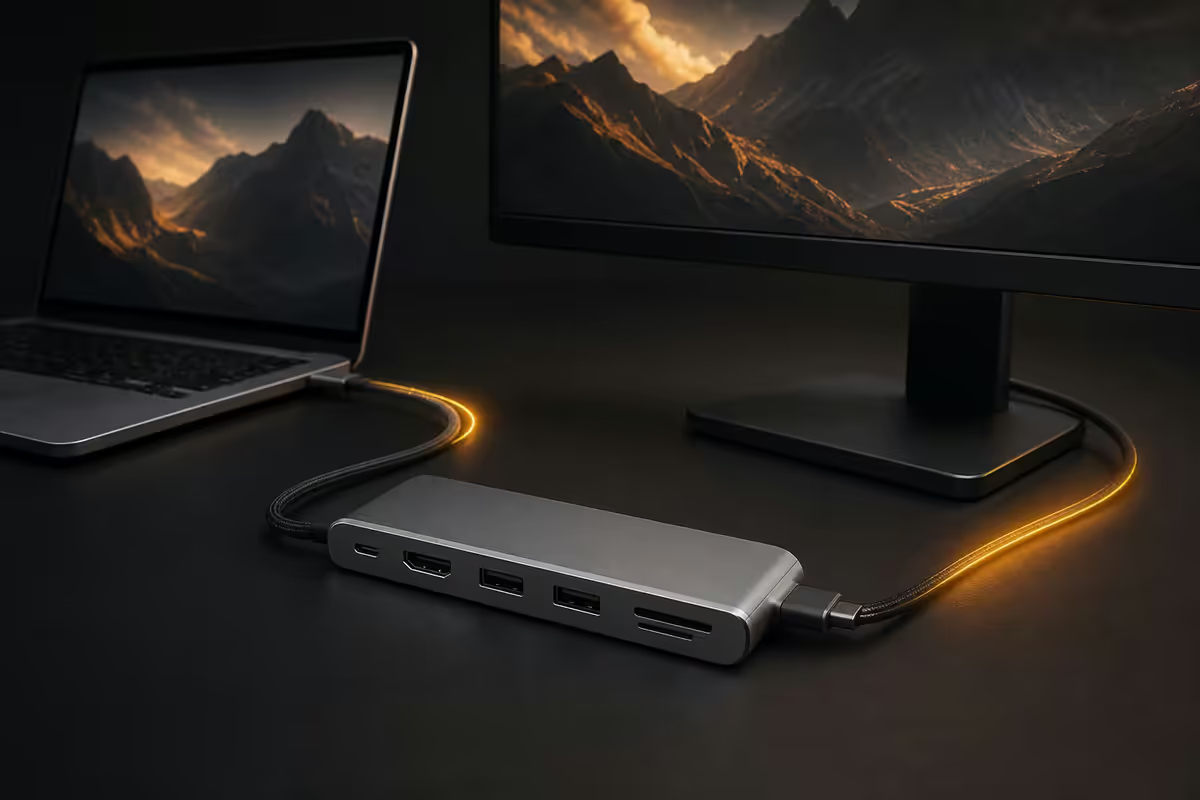
For almost every MacBook user, a USB-C or Thunderbolt 4 hub works driver-free on macOS. Plug it in and every port functions:
- USB data devices work via USB Class drivers (built-in).
- HDMI display works via DisplayPort Alt Mode (built-in).
- Ethernet works via Ethernet adapter drivers (built-in).
- SD/microSD cards mount in Finder automatically.
- PD pass-through charging works via USB-PD standard (built-in).
Driver-required edge cases:
- DisplayLink hubs — these use software-based display drivers to add extra monitor outputs beyond Apple's native limits. Requires the DisplayLink Manager app (free). Useful for MacBook Air users who want a second external display.
- Hub firmware updates — premium hubs (CalDigit TS4, OWC docks) occasionally ship firmware updates via a small Mac utility. Once-yearly check.
- Special features — some hubs include audio EQ apps, RGB lighting controls or per-port power monitoring. Optional.
SA brand picks by budget tier
| Tier | Pick | SA price |
|---|---|---|
| Budget travel | UGREEN 7-in-1 USB-C Hub (60W PD) | R650-R900 |
| Budget desk | Anker 332 8-in-1 USB-C Hub (85W PD) | R1,100-R1,500 |
| Mid-tier desk | Satechi On-The-Go Multiport (USB-C 3.2) | R1,800-R2,400 |
| Mid-tier premium | Anker 555 8-in-1 USB-C Hub (100W PD) | R2,200-R2,800 |
| Thunderbolt 4 entry | Hyperdrive Thunderbolt 4 Hub (96W PD) | R3,500-R4,500 |
| Thunderbolt 4 premium | CalDigit Element Hub (TB4, 4-port) | R4,500-R5,500 |
| Pro dock (the benchmark) | CalDigit TS4 (TB4, 18 ports, 98W PD) | R8,500-R12,000 |
| OWC alternative | OWC Thunderbolt Hub (TB4, 4-port) | R5,500-R6,800 |
Avoiding the no-name trap
The temptation: a R250 "10-in-1 USB-C Hub" on Takealot or AliExpress, with photos matching CalDigit's aesthetic and a spec sheet claiming everything. Don't fall for it.
The common failure patterns of no-name hubs:
- Advertised speeds are fiction. "10 Gbps USB-A" tested at 2-3 Gbps real. "4K@60Hz HDMI" tested at 4K@30Hz. The chips inside often don't support what the marketing claims.
- Ports die one by one. Within 6-12 months, individual ports stop working — usually starting with the HDMI port, then USB-A ports.
- Overheating under sustained load. Plastic body, no heat sink, no thermal management. The hub gets hot, components degrade, ports fail.
- Under-delivered PD. "100W PD pass-through" delivers 65W actual to the MacBook. Battery slowly drains under heavy load.
- No warranty support. Generic brand, no SA service network. Failed units have no path forward.
The math: a R350 hub that fails in 10 months costs R350. A R1,500 quality Anker hub that lasts 4 years costs R31.25/month. Premium hubs are cheaper per month of use.
Common USB-C hub mistakes
Buying a no-name budget hub to "see if it works". 28% fail in 12 months. The R350 saved becomes R1,500 spent on a replacement after the first one dies. Buy quality once.
Skipping pass-through charging to save money. Without PD pass-through, you give up a USB-C port to the charger. The hub now has fewer effective ports than expected.
Buying a Thunderbolt 4 hub for a MacBook Air. The Air only supports one external display regardless. Save R2,000-R3,000 and buy a USB-C 3.2 hub instead.
Buying a USB-C 3.2 hub for a dual-4K-display workflow. Most USB-C hubs deliver dual 4K only at 30Hz, which is unusable for productivity. Pay for Thunderbolt 4 if you need dual 4K@60Hz.
Under-specing PD wattage. A 60W pass-through hub on a MacBook Pro 14 (96W needed) will charge slowly and may drain battery under heavy load. Match or exceed your MacBook's charger wattage.
Key takeaways
- Thunderbolt 4 for MacBook Pro with dual 4K display or pro workflows. USB-C 3.2 for MacBook Air or single-display setups.
- Pass-through charging is mandatory. Match wattage to your MacBook (45W+ Air, 96W+ Pro 14, 140W+ Pro 16).
- Aluminium body for heat dissipation. Hubs running hot under load fail early — this is the #1 failure predictor.
- Quality brands only: Anker, CalDigit, Satechi, UGREEN, OWC, Hyperdrive. Avoid no-name hubs under R400.
- Driver-free on Mac for standard USB-C / TB4 features. DisplayLink hubs need an app for extra display outputs.
Frequently asked questions
Do I need a Thunderbolt 4 hub or is USB-C enough?
Thunderbolt 4 for MacBook Pro with dual 4K or pro workflows. USB-C 3.2 with DP Alt Mode for MacBook Air or single-display setups. MacBook Air only supports one external display regardless of hub.What is pass-through charging and why does it matter?
The hub accepts your charger on a dedicated input and powers the MacBook through the same single cable carrying data and display. Without it, you give up a USB-C port to the charger. Mandatory for modern hubs.How many ports does my USB-C hub need?
Most MacBook owners need 7-8 ports: HDMI, ethernet, 2-3× USB-A, SD, microSD, USB-C PD pass-through. Photographers and videographers benefit from 10-12 port dock-style units.Can a USB-C hub run two 4K monitors at 60Hz?
Only Thunderbolt 4 hubs do this reliably. USB-C 3.2 hubs typically deliver dual 4K only at 30Hz (too slow for daily work).What wattage USB-PD does my MacBook need?
45-60W for MacBook Air 13", 85-96W for MacBook Air 15" and Pro 13"-14", 140W for MacBook Pro 16". Hub PD should match or exceed.Are no-name budget USB-C hubs okay?
No. ~28% failure rate within 12 months. Quality brands (Anker, CalDigit, Satechi, UGREEN, OWC, Hyperdrive) at <8% mid-tier and <2% premium.Does the USB-C hub need drivers on Mac?
Driver-free for standard USB-C 3.2 and Thunderbolt 4 features. DisplayLink hubs need a free app for extra display outputs beyond Apple's native limits.Is a Thunderbolt 4 dock the same as a USB-C hub?
Similar function, different form. Docks (CalDigit TS4, OWC Dock) have internal power supplies, more ports, full 96W charging on their own. Hubs are smaller, rely on your MacBook's existing charger for pass-through.
Get the Evetech app
Exclusive app-only prices, daily flash sales, and free delivery on orders over R4,000 — download the app and start saving.