Faster Boot · Startup Cleanup
How to disable startup programs. — Forty seconds becomes ten. Three steps.
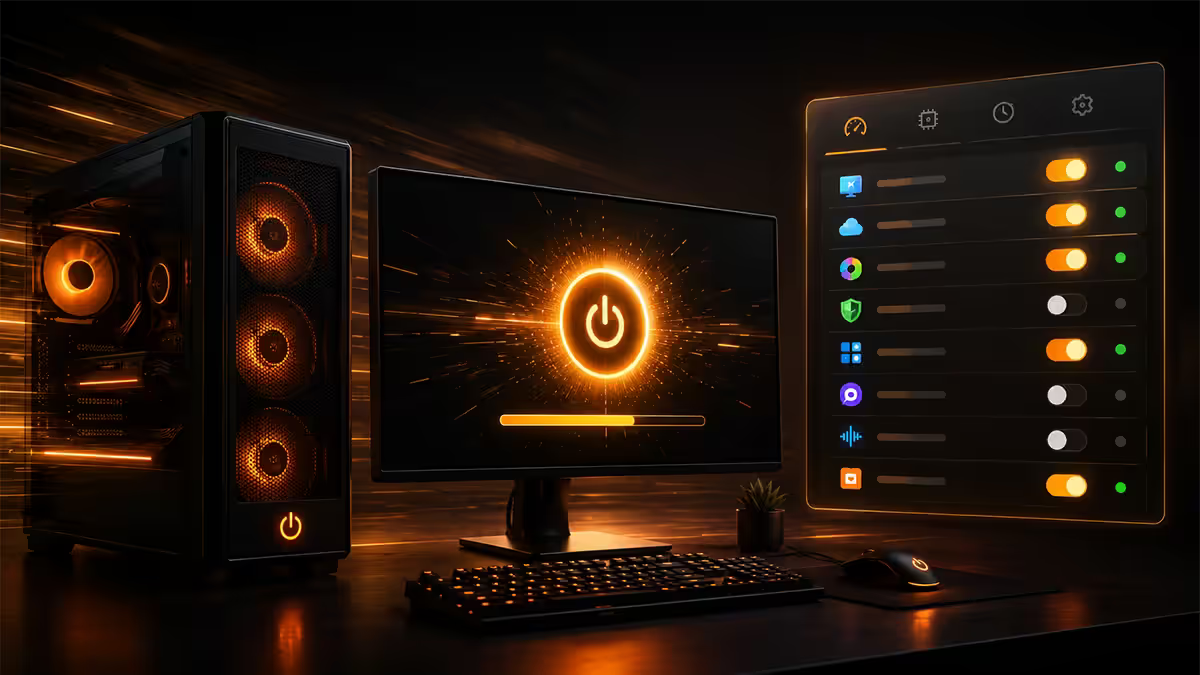
Discord, Spotify, Steam, Battle.net, Epic, Razer Synapse, Logitech G HUB, OneDrive, Teams — all auto-starting, all fighting for the same disk channels. Cleaning house cuts boot to a fraction.
- cluttered boot
- 25-45s
- after cleanup
- 8-15s
- to reverse
- 10 sec
Why boot times creep — the startup tax
A clean Windows 11 install on a modern NVMe SSD boots from BIOS POST to a responsive desktop in 8-12 seconds. Within six months of installing apps, that number commonly stretches to 25-45 seconds. Every app that asks "would you like to start at boot?" and gets a Yes is adding to the queue.
The cost isn't just time. Each startup app:
- Competes with every other app for disk I/O during the first 30-60 seconds.
- Sits in memory consuming 50-400MB even when you're not using it.
- Polls the network, drains the battery, runs background update checks.
- Often loads a system tray icon you never click.
The good news: disabling auto-start doesn't break any of these apps. They still work when you open them — they just don't sit idle waiting for you to maybe use them.
Task Manager Startup tab — the easy 80%
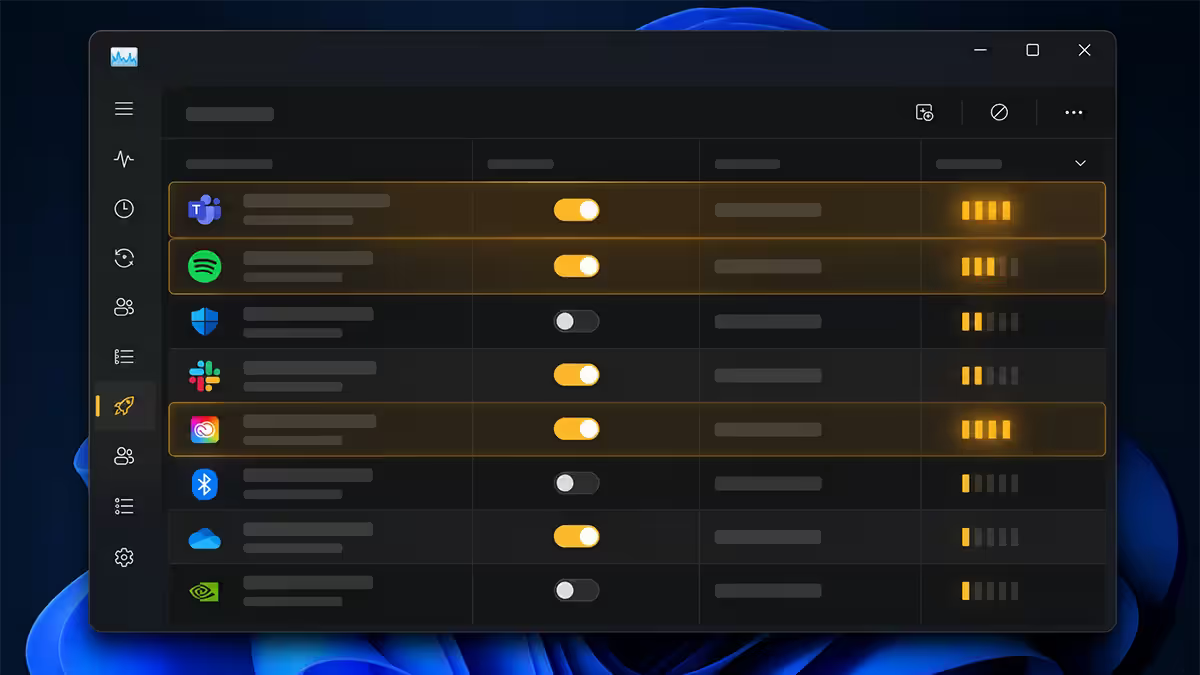
The single most efficient tool. Three keystrokes, two clicks, done.
- Open Task Manager —
Ctrl + Shift + Esc. - Click the Startup apps tab in the left sidebar (in older Win 11 builds it's a top tab).
- You'll see every app that runs at login: Name, Publisher, Status (Enabled/Disabled), Startup impact (None / Low / Medium / High).
- Sort by Startup impact column descending — biggest offenders at the top.
- Right-click any app you don't need at boot → Disable.
- Restart the PC to measure the difference.
All the major launchers and chat apps are safe to disable here. They'll work normally when you open them.
Reading the Startup impact column
Windows calculates impact from CPU time and disk activity each app consumes during boot. The rating updates after each boot, so a brand-new install shows "Not measured" until Windows has data.
| Rating | What it means | Typical examples |
|---|---|---|
| High | Significant boot delay (>1s, often more) | Discord, Teams, Adobe Creative Cloud, NVIDIA Broadcast |
| Medium | Noticeable, 300ms-1s | Spotify, Steam, OneDrive, Logitech G HUB |
| Low | Under 300ms | Small helpers, tray utilities, update checkers |
| None | Negligible | Inactive entries, lightweight services |
| Not measured | Recently added or post-reset | Anything new — restart and check again |
Strategy: disable all High and most Medium items that aren't security or driver-related. Leave Low and None alone unless you're sure.
Settings → Apps → Startup
The same list, cleaner UI, toggle switches. Some users prefer it.
- Open Settings → Apps → Startup.
- You'll see startup apps with toggle switches and the same impact rating.
- Sort by name or status (Settings doesn't sort by impact in older Win 11 builds — Task Manager does).
- Toggle off what you don't need.
Both Task Manager and Settings modify the same registry keys (HKLM\Software\Microsoft\Windows\CurrentVersion\Run and the per-user equivalent), so it doesn't matter which one you use. Pick whichever you find easier to navigate.
Services.msc — startup type changes
Below the visible app list sits a layer of Windows services — background processes that load before login. Some are essential (Audio, Plug and Play, Cryptographic Services). Some are optional and run regardless of whether you use the feature (Bluetooth Support if you don't have Bluetooth devices, Print Spooler if you don't print).
Open Services
Win + R → type services.msc → Enter. You get an alphabetical list of every service. Each has a Startup type:
- Automatic — starts at boot.
- Automatic (Delayed Start) — starts ~2 minutes after boot to reduce boot impact. Used for less critical services.
- Manual — only starts when something requests it. Doesn't take boot time but stays available.
- Disabled — never starts. Don't use unless certain you never need the service.
Common candidates for Manual
Researched and safe in most cases — set to Manual if you don't use the feature:
- Bluetooth Support Service (if no Bluetooth devices)
- Print Spooler (if no printer ever connected)
- Connected User Experiences and Telemetry (privacy preference)
- Diagnostic Policy Service (if you don't use Troubleshooters)
- Fax (yes, this still exists)
- Windows Search (only if you don't use Start menu search — usually leave on)
The safe-to-disable list (the usual culprits)
Real-world list of apps that ship with auto-start on by default but rarely need it. All safe to disable in Task Manager Startup tab. All still work normally when you open them manually.
| App | Why it auto-starts | What you lose |
|---|---|---|
| Discord | Notifications and voice ready | No DMs/calls until you open it |
| Spotify | Quick play, system controls | Open manually when needed (10 sec) |
| Steam | Friend list, game updates | Updates download when you launch instead |
| Battle.net / Epic / Origin | Background updates | Open manually; updates queue when launched |
| Microsoft Teams (consumer) | Notifications | No notifications until opened |
| OneDrive | Live sync | Sync happens when you open it (fine if files aren't time-critical) |
| Razer Synapse / Logitech G HUB / Corsair iCUE | RGB & macros | RGB profile may revert to hardware default — usually fine |
| Adobe Creative Cloud (helpers) | Update checks | Just slow launchers — open when needed |
| iTunes / Apple software helpers | Device sync | Connect device manually to launch |
| Cortana | Voice assistant | If you don't use it, no loss |
Never disable these
Disabling any of these breaks security, hardware, or basic Windows function. Even if they appear in your startup list, leave them alone.
- Microsoft Defender Antivirus (and any third-party AV: ESET NOD32, Kaspersky, Bitdefender, Avast, AVG, McAfee). Your one line of defence.
- NVIDIA Display Container LS, NVIDIA Driver Helper Service, NVIDIA Telemetry Container. Display drivers depend on these.
- AMD External Events Utility, AMD User Experience Program. Same for AMD GPUs.
- Intel Graphics Command Center, Intel Dynamic Tuning Service. For Intel iGPU and Arc.
- Realtek Audio Universal Service, Realtek HD Audio Manager. Sound depends on these.
- Windows Security Health Service, Windows Defender Firewall.
- Windows Update and Background Intelligent Transfer Service (BITS). Updates are not optional.
- Synaptics or Elan touchpad services (laptops). Touchpad gestures break without them.
- Fingerprint reader / Windows Hello services. Login breaks without them.
Autoruns — Sysinternals deep dive
When Task Manager and Settings don't show the entry that's slowing you down — particularly browser extensions, codecs, codec helpers, or Explorer add-ons — Microsoft's free Autoruns reveals everything.
Get and run
- Download from learn.microsoft.com/sysinternals/downloads/autoruns. Official Microsoft, no installer needed.
- Run Autoruns.exe as administrator (right-click → Run as administrator).
- First load takes 10-30 seconds while it scans every autostart location in Windows.
- Under Options menu → tick Hide Microsoft Entries and Hide Windows Entries. This filters from ~600 entries to maybe 60-80 third-party items.
Tabs that matter
- Everything — the full unfiltered list.
- Logon — startup apps (same as Task Manager + much more).
- Explorer — shell extensions and context menu add-ons.
- Scheduled Tasks — anything that runs on a schedule.
- Services — same as services.msc but with more metadata.
- Drivers — kernel-mode drivers loaded at boot.
To disable an entry: uncheck the checkbox at the left of its row. Right-click any entry → Search Online to research what it does before disabling. Right-click → Verify Image to check its signature (yellow row = unsigned, possible malware — verify before keeping).
Key takeaways
- Task Manager → Startup apps tab handles 80% of the boot speedup. Disable everything High impact you don't need at login.
- Discord, Spotify, Steam, Epic, Battle.net, Teams, Razer Synapse, Logitech G HUB are all safe to disable.
- Never disable anti-virus, GPU services, audio drivers, Windows Hello — these are load-bearing.
- services.msc → set non-critical services to Manual instead of Disabled when in doubt.
- Sysinternals Autoruns reveals everything but breaks fast — research each entry before changing.
Frequently asked questions
How do I disable startup programs in Windows 11?
Task Manager (Ctrl + Shift + Esc) → Startup apps tab → right-click → Disable. Settings → Apps → Startup is the same list with toggles. Both modify the same registry entries.What does Startup impact High mean?
The app significantly delays boot via CPU time and disk I/O. Typical culprits: Discord, Teams, Adobe Creative Cloud, NVIDIA Broadcast. Disabling High items gives the biggest visible improvement.How do I disable a startup service via Services.msc?
Win + R → services.msc → Enter. Find the service, double-click, change Startup type from Automatic to Manual or Disabled. Manual is safer than Disabled when unsure.What's the Discord + Spotify + Steam + Battle.net boot reality?
All set to auto-start, total boot stretches to 25-45 seconds even on fast NVMe. Disabling cuts to 8-15 seconds. You lose convenience (no Discord notifications until opened) but they still work normally when launched.What should I never disable in startup?
Anti-virus (Defender or third-party), NVIDIA/AMD/Intel graphics services, audio drivers (Realtek), Windows Hello / fingerprint services, OneDrive if you sync continuously.Is Autoruns from Microsoft Sysinternals safe?
Yes — official Microsoft tool, free, the most comprehensive startup viewer. Hide Microsoft entries to filter noise. Powerful but easy to break Windows with — research entries before disabling.Will disabling startup programs hurt my PC's performance?
No — the opposite. Apps still work when you open them; they just don't sit in memory using RAM. Worst case you miss a notification until you open the app.What's the difference between Manual, Automatic and Disabled?
Automatic starts the service at boot. Manual leaves it idle until something requests it. Disabled prevents it starting at all. Manual is safest for non-critical services.
Get the Evetech app
Exclusive app-only prices, daily flash sales, and free delivery on orders over R4,000 — download the app and start saving.