Security & Windows Guide
How to manage multiple user accounts on a gaming PC. — One PC. One family. Six libraries.
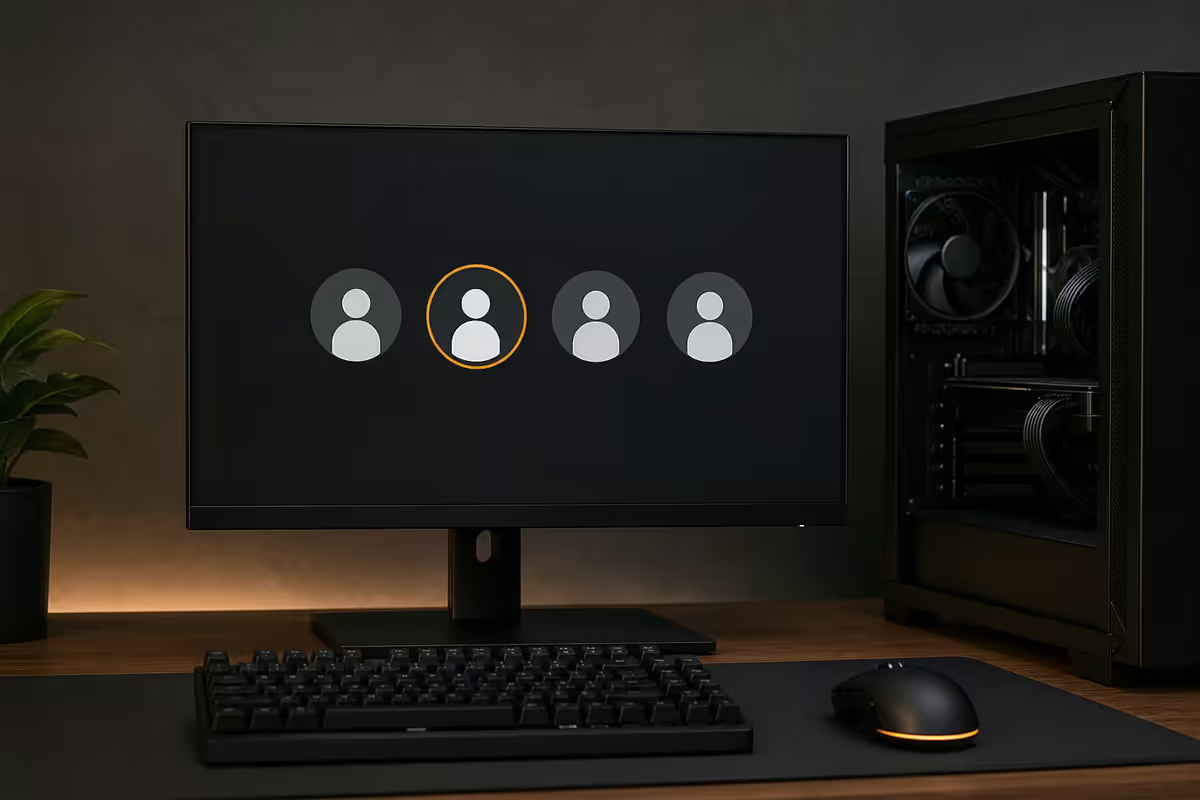
One R45,000 gaming rig, four humans wanting to use it without overwriting each other's saves, settings or Steam screenshots. Here's how to split it properly without losing the shared game library.
- Steam family slots
- Up to 6
- disk per user
- 30-50 GB
- setup time
- 10 min
Types of Windows user accounts
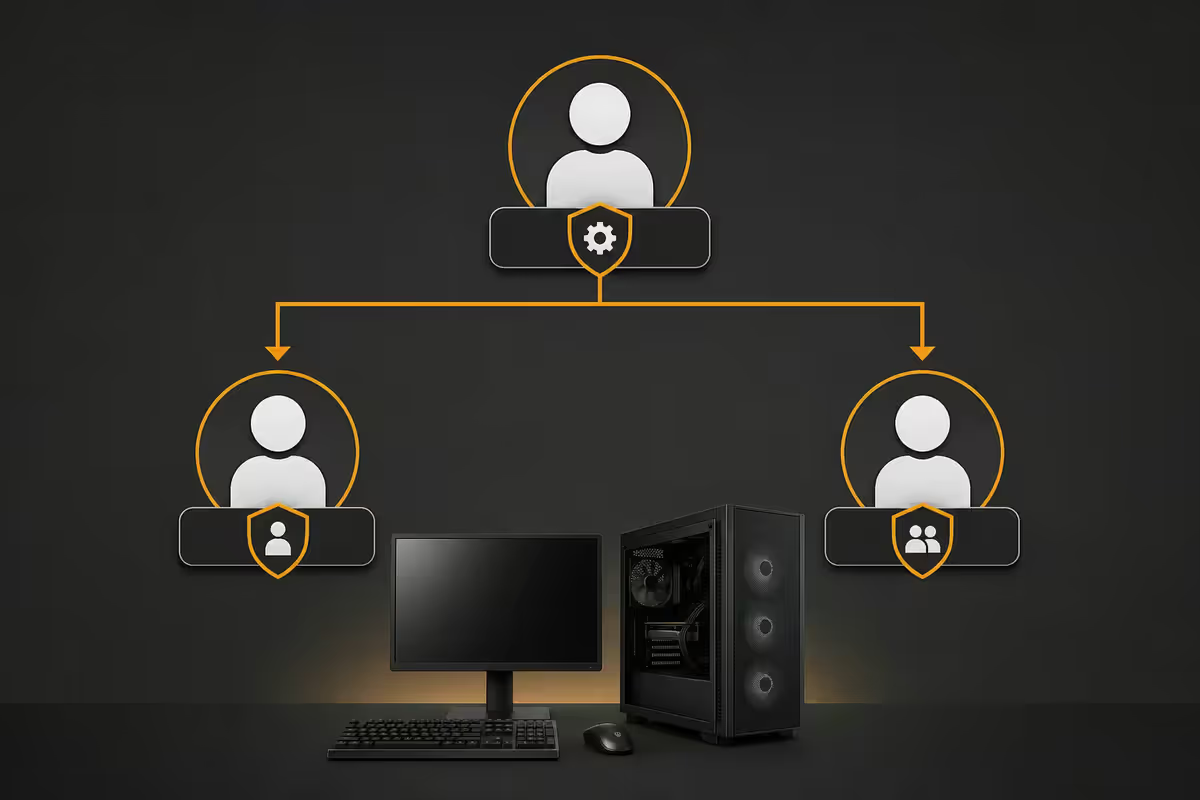
Windows 11 ships with three meaningful account types. Get this layer right and the rest of the setup falls into place.
| Account type | Best for | Can install software? |
|---|---|---|
| Administrator (MS account) | Primary user / household head | Yes — full control |
| Standard (MS account) | Teens, secondary adults | With Admin approval (UAC) |
| Standard (Local account) | Younger kids, shared / guest profile | With Admin approval (UAC) |
| Child account (Family Safety) | Under-13s, parental control needed | Locked by default |
Microsoft accounts sync OneDrive, Microsoft Store purchases, Game Pass, Xbox progress, Windows themes and Edge settings across every device the user signs into. This is genuinely useful for the primary user — your settings follow you to the laptop, the work PC and back.
Local accounts are simpler: a username and password, stored only on this machine. No cloud sync, no Microsoft Store sign-in, no Game Pass. Ideal for the youngest kid who just plays Roblox and Minecraft, or for a "couch gaming" guest profile that doesn't need to remember anything.
Windows 11 Home tries hard to push everyone to Microsoft accounts at first setup. You can still create Local accounts afterwards via Settings → Accounts → Family & other users → Add account → "I don't have this person's sign-in information" → "Add a user without a Microsoft account". The wording is deliberately buried, but the option remains.
Family vs individual — and the gaming/work split
A four-person SA household with one gaming PC usually breaks down like this: one parent who built / paid for the rig, one partner who uses it occasionally, and one or two kids who use it for school plus gaming. The temptation is to share one Windows account and "just be careful". After ten years of supporting customers on the phone in Centurion, we can confirm: nobody is careful.
Separate accounts solve, by default:
- Game saves stay yours — no more "who deleted my Elden Ring character?".
- Browser history, bookmarks and autofill stay private to each user.
- Steam friends list, Discord login and game library presence are per-account.
- Screenshots, recorded clips and OneDrive sync land in the right person's folder.
- Game settings (sensitivity, key bindings, FOV) don't get overwritten by the next user.
The gaming-vs-work split. If you work from home and game on the same machine, create a separate Standard "Work" account. Slack, Outlook, Teams, your client VPN and any sensitive files live there. The gaming account has Steam, Discord, RGB software and your favourite launcher. When a Tuesday morning client call needs a screen share, you switch to the Work account — no panic about Steam overlay popping up "Steve_69 has logged in" mid-meeting.
How to set up multi-user accounts — step by step
The whole exercise takes about 10 minutes per user once you know the path. Do this on the Administrator account.
1. Plan the structure first
Write down on paper: who needs an account, what type, and what they'll actually do on it. Four people typically becomes Parent (Admin / MS), Partner (Standard / MS), Kid 1 (Child / linked), Kid 2 (Child / linked). Plus optionally a Work account for the primary user.
2. Create the accounts
Open Settings → Accounts → Family & other users. Use the "Add a family member" button for child accounts (linked to Microsoft Family Safety). Use "Add other user" for adult Standard accounts or Local accounts. Choose the right option carefully — switching later is painful.
3. Set the right permission level
By default Windows creates new accounts as Standard. Leave it that way unless there's a specific reason to promote. The Administrator account remains the one you originally set up — never demote it to Standard or you'll lock yourself out of UAC prompts.
4. Enable Fast User Switching (or don't)
By default this is on. To swap accounts without logging out: Start menu → click your account name (top-left) → pick another user. Their session resumes exactly where they left it. On 16 GB RAM systems this is a problem: three logged-in users can consume 8-12 GB of idle RAM, which destroys game performance. 32 GB RAM handles it comfortably.
5. Configure parental controls
Go to family.microsoft.com, sign in with the parent Microsoft account, and confirm child accounts. Set screen time (per day, per app), age-rating filters for the Microsoft Store, web filters for Edge, and weekly activity emails. Then, inside Steam, enable Family View from Steam Settings → Family — this PIN-locks the Steam Store, community features, and friends for younger kids.
Steam, Battle.net, Epic, EA App — the sharing reality
This is where most multi-user gaming PC setups fall apart. Each launcher has different rules. Some support real family sharing; most don't.
Steam (the win)
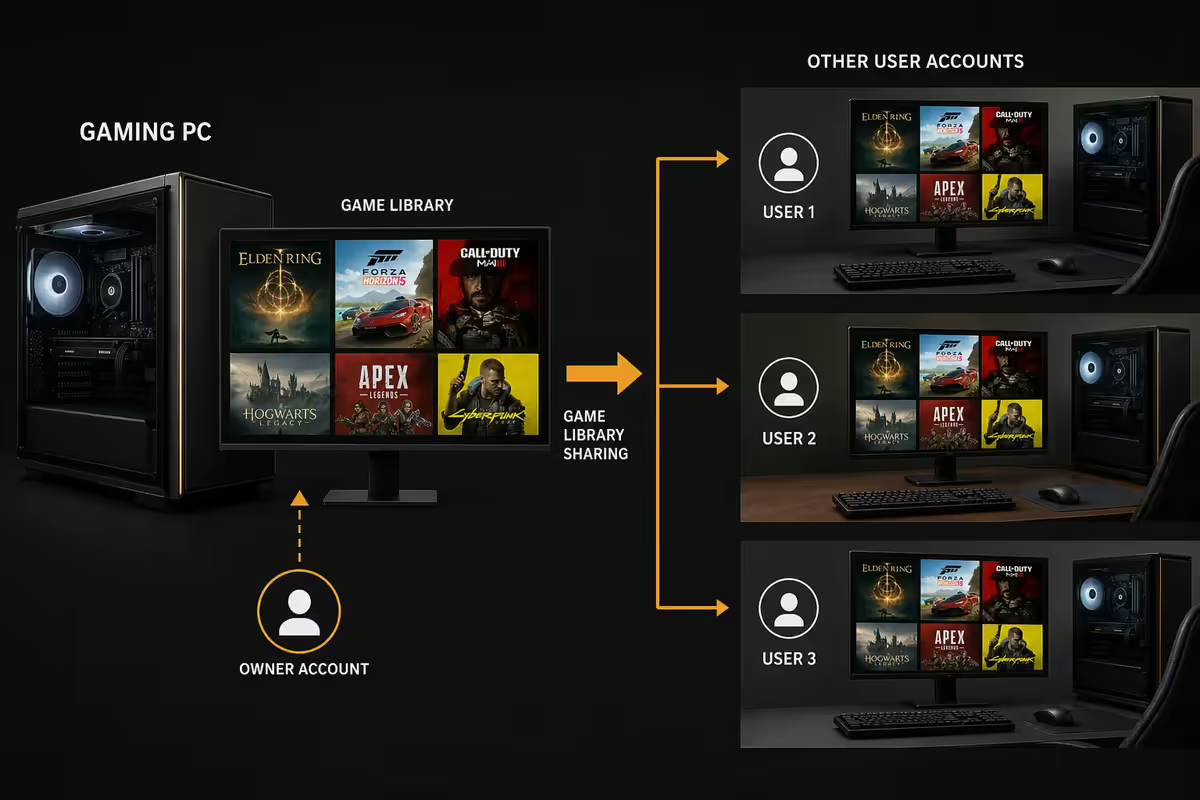
Steam Families (the replacement for old Family Sharing, fully rolled out in 2025) allows up to six accounts in one family group to access each other's libraries. On a single PC, install Steam once. Each Windows user logs into their own Steam account. Games install to C:\Program Files (x86)\Steam\steamapps\common and every family member can launch them from there. Only one person can play a specific game at a time — the library owner gets priority and can boot a borrower.
Crucial detail: family members must be in the same Steam family group (set under Steam Settings → Family). DRM-locked or region-locked games (some publisher-restricted titles) won't share — but the catalogue of shareable games covers the vast majority of releases.
Battle.net, Epic, EA App, Ubisoft Connect, Rockstar Launcher
None of these support real family sharing. Purchases are tied to a single account. Reality for SA families:
- One shared family Battle.net account for Diablo / WoW / Overwatch. Install the launcher per Windows user, log into the shared account on each. Only one person plays a given character at a time.
- Epic Games Store — same approach. The free games claimed weekly all go to the shared account.
- EA App — shared account, one EA Play subscription, accept the same restriction.
- Rockstar Launcher — GTA Online characters are per-account, so most families end up creating separate accounts here.
Game files themselves install once on the SSD regardless — only the launcher login differs. Disk space is shared even when the licence is not.
When to remove an account
Kid leaves for university, partner gets their own laptop, work account no longer needed — clean it up. Settings → Accounts → Family & other users → select the account → Remove. Important: this deletes the user's local files. Back up the saves, screenshots and Documents folder first by copying from C:\Users\[username]\ to an external drive or OneDrive.
Across the 200,000+ gaming PCs we've shipped, the single most common support call from family households in year two is the same: "My kid deleted my game saves." Followed closely by "my work file ended up in the kid's Documents folder" and "Steam keeps logging me out." Every one of those calls disappears the moment the customer sets up separate Windows accounts properly. We now include a printed 4-step quick-setup card with every family PC delivered to SA addresses — because 10 minutes of setup saves 10 hours of family arguments.
Evetech Hardware Team — Behind the Build · From our support desk
Recommended account setups by household
| Household | Recommended structure | RAM needed |
|---|---|---|
| Solo user | 1 × Admin (MS) + 1 × Standard "Work" account | 16 GB |
| Couple | 1 × Admin (MS) + 1 × Standard (MS), separate Steam logins | 16-32 GB |
| Couple + 1 child | 1 × Admin + 1 × Standard + 1 × Child (Family Safety) | 32 GB |
| Family of 4 (2 kids) | 1 × Admin + 1 × Standard + 2 × Child accounts | 32 GB |
| Family of 4 + work-from-home | 1 × Admin + 1 × Work + 1 × Standard + 2 × Child | 32-64 GB |
| Shared LAN-party PC | 1 × Admin + 1 × shared "Guest" Local account | 16 GB |
| Internet cafe / shop floor | 1 × Admin + 1 × locked-down Standard with Shadow Defender | 16 GB |
Common multi-user mistakes
Sharing one Windows account "to keep it simple". The most common mistake. Within six months you have mixed browser autofills, mixed Steam wishlist popups, and at least one game save catastrophe. Ten minutes of setup avoids years of pain.
Giving everyone Administrator rights. A 9-year-old shouldn't be able to install software unsupervised. A teenager shouldn't be one click away from disabling Windows Defender to install a "free CS skin tool". One Admin per household.
Putting games on the C:\ drive with multiple users. The system drive fills up fast when every user has their own Discord cache, OneDrive sync and browser data. Keep games on the secondary SSD; the system drive thanks you.
Forgetting to enable parental controls until after a problem. Set them up the same day you create the child account. Doing it after an incident is harder, and often involves an unhappy conversation. Microsoft Family Safety is free and takes 5 minutes to configure.
Leaving everyone signed in on a 16 GB system. Three idle user sessions consume 6-10 GB of RAM. Cyberpunk 2077 wants 14 GB free. The math doesn't work. Either upgrade to 32 GB or disable Fast User Switching and ask users to sign out properly.
Using your work Microsoft account for the gaming PC. Some employers' Microsoft 365 policies will enrol the entire machine in their Intune device management — meaning IT can wipe it remotely. Use a personal Microsoft account for the household PC.
Key takeaways
- One Windows account per human — saves 10 hours of arguments for 10 minutes of setup.
- Only one account should be Administrator. Everyone else is Standard. UAC is your friend.
- Microsoft account for the primary user (cloud sync); Local for younger kids and guests.
- Steam Families shares libraries across up to six accounts on the same PC. Other launchers don't — use a shared launcher login.
- Separate "Work" Standard account keeps Slack out of your Steam overlay during meetings.
- Plan 30-50 GB system-drive space per user; games on a separate 2 TB SSD.
- Microsoft Family Safety + Steam Family View = real parental controls. Set them up the same day.
Frequently asked questions
Should each family member have their own Windows account on the gaming PC?
Yes. Separate Windows user accounts keep saves, settings, browser history, screenshots and game progress isolated per person. One shared account means the youngest accidentally deletes the eldest's Cyberpunk save and Dad's work spreadsheets sit next to the kids' Roblox cache. Set the parent as Administrator, kids as Standard users — it takes 10 minutes and prevents months of arguments.Local account or Microsoft account — which is better for each user?
Microsoft account for the primary user (syncs OneDrive, Microsoft Store, Game Pass, Xbox progress, theme settings across devices). Local accounts are fine for secondary users who don't need cloud sync — typically kids, guests or a dedicated 'gaming-only' profile. Note: Windows 11 Home pushes you to use a Microsoft account at setup, but you can create local accounts afterwards from Settings → Accounts → Family & other users.Can multiple Windows accounts share one Steam library on the same PC?
Yes — via Steam Family Sharing (now Steam Families). Up to six accounts in a family group can access each other's libraries on the same PC. Only one person can play a specific game at a time (the library owner gets priority), but family members can launch games independently from their own Windows accounts using their own Steam logins. Games install once on the PC and all family members access them from C:\Program Files (x86)\Steam\steamapps\common.What about Battle.net, Epic, EA App and other launchers across accounts?
Reality check: most non-Steam launchers don't have proper family sharing. Battle.net, Epic Games Store, EA App, Ubisoft Connect and Rockstar Launcher all tie purchases to a single account. The workaround SA families use: install the launcher once per Windows account, log into the family's shared launcher account, and accept that two people can't play the same Diablo IV character at the same time. Game files themselves are shared on disk.How much disk space should I plan for per user?
Each Windows user profile uses roughly 5-15 GB for basic OS files, browser cache and documents. Game installs are shared (one install, all users access). The real disk pressure comes from per-user downloads: each user's Discord cache, Steam screenshots, OneDrive sync and recorded clips. Budget 30-50 GB per active user on the system drive, with games on a separate 2 TB SSD. A 1 TB system drive comfortably handles 4 users.How do parental controls work on a Windows 11 gaming PC?
Use Microsoft Family Safety (family.microsoft.com). Add child accounts to your family group, then set screen time limits per app, age-rating game filters, web filters, and weekly activity reports. For Steam specifically, enable Family View in Steam settings to PIN-lock the store, community and friends features for younger kids. Don't rely on Windows controls alone for online games — most multiplayer chat happens via Discord which has its own settings.Should I keep gaming and work on the same Windows account?
No — split them. A separate 'Work' Standard account keeps Slack, work email, VPN clients and client files away from Steam overlays, RGB software and game launchers that randomly hijack focus. It also stops a work meeting screenshare from accidentally exposing your Steam friends list or last-played games. The 20 seconds to switch user accounts is worth the boundary.What is Fast User Switching and should I enable it?
Fast User Switching lets you swap accounts without logging out — your games and apps stay running in the background. Enabled by default in Windows 11. Useful when Dad needs to check email mid-game without quitting, or when a sibling jumps on for 10 minutes. The cost: each logged-in user consumes RAM (typically 2-4 GB per idle session). On a 16 GB gaming PC, leaving three users logged in eats into game performance. Disable via Group Policy on lower-RAM systems.
Get the Evetech app
Exclusive app-only prices, daily flash sales, and free delivery on orders over R4,000 — download the app and start saving.