SSD Partitioning Guide
How to partition your SSD. — Disk Management. GPT. No drama.
Splitting a drive sounds technical. Doing it right takes ten minutes with the tool already on your PC. Doing it wrong loses every file. Here's the boring, repeatable way.
- typical job
- ~10 min
- GPT max partitions
- 128
- min C: free
- 60GB+
Disk Management vs DiskPart vs third-party
Three categories of tool will handle every partitioning task you'll ever face. They overlap heavily — pick the one that matches your comfort level and the specific job.
| Tool | Best for | Limitation |
|---|---|---|
| Disk Management (GUI) | Most users — create, shrink, extend, delete | Can't extend left, won't move partitions |
| DiskPart (CLI) | Scripted setups, fixing stuck partitions | Steep learning curve, command typos destroy drives |
| MiniTool Partition Wizard | Moving partitions, MBR-to-GPT without data loss | Free tier has feature gates |
| AOMEI Partition Assistant | Drive migration, OS clone, resize locked partitions | Free tier nags for upgrade |
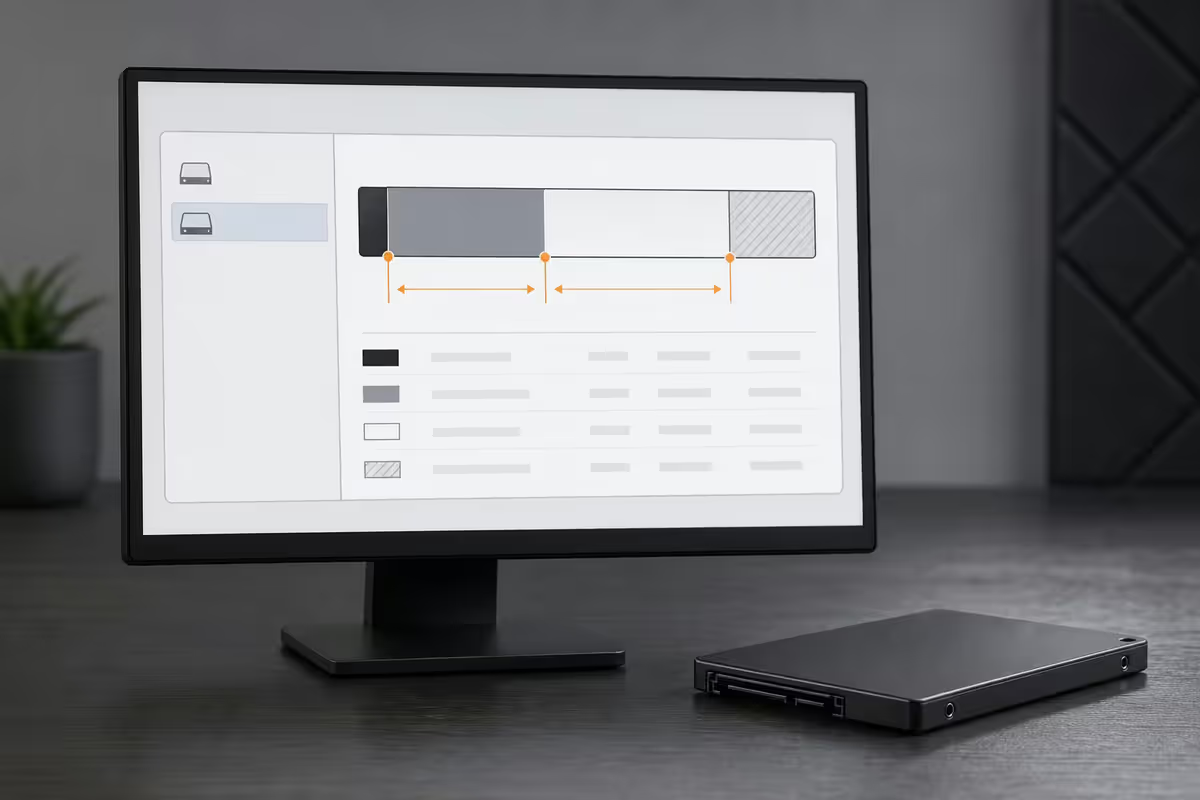
Start with Disk Management. Open the Start menu, type "Create and format hard disk partitions". Right-click any partition for shrink, extend, format, or delete options. It's friendly, can't easily destroy your boot drive, and covers nearly every routine task.
Reach for DiskPart when Disk Management refuses an operation — usually because a partition is locked or marked as system-reserved. The command-line tool ignores most safety rails. Type the wrong drive number into select disk and the next clean command erases the partition table.
Third-party tools (MiniTool, AOMEI) earn their place by moving partitions in unallocated space, converting MBR to GPT without erasing data, and resizing partitions Disk Management considers off-limits. Free versions cover most home use; paid versions add features like recovery and dynamic disk support.
GPT vs MBR — honest answer
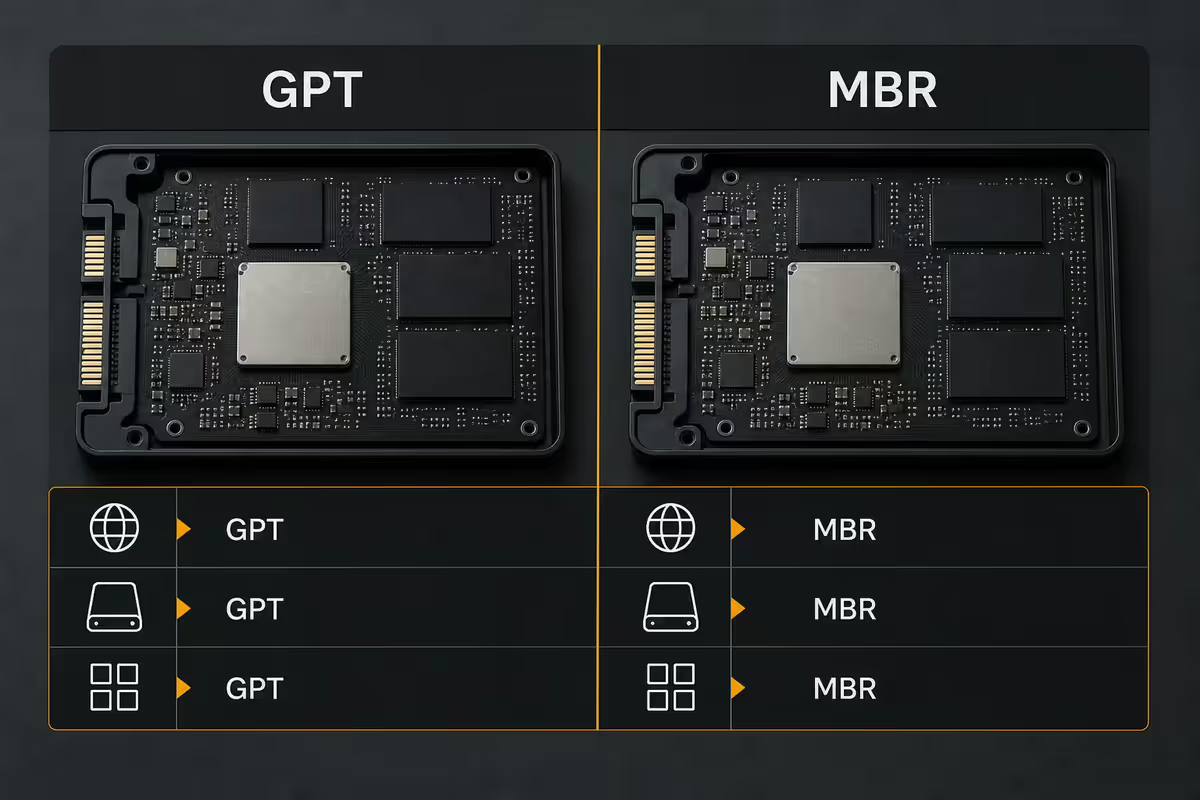
Choose GPT for every new SSD in 2026. MBR is the legacy partition format from the 1980s — it caps drives at 2TB, allows only four primary partitions, and has no built-in integrity checking. GPT supports drives up to 9.4 zettabytes, allows 128 partitions, and includes header redundancy that survives minor corruption.
Practical implications:
- Windows 11 requires GPT for boot drives — TPM 2.0 and Secure Boot both rely on UEFI booting from a GPT system disk.
- Any SSD larger than 2TB requires GPT to use the full capacity.
- MBR's only reason to exist today is dual-booting an obscure 32-bit OS or compatibility with very old hardware.
- Converting MBR to GPT can be done without data loss using Windows'
mbr2gpttool (from an elevated command prompt) or MiniTool Partition Wizard.
When partitions actually help — and when they don't
The honest answer most guides won't give you: you probably don't need to partition your SSD at all. A single 1TB drive used only for Windows is fine as one big C: drive.
Partitioning helps when:
- Multi-boot setups. Running Windows and a Linux distro alongside requires separate partitions (or separate disks). The Linux installer creates ext4 partitions; Windows can't read them anyway.
- Separated user data for imaging. Keeping documents on D: lets you reimage C: without losing files. Useful if you reinstall Windows often or troubleshoot lots of machines.
- Running multiple Windows versions. Windows 11 on C: and Windows 10 on D: with the boot selector switching between them.
- Specific encryption needs. BitLocker on C: but unencrypted shared data on D: for a household PC.
Partitioning doesn't help when:
- You think it'll make games faster. Both partitions share the same NVMe channel. Zero performance benefit.
- You want to "protect" Windows from data corruption. A drive failure takes both partitions with it. Use a real backup instead.
- You have a single small SSD (under 500GB). Carving 100GB off a 500GB drive guarantees one side will run out of space inside 18 months.
Shrink and extend walkthrough
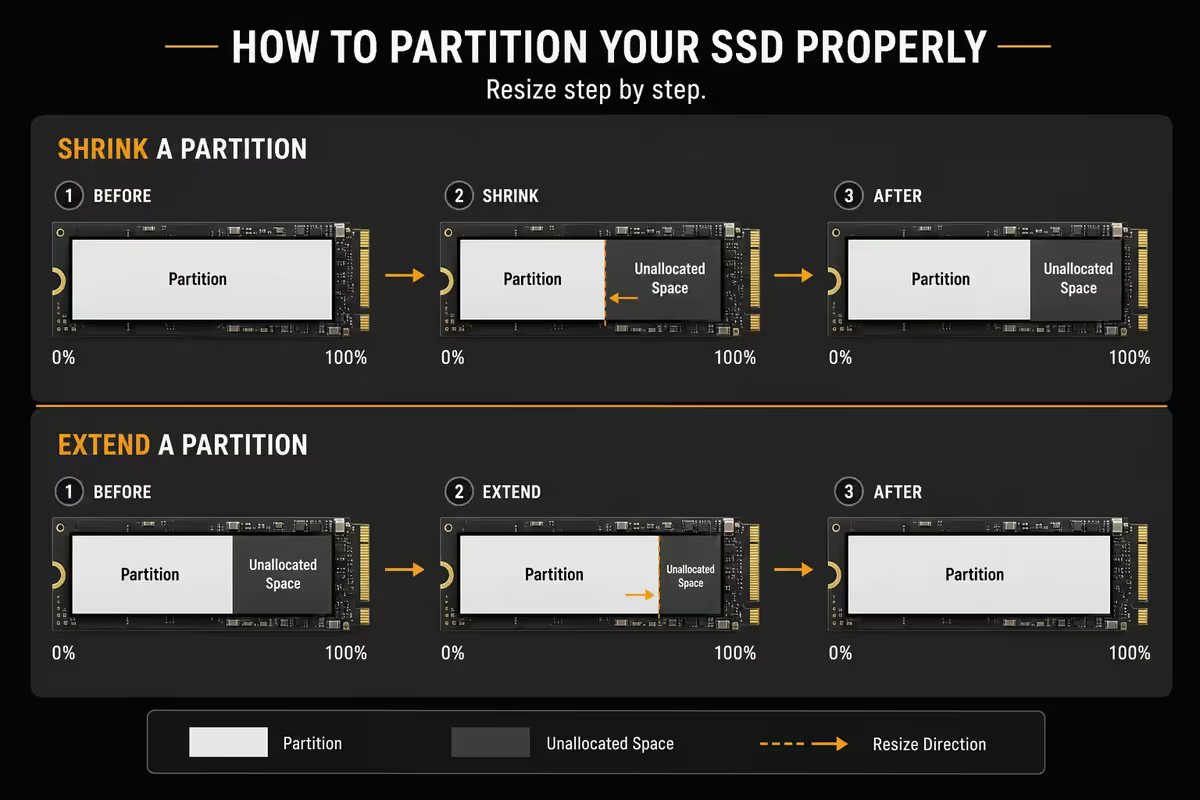
The two most common partition operations — borrowing space from one partition to give to another. Disk Management handles both safely if you respect its limits.
Shrink C: to create unallocated space
Open Disk Management (Start → "Create and format hard disk partitions"). Right-click the C: partition, choose Shrink Volume…. Windows scans for the maximum shrinkable amount (this can take a minute on a busy drive).
The shrinkable amount is often less than you expect because immovable files (paging file, hibernation file, system restore points) sit near the end of the volume. To free more space: disable hibernation (powercfg /h off), reduce or move the paging file, then defragment with defrag C: /U /V /X for SSDs.
Enter the amount to shrink in MB. Windows creates unallocated space immediately. Right-click the unallocated space, choose New Simple Volume, and follow the wizard — GPT, NTFS, default cluster size, quick format.
Extend a partition into unallocated space
Right-click the partition you want to grow, choose Extend Volume…. Windows can only extend into contiguous unallocated space directly to the right of the partition. If the unallocated space is on the left or non-contiguous, the Extend option will be greyed out.
Workaround when extend is greyed out: use MiniTool Partition Wizard or AOMEI Partition Assistant. Both can move partitions, then extend into the freed space.
EFI partition basics
Every modern Windows install has small auxiliary partitions you'll see in Disk Management: EFI System (ESP), Microsoft Reserved (MSR), and Recovery. Each has a job and none should be touched without a clear reason.
EFI System Partition (ESP) — 100MB–300MB, FAT32, holds bootloaders for UEFI-mode boots. Deleting this on your boot drive prevents Windows from starting. On a secondary drive (e.g. an old drive moved from another PC), an orphan ESP is safe to remove with DiskPart's clean command after careful drive verification.
Microsoft Reserved (MSR) — 16MB, hidden, used by Windows for future operations like converting to dynamic disk. Doesn't show a drive letter; doesn't appear in File Explorer.
Recovery Partition — 500MB–1GB, holds the Windows Recovery Environment (WinRE). Used for Reset This PC, advanced startup options, and System Restore from boot. Sometimes Windows creates a second Recovery partition after a major update — these can usually be left alone.
Recommended tools by use case
| Use case | Pick | Cost |
|---|---|---|
| Everyday user (most people) | Disk Management (built-in) | Free |
| Power user, scripting | DiskPart (built-in) | Free |
| Move/resize without data loss | MiniTool Partition Wizard Free | Free |
| Drive migration (HDD → SSD) | AOMEI Partition Assistant Standard | Free |
| Disk imaging before resize | Macrium Reflect Free | Free |
| Multi-boot (Windows + Linux) | GParted Live (USB boot) | Free |
| Enterprise / dynamic disks | AOMEI Partition Assistant Pro | ~R900 |
Common partitioning mistakes
Shrinking C: below 60GB free. Windows updates need 20–40GB of working space. Sub-60GB free means failed updates, error dialogs, and eventually a non-bootable system. Leave generous headroom.
Choosing MBR for a new install. No reason in 2026 — GPT works everywhere modern Windows runs and unlocks Secure Boot, drives over 2TB, and 128-partition support.
Deleting the Recovery or EFI partition on a boot drive. Both look unimportant in Disk Management because they're small and unnamed. Deleting either prevents Windows from starting. If they're blocking a partition expansion, plan carefully or use third-party tools that can shift them.
Skipping the backup. Partition operations have a small failure rate. A recent backup turns "drive corrupted, reinstalling" into "restore the image, lost an hour." The asymmetry is enormous.
Over-partitioning small drives. Carving a 500GB SSD into 250/250 C:/D: works for six months and then leaves you juggling files. Modern Windows handles a single large partition fine.
Key takeaways
- Disk Management built into Windows handles 90% of partition tasks safely.
- Choose GPT for every modern SSD. MBR is legacy with no reason to exist for new builds.
- Don't split a single SSD into C: and D: for "speed" — zero benefit, real downside.
- Back up before shrinking, extending or converting. Macrium Reflect Free takes 15 minutes.
- Never touch EFI or Recovery partitions on your boot drive without a clear plan.
Frequently asked questions
Should I partition my SSD?
Only if you have a clear reason. Multi-boot setups (Windows + Linux), separating user data from system files for backups, or running multiple Windows versions are all valid cases. For a single 500GB–1TB SSD used only for Windows, partitioning gives no benefit and wastes space. Use the whole drive as C: and let Windows manage file locations.Disk Management vs DiskPart vs third-party tools?
Disk Management (built into Windows) handles 90% of partitioning tasks — create, shrink, extend, delete. DiskPart is the command-line equivalent, faster for scripting or fixing partitions Disk Management refuses to touch. MiniTool Partition Wizard and AOMEI Partition Assistant add features like moving partitions, converting MBR to GPT without data loss, and resizing locked partitions. Free versions cover most home users.GPT or MBR — which partition style?
GPT for every modern SSD. MBR is a legacy format limited to 2TB drives and 4 primary partitions. GPT supports drives up to 9.4 ZB, allows 128 partitions, and includes integrity checking. Windows 11 requires GPT for boot drives. Only choose MBR if dual-booting a legacy 32-bit OS or specific compatibility need.Should I split my SSD into C: and a games drive?
On a single SSD, no. There's no performance benefit because both partitions share the same physical drive. You just lose flexibility — if C: fills up, you can't easily borrow space from the games partition. If you have two physical SSDs (one NVMe for Windows, one SATA for games), that's a different story. Use separate drives, not partitions, for separation.What is the EFI partition and can I delete it?
The EFI System Partition (ESP) is a 100MB–300MB FAT32 partition holding bootloaders for UEFI systems. Never delete it on a boot drive — Windows won't start. On a secondary drive, an EFI partition created by a previous OS installation can be safely removed using DiskPart's clean command. Always check which drive holds the active EFI before deleting anything.How do I shrink and extend a partition without losing data?
In Disk Management, right-click the partition, choose Shrink Volume, and enter the amount to release. Unallocated space appears immediately. To extend, right-click an adjacent partition and choose Extend Volume — note Windows can only extend into contiguous unallocated space to the right. If unallocated space is in the wrong location, use MiniTool Partition Wizard or AOMEI to move partitions safely.What should I never do when partitioning an SSD?
Don't shrink the system partition below 60GB — Windows updates need 20–40GB free. Don't delete partitions labelled 'Recovery' or 'EFI' on your boot drive. Don't use MBR for new installs. Don't run partitioning operations on a drive you haven't backed up. Don't interrupt a partition move or resize mid-operation — power loss during these can corrupt the partition table beyond repair.Do SSDs need different partitioning than HDDs?
Mostly the same, but with two SSD-specific notes. First, alignment matters — Windows 10/11 align partitions correctly by default; older imaging tools may not. Second, leave 10–15% of the drive unallocated as over-provisioning for wear levelling and write performance. Most modern SSDs reserve this internally, so you don't need to leave space manually.
Get the Evetech app
Exclusive app-only prices, daily flash sales, and free delivery on orders over R4,000 — download the app and start saving.