Docking Station Buying Guide
How to choose a docking station. — One cable. Clean desk. Done.
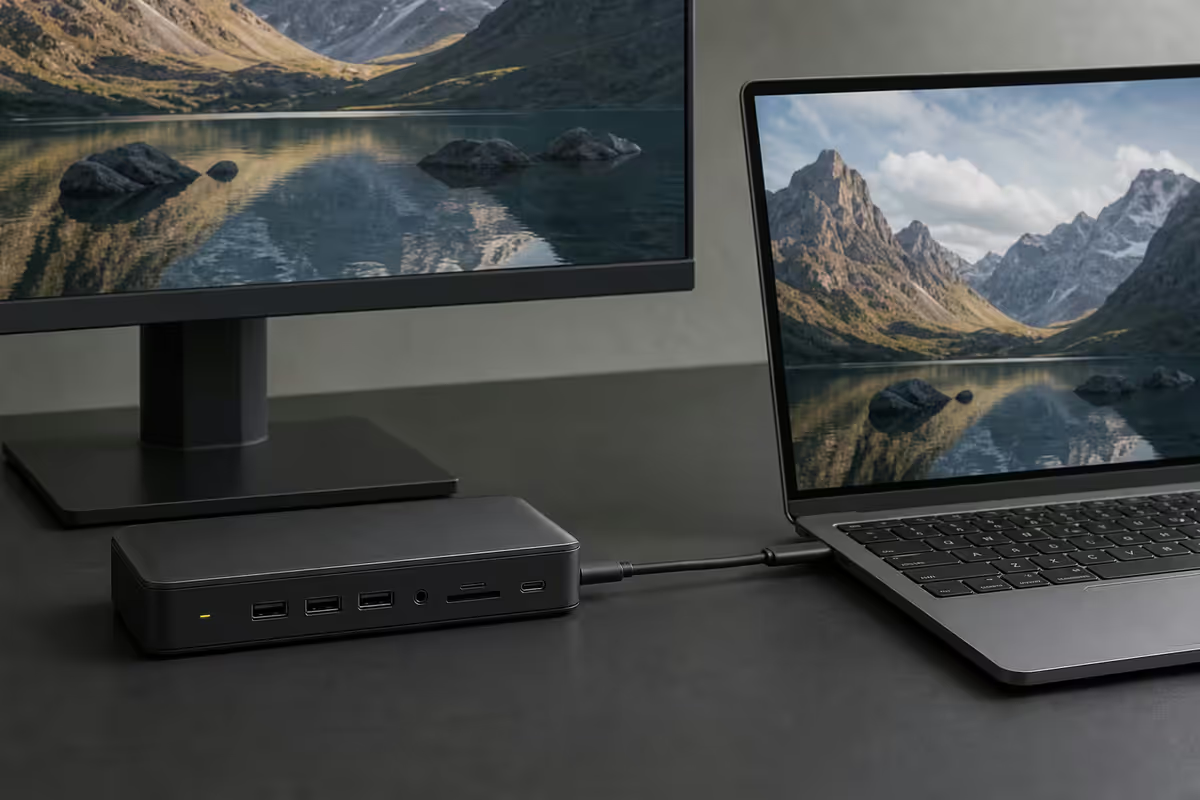
The single biggest WFH quality-of-life upgrade most people will buy. Power, two 4K monitors, ethernet, a USB hub and an SD slot — all from one USB-C cable. Here's how to pick the right one.
- TB4 + USB4
- 40 Gbps
- most laptops
- 100W PD
- SA pricing
- R1.5k–R8.5k
The interface tier — TB4 vs USB4 vs USB-C DP-Alt
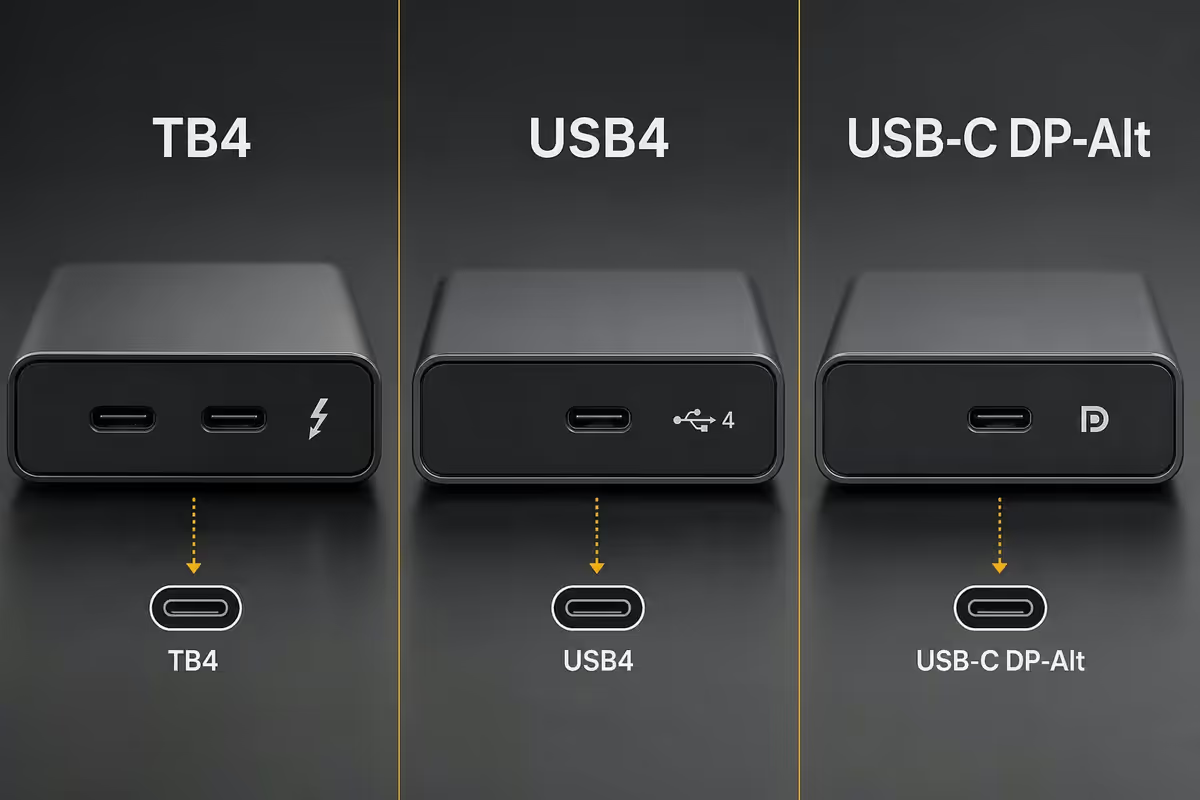
Every dock starts with one question: what does the cable between your laptop and the dock actually speak? The label on the box matters because it caps everything that follows — display count, resolution, power, and price.
| Interface | Capability | Typical dock price (SA) |
|---|---|---|
| Thunderbolt 4 (Intel-certified) | 40 Gbps · dual 4K 60 · 100W PD guaranteed | R5,000–R8,500 |
| USB4 (open spec, AMD & Intel) | 40 Gbps · dual 4K 60 · 65–100W PD | R3,500–R6,500 |
| USB-C DisplayPort Alt Mode | 10–20 Gbps · single 4K · 60–100W PD | R1,500–R3,500 |
| DisplayLink (USB-over-software) | USB 3.x · 2–6 extra displays via driver · 60–96W PD | R2,000–R5,500 |
Thunderbolt 4 is the gold standard — Intel certifies every TB4 dock, so you get a written guarantee of dual 4K 60, 40 Gbps and at least 100W PD. USB4 is the same underlying tech on a different badge, common on AMD Ryzen laptops and most 2025-onward Intel hardware. Performance is the same; vendor certification is slightly less strict.
USB-C DisplayPort Alt Mode is the cheaper sibling. The cable runs DisplayPort directly through the USB-C connector — so you can drive a monitor, but you give up the second display, the PCIe tunnelling and (in most docks) gigabit ethernet. Fine for a single-monitor home setup; wrong choice if you ever want a second screen.
Power delivery — match the laptop's brick
This is where the most expensive docks earn their keep, and where the cheap ones quietly fail. Your dock has to charge the laptop while it drives two monitors, ethernet, an SSD and a webcam. If the PD rating doesn't match what your laptop's stock charger delivers, you'll get the dreaded "battery slowly discharging while plugged in" experience.
| Laptop class | Stock charger | Minimum dock PD |
|---|---|---|
| Ultrabook (XPS 13, ThinkPad X1 Carbon, MacBook Air) | 45–65W | 65W |
| Most 14–16" business laptops | 65–90W | 90W |
| 14"–16" MacBook Pro M3 Pro | 96W | 100W |
| Workstation laptops, mid-tier gaming | 130–180W | 100W (compromise) |
| 16" MacBook Pro M3 Max, high-end gaming | 140–230W | Keep the stock brick alongside |
The 65W trap. Cheap docks advertise "100W PD" but only deliver 65W to the host (the rest powers the dock itself). Read the spec sheet for "power to host" or "upstream PD" — that's the number that matters.
140W reality. Almost no dock on the market delivers more than 100W to a host laptop because the USB-C / Thunderbolt 4 spec caps it there. The 140W and 180W EPR profiles in USB-PD 3.1 exist but dock manufacturers have been slow to adopt them. If you own a 16" M3 Max MacBook Pro or a 230W gaming laptop, plan to keep your stock charger plugged in alongside the dock — the dock handles signal, the brick handles power.
Dual 4K 60 — what actually works
Two 4K monitors at 60Hz is the modern WFH benchmark and every TB4/USB4 dock can do it. But the paths to get there matter — and one combination will quietly cap you at 30Hz.
The reliable paths:
- 2× DisplayPort 1.4 outputs — the cleanest setup. Most premium docks (CalDigit TS4, OWC Thunderbolt Hub) give you two DP outs and let you adapt to HDMI if needed. Dual 4K 60 with HDR, no surprises.
- 1× DisplayPort 1.4 + 1× HDMI 2.1 — fine, common on Anker and Plugable docks. Verify the HDMI is actually 2.1 (not 2.0) if you want 4K 120 or HDR on the HDMI side.
- 1× DisplayPort + 1× Thunderbolt 4 downstream — the TB4 port can chain a second monitor or a TB4 monitor like the LG UltraFine. Works perfectly on Windows; quirky on Mac.
The trap: 2× HDMI 2.0 outputs on cheaper docks max out at 4K 30Hz on the second display. Avoid any dock that lists two HDMI 2.0 ports as its only display outputs — the 60Hz claim won't survive contact with a real 4K monitor.
MST and the Mac problem (DisplayLink workaround)
MultiStream Transport (MST) is the DisplayPort feature that lets a single cable from the laptop drive multiple monitors — the dock splits the signal internally. Windows supports it natively; macOS has never supported MST and Apple has been clear they have no plans to add it.
The deeper Mac issue: base M1, M2 and M3 chips support exactly one external display. No exception, no software tweak, no clever dock will change this. The M Pro and M Max chips drive multiple displays natively via separate display engines, but a base-chip MacBook Air will never be a two-monitor machine through a standard dock.
The DisplayLink workaround. DisplayLink-equipped docks (Plugable UD-3900, Plugable UD-6950H, Anker 12-in-1 with DisplayLink) use a software driver to compress video over USB rather than relying on the host GPU's display engines. They side-step Apple's hardware limit entirely — a base M3 MacBook Air can drive two or even three external monitors through a DisplayLink dock.
Trade-offs to know:
- Software driver required. Install DisplayLink Manager from the Synaptics website — Apple won't surface it through System Settings.
- Small CPU overhead (3-5% for two displays). Invisible during normal work, noticeable during heavy GPU loads.
- No HDCP for protected video. Netflix and Apple TV+ will refuse to play 4K HDR streams through a DisplayLink-driven monitor. Use the laptop screen for streaming, the DisplayLink screens for work.
- Slight latency. Fine for spreadsheets and code. Not ideal for gaming or video editing on the DisplayLink-driven display.
Tier ladder — from Plugable to CalDigit
The dock market has settled into reasonably clean tiers. Here's what you actually get for your Rands in SA in mid-2026.
Entry (R1,500 – R3,500)
Plugable UD-3900, Anker 543 7-in-1, basic USB-C DP-Alt docks. Single 4K display, 65W PD, USB hub, ethernet. Right pick if you have one monitor, a budget under R3k, or you're rolling out 50 desks where each one only needs single-screen support.
Mid-tier (R3,500 – R5,500)
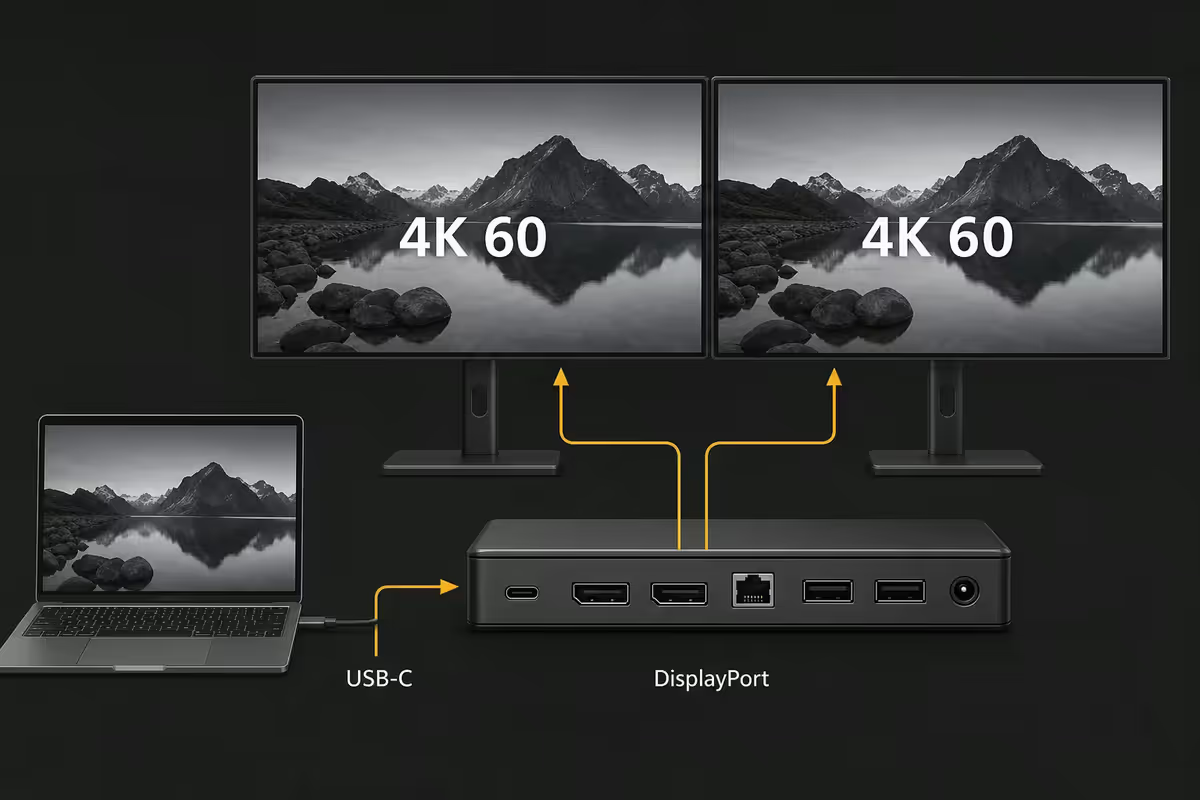
Dell WD22TB4, Lenovo Universal Thunderbolt 4 Dock, HP G5 Universal Dock, Anker 778. Dual 4K 60, 90-100W PD, gigabit ethernet, 8-12 ports. The corporate WFH sweet spot. Anker 778 specifically punches above its price — equivalent feature set to docks R1,500 more.
Premium (R5,500 – R8,500)
OWC Thunderbolt Hub (R6,500), CalDigit TS4 (R7,500). Premium build, 2.5GbE upgrade (faster than gigabit), 16-18 ports, Mac-specific firmware tuning. The TS4 is the most reliable TB4 dock on the market — we've fitted hundreds and the failure rate is effectively zero.
Recommended docks by laptop type
| Your laptop | Dock pick | SA price |
|---|---|---|
| Windows ultrabook (XPS 13, X1 Carbon, ZenBook) | Anker 568 USB-C / Plugable UD-3900 | R2,200–R3,500 |
| Windows 14–16" with TB4 / USB4 | Anker 778 Thunderbolt 4 | ~R5,500 |
| Windows workstation / corporate fleet | Dell WD22TB4 or Lenovo Universal TB4 | R4,500–R5,500 |
| MacBook Pro M3 Pro / M3 Max | CalDigit TS4 | ~R7,500 |
| MacBook Air M2 / M3 (single external) | OWC Thunderbolt Hub or Anker 778 | R5,500–R6,500 |
| MacBook Air M2 / M3 (needs 2+ externals) | Plugable UD-3900 or UD-6950H (DisplayLink) | R2,200–R4,500 |
| Gaming laptop (RTX 4070+ class) | Anker 778 + keep stock charger plugged in | ~R5,500 + brick |
The single-cable promise — what "clean desk" actually means
The whole pitch of a docking station is the moment you sit down. Open the laptop, plug in one USB-C cable, and the desk lights up: two 4K monitors come on, the keyboard and mouse work, the network is connected, your headset is detected, the SD card from your camera mounts, and the laptop starts charging.
Stand up at the end of the day, unplug that same cable, walk away. The desk stays set; the laptop comes with you.
This is the single biggest WFH quality-of-life upgrade most people will buy. After years of "plug in HDMI, plug in USB hub, plug in ethernet, plug in charger" — collapsing it to one cable is genuinely transformative. The first time someone uses a properly-configured TB4 dock they ask why they didn't buy one years ago.
Cable choice matters too. Use a certified Thunderbolt 4 or USB4 cable between the laptop and dock — not just any USB-C cable. Cheap USB-C cables will negotiate down to USB 2.0 speeds and silently break the dual-monitor experience. The dock usually ships with a correct cable; if you ever need to replace it, look for the Thunderbolt 4 logo on the cable itself.
Key takeaways
- Anker 778 (R5,500) is the right pick for 95% of Windows laptops with TB4 / USB4 — dual 4K 60, 100W PD, 12 ports.
- CalDigit TS4 (R7,500) for Mac and workstation use — most reliable TB4 dock on the market, 18 ports, 2.5GbE.
- Match dock PD to the laptop's stock charger label — 65W for Ultrabooks, 90W for 14-16", 100W for premium.
- Base M1/M2/M3 Macs are capped at one external display — DisplayLink dock (Plugable UD-3900) is the only fix.
- For dual 4K 60, prefer two DisplayPort 1.4 outputs over two HDMI 2.0 — never accept dual HDMI 2.0 only.
Frequently asked questions
What docking station should I buy for my laptop?
Anker 778 (~R5,500) for 95% of Windows laptops with TB4 / USB4. CalDigit TS4 (~R7,500) for Mac and workstation. Plugable UD-3900 (~R2,200) for budget or for M-series Macs needing 2+ external monitors via DisplayLink.What is the difference between Thunderbolt 4, USB4 and USB-C DP-Alt?
TB4 is Intel-certified 40 Gbps with guaranteed dual 4K 60 and 100W PD. USB4 is the open spec — same capability, common on AMD/Intel. USB-C DP-Alt is the cheaper subset: single display, no PCIe tunnelling, R1.5-3.5k dock pricing.How much power delivery does my laptop need from a dock?
Match the dock PD to the stock charger label. 65W for Ultrabooks, 90W for most 14-16", 100W for premium and 16" MacBook Pro M3 Pro. 140W+ laptops (M3 Max, high-end gaming) need the stock brick alongside.Can I run dual 4K 60 monitors from a docking station?
Yes on Windows via TB4/USB4 dock with DP 1.4 outputs. No on base M1/M2/M3 Macs — chip-level limit of single external display. DisplayLink dock (Plugable) is the workaround for M-series Macs.Why doesn't MST work on my MacBook?
macOS has never supported MultiStream Transport. Apple limits base M-series chips to one external display by hardware design. M Pro and M Max chips drive multiple displays natively but not via MST — through separate native display engines.Is the CalDigit TS4 worth R7,500 over the Anker 778?
For workstation use yes — 18 ports vs 12, 2.5GbE, near-zero failure rate. For typical home WFH, the Anker 778 covers 95% of needs at R2,000 less.What is DisplayLink and when do I need it?
USB-based display tech using a software driver. You need it specifically when the laptop chip can't natively drive enough monitors — most commonly base Apple Silicon Macs needing 2+ external displays.Can one USB-C cable really replace power, displays, ethernet and USB?
Yes — that's the entire promise of TB4/USB4. Up to 100W back to the laptop, two 4K 60 displays, 2.5GbE, USB hub, SD card and audio. One cable, one motion, fully connected desk.