macOS · Hidden Features 2026
macOS tips & tricks you'll actually use. — 12 features that change daily Mac work.
Skip the tutorial-listicle filler. These are the features that — once you internalise them — you'll use multiple times a day, every day, and wonder how you got by without.
- tried & daily-used
- 12 tips
- most useful key
- ⌘ Space
- intelligence ready
- Apple I
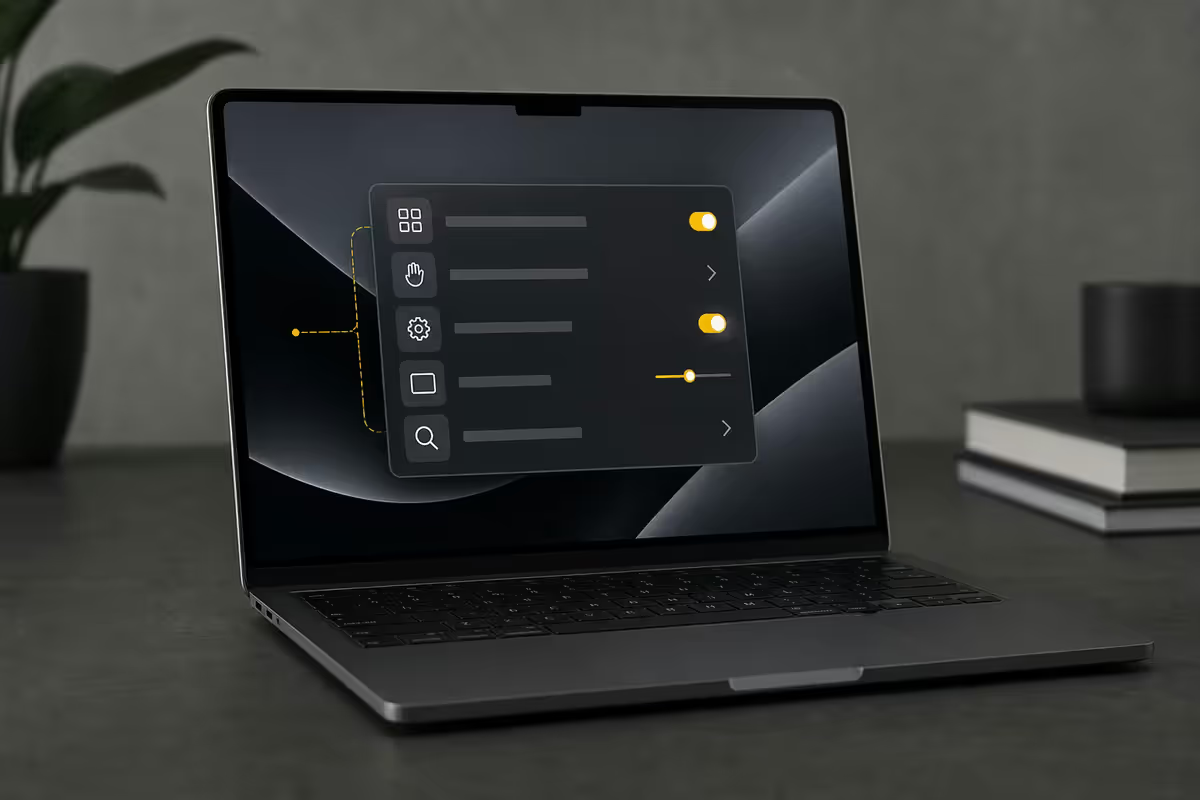
01. Spotlight as calculator & currency converter
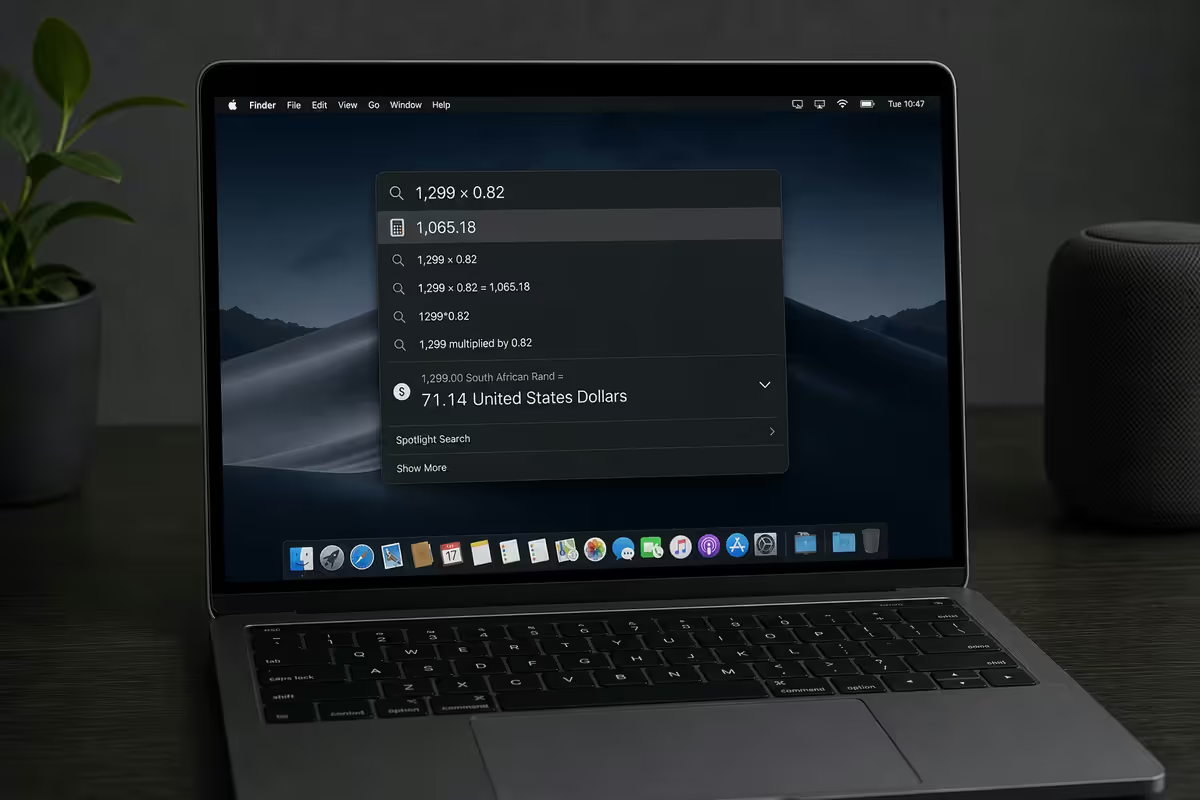
Hit ⌘ Space. Type 1500 * 0.85 — answer appears instantly without opening Calculator. Type 1500 USD in ZAR — live exchange rate conversion. Type 8 metres in feet, 250 grams in ounces, 40 km in miles — all instant. Copy the result with ⌘ C.
Once it's muscle memory you'll use Spotlight 20+ times a day for this alone. Quick conversions during invoicing, recipe conversions, unit checks for engineering — all without leaving what you were doing.
| Type in Spotlight | What happens |
|---|---|
| 1500 USD in ZAR | Live currency conversion |
| 25 * 1.15 | VAT-included calculator |
| 40 km in miles | Unit conversion |
| 250 grams in oz | Mass conversion |
| Weather Cape Town | Quick forecast |
| Time in London | World clock |
| def serendipity | Built-in dictionary |
02. Quick Look — the spacebar superpower
Click any file in Finder. Press Spacebar. Preview opens instantly. Press spacebar again to close. Arrow keys navigate file to file.
Quick Look works on essentially every file type macOS knows about: images, PDFs, Word, Excel, Pages, Numbers, Keynote, video, audio, ZIP files (shows contents without extracting), DMG files (shows install volume contents), 3D models (.usdz, .stl), Markdown, JSON, plain text, code files. Most users have used it on photos and never realised it works on ZIPs and DMGs too.
03. Screenshots & annotation
macOS's screenshot system is layered. Most people only know Shift-⌘-3 (full screen) and stop there. The real powerhouse is Shift-⌘-5 — opens a floating toolbar with every screenshot mode, plus screen recording.
| Shortcut | Action |
|---|---|
| ⇧ ⌘ 3 | Full screen → file on Desktop |
| ⇧ ⌘ 4 | Drag-select area → file |
| ⇧ ⌘ 4 then Space | Click a window to capture it cleanly |
| ⇧ ⌘ 5 | Full screenshot menu + screen recording |
| Add Control to any of above | Copy to clipboard instead of saving file |
After every screenshot, a thumbnail appears in the bottom-right of the screen for a few seconds. Click that thumbnail — it opens the annotation editor with drawing, highlight, text, shape and signature tools. Faster than opening Preview. Tap "Done" to save your annotated version straight to where the screenshot was destined.
04. Live Text — copy text out of any image
This is the macOS feature that changes workflow the moment you discover it. Take any screenshot, or open any image (photo, PDF scan, web image), and hover over the text in the image. The cursor changes to a text-select beam. Highlight the text exactly as you would in a document. Copy it. Paste it as real text into Mail, Notes, anywhere.
Live Text recognises typed text, decent-quality handwriting, and even some signs at angles. It also detects phone numbers (click to call from iPhone), emails (click to compose), addresses (click to open Maps), and URLs (click to open in Safari). Translation is built into the right-click menu.
Real SA use cases: grabbing reference numbers from invoice PDFs, copying serial numbers from product photos, extracting flight booking details from screenshot confirmations, pulling addresses out of property listings.
05. Stage Manager — love it or leave it
Stage Manager groups your open apps into "stages" on the left edge of the screen. Click a stage to switch. Active app fills the centre; the others wait at the side. Honest take: it's not for everyone — most heavy users prefer Mission Control + Spaces — but for focused work with clear context separation (writing in one stage, comms in another, design in a third), Stage Manager is genuinely productive.
Turn it on: Control Centre (top-right menu bar icon) → Stage Manager. Try it for two weeks before deciding. If you find yourself clicking back to Mission Control regularly, turn it off — it's not for you.
06. Hot Corners — instant actions at every edge
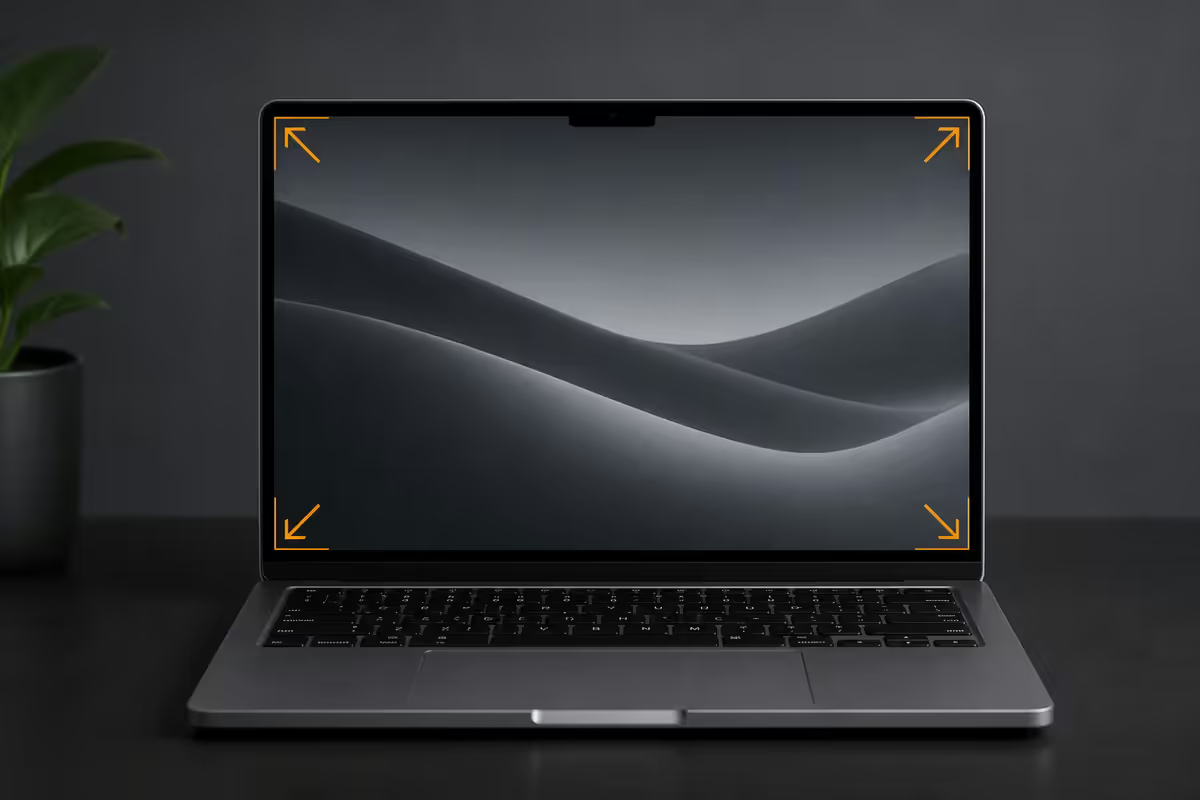
Hot Corners let you trigger an action by moving the cursor to a corner of the screen. Set them up at System Settings → Desktop & Dock → Hot Corners.
Recommended setup:
- Top-right: Lock Screen — instant security when stepping away.
- Top-left: Mission Control — quick overview of all windows.
- Bottom-right: Notification Centre — calendar + widgets glance.
- Bottom-left: Launchpad — app launcher.
Tip to avoid accidents: hold modifier keys (⌘ or ⌥) while assigning each corner — the corner only triggers if the modifier is held. Prevents the cursor accidentally locking your screen mid-presentation.
07. Continuity — Mac + iPhone + iPad as one
Continuity is Apple's umbrella for cross-device features. They all work automatically when devices are on the same Apple ID + Wi-Fi + Bluetooth.
- Continuity · 01
Universal Clipboard
Copy on one device, paste on another within 30 seconds. Works for text, images and small files. The fastest way to move a URL from iPhone to Mac. Shortcut: ⌘ C on Mac · ⌘ V on iPad. - Continuity · 02
Handoff
Start composing an email on iPhone, finish on Mac without re-typing. Works for Safari tabs, Notes, Reminders, Pages, Numbers, Maps. Watch the Dock for the handoff icon. - Continuity · 03
AirDrop
Instant file transfer between Apple devices in range. Far faster than emailing yourself a file. Works for photos, documents, contacts, links. Access via Finder → AirDrop, or Share menu. - Continuity · 04
Sidecar & Universal Control
Use iPad as a second Mac display (Sidecar), or use Mac keyboard/trackpad across Mac + iPad simultaneously (Universal Control). Real productivity unlock for designers and writers. Set up in System Settings → Displays. - Continuity · 05
Continuity Camera
Use iPhone as Mac webcam — far better quality than any built-in Mac camera, including the M4 MBP. Stick the iPhone behind the Mac with the Belkin mount. Video apps auto-detect iPhone. - Continuity · 06
Auto Unlock with Apple Watch
Mac unlocks automatically when wearing an authenticated Apple Watch. Approves password prompts and Touch ID requests with a tap on the Watch. Set up in System Settings → Touch ID & Password.
08. Mission Control gestures & Spaces
Mission Control shows all open windows across all Spaces (virtual desktops) in one zoomed-out view. Three-finger swipe up on a trackpad, or Control-↑, or top-left hot corner.
Spaces (multiple virtual desktops): drag a window to the top of Mission Control to create a new Space. Swipe three fingers left/right to jump between Spaces (or Control-→ / Control-←). For a clean workflow, dedicate Spaces to specific contexts — Space 1 for browsers + comms, Space 2 for editing, Space 3 for design.
App Exposé: three-finger swipe down (or Control-↓) shows all windows of the currently focused app — useful when Mail has six windows open across Spaces.
09. iCloud Keychain passwords (free 1Password alternative)
macOS's built-in password manager is genuinely good in 2026. Syncs across iPhone, iPad and Mac via iCloud. Autofills in Safari and any app that uses the system password autofill API (which is most). Suggests strong passwords, alerts you to leaked credentials.
Where to find it: the Passwords app (macOS Sequoia and later — previously buried in System Settings). Browse, search, edit, share securely with family.
When to still use 1Password / Bitwarden: if you need cross-platform sync to Windows or Android, vault sharing with team members, complex secrets like API keys, or document storage. For pure Apple-ecosystem use, the built-in Passwords app covers 90% of needs.
10. Disk Utility — erase, format, repair
Buried in Applications → Utilities, Disk Utility is the Mac's first-aid kit for storage. Three things you'll actually use it for:
- Format a USB drive: select drive, Erase, choose format (ExFAT for cross-platform with Windows; APFS for Mac-only). Done in 10 seconds.
- First Aid: select drive, click First Aid. Repairs file system errors, fixes hangs caused by corrupted volume headers. The free fix for many "this drive is read-only" or "won't mount" errors.
- Create a disk image (.dmg): File → New Image → Image from Folder. Bundle a project folder into a single compressed image for archive or transfer.
11. Apple Intelligence — the prompts worth memorising
Apple Intelligence requires an M1 or newer Mac (any Apple Silicon) and macOS Sequoia or later. Enable it under System Settings → Apple Intelligence & Siri → Get Apple Intelligence. Once on, it's woven into Writing Tools, Mail, Messages, Notifications and Siri.
Daily killer features:
- Writing Tools — Rewrite: right-click any draft text → Writing Tools → Rewrite as Professional / Concise / Friendly. The single feature most users will use multiple times a day.
- Writing Tools — Summarise: for long emails, articles, or pasted text blocks. Get a bullet-point or paragraph summary.
- Writing Tools — Proofread: grammar + clarity pass on any draft. Not as aggressive as Grammarly; sometimes better for that reason.
- Mail — Priority Notifications: macOS surfaces important emails at the top of your inbox automatically. Suppresses newsletters and bulk mail.
- Image Playground: generate quick illustrations from a prompt for personal use.
- Smart Replies: Mail and Messages suggest contextual short replies based on the actual content.
12. Terminal — fun, useful and occasionally life-saving
Open Terminal (Applications → Utilities → Terminal, or Spotlight "Terminal"). A few commands that genuinely earn the icon space:
| Command | What it does |
|---|---|
| say hello world | Mac speaks the text aloud (great for kids) |
| say -v ? | grep en | List all English voices available |
| caffeinate -d | Keeps Mac awake (no screen sleep) |
| top -o cpu | Live process monitor sorted by CPU |
| du -sh ~/Downloads | Total size of a folder |
| defaults write com.apple.dock autohide-delay -float 0; killall Dock | Make the Dock auto-hide instantly |
| screencapture -i ~/Desktop/cap.png | Same as Shift-Cmd-4 but scriptable |
Key takeaways
- Spotlight (Cmd-Space) — calculator, currency, units, dictionary. The single most underused power tool.
- Quick Look (Spacebar) on any file — works on ZIPs, DMGs, 3D models, code, almost everything.
- Shift-Cmd-5 opens the full screenshot menu, including screen recording and annotation.
- Live Text — copy text out of any image or screenshot. Workflow-changing once you discover it.
- Apple Intelligence Writing Tools — right-click any draft text for instant Rewrite, Summarise, Proofread.
Frequently asked questions
What's the most underused feature in macOS?
Spotlight as a calculator and currency converter — Cmd-Space and type "1500 USD in ZAR" or "25 * 1.15". Quick Look (spacebar on any file) is a close second.How do I take a screenshot of just part of the screen?
Shift-Cmd-4 to drag-select. Add Control to copy to clipboard. Shift-Cmd-5 opens the full menu with recording, window capture and timer options.What is Stage Manager and should I use it?
Stage Manager groups your apps into stages for focused work. Useful for context-switching workflows. Try for two weeks; honest split between users who love it and ones who go back to Mission Control.What is Continuity and how does it work?
Apple's umbrella for cross-device features: Handoff, AirDrop, Universal Clipboard, Sidecar, Universal Control, Continuity Camera. Same Apple ID + same Wi-Fi/Bluetooth network.How do I extract text from a screenshot?
Live Text. Hover over text in any image — cursor changes to text-select. Highlight, copy, translate. Works in Preview, Photos, Quick Look, and most image apps.What are Hot Corners?
Move cursor to a screen corner to trigger an action — Lock Screen, Mission Control, Notification Centre, etc. Set in System Settings → Desktop & Dock → Hot Corners.What does Quick Look (spacebar) work on?
Almost every file type — images, PDFs, Office docs, Pages/Numbers/Keynote, video, audio, ZIPs (shows contents), DMGs, 3D models, code, JSON.How do I use Apple Intelligence on a Mac in 2026?
M1 or newer Mac, macOS Sequoia or later. Enable in System Settings → Apple Intelligence & Siri. Writing Tools (Rewrite/Summarise/Proofread) via right-click is the daily killer feature.
Get the Evetech app
Exclusive app-only prices, daily flash sales, and free delivery on orders over R4,000 — download the app and start saving.